
The Coupons screen lists codes, but not which ones expire next month or have hit their usage limit. Export them: in Import Export by RockStarLab, select WooCommerce Coupons, choose the coupon fields and run a CSV export with headers. date_expires, usage_count and usage_limit put expiry and usage next to each code. Choose XLSX for an Excel workbook.
Below are the steps in the dashboard and with an AI agent, and how to read blank expiry dates, unlimited usage and the different discount types in the spreadsheet.
What you need: WooCommerce, existing coupons, and Import Export by RockStarLab with the PRO add-on active for WooCommerce coupon exports. Start with the installation guide if the plugin is not installed. You can review the Free and PRO feature comparison before setting up the export.
What a WooCommerce coupon export tells you
A coupon export is an inventory of discount rules and their current stored values. Each row represents a coupon, not an order or a redemption event. It is useful for reviewing old campaigns, checking upcoming expiry dates, finding unused codes, and handing a marketing team a list of available promotions.
It is not a date-based sales report. A coupon with a usage count of 12 does not tell you when those uses happened, which orders used it, or how much revenue it generated. For those questions, use WooCommerce Analytics or export the relevant WooCommerce orders. A coupon’s creation or modification date is not its redemption date.
1. Review the coupons you want to export
In WordPress, open Marketing → Coupons. Note the codes, discount types, usage limits and expiry dates you want to include. If coupons are not available, check that coupon use is enabled in WooCommerce settings.
The example below uses three sample campaign codes: one with a future expiry date, one with an earlier expiry date, and one without an expiry date. Their illustrative usage counts make the differences easier to see; they are not a sales-performance report.

| Coupon code | Discount type | Amount | Expiry date | Usage count | Total limit |
|---|---|---|---|---|---|
| orchard-welcome-10 | Percentage | 10 | 2026-12-31 | 7 | 100 |
| orchard-autumn-15 | Fixed cart | 15 | 2026-10-31 | 12 | 50 |
| orchard-evergreen-5 | Fixed product | 5 | No expiry | 0 | No cap |
Read the amount together with the discount type. A value of 10 means a 10% discount for a percentage coupon, while fixed discounts use the store currency. WooCommerce’s coupon management documentation explains the underlying discount rules and restrictions.
2. Select WooCommerce Coupons and apply an optional filter
Open Import Export by RockStarLab → Export, choose WooCommerce Coupons as the content type, and continue to the filters step.
Leave filters empty when you need all coupons. For a campaign-specific export, add a Coupon Code filter, select Contains, and enter a shared part of the code. In this example, orchard- selects the three sample coupons. Check the matching record count before continuing.
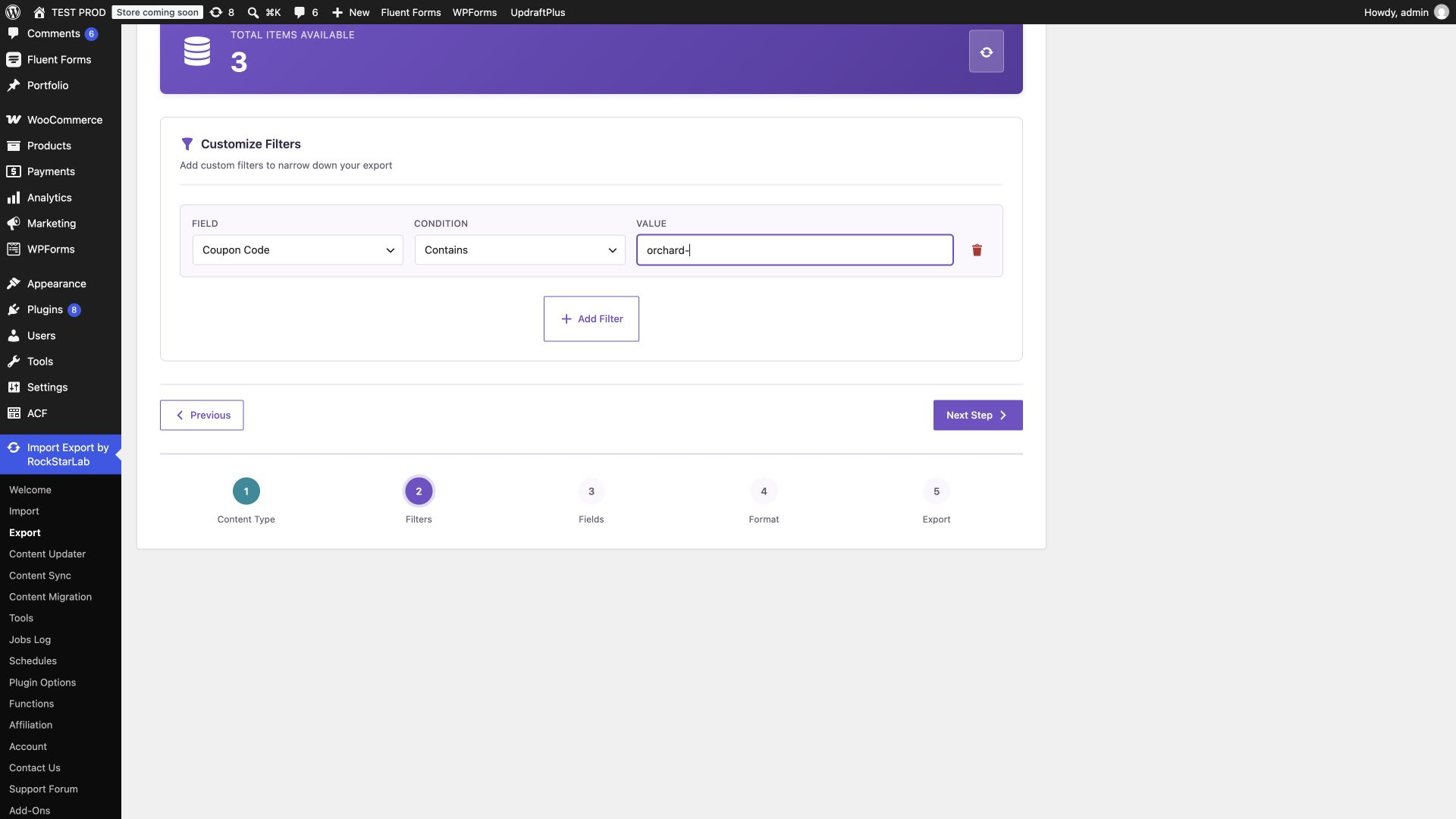
A code filter is convenient when your naming convention includes a campaign, partner or season. It only matches the code text; it does not determine whether a coupon is currently redeemable. For more ways to narrow a dataset, see our WordPress export filter examples.
3. Choose expiry dates, usage counts and the other export fields
On the fields step, add the columns you need. Use Add all for a complete coupon inventory, or keep a smaller selection for an audit spreadsheet. Arrange the fields in the order you want them to appear in the file.

| Field key | What it contains | Why include it? |
|---|---|---|
ID |
Coupon record ID | Trace a row back to its source record on this site. |
post_title |
Coupon code | Identify the promotion customers enter at checkout. |
discount_type |
percent, fixed_cart or fixed_product | Interpret the amount correctly. |
coupon_amount |
Numeric discount amount | Compare the configured discounts. |
date_expires |
Expiry date and time, or an empty value | Find dated promotions and codes with no expiry. |
usage_count |
Current stored usage count | Separate unused codes from previously used codes. |
usage_limit |
Total allowed uses; zero means no cap | Review remaining capacity for capped coupons. |
usage_limit_per_user |
Per-user limit; zero means no cap for this setting | Check whether repeat use is restricted. |
minimum_amount |
Minimum spend setting | Understand why a coupon might not apply to a smaller basket. |
These nine columns are a practical starting point. Add status, product restrictions, excluded products, category restrictions, maximum spend, individual-use and sale-item settings when you need a fuller eligibility audit. Include only the customer-related columns your recipient needs: allowed email addresses and usage-related identifiers can contain customer information.
Keep ID and code separate. The ID identifies the WordPress record on the source site. The code identifies the promotion. Do not assume an ID points to the same coupon on another website.
4. Export to CSV or Excel
Choose CSV on the format step. Keep the header row enabled, select the delimiter your spreadsheet expects, and enter a recognizable filename. For example, woocommerce-coupon-audit-{job_id} makes repeated downloads easier to distinguish. Let the exporter add the file extension.

For Excel, choose XLSX instead and keep spreadsheet headers enabled. CSV is useful for other tools and plain-text inspection; XLSX avoids the delimiter-selection step when opening the file in Excel. Either format can contain the same coupon fields.
Start the export, wait for completion, and download the file. Check the exported record count against your intended selection. You can also return to Jobs Log to find the export later.

5. Open the file and check the important values
In Excel, import the CSV through Data → From Text/CSV if opening it directly puts everything into one column. Select the delimiter used during export. Treat coupon codes as text, especially if a code contains leading zeros or resembles a date. In Google Sheets, use the file import dialog and review automatic text-to-number conversion before importing.
Start with a few rows you can recognize in Marketing → Coupons. Compare the code, amount, expiry, count and limits. The sample data produces values like these:
post_title,discount_type,coupon_amount,date_expires,usage_count,usage_limit
orchard-welcome-10,percent,10,2026-12-31 00:00:00,7,100
orchard-autumn-15,fixed_cart,15,2026-10-31 00:00:00,12,50
orchard-evergreen-5,fixed_product,5,,0,0
This is a shortened illustration of the audit columns. Your file contains the full selection you chose in the fields step.
Read blank expiry dates and zero values correctly
- Empty date_expires: no expiry date is set. Keep it blank instead of replacing it with today’s date or zero.
- usage_count = 0: the coupon has no recorded uses in this field.
- usage_limit = 0: no total usage cap is configured. It does not mean the coupon is exhausted.
- usage_limit_per_user = 0: no cap is set by this particular restriction.
- Published status: the record is published, but expiry, usage limits and restrictions can still prevent checkout from accepting it.
The exported expiry values use a readable date-time format. Keep the store’s time settings in mind when comparing dates. Do not assume a displayed expiry date means the coupon remains usable until the end of that day.
Turn the export into a useful coupon audit
Find promotions with expiry dates coming up
Filter the expiry column in your spreadsheet for the period you want to review. Keep blank values in a separate group so coupons with no expiry are not accidentally treated as old dates. If you share the report, include the export date in the filename or worksheet notes: the file is a snapshot, and usage may change afterward.
Find unused codes without confusing them with failed campaigns
Filter usage_count to zero, then consider expiry, restrictions and when the coupon was made available. A new code, an intentionally private partner code and an expired campaign can all have zero uses for different reasons. The export helps you build a review list; it does not explain campaign performance by itself.
Calculate remaining uses for capped coupons
For a positive total limit, subtract the usage count from that limit. The sample welcome coupon has 100 − 7 = 93 uses remaining under its total cap. If the limit is zero, label it No total cap instead of subtracting the usage count from zero.
For the six-column example above, where E is usage count and F is the total limit, an Excel formula is:
=IF(F2=0,"No total cap",MAX(0,F2-E2))Adjust the column references to your own export. This calculation covers only the total cap. It does not override the expiry date, per-user limits or product restrictions.
Review restrictions before changing a coupon
If a code appears available but shoppers cannot apply it, review its minimum spend, product and category restrictions, sale-item exclusions and individual-use setting. Exporting those fields together is more useful than looking at usage count alone.
Do not estimate campaign revenue by multiplying usage count by coupon amount. Percentage discounts depend on the eligible basket, fixed-product discounts depend on eligible items, and order-level circumstances matter. Use order reporting for financial analysis and refund exports when your review also needs refunded transactions.
Export WooCommerce coupons with an AI agent
If you prefer describing the report instead of configuring each export step, connect an AI agent to WordPress through MCP. Import Export by RockStarLab exposes abilities that the agent can discover and call. The WooCommerce coupon export still requires the appropriate PRO support on that site.
Use our Abilities API and AI agents guide for the workflow, or follow the setup instructions for Claude Code or Codex.
Prompt 1: inspect the available coupon fields
On the connected WooCommerce site, discover the Import Export by RockStarLab abilities and inspect their input schemas. Check support for exporting WooCommerce coupons. Show the available fields for coupon code, discount type, amount, expiry date, usage count, total usage limit, per-user usage limit and minimum spend. Preview coupons whose codes contain orchard-. Do not create, edit or delete coupons.
Replace orchard- with your campaign prefix, or ask for all coupons. Having the agent inspect the schema first prevents it from inventing field names or unsupported filter parameters.
Prompt 2: create the CSV or Excel export
Export the coupon selection we just reviewed to XLSX with a header row. Include ID, post_title, discount_type, coupon_amount, date_expires, usage_count, usage_limit, usage_limit_per_user and minimum_amount. Use the filename woocommerce-coupon-audit-agent. Start the export using the supported ability, wait until it finishes, and return the download link and exported record count. Do not change any coupon data or settings.
Change XLSX to CSV if that is the format you need. The relevant PRO export abilities include rsl-ie-pro/export-preview and rsl-ie-pro/export-start; the agent should use their current schemas and the available job-status tools rather than assume a fixed request structure.
Prompt 3: explain the audit without changing the store
Review the exported file and summarize coupons with expiry dates, coupons without expiry dates, unused coupons, and coupons close to a positive total usage limit. Treat a zero total usage limit as unlimited. Do not interpret usage_count as a date-range revenue report. Flag anything that needs a human decision, and do not update the store.
The agent’s download should contain the same selected fields and coupon values as a dashboard export. Before using the report, check a few recognizable rows against the coupon editor, just as you would for any exported spreadsheet.
Repeat the audit or move on to an import
For recurring reviews, see how to schedule repeated exports. Reuse a consistent field selection so separate reports are easy to compare, and include a date or job identifier in filenames to avoid confusing older snapshots with current data.
If your next task is creating or updating coupon codes from a spreadsheet, follow how to import WooCommerce coupons. Review duplicate matching and usage-count handling before importing a historical export. A coupon inventory is not automatically a safe update file for a live store.
For a broader store move involving products, customers and orders, use the WooCommerce content migration tutorial. Keep this coupon audit as a separate report when your immediate goal is reviewing promotions.
Frequently asked questions
Can I export WooCommerce coupons to CSV or Excel?
Yes. Select WooCommerce Coupons in Import Export by RockStarLab PRO, choose the fields, and select CSV or XLSX. Keep column headers enabled so coupon codes, expiry dates and usage counts are easy to identify.
Which field contains the coupon code?
The post_title field contains the coupon code. Include ID as well when you need to identify the original coupon record within the same WordPress site.
What does an empty coupon expiry date mean?
An empty date_expires value means that no expiry date is set. It does not prove the coupon is usable: usage limits, restrictions and its status still matter.
Does usage_count show redemptions for a selected date range?
No. It is the stored usage count on the coupon record. Use order data or WooCommerce Analytics for reporting about redemptions or revenue during a particular period.
Does a usage limit of zero mean the coupon has no uses left?
No. A zero usage_limit means no total usage cap is configured. Only calculate remaining uses by subtracting usage_count from a positive usage_limit. Other restrictions may still prevent a coupon from being used.
Can an AI agent export the same coupon fields?
Yes, with a connected WordPress MCP setup and the required PRO abilities available. Ask the agent to inspect the supported fields, export the selected coupons, wait for completion and return the file without changing coupon data.
Will exporting coupons change their usage counts?
No. Export reads the coupon data and creates a file. Editing a spreadsheet also does not change the store unless you subsequently run an import or another update.

Comments 0
Have a question or a tip to share? Leave it below.