
To export all WooCommerce product reviews, open Import Export by RockStarLab → Export, select WooCommerce Reviews, leave the filters empty and choose the fields you want in the file. You can download the reviews as CSV, XLSX, ODS, JSON or XML, including the review text, star rating, date, moderation status and product references.
A useful review export keeps the feedback attached to the right product. A column of comments alone is difficult to analyze or migrate. Include the review ID and a product identifier, then add the rating and status so you can distinguish an approved five-star review from a one-star review awaiting moderation.
This walkthrough uses a small demonstration dataset with six reviews across three products. It includes several ratings and one pending review, making it possible to check what each filter selects.
The interface screenshots in this guide use version 2.0 of Import Export by RockStarLab.
What to prepare before exporting product reviews
Use the WordPress site that holds the reviews. WooCommerce must be active, and the WooCommerce Reviews content type must be available in Import Export by RockStarLab. The installation used for this walkthrough has the PRO add-on enabled.
First decide whether you need an archive, a feedback report or a file for another system. An archive should preserve the original text and identifiers. A product feedback report may need only the product SKU, product title, review date, rating and text. A migration file needs enough product references to reconnect each review on the destination site.
Author Email is an available column, but it is not necessary for every report. Choose the fields the recipient actually needs. A report intended for public sharing should not casually include reviewers’ email addresses or internal metadata.
Step 1: Select WooCommerce Reviews
- Open Import Export by RockStarLab → Export.
- Search for reviews in the content type screen.
- Select WooCommerce Reviews.
- Click Next Step.
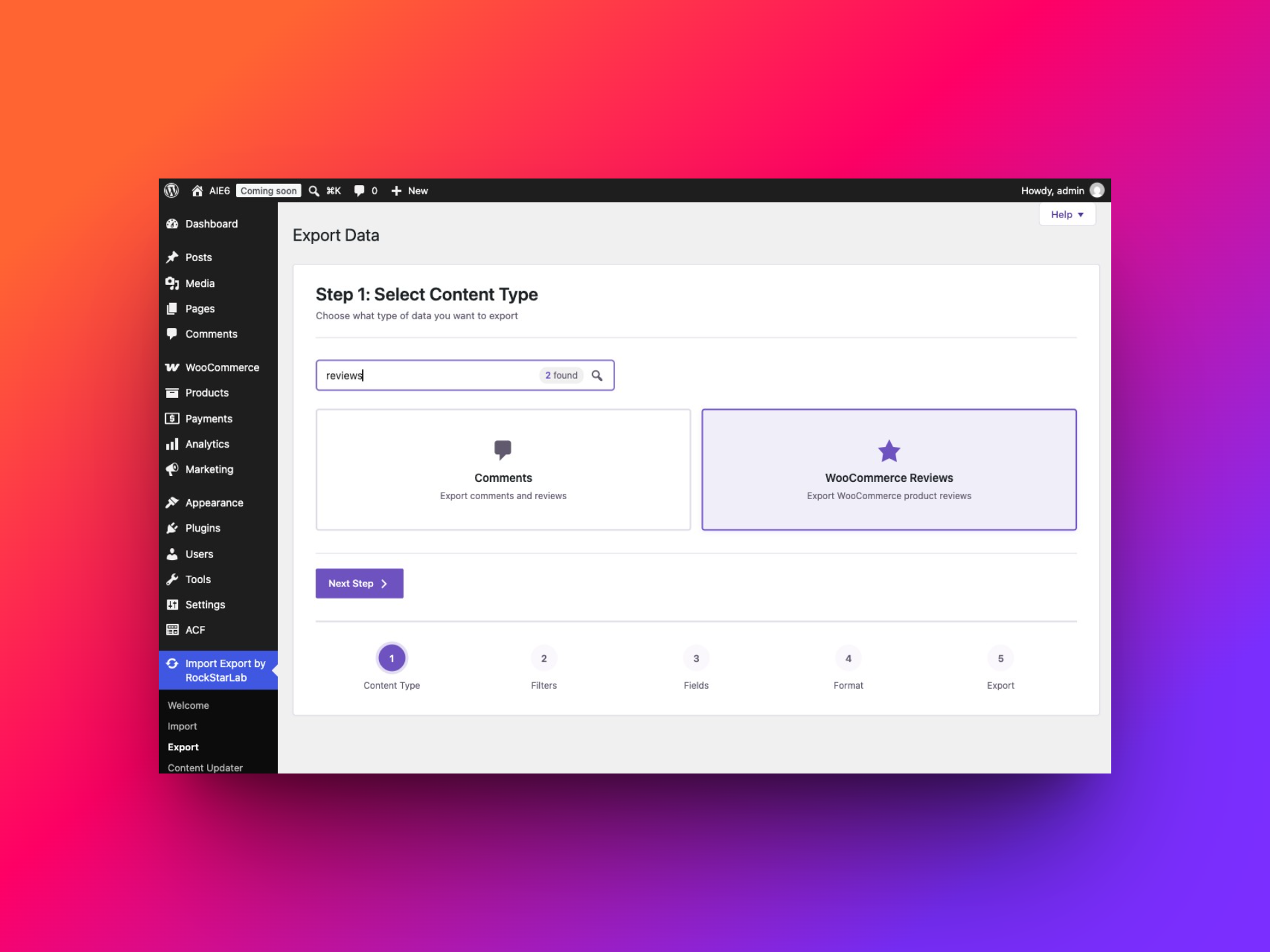
Use this content type for WooCommerce product reviews. The general Comments option serves a broader WordPress comment workflow. A product export is also a different operation: it is not a substitute for exporting the individual reviews attached to those products.
Step 2: Leave filters empty to export all reviews
In Step 2: Filter Data, leave Customize Filters empty for the complete review selection. Read the Total Items Available count before continuing. The refresh button beside it recalculates the count; allow the updated value to appear after a change.
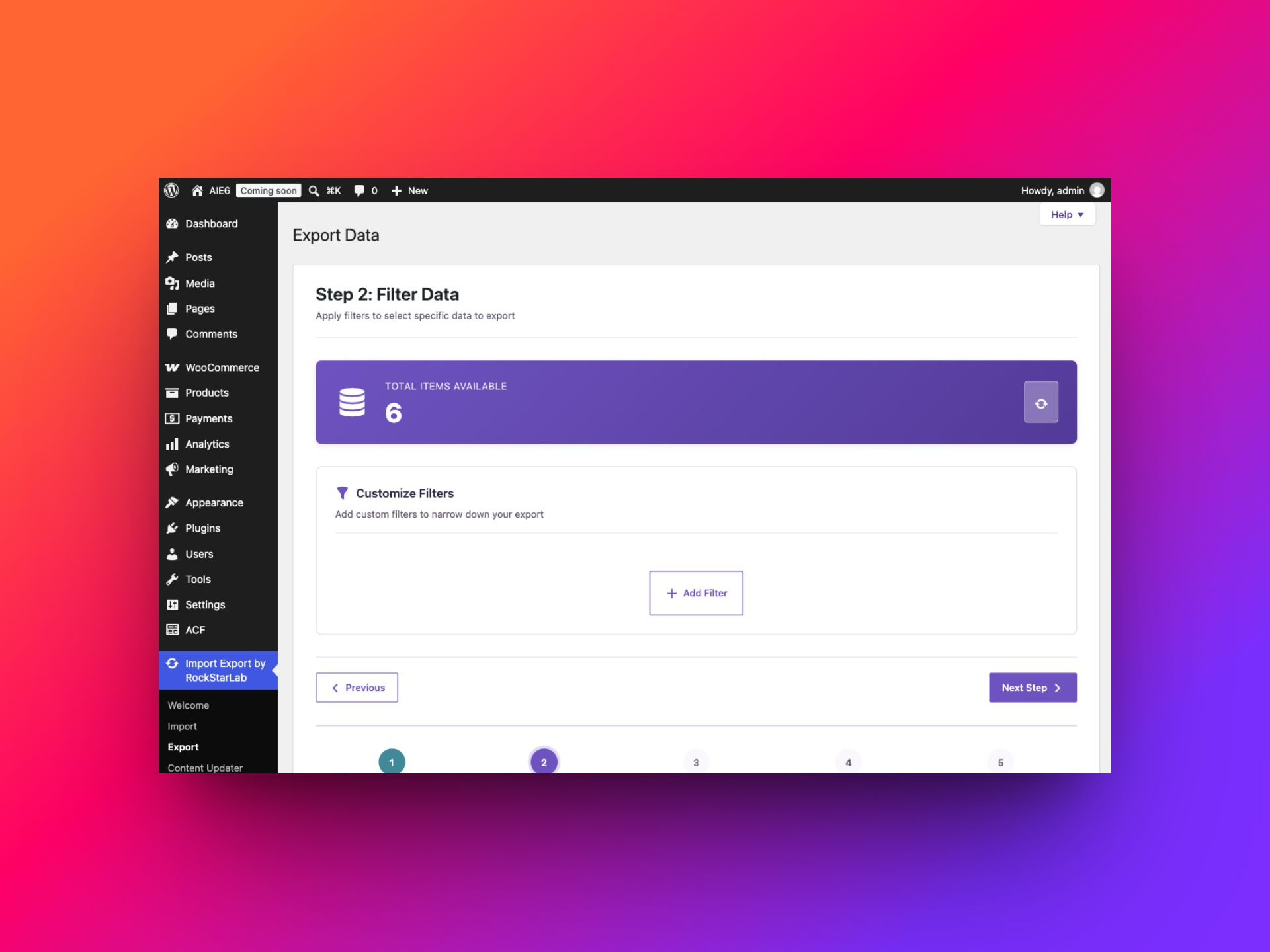
“All reviews” and “all approved reviews” are different requests. The unfiltered test export included both approved and pending records. If you are preparing a report of public feedback, explicitly select the approved status. For a complete archive, compare the result with the relevant status groups in WooCommerce; do not assume spam, trash or replies are included simply because no custom filter is visible.
Example 1: Export reviews with one or two stars
Click Add Filter, then choose Rating → Less or Equal → 2. This selects ratings up to two. In the test dataset it matched two reviews: one rated 1 and one rated 2.
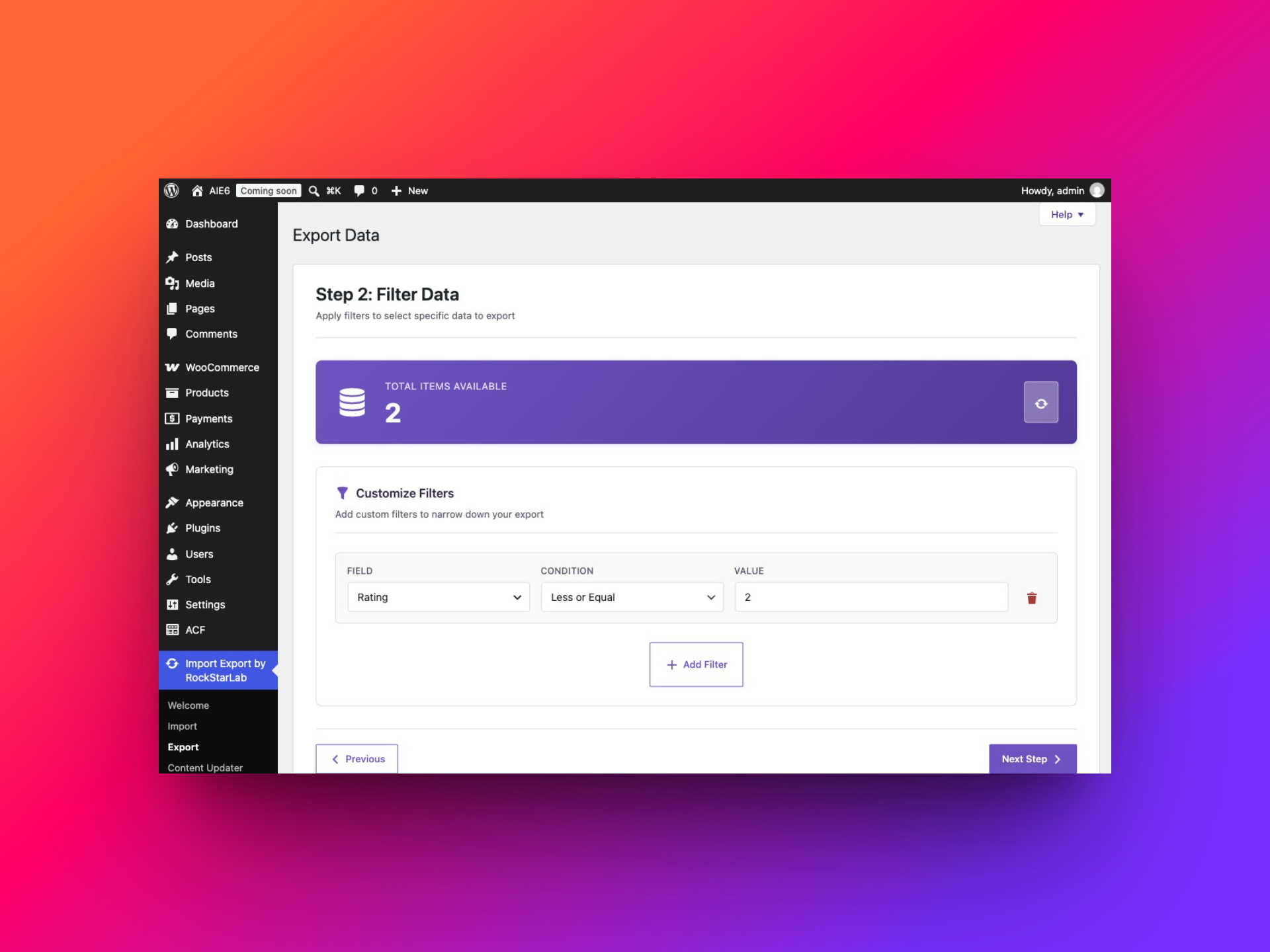
If the store contains unrated or zero-valued records and your report must contain only one- and two-star ratings, add Rating → Greater or Equal → 1 as the lower boundary. Do not interpret a missing rating as an unhappy customer.
Keep the product title, SKU, review date and content in this export. A low average rating does not explain the problem; the actual text may point to sizing, delivery, packaging or a product fault.
Example 2: Approved reviews rated four stars or higher
Use two filter rows:
- Status → Equals → 1
- Rating → Greater or Equal → 4
Here, 1 is the approved review status. The two conditions together selected three records in the demonstration data. For pending reviews, use Status → Equals → 0.
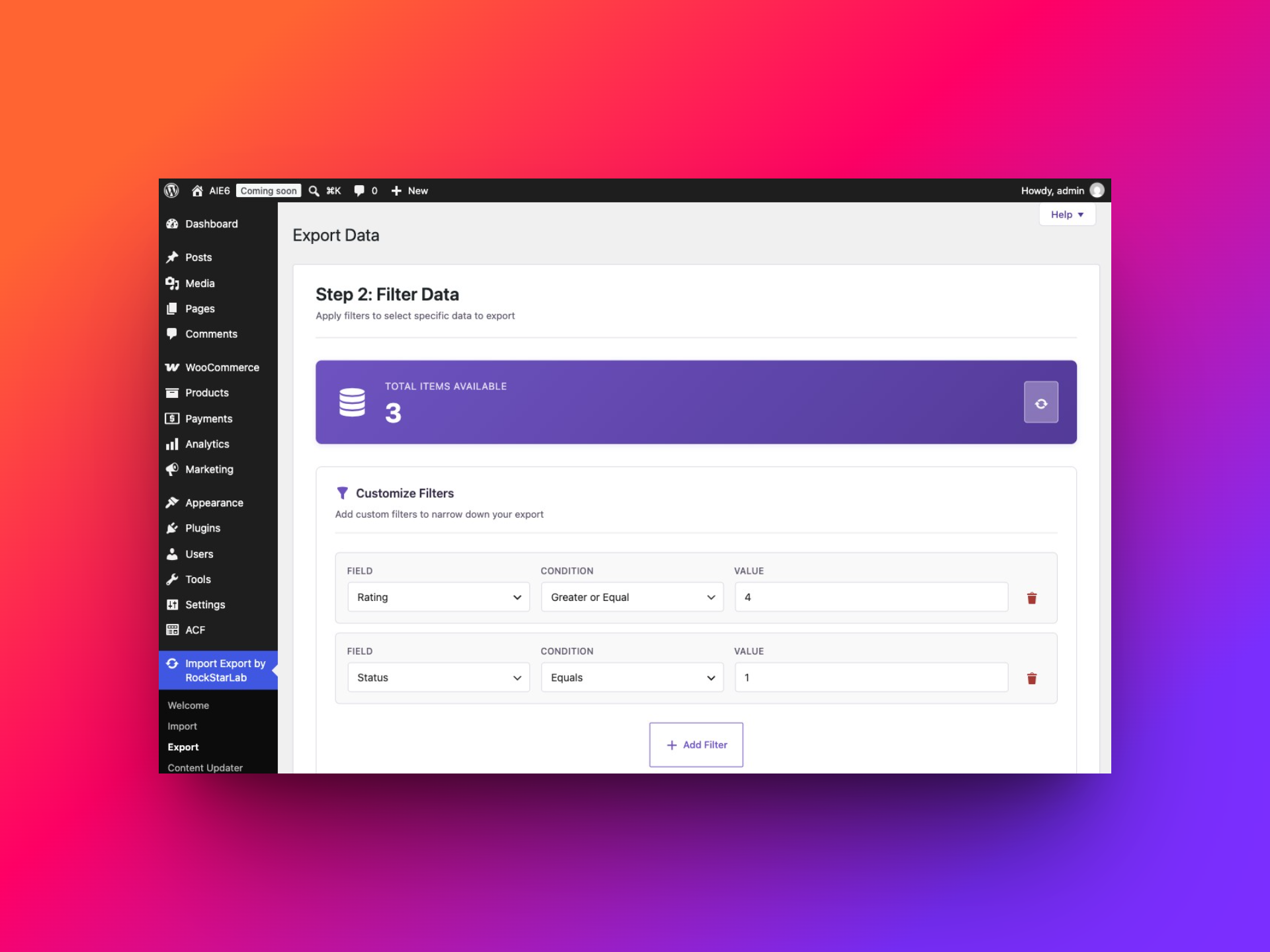
This is a useful reporting segment, but keep it separate from a complete feedback archive. A file deliberately limited to high ratings is not a representative export of all customer opinions.
Example 3: Find reviews mentioning a particular word
Select Content → Contains → soft. Two demonstration reviews mention soft fabric and match this condition. For another report, you could search for size, delivery or packaging, using words that appear in your own review text.
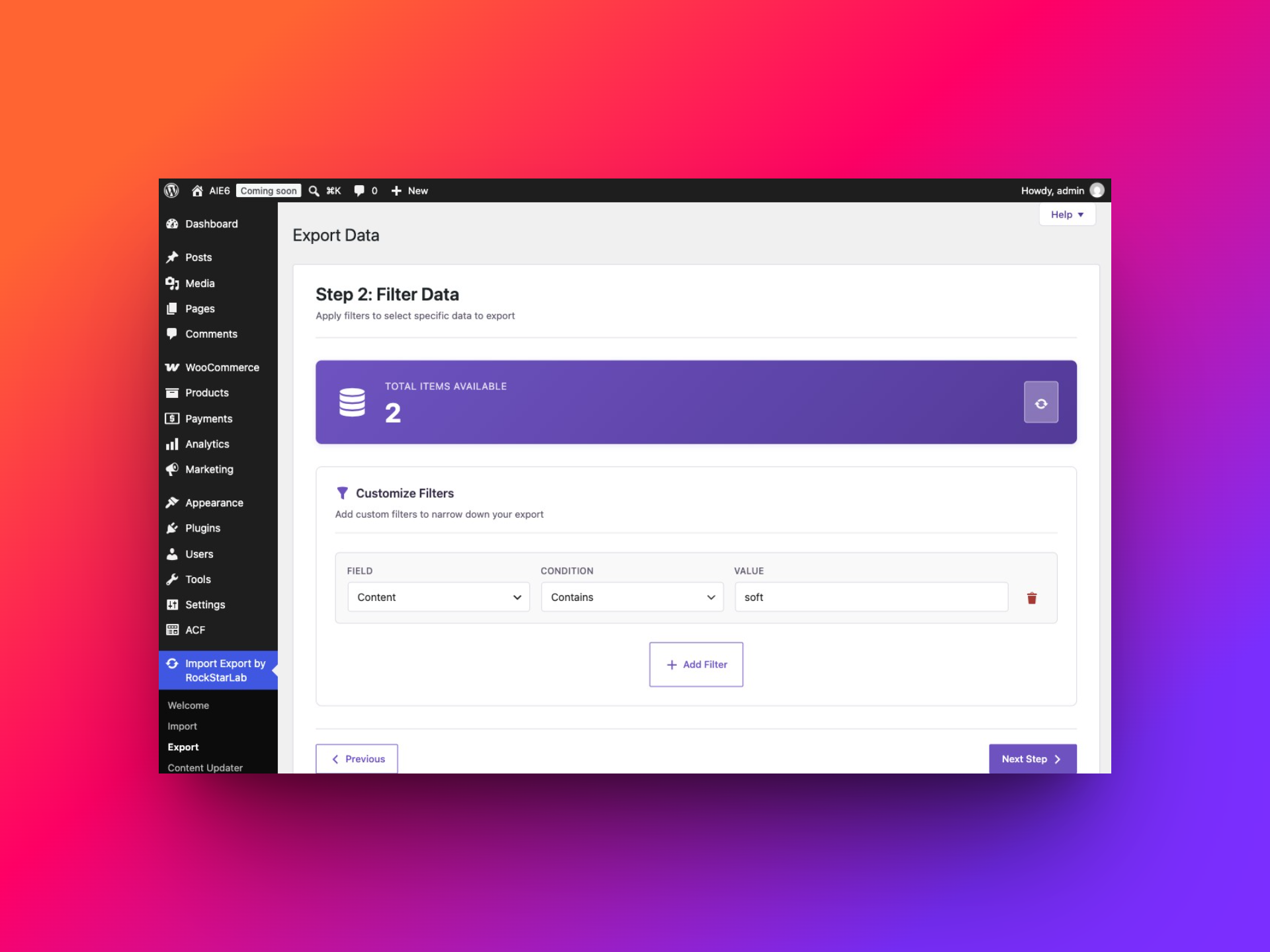
Contains is a text search, not sentiment analysis. A review saying “not soft” can still match “soft.” Read the results before assigning a business meaning to the count.
Example 4: Reviews from a reporting period
For an October 2026 review report, use Date → Greater or Equal → 2026-10-01 and Date → Less Than → 2026-11-01. This describes the creation-date window explicitly. Add a status or rating condition if the report needs a narrower segment.
For repeat reports, record the window used. A review written in September but approved in October does not become an October-created review. The Date field and moderation status answer different questions.
What about filtering by product SKU?
The interface lists Product SKU, Product Slug and Product ID among its filter fields. Before using a product filter for an important report, compare its result with a product that has known reviews and wait for the updated count.
A practical alternative is to export the reviews with Product SKU and Product Title, then filter the resulting spreadsheet. This also lets you group feedback across several products without creating a separate export for each one.
After experimenting, remove the filter rows if your final goal is to export every review. Click Next Step once the selection is correct.
Step 3: Select review fields and product references
The Select Fields screen separates Available Fields from the Export File Structure. Add the fields you need, or click Add all for the full available structure. Arrange the columns so the most useful information comes first.
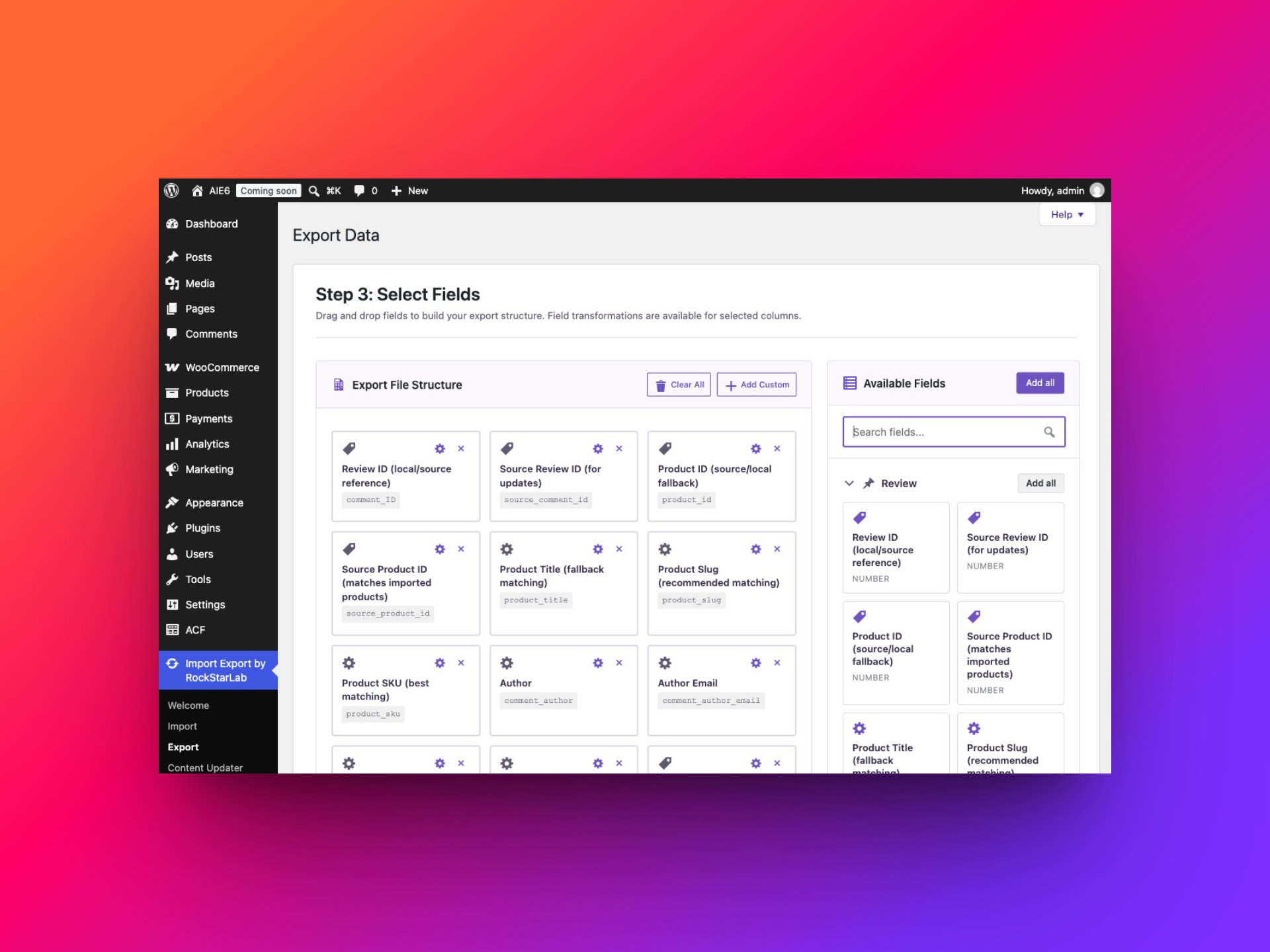
| Field | Why include it? |
|---|---|
| Review ID / Source Review ID | Identify a review, check uniqueness and retain its source identity for later updates. |
| Product ID / Source Product ID | Preserve the source product relationship. |
| Product Title | Make the file readable to someone reviewing feedback. |
| Product Slug / Product SKU | Provide product references useful when matching data between systems. |
| Author / Author Email | Retain reviewer information when the workflow requires it. |
| Content | Export the actual review text. |
| Status | Distinguish approved and pending feedback, using the stored status value. |
| Rating | Analyze the star rating separately from the text. |
| Verified Owner | Preserve the recorded verification value rather than inferring it from the rating or email. |
| Date | Group reviews by their recorded date. |
| Review Meta | Keep additional structured review information when needed. |
For a compact report, use Product SKU, Product Title, Date, Rating, Status and Content, plus Review ID for checks. For migration, keep the source review and product references as well. Product IDs can differ between sites, so an ID-only file may not be enough to reconnect reviews safely.
Review Meta can contain JSON-like structured data in a single spreadsheet cell. Do not split that cell into extra columns just because it contains commas. A CSV-aware application understands quoted fields.
Optional: Apply a transformation to an exported column
Open Assign transformations on a selected field. The Field Transformations panel lets you search the function library, assign functions, test a value and apply the resulting sequence. Multiple transformations run in their displayed order.
For a reporting copy of the Content field, Trim Whitespace is a restrained example. It removes spaces at the beginning and end while preserving the customer’s wording. Enter a sample such as Soft fabric and a comfortable fit. , click Test Pipeline and check that the output is Soft fabric and a comfortable fit..
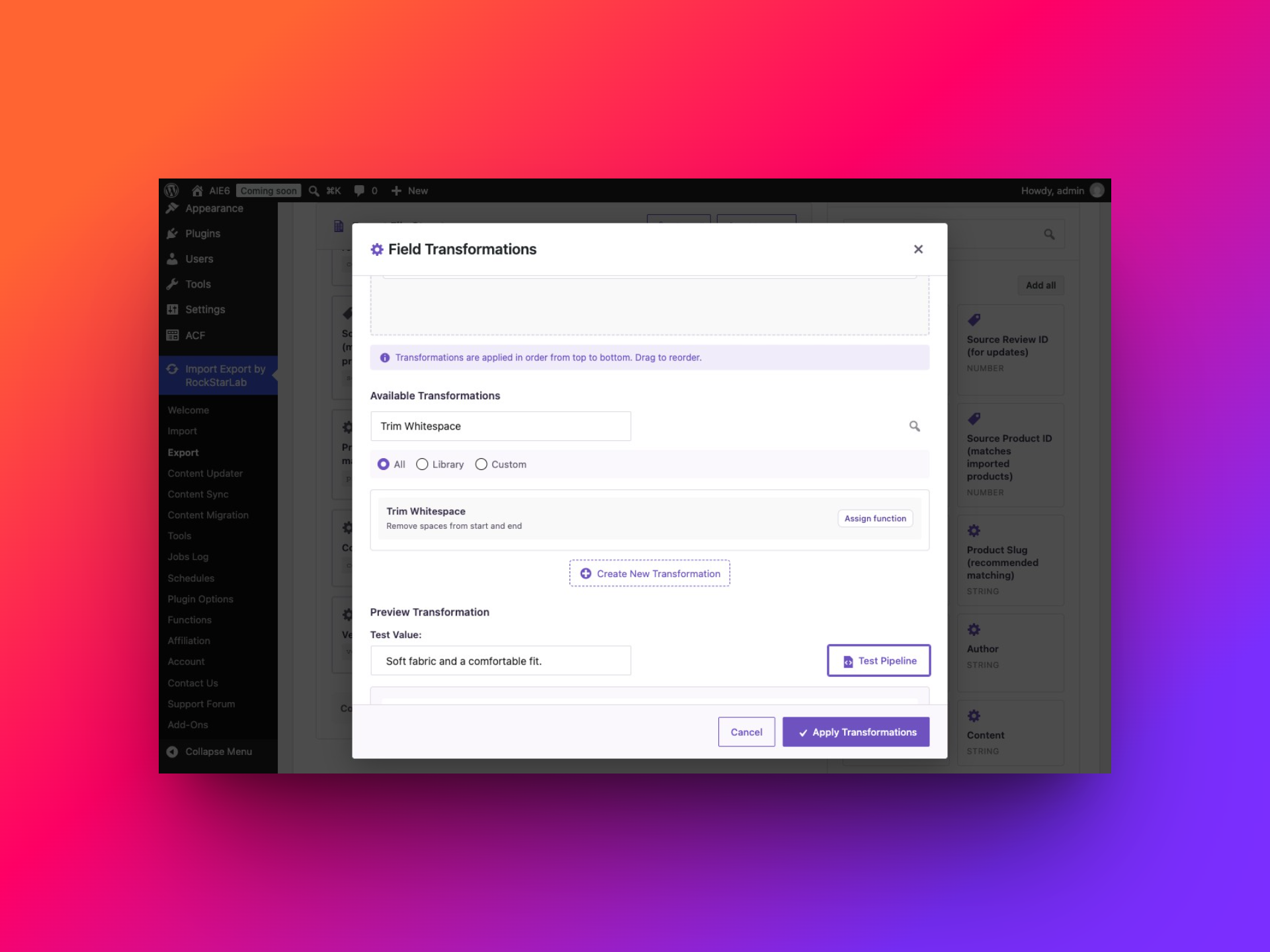
For analysis, another possible preparation is stripping HTML tags from a separate reporting copy. Keep the original content when the file will be used as an archive or for migration. Avoid functions that rewrite the opinion, truncate important context or change ratings.
The Functions area provides reusable transformation tools. The transformation functions guide explains the wider workflow. You can export reviews successfully without applying any transformation.
Step 4: Choose the export format and run the job
Choose CSV for a broadly compatible data file, XLSX for an Excel workbook or ODS for an OpenDocument spreadsheet. JSON and XML are also available when the receiving application requires them.
For CSV, keep the header row enabled and use the correct delimiter. Review text often contains commas and line breaks; proper CSV quoting handles those characters. Do not count raw text-file lines to determine how many reviews were exported.
Use a clear filename such as woocommerce-reviews-{job_id}, without an extension. The job placeholder helps distinguish files generated on different runs. Batch size controls processing in groups, not the number of reviews you ultimately want.
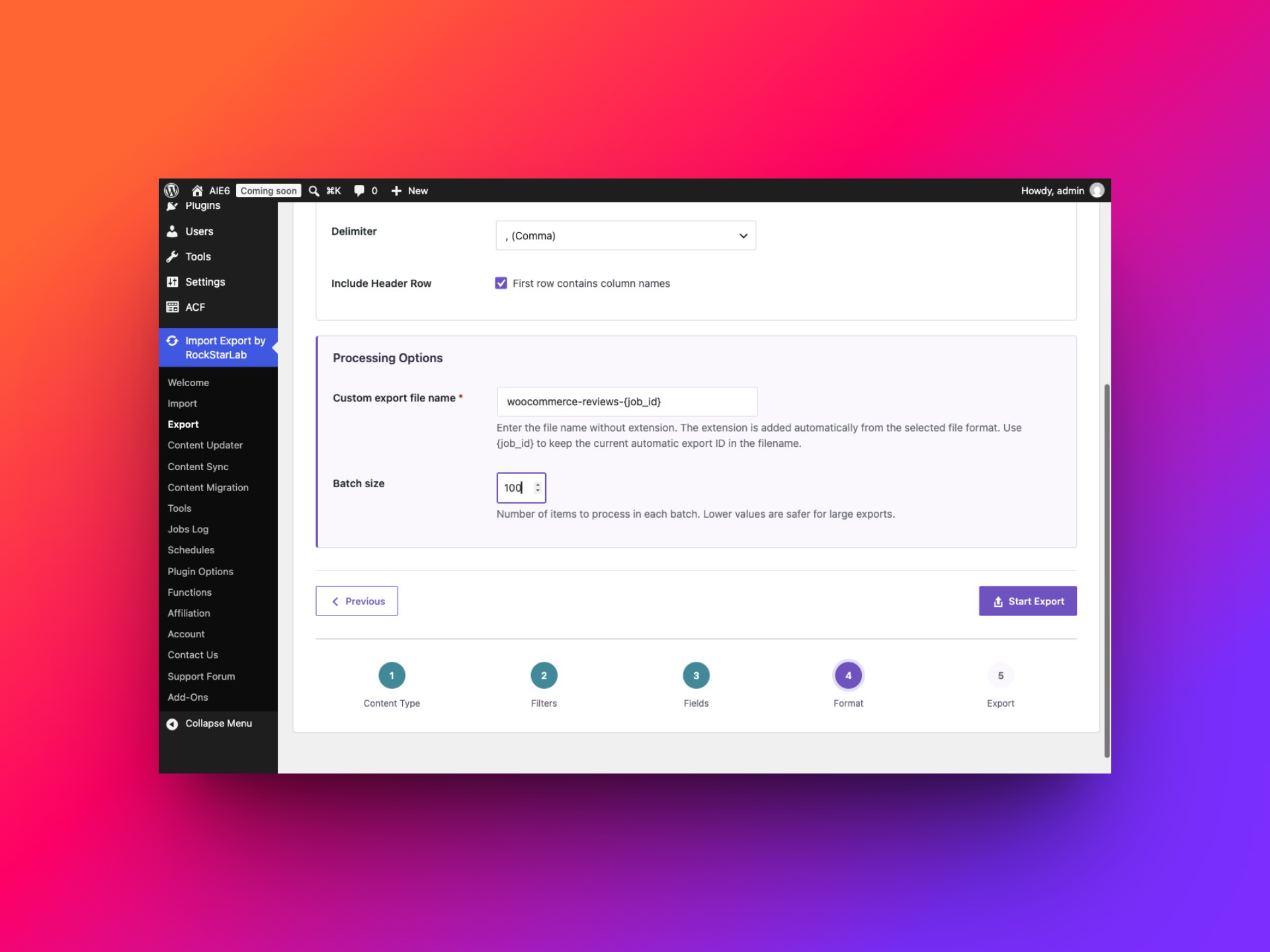
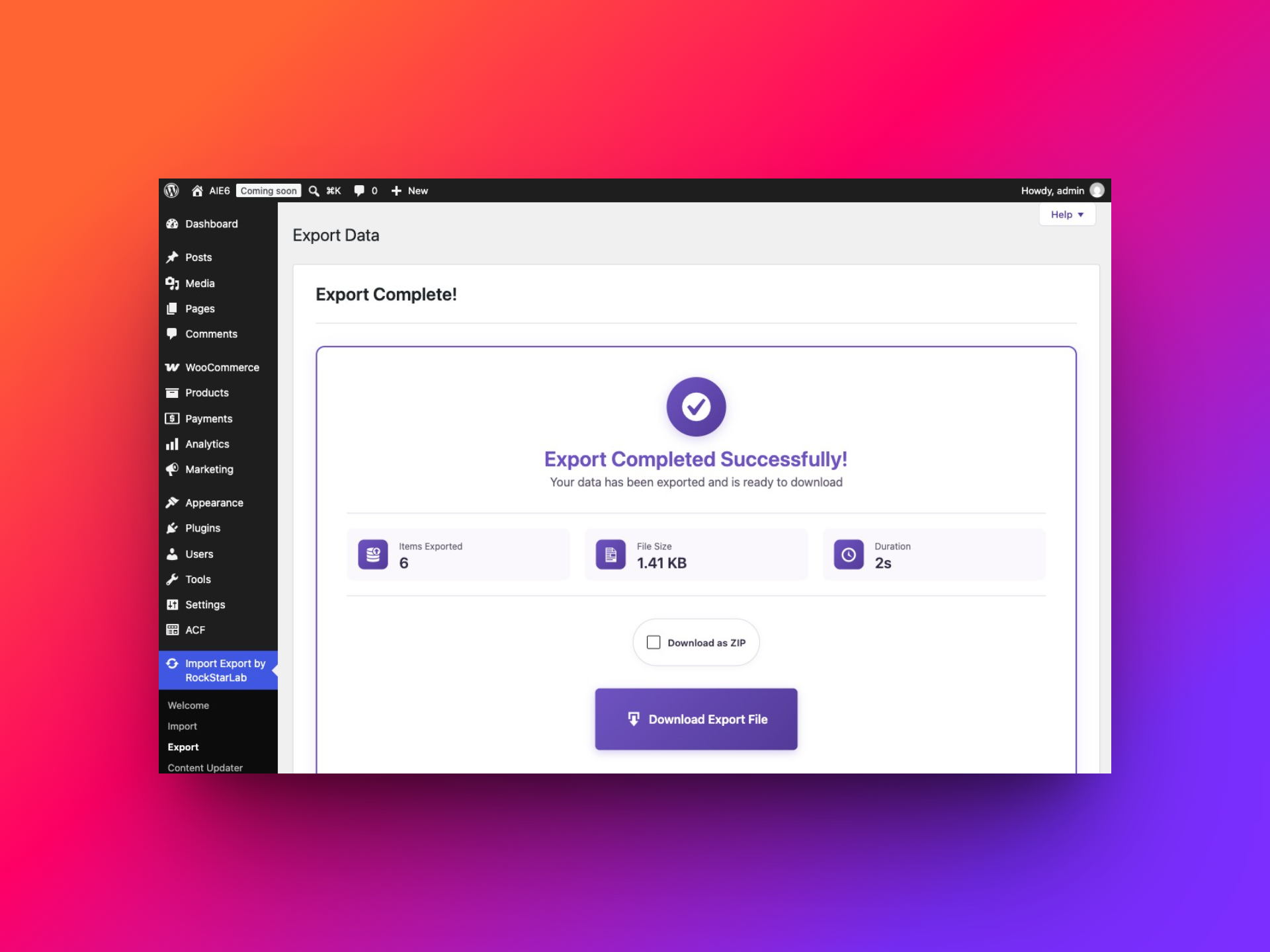
Click Start Export. When it completes, check the item count and click Download Export File. The completion screen also offers Download as ZIP.
Step 5: Check the exported reviews before using them
Open the file and compare a few rows with the reviews in WooCommerce. Check the text, rating, product SKU and moderation status together. A file that opens cleanly can still contain the wrong selection or product relationship.
- Count parsed data rows, excluding the header.
- Check that Review ID values are unique unless you intentionally assembled several exports.
- Confirm that the pending review has not been mistaken for approved feedback.
- Make sure commas, quotation marks and multiline text remain inside the appropriate cells.
- Compare the exported Product SKU with the expected product.
- Check that a missing verification value has not been converted into a positive verified-owner claim.
The unfiltered CSV used for this walkthrough contained six data rows and six unique review IDs. The export used a batch size of 100. Choose the batch size for your server rather than treating that example as a rule for every store. If IDs repeat unexpectedly, preserve the file and check the job details before using it for reporting or migration.
Use Jobs Log to find the review export later
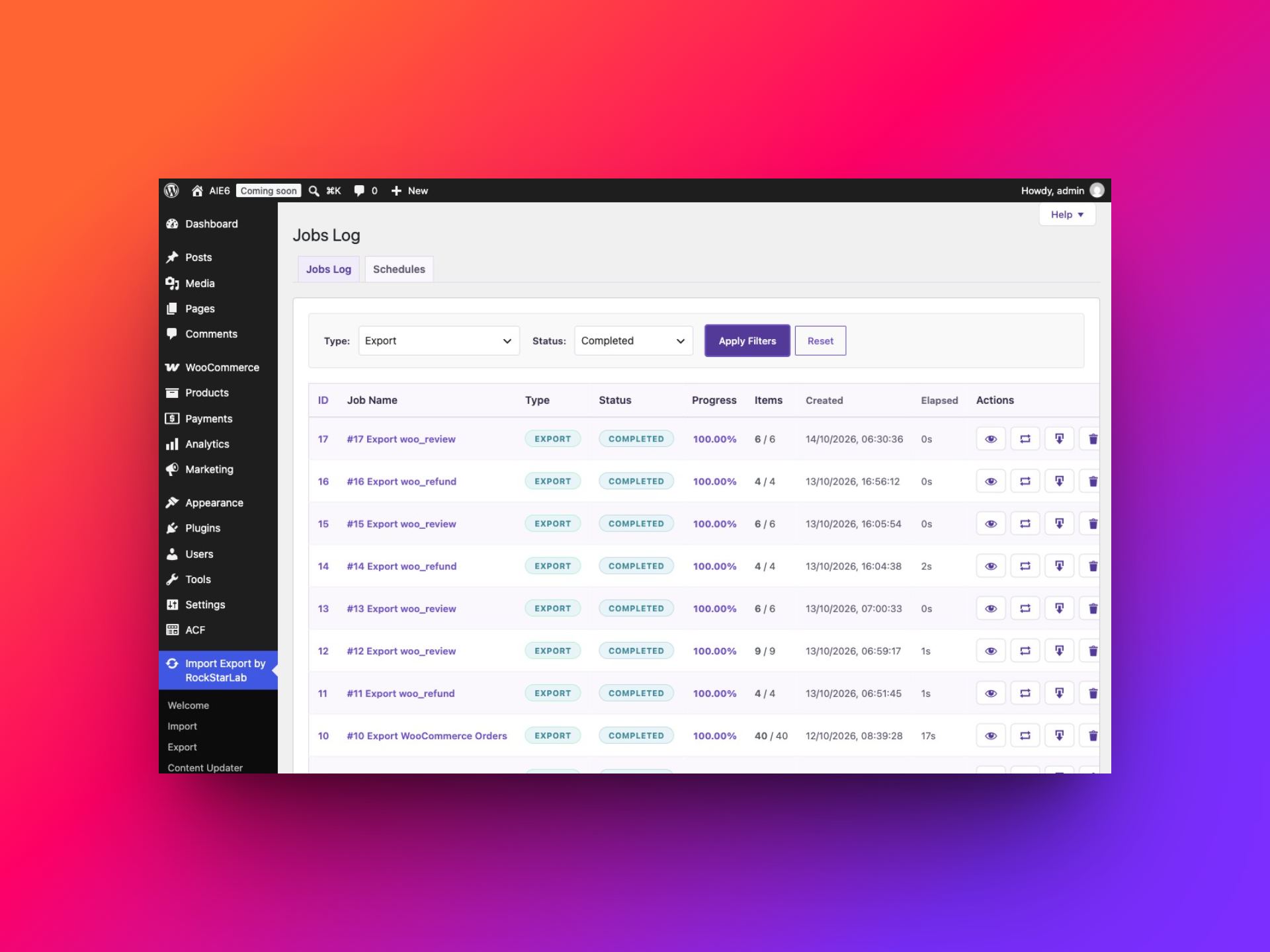
Open Import Export by RockStarLab → Jobs Log. Filter by Export and locate the review operation using its job ID and creation time. The status and item counts help you distinguish a completed run from one that is still processing or has failed.
Open the job details to review the saved configuration and results. The download action lets you retrieve the generated file while it remains available. This is useful if you have left the wizard or need to identify exactly which export supplied a report.
If you rerun a job, remember that the underlying reviews may have changed. A new review, a moderation change or an edited text can make the new output differ from the earlier download. The Jobs Log and schedules walkthrough explains the shared controls.
Create a scheduled WooCommerce review export
After verifying a successful manual export, open Schedules and use that export as the Source Job. Give the schedule a descriptive name, select a one-time or recurring run, choose the repeat interval when required and set the first execution using the displayed site time zone.
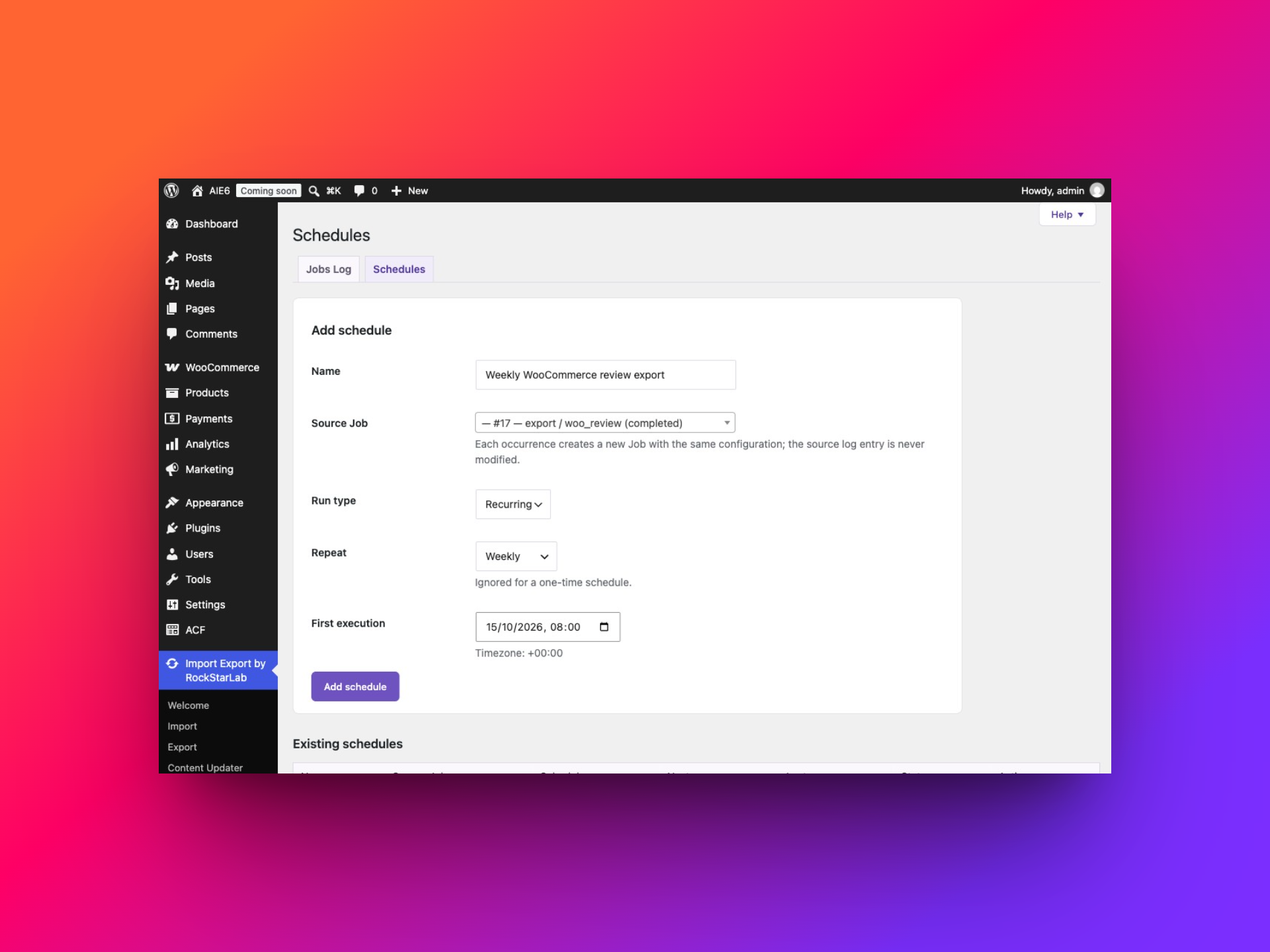
For example, “Weekly complete product review export” can reuse the unfiltered configuration. A daily low-rating export can reuse a rating filter. Hourly, twice-daily, daily and weekly intervals are available for recurring runs.
A scheduled run creates a new job with the saved configuration. Check each run in Jobs Log and download its result. Repeated full exports are snapshots; they can contain the same review IDs week after week. If you combine those files, deduplicate by a stable identifier before counting reviews.
Fixed date filters do not roll forward automatically. A schedule based on the October 2026 filters will continue asking for that period. Also, a low-rating schedule does not by itself notify a customer-service team or publish a dashboard. Those are separate workflows.
Check that WordPress cron and background processing work on the site, then verify the first scheduled occurrence. Local or low-traffic sites may not trigger scheduled work at the exact intended minute.
Frequently asked questions
Can I export product reviews without exporting products?
Yes. WooCommerce Reviews is a separate content type. Include the product references in the review file so you can still identify which product each review belongs to.
Can I export only five-star reviews?
Use Rating → Equals → 5. Add Status → Equals → 1 if the file should include only approved reviews.
Can I export pending reviews?
The test export included a pending review. For a pending-only selection, use Status → Equals → 0 and verify the count against WooCommerce.
Why does the exporter show zero reviews?
First check Products → Reviews in WooCommerce. Confirm that the source actually contains product reviews, remove filters and refresh the count. A general WordPress comment or a third-party review system’s private data is not necessarily a WooCommerce review record.
Does exporting change the reviews on the website?
The export workflow reads reviews and writes a file. Export-column transformations affect the outgoing values. They do not approve pending reviews or edit customer opinions on the source site.
Can I import this file on another store?
A review export can provide source data for a compatible review import, but the destination products and matching references must be prepared first. Do not assume that source product IDs have the same meaning on another installation.
Where are the video instructions?
Visit the Import Export video tutorials for walkthroughs of the plugin’s broader import, export and transformation features.