
Content Sync in Import Export by RockStarLab (Free) connects two WordPress sites through the REST API. When you add a site or click Test Connection and it fails, the message tells you where the request stopped: at the API key, at a firewall, at password protection, at a redirect or at a missing plugin. Below is each message, its cause and the fix.
Short Answer
- Invalid API key: the key was regenerated or copied incompletely. Copy it again from Import Export → Content Sync → This Site Configuration on the other site and update the connection.
- Firewall refused the request (HTTP 403): a security plugin, host firewall or Cloudflare rule blocks
/wp-json/. Allow/wp-json/rsl-ie/v1/. - Username and password (HTTP authentication): the staging site is password-protected at the server. Exclude
/wp-json/rsl-ie/v1/from the protection or switch it off while you sync. - Redirects to …: enter the final address (https, www) as the site URL.
- Plugin not installed or activated: activate Import Export by RockStarLab on the other site.
How the connection check works
Each site has its own API key. To connect site A to site B, you copy B’s key into A. When you click Test Connection, A sends a request to B’s REST API at https://site-b/wp-json/rsl-ie/v1/validate with that key in the Authorization header. B checks the key and answers. Anything between the two sites that changes the request or the answer makes the test fail: a firewall, a login wall, a redirect, or a missing plugin on B.
The key never follows a redirect. This protects it from being sent to an address you didn’t enter.
Invalid API key
This is the most common message. It appears when the key on the other site was regenerated (for example after cloning the site, or with the Regenerate button), or when part of the key was lost while copying.

To fix it:
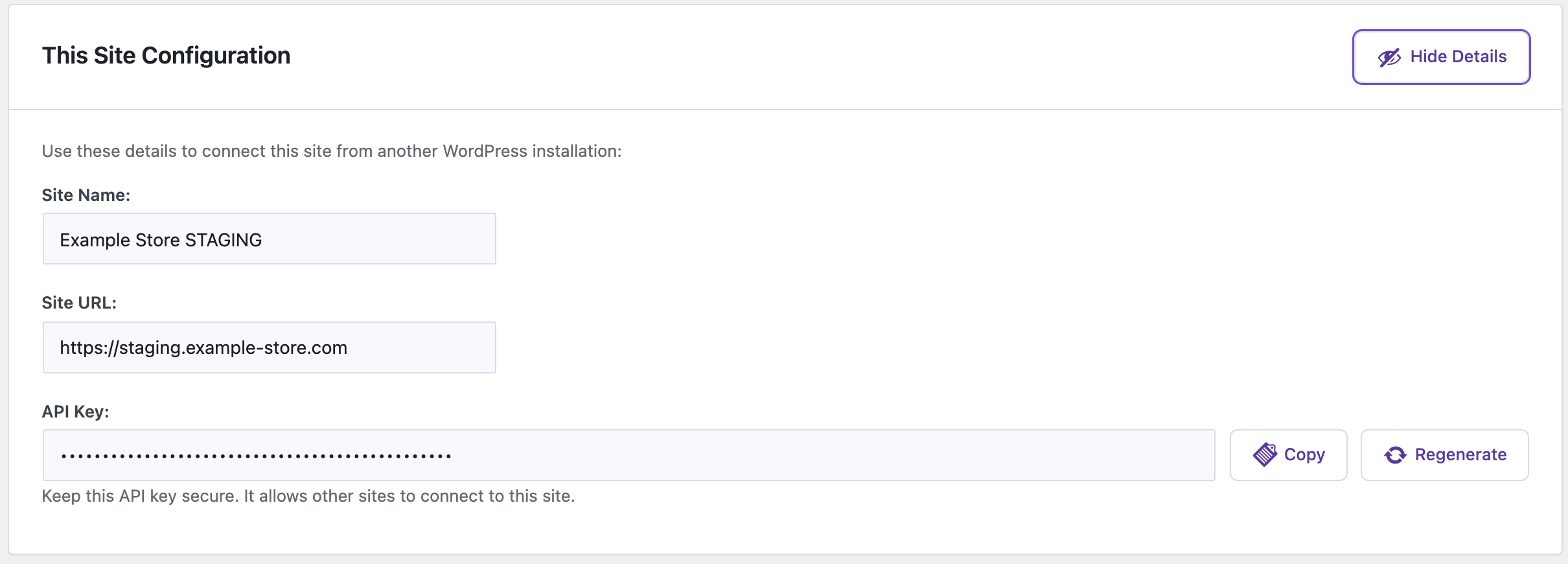
- On the other site, go to Import Export → Content Sync and click Show Details under This Site Configuration.
- Click Copy next to the API key. Use the button rather than selecting the text, so no character is left out.
- On your site, click the pencil icon next to the connection, paste the key into API Key and click Save Connection. The key is checked before it’s saved.
After saving, the status changes to Active, and Test Connection shows “Connection successful. API key is valid.”

If the message says the key is right but the remote site “has not activated it yet”, an administrator on that site has to open Import Export → Content Sync once. The key doesn’t change.
A firewall refused the request (HTTP 403)

The other site answered with an error page instead of a WordPress response. The request was stopped before it reached WordPress, usually by:
- a security plugin with a firewall (Wordfence, Solid Security, All In One WP Security) that blocks REST API requests from other servers;
- the host’s web application firewall or ModSecurity rules;
- Cloudflare WAF rules, Bot Fight Mode or a country block.
Allow requests to /wp-json/rsl-ie/v1/, or allowlist the IP address of the server that runs the other site. Every request to this path still needs the site’s API key, so allowing the path doesn’t open the site to anyone without the key. Then click Test Connection again.
Plugins that limit the REST API to logged-in users
Plugins such as Disable WP REST API, and similar settings in security plugins, answer REST requests from visitors with “REST API restricted to authenticated users”. Content Sync requests are signed with the site key rather than a login, so the plugin lets them through, and the test succeeds with such a plugin active. If another tool still blocks them, the message names the error code it returned (for example rest_disabled), so you know which setting to change.
The remote site asks for a username and password

Many staging sites are protected with HTTP authentication (the browser’s username and password prompt, often enabled in the host panel or with .htpasswd). The server asks for that password before WordPress loads, so the request never reaches the plugin.
Exclude /wp-json/rsl-ie/v1/ from the protection, or turn the protection off while you sync and back on afterwards. Some hosts (for example in their staging settings) let you allow specific IP addresses instead.
The remote site redirects to another address

The address in the connection isn’t the site’s final address. Typical cases: http:// when the site forces https://, example.com when it redirects to www.example.com, or an old domain after a move. Edit the connection and enter the address shown in the message. You can check a site’s address under Settings → General → Site Address (URL) on that site.
Plugin not installed or activated on the remote site

The other site has a working REST API but no Content Sync routes. Install and activate Import Export by RockStarLab there. If it’s active, check that the plugin is the current version on both sites, and that the address points to the right WordPress site (not a different installation in a subfolder).
Other messages
| Message | Cause | Fix |
|---|---|---|
| No WordPress REST API answered at this address | The address points to something other than the WordPress home, or the REST API is turned off completely. | Use the home address of the site, without /wp-admin. Open https://site/wp-json/ in a browser: it should show JSON. |
| Cannot connect to remote site: cURL error 6 / 7 / 28 | The server can’t resolve the name, reach the server, or gets no answer in time. | Check the spelling of the domain and that the site is online from the outside. A live site can’t reach a .local or localhost address on your computer. |
| Cannot connect to remote site: cURL error 35 / 60 | SSL problem: an expired or self-signed certificate, or old TLS. | Renew the certificate, or use the http:// address on local and test sites. |
| This site is already connected | A connection with the same address exists. | Edit the existing connection instead of adding a new one. |
Two common mistakes are handled automatically. If you paste an address with /wp-admin/ or /wp-login.php, it’s saved as the site’s home address. Sites with plain permalinks, which have no /wp-json/ path, are reached through ?rest_route=.
Check and fix the connection with an AI agent
If your site is connected to an AI agent through the WordPress MCP Adapter (see connecting Claude Code to WordPress), the agent can run the same check with the rsl-ie/connection-list and rsl-ie/connection-test abilities and report the cause. A prompt that works:
List the Content Sync connections on this site and test each one.
For every connection that fails, quote the error message and tell me
what to change on the other site. Don't change any connection.
The agent lists the connections, tests them one by one and returns the same message you see in the admin. For example: “A firewall or security service on the remote site refused the request (HTTP 403). Allow requests to /wp-json/rsl-ie/v1/ from this site.” After the firewall rule is changed, ask it to test again. It reports “Connection successful. API key is valid.” and the connection is back to Active.
To update a key, the agent can use rsl-ie/connection-update with the new key. Paste the key in the chat only if you trust where the conversation is stored. Otherwise, update it yourself in the admin as shown above.
FAQ
Is it safe to allow /wp-json/rsl-ie/v1/ in my firewall?
Every Content Sync route checks the site’s API key. Without the key, a request to these routes is refused. Keep the key private and regenerate it if you think it leaked; then update the connection on the other site.
Do both sites need the plugin?
Yes. Both need Import Export by RockStarLab active. Content Sync is part of the free plugin.
Does the test change anything on the other site?
No. It only checks the address and the key.
Why does the status stay “Error” after I fixed the problem?
The status updates on the next check. Click Test Connection, or save the connection again.
Can a local site connect to a live site?
A local site can send requests to a live site, so pushing from local to live works. A live site can’t reach a site that runs only on your computer. See pushing from LocalWP to a live site.
Related Guides
- How to Sync Content Between Two WordPress Websites Without Export Files
- How to Push WordPress Staging to Live Without Overwriting the Database
- Staging to Production Checklist for Freelancers
- WordPress MCP Adapter Errors and How to Fix Them
- How Content Sync Works: API Keys, Push, Pull and What Gets Copied
Get the free plugin on WordPress.org.

Comments 0
Have a question or a tip to share? Leave it below.