
Select posts on a list screen, choose a connected site, click Push or Pull: that is all Content Sync in Import Export by RockStarLab asks for, and the posts arrive on the other WordPress site without export files. The sections below explain what happens behind those buttons: how the API key connects two sites, what push and pull do, which parts of a post are copied, and what a sync overwrites on the other side. Every behavior described here was checked by syncing a test post between a staging site and a live site.
Free: Content Sync for posts, pages, categories, tags, media and comments. PRO: the same for custom post types and WooCommerce products.
Short Answer
- Each site has its own API key. To sync with a site, you add it under Content Sync → Add New Site with its URL and its key.
- Push sends the selected posts from the site you’re on to the other site. Pull brings posts from the other site into posts on the site you’re on.
- A sync copies the title, content, excerpt, slug, status, date, author, custom fields, categories and tags, the featured image and images in the content, and comments. Image files are transferred, and links and image addresses are changed to the target site’s domain.
- Updating an existing post replaces it with the source version: categories, tags and custom fields that exist only on the target are removed.
Step 1: The API key connects the sites
Every site with the plugin has a key of its own. You find it under Import Export → Content Sync → This Site Configuration → Show Details, together with the site name and URL.

To connect staging to live, copy the live site’s key, then on staging click Add New Site and enter a name, the live site’s URL and that key. Click Save Connection; the plugin tests the connection before it saves it.

What this means in practice:
- The key is the password for the site it belongs to. Whoever has the live site’s key can push content to it and pull content from it, so keep it out of chats, tickets and shared documents.
- A connection added on the Content Sync screen works in both directions: staging can push to live and pull from live through the same connection. You only need to add it on the site you work from.
- Regenerate creates a new key and stops every connection that uses the old one. Update the key in those connections afterwards.
- The two sites talk through the WordPress REST API. If the connection test fails, see Content Sync connection test failed.
Step 2: Push or Pull
Content Sync works from the list screens you already use. Select posts on Posts or Pages (or categories, tags, media files or comments on their screens), click Sync Content above the list, and choose the connected site. In the block editor, the Sync This Post button in the sidebar does the same for one post.
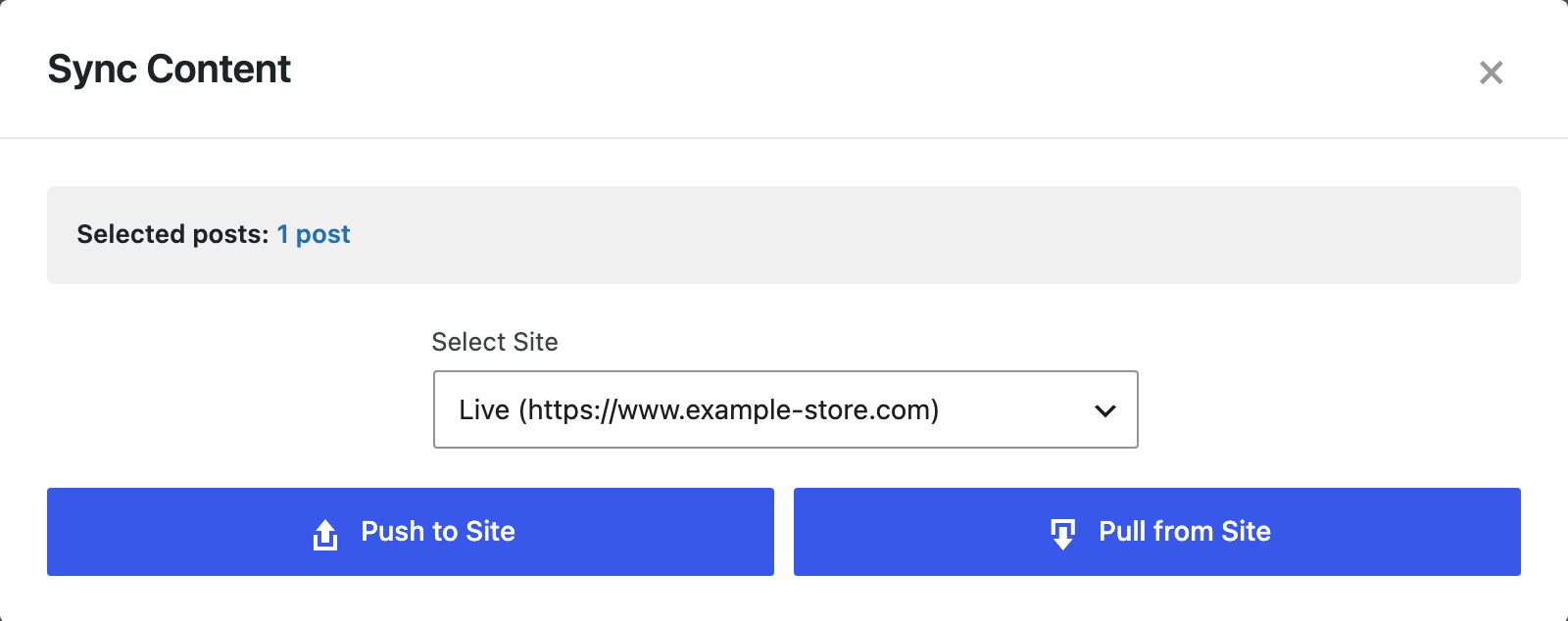
- Push to Site copies the selected posts from this site to the other site. Use it to publish what you prepared on staging.
- Pull from Site copies posts from the other site into the selected posts on this site. Use it to bring a fix someone made on live back to staging.
If the Sync Content button is missing on a screen, turn it on under Import Export → Plugin Options → Export / Sync Buttons.
Step 3: Map each post to its pair
Before anything is copied, the Map Posts for Sync window asks where each post goes. Post IDs differ between sites, so the plugin doesn’t guess from the ID.
For a post that doesn’t exist on the other site yet, keep Create New Post. In our test, post 4094 on staging became post 2022 on live.

For a post that already exists there, choose it in the list, or click Auto-match by Title, which picks the post with the same title and type. The row then shows Update: Spring Tasting Menu Is Here (ID: 2022), and Confirm & Sync updates that post instead of creating a duplicate.

Pull uses the same window: for each local post, choose the remote post to pull into it.
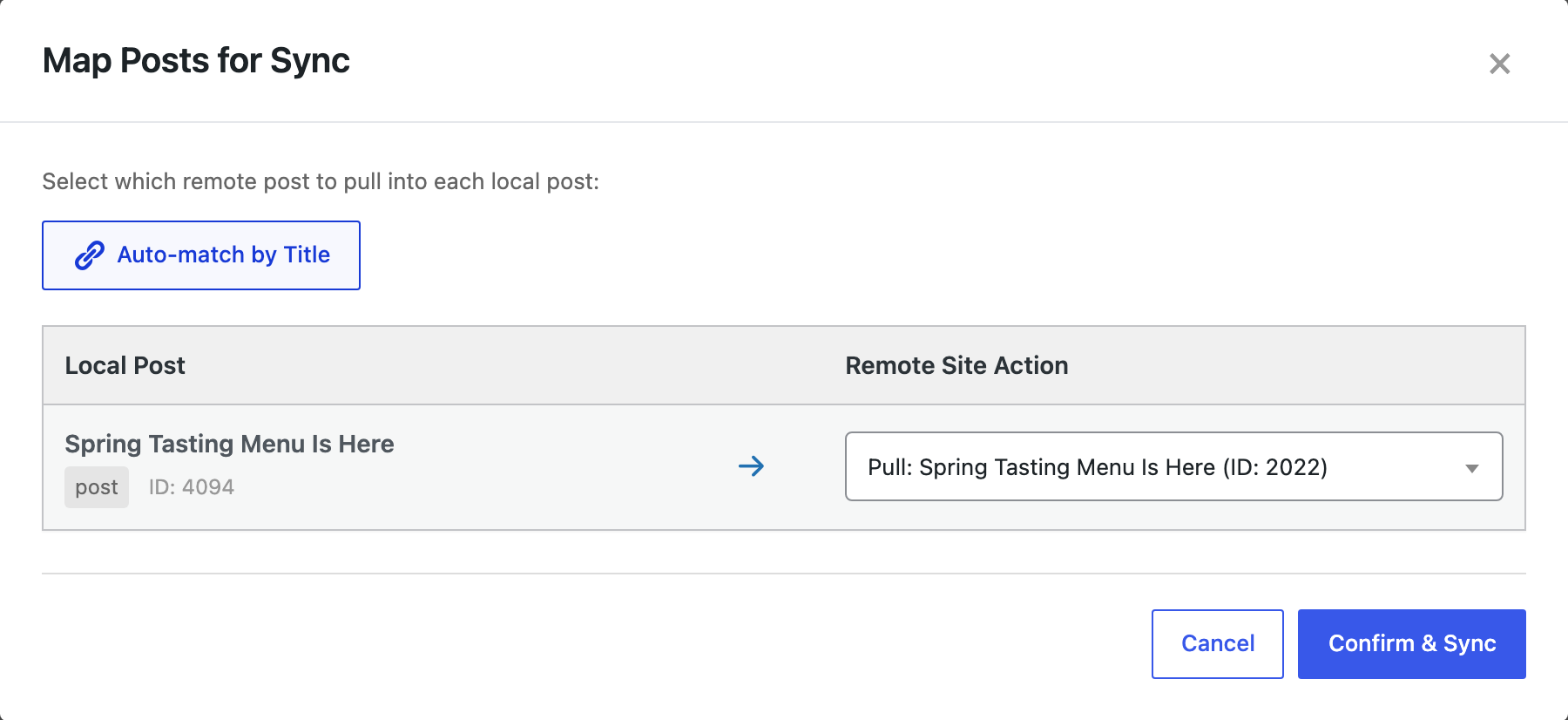
If several posts on the other site have the same title, Auto-match leaves the choice to you. Each sync is also recorded in Jobs Log as Content Sync – Push or Pull, with the source and target IDs of every post.
What gets copied
Our test post on staging had a category that didn’t exist on live, a tag, a featured image, a second image in the text, a link to the staging contact page, a custom field menu_price and an approved comment. After one push, the live site had:
| Part of the post | On the target site |
|---|---|
| Title, content, excerpt, slug | Same as on the source |
| Status and publish date | Same (published, original date kept) |
| Author | The user with the same email or login on the target site |
| Categories and tags | Assigned; missing terms are created with the same name, slug and parent |
| Custom fields | Copied (menu_price = 29.50) |
| Featured image and images in the content | Files uploaded to the target’s Media Library; image addresses and IDs in the content point to the new files |
| Links to the source site | Changed to the target domain (the staging contact page link pointed to the live contact page) |
| Comments | Copied with author, date and approval status |
| Post ID | Not kept: the target site gives the post its own ID |
Images are not uploaded twice. When we pushed the same post again, the plugin found the files it had already transferred and reused them; the number of files in the live Media Library didn’t change. The plugin compares file contents, so the same image under another name is also recognized (see media files without duplicates).
Content Sync copies content, not the site around it. Menus, users, theme settings and plugin settings stay as they are; menus and users have their own sync screens (see syncing menus and syncing users).
What an update overwrites
Updating a post makes it match the source. To see what that means for changes made on the target, we edited the live copy before the second push: we added a tag featured and a custom field live_only_note. On staging we changed the text, the price (29.50 → 32.00) and replaced the tag spring with tasting. After pushing with Update:
- The text and the price on live were the new staging values.
- The tags were exactly the staging tags:
tasting. Thefeaturedtag added on live was removed. - The custom field
live_only_note, which existed only on live, was removed. - The comment was updated in place, not added a second time.
So treat one site as the source for a post: if editors change a post on live, pull those changes to staging before you push from staging again. Pull works the same way in the other direction: in our test it brought a sentence added on live into the staging post and kept its single comment.
A push changes content on the target site, and an update can’t be undone with a button. Before the first sync of many posts, create a backup of the site you push to.
With an AI agent
An AI agent connected through the WordPress MCP Adapter (see connecting Claude Code to WordPress) uses the same connections. A prompt on the staging site:
Push the post "Spring Tasting Menu Is Here" to the live site.
Update the existing post there if it has the same title, don't create a copy,
and tell me what was changed.
In our run, the agent listed the connections with rsl-ie/connection-list, found the live post with rsl-ie/sync-auto-map (mapping {"4094": 2022}), started the push with rsl-ie/sync-push-start and checked it with rsl-ie/sync-job-status. The result: 1 post updated, 0 created, both images matched to the files already on live, and the new price 34.00 on the live post. Agent pushes run as background jobs and appear in Jobs Log like pushes from the screen.
FAQ
Do I need to add the connection on both sites?
No. A connection added on one site can push to and pull from the other site. Add it on the site you work from, using the other site’s URL and API key.
Does a push create duplicates when I sync the same post again?
Not when you choose the existing post in Map Posts for Sync, or let Auto-match by Title pick it. Create New Post always adds a new post.
Will a push remove changes made on the target site?
Yes, for the posts you update. Content, categories, tags and custom fields become the source values, and custom fields that exist only on the target are removed. Pull those changes first, or make them on the source site.
Are images copied?
Yes. The featured image and images in the content are uploaded to the target site, and their addresses are changed. Files that were already transferred are reused instead of uploaded again.
What happens if I regenerate the API key?
Connections that use the old key stop working until you enter the new key in them.
Related Guides
- How to Sync Content Between Two WordPress Websites Without Export Files
- Content Sync vs Export and Import
- Content Sync Connection Test Failed: Fix 401, 403 and Blocked REST API Errors
- Large Content Sync: Batching and Timeouts
- How Auto-Match by Title Works and When to Map Posts Manually
- Syncing Featured Images and Media Between Sites: What Gets Copied and What Does Not
Get the free plugin on WordPress.org.

Comments 0
Have a question or a tip to share? Leave it below.