
When you push posts from one WordPress site to another with Import Export by RockStarLab, each post needs a pair on the other site: an existing post to update, or a new one. Auto-match by Title finds those pairs for you. Below: which titles it treats as the same, which posts it skips, and when to choose the pair yourself. Every rule below was checked by matching seven test posts between a staging site and a live site.
Free: Content Sync and Auto-match for posts and pages. PRO: the same for custom post types and WooCommerce products.
Short Answer
- Auto-match pairs a post with the post on the other site that has the same title and the same post type. Upper and lower case, extra spaces and HTML entities like
&don’t matter. - Drafts on the other site are matched; posts in the trash are not.
- If several posts on the other site have the title, Auto-match leaves that row for you and says which title it is. The other rows are still matched.
- Choose the pair yourself when a title was changed on one site, when titles repeat, or when the same title is used by a post and a page.
Where Auto-match runs
Select posts on Posts or Pages, click Sync Content, choose the connected site and click Push to Site (or Pull from Site). The Map Posts for Sync window opens and runs Auto-match right away. The Auto-match by Title button runs it again, for example after you changed a title on the other site. How push, pull and the API key work is explained in How Content Sync works.
We selected seven posts on staging. The live site had posts with the same titles in different forms, a draft, a trashed post, two posts with one title, and a page:
| Staging post | On the live site | Auto-match result |
|---|---|---|
| summer opening hours | Summer Opening Hours | Update (case and spaces ignored) |
| Café Menu & Prices | Café Menu & Prices (stored with an entity) | Update |
| Gift Cards | Gift Cards, draft | Update (drafts count) |
| Old Promo | Old Promo, in the trash | Create New Post |
| Weekly News | two posts titled Weekly News | Left for you to choose |
| Opening Times | a page titled Opening Times | Create New Post (different type) |
| Holiday Hours | nothing | Create New Post |
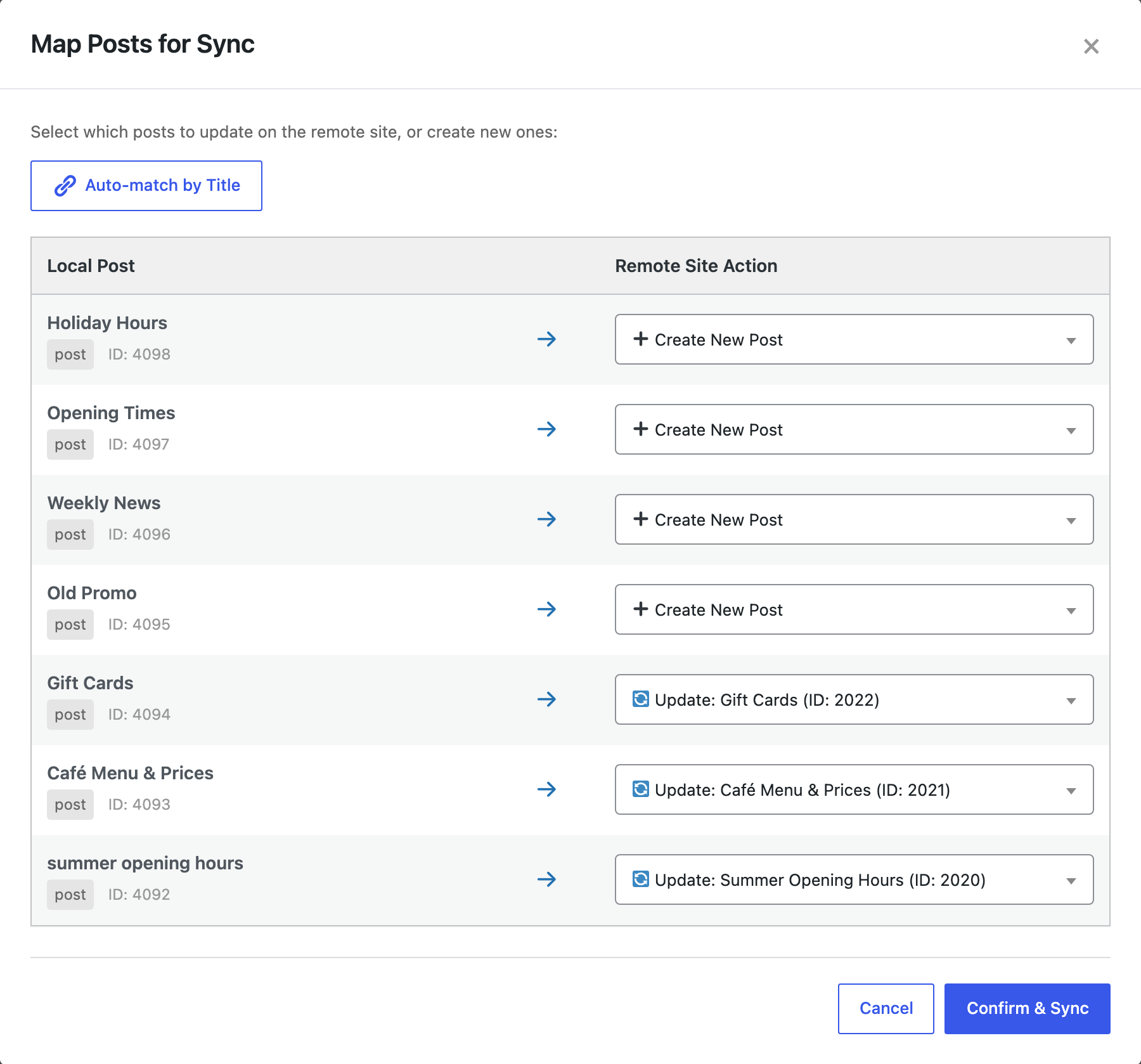
For Weekly News, a message said: “Several posts on the remote site are titled “Weekly News”. Choose the right one in the list for this post.” The row kept Create New Post until we picked a post.
Choose the pair yourself
Click the list in the row and type part of the title. The list searches the other site and shows each post with its ID, status and date, so two posts with the same title can be told apart. Here the published post from today and an older draft:

Choose manually in these cases:
- The title was changed on one site. After we renamed “Holiday Hours” on staging to “Holiday Opening Hours”, Auto-match no longer found the live post and offered Create New Post, which would add a second copy. Pick the live post in the list instead, or change the title on both sites first.
- Several posts share a title, like weekly or monthly posts with the same name. Compare the date and status in the list.
- A post and a page have the same title. Auto-match never pairs different types, so it offers a new post.
- The post on the other site is in the trash. Restore it there first if you want to update it, otherwise a new post is created.
Before you click Confirm & Sync, read the list once: every row that says Create New Post adds a post to the other site.
What an update changes
Matching ignores case and spacing, but the update copies the title from the source. When we pushed “summer opening hours” onto “Summer Opening Hours”, the live post got the lower-case title. Fix such titles on the source site before you push.
An update also replaces the content, categories, tags and custom fields of the post on the other site, and the draft “Gift Cards” became published like the staging post. Before you push many posts to a live site, create a backup of it.
For large selections, Auto-match reads the other site’s post list once instead of searching for each post separately (see large Content Sync batches).
With an AI agent
An AI agent connected through the WordPress MCP Adapter (see connecting Claude Code to WordPress) uses the same matching through rsl-ie/sync-auto-map. A prompt on the staging site:
Match these 7 posts to the live site by title. Show me which ones will update
an existing post, which will be created, and ask me about any title that
exists more than once on live. Then push them.
In our run, rsl-ie/sync-auto-map returned three pairs, four posts without a pair, and Weekly News under ambiguous with the live IDs 2025 and 2026. The agent asked which one to update, we chose 2025, and rsl-ie/sync-push-start with that mapping finished with 4 posts updated and 3 created. Auto-match never picks one of several posts with the same title on its own, so the agent has to ask.
FAQ
Is Auto-match by Title case-sensitive?
No. “summer opening hours” matches “Summer Opening Hours”. Extra spaces and HTML entities such as & are ignored as well.
Does Auto-match find drafts?
Yes, drafts on the other site are matched. Posts in the trash are skipped, so a post that only exists in the trash gets Create New Post.
What happens when two posts on the other site have the same title?
That row is left for you, with a message naming the title. Open the list in the row and choose by ID, status and date. The other rows are matched as usual.
Can Auto-match pair a post with a page?
No. It only pairs items of the same type: a post with a post, a page with a page.
Why did Auto-match offer Create New Post for a post that exists on the other site?
Usually because the title differs, or the post there is in the trash or is of another type. Choose the post in the list yourself to avoid a duplicate.
Related Guides
- How Content Sync Works: API Keys, Push, Pull and What Gets Copied
- How to Sync Content Between Two WordPress Websites Without Export Files
- WordPress Import Creates Duplicate Posts: How to Update Instead
- Large Content Sync: Batching and Timeouts
Get the free plugin on WordPress.org.

Comments 0
Have a question or a tip to share? Leave it below.