
Pushing three posts from staging to live with Content Sync in Import Export by RockStarLab takes seconds. With a few hundred, time starts to matter: images are copied one by one, and the server can stop a request that runs too long. The test below pushes 150 posts with 50 featured images from staging to live and shows how long each part took. It then covers splitting a large sync into batches, a push that stops halfway, and an AI agent that queues the batches in the background.
Free: Content Sync for posts, pages, media, comments, categories and tags, and the background sync abilities for AI agents. PRO: the same for custom post types and WooCommerce data.
Short Answer
- A push from the Sync Content window runs as one request. Keep each push small enough to finish within your server’s time limit: start with 20–50 posts and time the first batch.
- Images take most of the time on the first push. A second push of the same posts reuses the images on the target site and is much faster.
- If a push stops halfway, select the same posts again and push. Auto-match by Title finds the posts that already arrived, so they are updated instead of duplicated.
- An AI agent can queue batches of up to 50 posts with
rsl-ie/sync-push-start. The batches then run in the background with WP-Cron, and nobody has to keep a browser tab open.
Why large syncs time out
Three limits can end a long request before the plugin finishes it:
- PHP time limit.
max_execution_timeon shared hosting is often 30 to 300 seconds. Your host’s control panel or Tools → Site Health → Info → Server shows the value. - Web server or proxy timeout. Nginx, a load balancer or a CDN in front of the site can close a request that has not answered in time. Cloudflare, for example, ends a proxied request that has not answered within 125 seconds (error 524); only Enterprise plans can raise that limit.
- The receiving site. Every image and post is processed on the target site too. A slow live server adds to the total time.
So the question is not how many posts the plugin can sync, but how many your two servers can process in one request.
The test: 150 posts with 50 images
On staging, the category “Archive 2019” holds 150 posts. Every third post has a featured image, 50 images in total. Live does not have any of these posts yet.
Before you push, back up the live site. In the admin, open UpdraftPlus and click Backup Now, or ask an AI agent to run the rsl-ie/updraftplus-backup-start ability. See how to create a WordPress backup and restore it.
Step 1: Select the posts
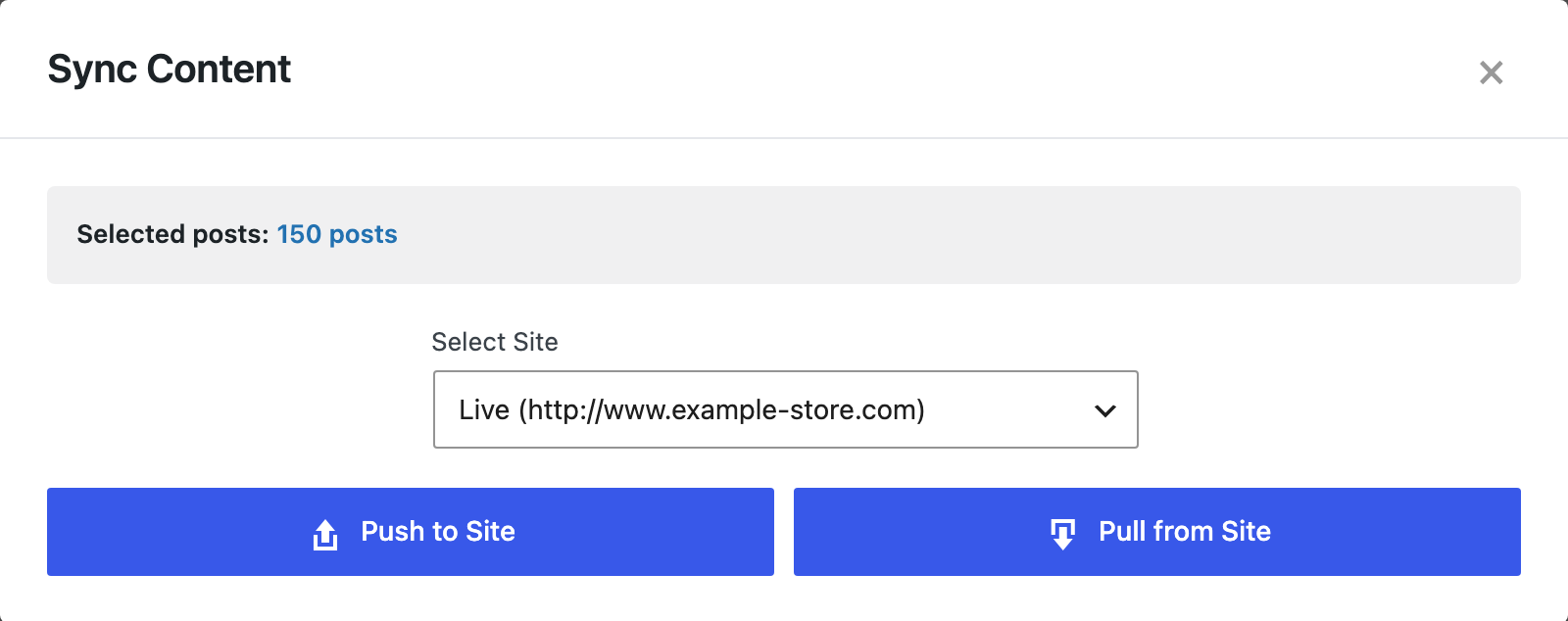
In Posts, filter by the category. WordPress shows 20 posts per page by default, so open Screen Options at the top of the screen and set Number of items per page to the size of your batch. Tick the posts, choose Sync Content in Bulk actions and click Apply. Pick the live site.
Step 2: Match the posts
Click Push to Site. The Map Posts for Sync window opens and matches the posts by title automatically. For the 150 posts this took 2 seconds. None of them existed on live, so every row said Create New Post.
Step 3: Push
Click Confirm & Sync. The window shows Uploading content… until the push finishes.
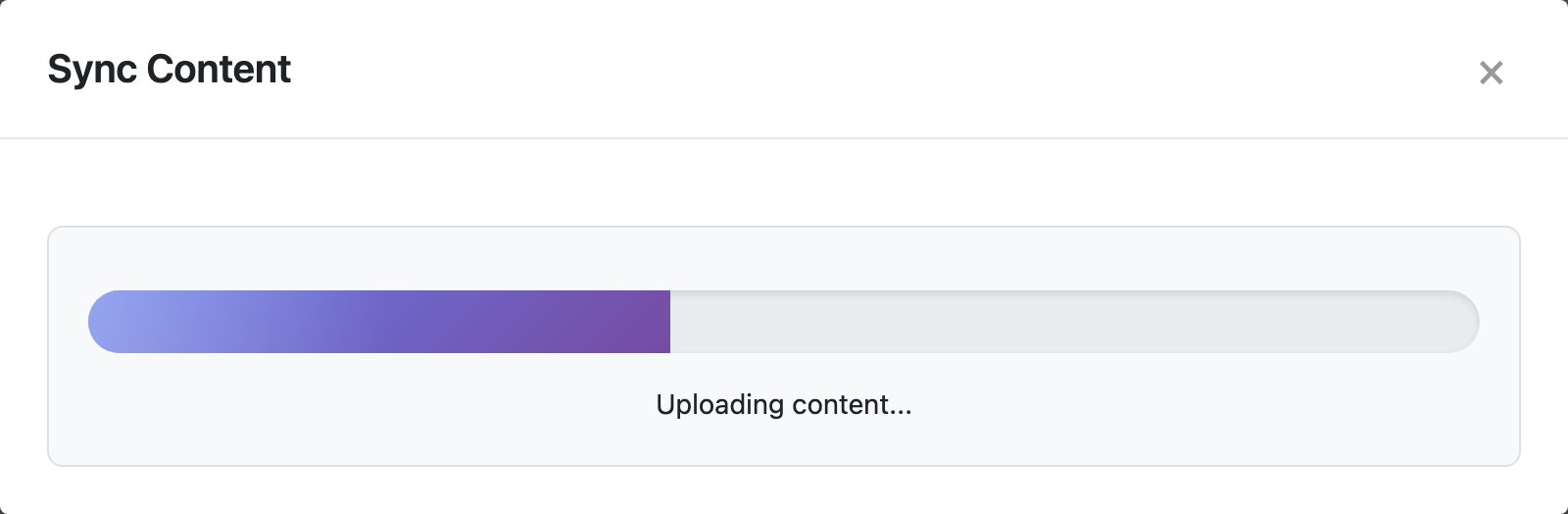

On our test pair of local sites, the first push took about 11 minutes. The posts themselves were fast; most of the time went to the 50 images. Each image is sent in pieces, checked on the target site and added to its media library with thumbnails, alt text and caption.
Then we changed the text of all 150 posts on staging and pushed them again. This time Auto-match by Title found every post on live, and each row said Update. The push took about 4 minutes, because the images were already on live and were reused.

Local test sites answer slower than a good live server, so your times will be different. On real hosting, 11 minutes in one request is well over most of the limits above. That is why large syncs should be split.
How to choose the batch size
- Push a first batch of 20 posts and note how long it takes.
- Divide your server’s limit by that time. If 20 posts take 25 seconds and the limit is 120 seconds, batches of 60–80 posts are fine. Leave a margin.
- Count the images, not only the posts. A batch of posts with large galleries takes longer than the same number of text posts. The first push of a batch is the slow one; later updates reuse the images.
- Keep pages that belong together (a parent page and its child pages) in the same batch, so the plugin can keep the page hierarchy.
A practical way to make batches is by category or by date: one category per push, or one year of the archive per push. Screen Options controls how many posts you can select at once.
If a push stops halfway
When the server stops a request, the window may show an error or keep showing the progress text. Some posts may already be on the target site. To continue:
- Close the window and select the same posts again.
- Click Push to Site. Auto-match by Title marks the posts that already arrived as Update and the rest as Create New Post.
- Push a smaller part of the selection first if the same batch failed before.
Posts that arrived are updated, not duplicated. The images already on the target site are reused, so the second attempt is faster than the first. In Import Export → Jobs Log, a push that never finished is later marked Failed with the advice to sync the remaining posts again in smaller batches.
With an AI agent: background batches
An AI agent connected through the WordPress MCP Adapter (see connecting Claude Code to WordPress) can split a large sync into background jobs. The abilities:
rsl-ie/sync-auto-mapmatches up to 50 posts by title with the posts on the other site.rsl-ie/sync-push-startqueues up to 50 posts as one background job. WP-Cron runs it, so no browser has to stay open.rsl-ie/sync-job-statusshows the stage (queued, ready, transferring, done) and the result.rsl-ie/sync-job-pause,rsl-ie/sync-job-resumeandrsl-ie/sync-job-cancelwork while a job is still waiting in the queue.
A prompt for the staging site:
Back up the live site first. Then take the posts in the category
"Archive 2019" on this site, split them into batches of 50, match each
batch by title to the connected site "Live", and queue each batch as a
background push. Check the status until all batches are done and tell me
how many posts were created and updated.
In our run, the agent queued three jobs of 50 posts. One job transfers at a time over the same connection; the others wait in the queue. When the agent tried to queue the third batch while the first one was transferring, the plugin answered that the connection was busy with another sync transfer, so the agent waited and queued it after the first job finished. The first batch updated 50 posts in 80 seconds and reused 16 images already on live (“created: 0, updated: 50”). All three batches finished without duplicates: live still had exactly 150 posts in the category. In Jobs Log, each queued batch is listed as Content Sync – Background and its transfer as Content Sync – Push.

A transfer that was interrupted is marked as uncertain and is not repeated automatically. The agent reports it, and you or the agent can check the target site and push that batch again.
Checklist for a large sync
- Back up the target site.
- Check
max_execution_timeand any proxy timeout. - Push a test batch of 20 posts and time it.
- Split the rest by category or date into batches that fit the limit.
- Push the batches with images first in quieter hours; updates later are faster.
- Check the result in Jobs Log and spot-check a few posts on the target site.
FAQ
How many posts can Content Sync push at once?
The window has no fixed limit; the limit is your servers’ request time. Background jobs started by an AI agent take up to 50 posts each.
Why is the first push slower than the next ones?
The first push copies the images. Later pushes of the same posts find the images on the target site and reuse them.
Will pushing the same posts again create duplicates?
No, as long as the posts are matched. Auto-match by Title maps each post to its copy on the target site, and the push updates it. If two posts on the target site have the same title, choose the right one in the list yourself.
Can I keep the browser closed during a large sync?
Not for a push from the Sync Content window; it runs while the page is open. Background jobs queued with rsl-ie/sync-push-start run with WP-Cron and do not need an open browser.
Can I schedule a large sync to repeat?
Yes. A finished push can be repeated on the Schedules page. Keep each scheduled push to a batch size that fits your server.
Related Guides
- How to Sync Content Between Two WordPress Websites Without Export Files
- Content Sync Connection Test Failed: Causes and Fixes
- Content Sync vs Export/Import: Which One for Which Job
- How to Push WordPress Staging to Live Without Overwriting the Database
- Export a Large WordPress Site (100,000 Posts) Without Timeouts
Get the free plugin on WordPress.org.

Comments 0
Have a question or a tip to share? Leave it below.