
Exporting a few hundred posts takes seconds. A site with tens of thousands of posts is different: a request can run into the server’s time limit, the file can run into the memory limit, and a small batch size turns the export into an hour of waiting. The test below exports 100,000 posts with their full content from one WordPress site with Import Export by RockStarLab, with what each setting does and how to keep a large export within your hosting limits.
Free: large exports of posts, pages, comments and media, in batches, with progress and download in Jobs Log. PRO: the same for custom post types, WooCommerce data and database tables.
Short Answer
- In Import Export → Export, step 4, choose CSV and set Batch size to 500.
- Filter by Status or Date instead of selecting posts by hand. These filters run in the database and stay fast on large sites.
- Choose only the columns you need. Post content is the largest column by far.
- For the very largest exports use CSV: it’s written row by row. XLSX, ODS, JSON and XML files are put together in memory at the end.
Exports only read your content, so you don’t need a backup for them.
The test: 100,000 posts
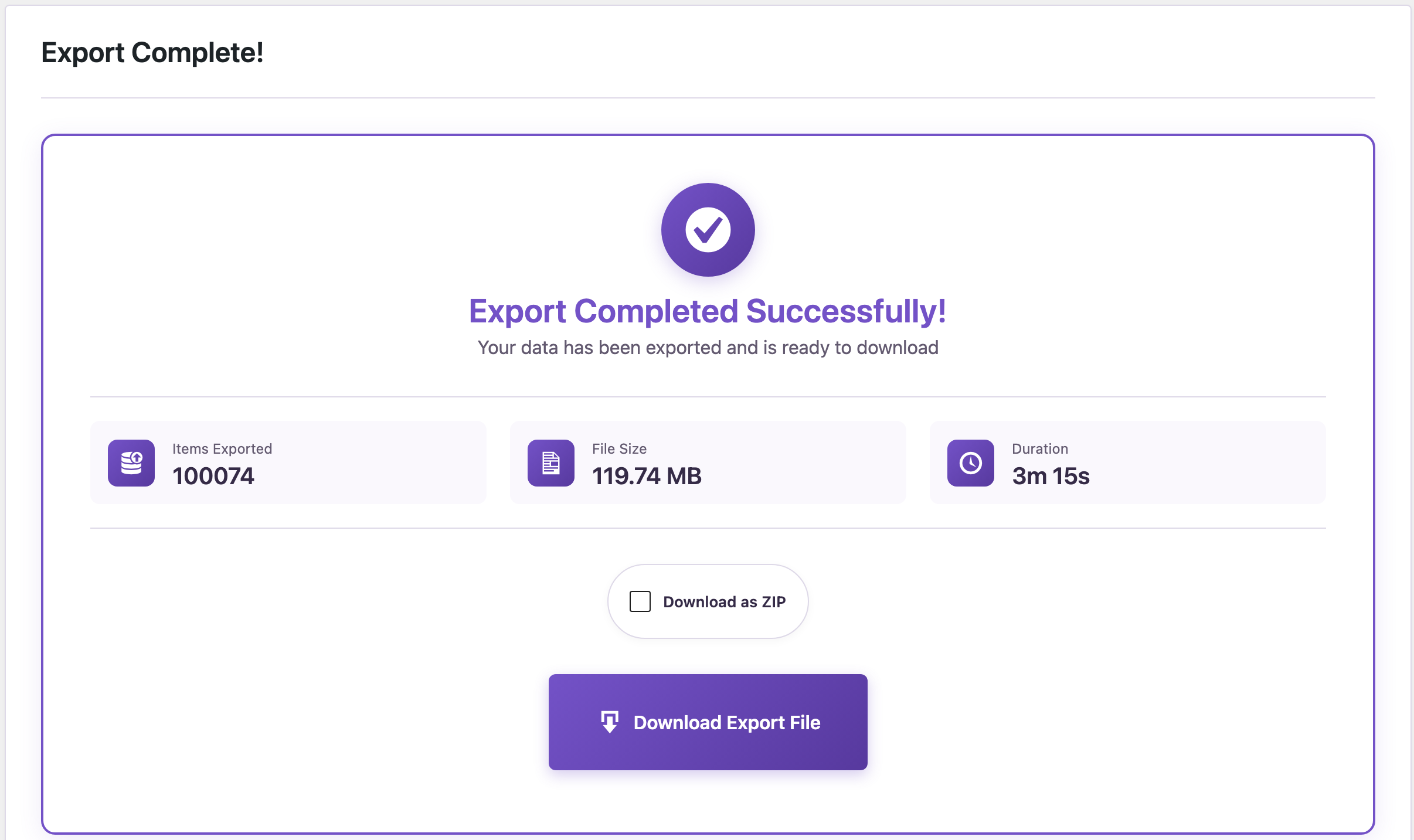
A test copy of a store blog had 100,074 published posts, each with a paragraph of text, a date, a category and a permalink. We exported all of them with the columns ID, Title, Date, Content, Categories and Permalink. The result was a 120 MB CSV file with 100,074 rows, each post exactly once.
| Batch size | Time for 100,074 posts |
|---|---|
| 3 | about 70 minutes (24 posts per second) |
| 500 | about 3 minutes (3 min 16 s) |
The time is spent per request, not per post: every batch is one request to the server. With 3 posts per batch, the browser sent more than 33,000 requests. With 500, it sent about 200.
Step 1: Filter the posts
Go to Import Export → Export, choose Blog Posts and click Next Step. Add the filters you need, for example Status equals publish. Click the refresh button on the counter to see how many posts the export will contain. On the test site it showed 100,074 right away.
Status and date filters (Date and Modified Date) are applied by the database, so they stay fast with any number of posts. Other filters, such as Title contains, Author Name or a custom field, are checked post by post once at the start of the export. On 100,000 posts that first step takes a few seconds; after that, each batch only reads its own posts.
Step 2: Choose the columns
Every column adds work and file size. Content is usually most of the file: in the test, the content column made up most of the 120 MB. If the file is for a list, a redirect map or a report, leave the content out (see exporting all WordPress URLs and a content inventory).
Step 3: Format and batch size
In step 4, choose CSV and set Batch size. The default is 50, the maximum 500.

- Larger batches mean fewer requests, so the export finishes much faster.
- Smaller batches are only needed when a batch fails with a time or memory error. This can happen with very heavy rows, such as products with many variations or long page-builder content. Halve the batch size and run the export again.
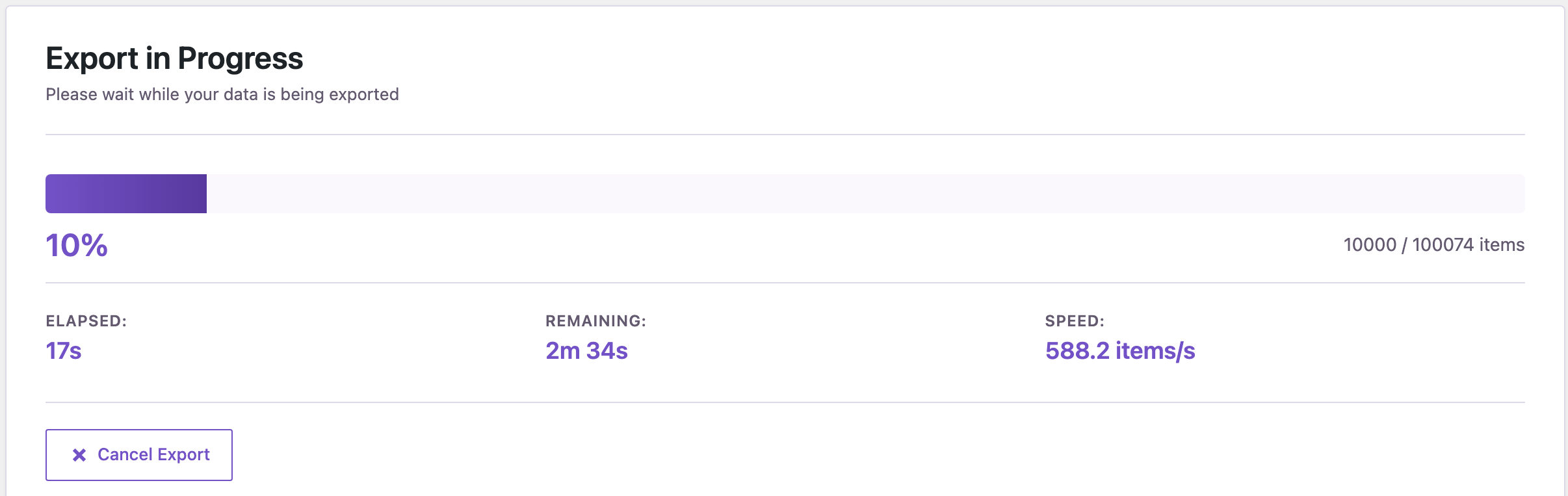
Click Start Export. The progress bar counts the exported items.
Why CSV for the biggest exports
During an export, each batch is saved to a temporary file on the server. At the end, the plugin builds the file you download:
- CSV is written row by row from the temporary file. Memory use doesn’t grow with the number of posts. The 120 MB file was built on a server with a 256 MB PHP memory limit.
- XLSX, ODS, JSON and XML are put together from all rows at once. That’s fine for thousands of rows, but a file of this size needs more memory than most hosting plans give. Export to CSV and open it in Excel or Google Sheets, or split the export with a date filter, one year per file.
If the export stops
- The progress bar stops and nothing happens: open Import Export → Jobs Log. The job shows how many items were exported. Exports started by a schedule or an AI agent continue in the background with WP-Cron; an export started in the browser continues while the page is open.
- A batch fails with a time or memory error: lower the batch size and run the export again.
- The download is very large: split the export by date (one year per file) or by category, or leave out the content column.
With an AI agent
An AI agent connected through the WordPress MCP Adapter (see connecting Claude Code to WordPress) can run the same export in the background: rsl-ie/export-count to check the number of posts, rsl-ie/export-start with items_per_iteration up to 500, rsl-ie/job-get for the progress and rsl-ie/file-get for the download link. A prompt:
Count the published blog posts. If there are more than 50,000, export them
to CSV with ID, title, date, content, categories and permalink in batches
of 500, check the progress every minute and give me the download link when
the file is ready.
In our run, the agent counted 100,074 published posts and started the export in batches of 500. The job ran in the background through WP-Cron, which fires on site visits (we kept the test site busy with requests), and finished in about 3 minutes. The agent then returned the file all-posts-agent.csv, 120 MB, with a browser download link for Jobs Log.
FAQ
How many posts can I export at once?
There’s no fixed limit. The test exported 100,074 posts with content into one CSV file. The practical limits are your server’s time per request (set by the batch size) and, for formats other than CSV, its memory.
Why is a batch size of 3 so slow?
Each batch is a separate request with its own overhead. 100,000 posts in batches of 3 is more than 33,000 requests; in batches of 500 it’s about 200.
Can I close the browser during an export?
An export started in the browser continues while the export page is open. Scheduled exports and exports started by an AI agent run in the background and don’t need an open browser.
Can I export a large site to Excel?
For tens of thousands of rows, export to CSV and open the file in Excel. Excel itself shows at most 1,048,576 rows per sheet.
Do filters slow down a large export?
Status and date filters don’t. Other filters add one check of all posts at the start of the export, which takes a few seconds on 100,000 posts.
Related Guides
- WordPress CSV Posts Export: Export Blog Posts to CSV, Excel, JSON, XML, and ODS
- Incremental WordPress Exports: Export Only What Changed Since Last Time
- Large Content Sync in WordPress: Batching, Timeouts and Re-running a Push
- WordPress Export Data Filters Examples: How to Use Them Effectively
- How to Fill a WordPress Test Site with 1,000 Realistic Posts
Get the free plugin on WordPress.org.

Comments 0
Have a question or a tip to share? Leave it below.