
When another system needs your WordPress content (a CRM, a newsletter tool, a search index, an archive), you rarely want the whole site in every file. You want the posts that changed since the last time. Import Export by RockStarLab offers two ways: a Modified Date filter for a one-off export, and a scheduled export with Changes only, which remembers when it last ran.
Free: both methods for posts and pages, with CSV, Excel, JSON and XML files. PRO: custom post types, WooCommerce data and transformations during export.
Short Answer
- Once: in Import Export → Export, add the filter Modified Date, Greater or Equal, with the date of your previous export.
- Every day or week: make one full export, then open Schedules, choose that export as the source job, set Repeat, and tick Changes only. The first run exports everything; every later run exports only the posts modified since the previous completed run started.
Exports only read your content, so you don’t need a backup for them.
What counts as a change
WordPress stores a Modified Date for every post and page. It’s updated when someone saves the post: new text, a new title, a changed category, a status change from draft to published. A new post counts too, because its modified date is the moment it was published. Comments, view counts and changes made directly in the database without saving the post don’t update it.
Method 1: Export what changed since a date
Go to Import Export → Export, choose Blog Posts (or Pages) and click Next Step. Add two filters:
- Status equals
publish, if the other system should get only live posts. - Modified Date, Greater or Equal, the day of your previous export.

The counter showed 4 posts changed since 1 November out of 74 published. Choose the columns you need (here ID, Title, Modified Date and Permalink), export, and send the file. The ID column lets the other system update its copy instead of adding a second one.
A date filter compares whole days, so posts changed later on the same day as your previous export are included again. That overlap is harmless when the other system updates by ID. You have to remember the date yourself, though, and that is what the next method does for you.
Method 2: A scheduled export with “Changes only”
Step 1: Make one full export
Export the posts once with the filters and columns the other system needs, but without a date filter. Here: published blog posts with ID, Title, Modified Date and Permalink, 74 posts. This finished export is the template for every scheduled run.
Step 2: Create the schedule
Go to Import Export → Schedules. Give the schedule a name, choose the export from the previous step as the Source Job, set Run type to Recurring and Repeat to Daily (or Hourly, Twice daily, Weekly), pick the first execution time and tick Changes only.
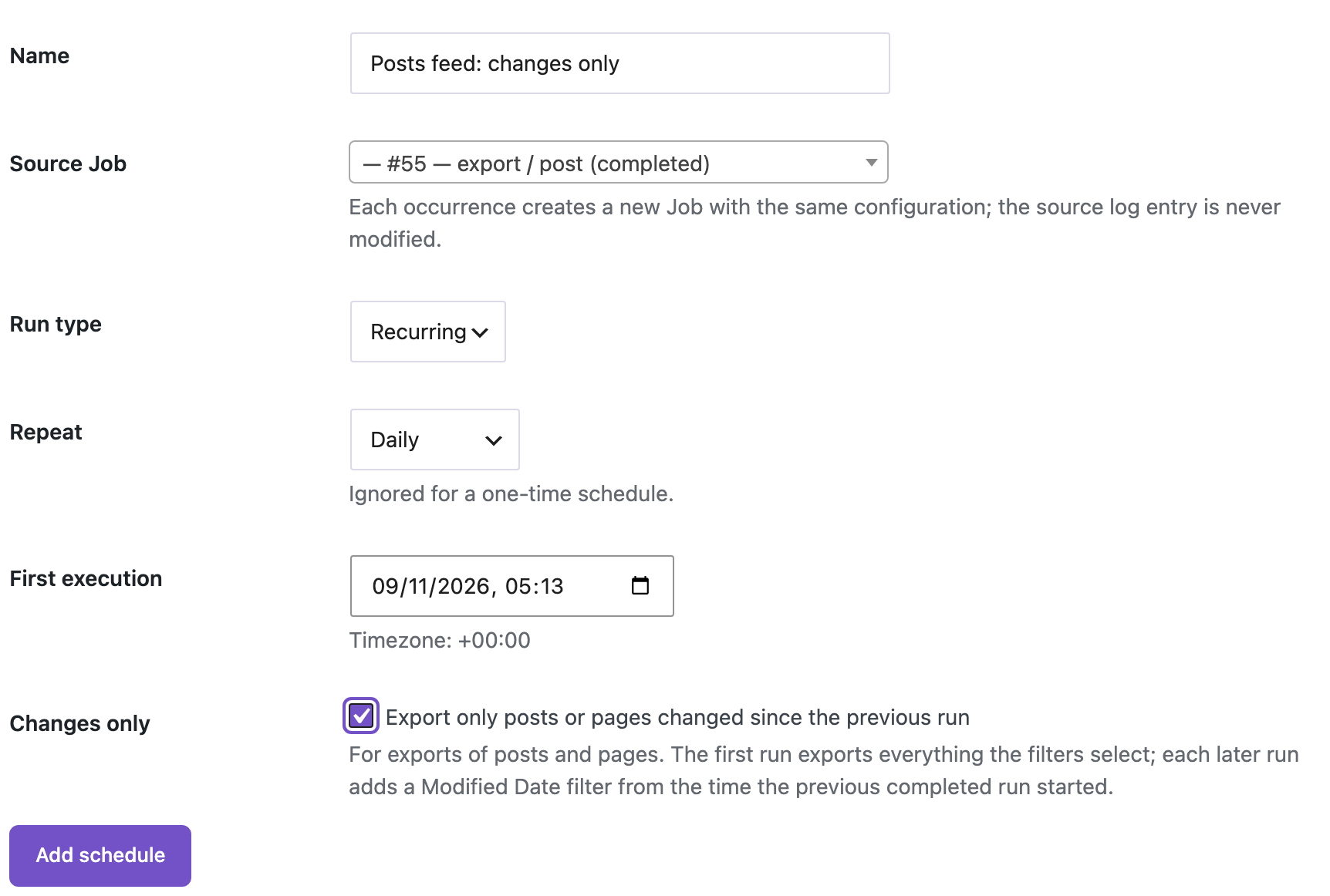
Click Add schedule. The list shows “Changes only” under the repeat interval.

Step 3: What each run exports
The first run has nothing to compare with, so it exports everything the source export selected: 74 posts. Then two posts were edited. To avoid waiting a day for the test, we moved the next run forward. The second run exported only those two posts:

ID,post_title,post_modified,permalink
8,"WP 6.1 Text category blocks","2026-11-09 05:13:32",https://www.example-store.com/2023/01/13/text-category-blocks/
1,"Nunc Scelerisque Viverra Mauris Aliquam","2026-11-09 05:13:32",https://www.example-store.com/2022/05/12/nunc-scelerisque-viverra-mauris-in-aliquam/
How the time window works:
- Each run adds a Modified Date filter starting at the moment the previous completed run started, to the minute and second. A post saved while the previous run was still working is included in the next file, so nothing falls between two runs.
- If the previous run failed or was cancelled, the next run exports everything again instead of guessing. You may get some posts twice, but you won’t miss any.
- The other filters of the source export (status, category, author) still apply to every run.
- The source export itself never changes. Turning Changes only off makes the schedule export everything again on every run.
Each run is a separate job in Import Export → Jobs Log, where you can download its file. Scheduled runs use WP-Cron, so they start with the first visit to the site after the planned time. On a site with little traffic, set up a real cron job on your server so the schedule runs on time. See scheduling repeated exports and Jobs Log and schedules.
When to use which
| Situation | Use |
|---|---|
| You need changes once, for example before a migration or an audit | Modified Date filter |
| Another system needs new and edited posts every day or week | Schedule with Changes only |
| The other system can’t update records and only adds rows | Changes only, and import new and updated rows by ID on the other side |
| You need deleted posts too | A full export: a deleted post has no modified date to filter on |
With an AI agent
An AI agent connected through the WordPress MCP Adapter (see connecting Claude Code to WordPress) can set this up with rsl-ie/schedule-create, which takes changed_only, and check it with rsl-ie/schedule-list. For a one-off export, it adds a post_modified filter to rsl-ie/export-start. A date with a time, such as 2026-11-09 05:13, is compared to the minute. A prompt:
Use my last export of published blog posts (job 55) as the source and
create a weekly schedule named "Weekly changes for the newsletter" that
starts on Monday 16 November at 07:00 and exports only posts changed since
the previous run.
In our run, the agent created the schedule with "recurrence": "weekly" and "changed_only": true. The answer showed the next run on 16 November at 07:00. When we asked it to do the same for a comments export, it got the message that “Changes only” works with exports of posts or pages and reported it instead of creating the schedule.
FAQ
Does the first scheduled run export everything?
Yes. There is no previous run to compare with, so the first file contains everything the source export selects. Later files contain only changes.
Are new posts included?
Yes. A new post’s modified date is the moment it was published or saved, so it appears in the next run.
Can I export deleted posts?
No. A deleted post is gone from the database, so it can’t appear in an export. If the other system needs to know about deletions, compare a full export with its records from time to time.
Does it work for products or custom post types?
“Changes only” works with exports of posts and pages. For other content, add a Modified Date filter to the export yourself.
What if a run fails?
The next run exports everything again, so no change is lost. Failed runs are listed in Jobs Log with the reason.
Related Guides
- How to Schedule Repeated Exports in WordPress
- WordPress Export Data Filters Examples: How to Use Them Effectively
- Content Production Report: Export WordPress Posts per Author and per Month
- How to Use Jobs Log and Schedule WP Import and Export Jobs
Get the free plugin on WordPress.org.

Comments 0
Have a question or a tip to share? Leave it below.