
An AI agent can write and import blog posts into WordPress, but few site owners want it publishing straight to the live site. A safer workflow keeps the agent on a staging site: it creates drafts there, an editor reviews and publishes the good ones on staging, and only those approved posts are pushed to the live site. The setup uses Import Export by RockStarLab and the WordPress MCP Adapter. In the complete run below, the agent wrote three drafts, two were approved and those two were pushed.
Free: importing posts and pages, Content Sync, and the AI agent abilities for both. PRO: the same for custom post types and WooCommerce products, plus transformations during import.
Short Answer
- Connect the agent to the staging site only.
- The agent imports its posts as drafts (or Pending Review).
- An editor reviews them on staging and clicks Publish on the approved ones.
- The approved posts are pushed to live with Content Sync, by the editor or by the agent.
The agent never gets access to the live site: the push goes through the Content Sync connection that staging already has.
Why staging first
- The live site stays untouched until a person approves. Drafts the agent writes on staging can’t appear on live by accident.
- The agent needs only staging credentials. If its application password leaks or it misreads a prompt, the damage is limited to staging.
- Review happens in the normal editor, with the theme, blocks and preview of a real copy of your site.
You need a staging copy of the site and a Content Sync connection from staging to live; see How Content Sync works. To connect the agent, see connecting Claude Code to WordPress, and use the staging site’s address and an application password of a staging user.
Step 1: The agent writes drafts on staging
A prompt in our run:
Write three short posts for our bakery blog: how to store sourdough bread,
why our croissants take three days, and our gluten-free options. Import them
on this site as drafts with the categories "Baking Tips" or "Menu".
Don't publish anything.
The agent wrote a three-row CSV file and imported it with the plugin’s abilities:
rsl-ie/upload-create,rsl-ie/upload-chunkandrsl-ie/upload-completeuploaded the file;rsl-ie/import-preparereturned the columns and a suggested mapping (title, content, excerpt, status);- the agent added the categories column to the mapping and started
rsl-ie/import-startwithpost_status: draftand duplicate check by title.
The import job created three drafts with their categories. When we ran the same import again, the job skipped all three rows because the duplicate check found the titles, and the posts already published by the editor kept their status.
Step 2: Review and publish on staging
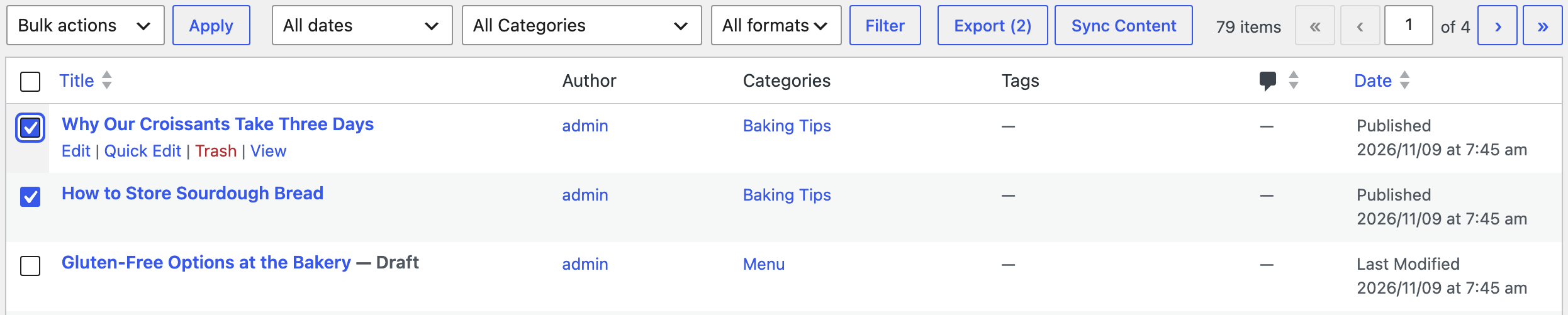
The drafts appear on Posts on staging like any other draft. Open each one, edit it, and click Publish when it’s ready. Publishing on staging is the approval: it changes nothing on the live site. In our run, the editor published two posts and left “Gluten-Free Options at the Bakery” as a draft to check the allergen details first.
If your team uses Pending Review for posts waiting for an editor, ask the agent to import with that status instead of draft.
Step 3: Push the approved posts to live
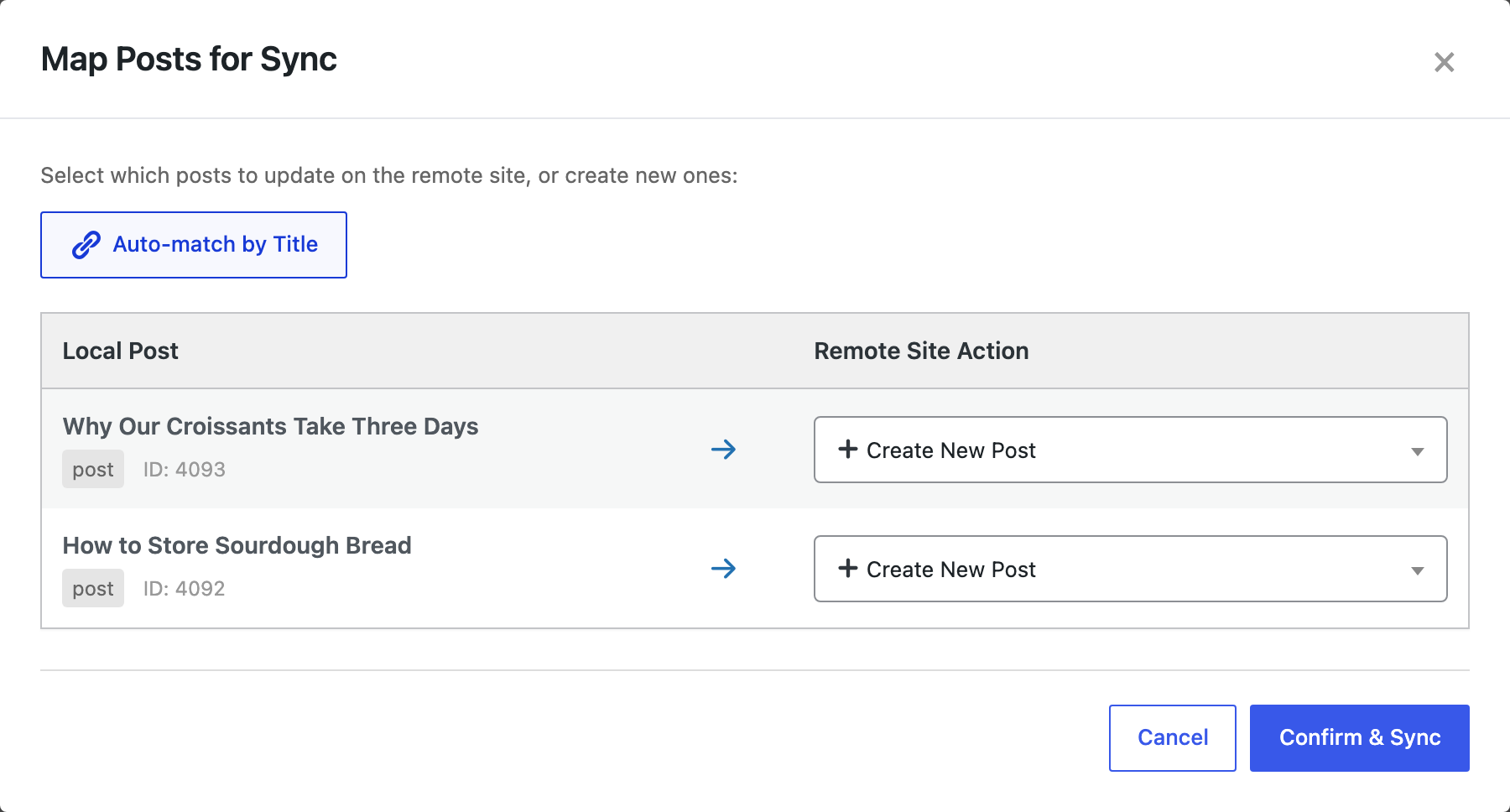
From the screen: tick the published posts, click Sync Content, choose the live site, Push to Site, check that each row says Create New Post (or Update for a post that already exists on live), and click Confirm & Sync.
Or ask the agent:
Check which of the three posts you imported are published now.
Push only the published ones to the live site and leave the drafts.
In our run, the agent read the status of the three posts with rsl-ie/export-preview (two published, one draft), checked the live site with rsl-ie/sync-auto-map (no existing posts with those titles), and pushed the two published posts with rsl-ie/sync-push-start. On the live site, both posts were published with the category “Baking Tips”, which Content Sync created there. The draft stayed on staging only.
The status travels with the post: a post published on staging is published on live, and a draft pushed by mistake arrives as a draft. Pushing creates and changes content on the live site, so create a backup of it before the first push of many posts.
Rules worth giving the agent
- “Import as draft, never publish.” The status is set in the import itself, so the agent can’t publish by forgetting a step.
- “Push only posts that are published on staging.” The editor’s Publish click is then the only approval needed.
- “Never pick between posts with the same title on live; ask me.” Auto-match leaves such posts without a pair; see how Auto-match by Title works.
- “Report the job IDs.” Every import and push is in Jobs Log, so you can check what the agent did.
FAQ
Does the AI agent need access to the live site?
No. It works on staging, and the push to live goes through the Content Sync connection stored on staging.
How do I approve a post the agent wrote?
Review it on staging and click Publish. Only published posts are pushed to live in this workflow.
Can the agent publish directly to the live site?
Not in this setup: it isn’t connected to the live site, and the posts it imports on staging are drafts.
Are categories and images copied to live?
Yes. Content Sync creates missing categories and tags on live and uploads the featured image and images in the text.
What if I edit an approved post after it was pushed?
Edit it on staging and push it again. Auto-match finds the post on live by its title and updates it.
Related Guides
- Connect Claude Code to WordPress with the MCP Adapter
- How Content Sync Works: API Keys, Push, Pull and What Gets Copied
- How to Use the WordPress Abilities API with AI Agents
- Staging to Production Checklist for Client Sites
Get the free plugin on WordPress.org.

Comments 0
Have a question or a tip to share? Leave it below.