
Product Import Export for WooCommerce by WebToffee is one of the most installed WooCommerce import plugins, with more than 80,000 active sites. Its free version handles a basic product CSV well. Many stores outgrow it quickly, though: the free version doesn’t handle variable products, and orders, customers and coupons are sold as separate plugins.
Below, it is compared with Import Export by RockStarLab, followed by the steps to switch. We exported a store with WebToffee’s free plugin and imported that CSV, unchanged, with our plugin on another site. The details below come from that test.
What each plugin covers
WebToffee’s free version imports and exports simple, grouped and external products and product reviews, in CSV only. According to its plugin page, these need the paid version: variable products, XML and Excel files, custom fields, FTP/SFTP, importing from a URL and scheduled imports and exports. The paid product plugin starts at $69 per year for one site.
Import Export by RockStarLab has a free core plugin for posts, pages, comments and media. WooCommerce data needs the PRO add-on, which covers every WooCommerce type in one plugin. PRO starts at $29.99 per year for 3 sites, new users get the first month free, and there are free licenses for reviewers and creators.
| WebToffee free | WebToffee paid | Import Export by RockStarLab PRO | |
|---|---|---|---|
| Simple, grouped, external products | Yes | Yes | Yes |
| Variable products and variations | No | Yes | Yes |
| Product reviews | Yes | Yes | Yes |
| Orders, customers, coupons, refunds | Separate plugins | Separate plugins or bundle | Included |
| File formats | CSV | CSV, XML, Excel, TSV | CSV (any delimiter), Excel (XLSX), ODS, JSON, XML |
| Import from a URL | No | Yes | Yes |
| Scheduled import and export | No | Yes | Yes |
| Custom fields (meta) | Limited | Yes | Yes, plus ACF |
| Change values during import or export | No | Yes (import) | Yes, import and export, with 48 ready-made transformations |
| Copy products between two sites without files | Not listed | Not listed | Yes (Content Sync) |
| Starting price | Free | $69 per year, 1 site | $29.99 per year, 3 sites |
WebToffee details are from its WordPress.org page and pricing page in November 2026. Prices change, so check both sites before you buy.
If you only move a few simple products once in a while, WebToffee’s free version may be all you need. The difference shows when your store has variable products or when orders and customers have to move too. It also matters if you want a feed to update prices on a schedule, or several sites kept in sync.
Switching: import the CSV you exported with WebToffee
You don’t have to rebuild your product files when you switch. We exported 15 products with WebToffee’s free plugin: 12 simple, one grouped and one external, with categories, tags, sale prices, stock, a gallery and image alt texts. Then we imported that file into an empty WooCommerce store.
The import changes your store’s data, so make a backup first. In the admin, open UpdraftPlus and click Backup Now; the importer also shows a reminder before you start. An AI agent can start one with the rsl-ie/updraftplus-backup-start ability. See how to create a WordPress backup and restore it.
Go to Import Export → Import, choose WooCommerce Products and upload the WebToffee CSV. On Field Mapping, click Auto Map. It matched 43 of the file’s 60 columns, including WebToffee’s own names like tax:product_cat, tax:product_tag, images, stock, children and meta: columns.

On Import Options, set Check for Existing Items by Field to SKU and click Start Import. All 15 products were created in 2 seconds.

Everything in the file arrived in the right place:
- Categories written as
Clothing > Hoodiesbecame a Hoodies category under Clothing. - Tags separated with
|became separate tags. - Images: WebToffee writes each image as
URL ! alt : … ! title : …, separated by|. The first image became the product image and the rest the gallery, and the alt texts were kept. - Grouped products: the
childrencolumn lists product IDs from the old store. They were matched to the new products through the ID column in the same file, so Logo Collection contains the right three products. - Prices, sale prices, stock quantities, the external product’s buy link, status (“Published”) and the
'-1values WebToffee writes for unlimited downloads were all read correctly.
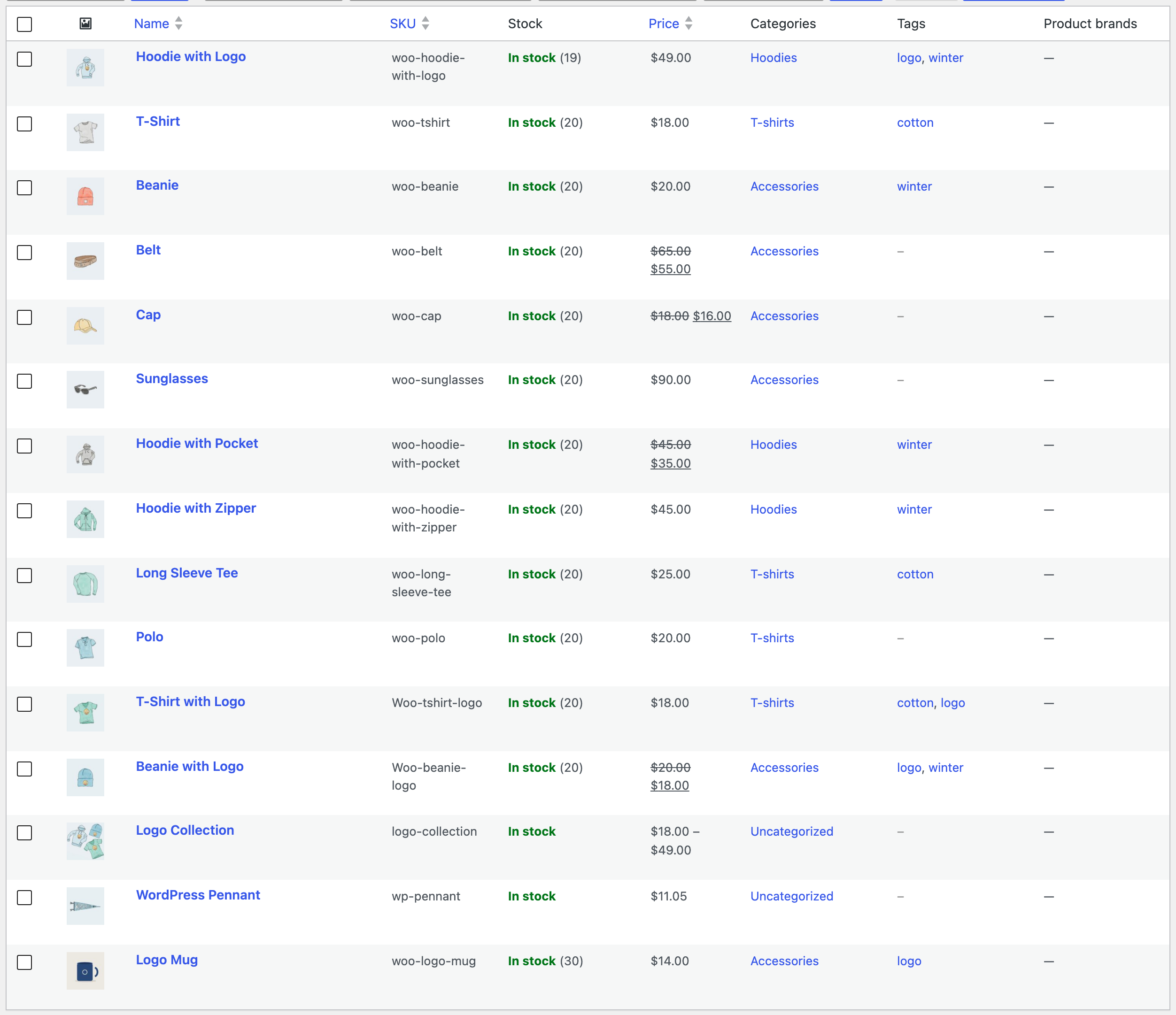
If you are switching on the same store rather than moving to a new one, use the same file with If Match Found set to Update. Products are matched by SKU, and only the columns in the file change.
What to check after switching
- Attributes: WebToffee’s
attribute:pa_colorcolumns aren’t mapped automatically. Product attributes are a separate step: import global attributes and terms, or export the products again with our plugin, which writes attributes in a format it reads back. - Up-sells and cross-sells: WebToffee lists them as product IDs (
upsell_ids,crosssell_ids), while our up-sell and cross-sell columns take SKUs. Add them back in WooCommerce, or put the SKUs in those columns before you import. - Variable products: WebToffee’s free version can’t export them, so they aren’t in its file. Export them with our plugin and import the variable products separately.
- Saved templates and schedules belong to WebToffee’s plugin. Run the import or export once in our plugin, then create a schedule from that job on the Schedules page to repeat it.
What you can do after switching
With every WooCommerce type in one plugin, the jobs that needed several plugins become one workflow:
- Update prices and stock by SKU from a supplier file, or import a supplier feed automatically every hour or day.
- Export a product file for Google Merchant Center with one row per variation.
- Move orders, customers and reviews with the same import screen.
- Sync products between two sites, for example from staging to live, without files.
With an AI agent
With PRO, an AI agent connected through the WordPress MCP Adapter (see connecting Claude Code to WordPress) can import the WebToffee file for you. It uploads the CSV with rsl-ie/upload-create, rsl-ie/upload-chunk and rsl-ie/upload-complete, gets the product fields and a suggested mapping with rsl-ie-pro/import-prepare (content type woo_product), and runs rsl-ie-pro/import-start. A prompt:
Back up the store first. Then import webtoffee-products.csv as WooCommerce
products. Match existing products by SKU and update them, map WebToffee's
columns (stock, images, tax:product_cat, tax:product_tag, children) to the
right fields, don't use the old store's product IDs, and report how many
products were created and updated.
In our run, the suggested mapping covered the columns with standard names, such as sku, regular_price, sale_price and stock_status. The agent added the WebToffee-specific ones: stock to the stock quantity, images to the product images, tax:product_type, tax:product_cat and tax:product_tag, and children for the grouped product. It left out the ID column, because those IDs belong to the old store. The store already had these products, so the job finished with 15 updated and 0 created, and the store still had the same number of products.
FAQ
Can I keep WebToffee’s plugin installed while I switch?
Yes. They are separate plugins. Import the WebToffee file with Import Export by RockStarLab, check the result, then remove the plugin you no longer need.
Is importing WooCommerce products free?
Importing and exporting WooCommerce data is part of the PRO add-on. New users get the first month free.
Are categories, tags and images kept?
Yes. Category paths such as Clothing > Hoodies, tags separated with |, images with their alt texts and the gallery are read from the WebToffee file.
What isn’t mapped automatically?
WebToffee’s attribute:pa_ columns and up-sell and cross-sell IDs. Import attributes separately and use SKUs for up-sells and cross-sells.
Can I move orders and customers too?
Yes, with the same import screen. See the guides on importing WooCommerce orders and customers.
Related Guides
- How to Import WooCommerce Products from CSV or Excel
- Shopify to WooCommerce: Import Products via CSV
- How to Export WooCommerce Products for Google Merchant Center
- How to Import WooCommerce Product Reviews from CSV

Comments 0
Have a question or a tip to share? Leave it below.