
A scheduled import runs at fixed times, whether or not anything has changed. Often you want the opposite: import the feed right after the app that writes it has finished, refresh an export when an editor publishes a post, or start an order export when a WooCommerce order comes in. Import Export by RockStarLab does this with triggers. In the example, a coffee roastery’s product app starts a WordPress import through a webhook URL. We test it with curl and add triggers for new posts and for a feed file that changes.
Free: webhook, post, WooCommerce order and file-change triggers, the trigger log, and the trigger abilities for AI agents.
Short Answer
- Run the import (or export) once by hand. For an import, load the file from a URL so every run downloads the current file.
- Go to Import Export → Jobs Log → Triggers, choose that job under Job to run and what starts it.
- For Webhook URL is called, click Create Trigger and copy the token. It is shown once.
- Have the other system send a POST request to the trigger URL with the token in the
X-RSL-Tokenheader. - Check Recent trigger runs and the new job in Jobs Log.
Which trigger to use
| Starts when | Good for | Timing |
|---|---|---|
| Webhook URL is called | A shop app, CRM, booking system, Zapier, Make, n8n or a script that has just written a new file | At once, at most one run a minute |
| A post is published | Refreshing an export that a newsletter tool, a partner site or a search index reads | After a wait you choose (60 seconds by default); posts within the wait start one run |
| A WooCommerce order is created | An order export that a warehouse or an accounting tool picks up | After the wait; orders within the wait start one run |
| The import file at its URL changes | A supplier or partner feed when the other side can’t call a URL | Checked every hour; runs only when the file has changed |
A trigger repeats a finished job: same file source, field mapping and options. It never starts a new job while its previous job is still running.
Step 1: Run the import once from a URL
Our roastery keeps its coffee origins in an app that publishes them as a CSV file at a fixed address. We imported it once with the import wizard, using Or import a file from a URL in step 3, mapped post_title, post_content and post_status, and chose to update existing posts by title. The first run created three posts. You can save the mapping as a template too (see field mapping templates), but the trigger doesn’t need it: it repeats the job with its own mapping.
The URL matters. If you upload a file from your computer, a trigger imports that same file again on every run. With a URL, each run downloads the file as it is at that moment.
Step 2: Create a webhook trigger
Open Jobs Log → Triggers. Under Job to run, imports that download their file are marked (URL). Choose the job, keep Webhook URL is called, give the trigger a name and click Create Trigger.
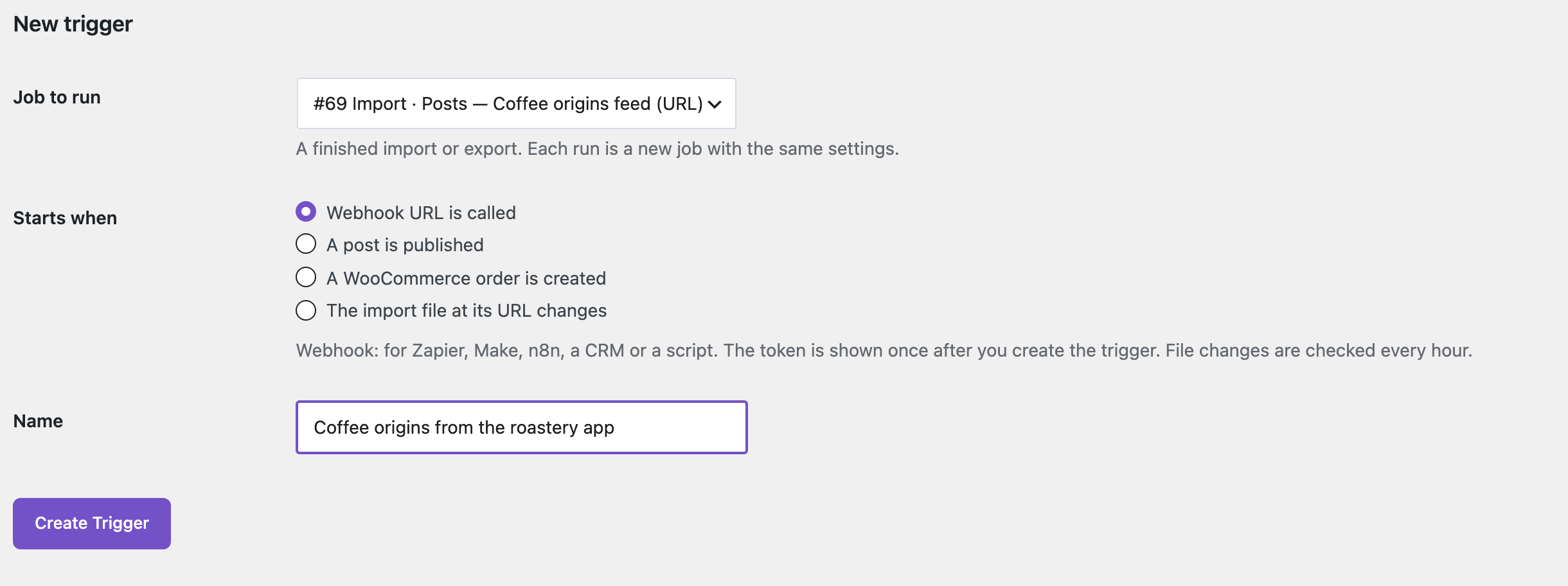
The list offers only finished imports and exports that can really be started again, so a job whose uploaded file has been cleaned up does not appear.
Step 3: Copy the token and call the URL
After the trigger is created, the page shows its secret token once, with a ready curl command. Copy the token into the other system’s settings now; the site stores only a hash of it.

The token goes in a header, never in the URL, so it doesn’t end up in server or proxy logs. Our test call after the app had added a fifth coffee to the file:
curl -X POST \
  -H "X-RSL-Token: rslt_your-token" \
  https://www.example-roastery.com/wp-json/rsl-ie/v1/triggers/trg_77195b58a0ce/run
The site answered 202 Accepted right away with the new job:
{"accepted":true,"trigger_id":"trg_77195b58a0ce","job_id":73}The import itself runs in the background, so the calling system doesn’t wait for it. Other answers you may see:
401“Unknown trigger or wrong token.” for a wrong or missing token, and also when the token is put in the URL instead of the header. An address that keeps sending wrong tokens is blocked for an hour.429“This trigger ran less than a minute ago.” when it is called twice within a minute. We got this by repeating the call at once.409“The previous job of this trigger is still running.” when a large import hasn’t finished yet.
Authorization: Bearer rslt_your-token works as well, for tools that only have a “Bearer token” field. In Zapier, Make or n8n, use their HTTP request step with the POST method and the header above.
Step 4: Check the result
Job #73 read the five rows of the file: four coffees were updated and Guatemala Antigua was created. A minute later the app added Panama Geisha and called the URL with a Bearer token: job #75 updated five posts and created one. The Triggers list shows each trigger with its URL, the job it runs, its last run and the number of runs.

Run Now starts the job for a test, even when the trigger is paused. New Token replaces a token that has leaked; the old one stops working at once.
Want to know how each triggered import went without checking the screen? Turn on email or webhook alerts for finished jobs; they work for triggered jobs too.
Refresh an export when a post is published
Our roastery’s newsletter tool reads a posts export. We created a second trigger with A post is published, the post type Posts and a wait of 120 seconds, for an existing posts export. Then we published three brewing guides one after another: they queued a single run, and two minutes later one export job ran (job #74) instead of three.
Posts created by the plugin’s own imports don’t count. When the webhook import above created the Panama Geisha post, the newsletter trigger stayed quiet. This keeps an import from starting an export that starts another import, and so on.
Export WooCommerce orders when an order comes in
A WooCommerce order is created works the same way with orders: set up an order export once, choose it as the job, and orders that come in within the wait time start one export. In our test a new order queued the run and the export job started. The option is available when WooCommerce is active.
Import a feed when the file changes
Some systems can’t call a URL. For them, use The import file at its URL changes. Every hour the plugin asks the server for the file’s headers (ETag, Last-Modified and size) and starts the import only when they have changed. If the server sends none of these, it compares a fingerprint of the file instead.
The first check only records the file. In our test the check after that reported “changed” when the app edited one description, started job #76, which imported all six rows, and the next check found nothing new. If the file changes while the previous import is still running, the change is picked up by the next check. For a feed that changes every few minutes, prefer a webhook or a schedule, because one check an hour is the limit here.
See what started each job
Recent trigger runs lists every run and every refused run: the time, the trigger, what started it (Webhook, Event, File changed or Run now) and the job, or why nothing was started.
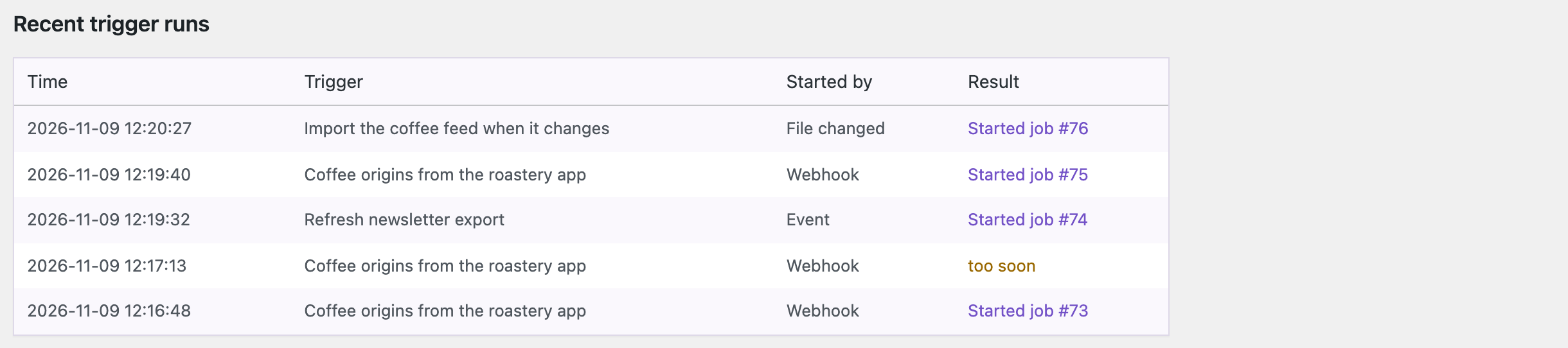
Jobs started by a trigger appear in Jobs Log with the name of the original job, run as the administrator who created the trigger. Pause a trigger to stop it without losing its URL and token.
With an AI agent
An AI agent connected through the WordPress MCP Adapter (see connecting Claude Code to WordPress) can set up triggers for you:
Import the coffee origins feed whenever the file changes,
and tell me what the last trigger runs did.
In our run, the agent called rsl-ie/trigger-sources, which marks the jobs that download their file with from_url: true, and created the trigger with rsl-ie/trigger-create for job #69 and the event file_changed. After the file changed, it read rsl-ie/trigger-log, which listed the file run, the two webhook runs, the refused “too soon” call and the newsletter export, and checked job #76 with rsl-ie/job-get-result: 6 of 6 rows, no errors. Other abilities pause or resume a trigger (trigger-update), run it (trigger-run), replace its token (trigger-rotate-token) and delete it (trigger-delete). A webhook token is returned only once, by trigger-create or trigger-rotate-token, and never by the list or log.
Before you turn on a trigger
A triggered import changes content while nobody is watching. Run it once by hand and check the result first, and create a backup of a live site before turning on a trigger that creates or updates posts or products.
FAQ
Is this the same as a schedule?
No. A schedule runs a job at fixed times. A trigger runs it when something happens: a URL call, a new post, a new order or a changed file. You can use both for the same job.
Does the webhook wait until the import has finished?
No. It answers 202 with the job ID at once, and the import runs in the background. Use job notifications or the Jobs Log to see the result.
Can I send data in the webhook request?
The request only starts the job. The data comes from the job’s file source, so put the new data in the file at the import URL before calling the trigger.
What happens if the token leaks?
Click New Token on the trigger. The old token stops working at once, and the trigger URL stays the same.
Why didn’t publishing a post start my trigger?
Check that the trigger is active and has that post type, and wait for the wait time to pass. Posts published by the plugin’s own imports, syncs and migrations never start triggers.
Related Guides
- Get Email and Webhook Alerts When a WordPress Import Finishes (and Fix Failed Rows)
- Save and Reuse Field Mapping Templates for Recurring WordPress Imports
- Automatic Supplier Feed Import for WooCommerce (Hourly or Daily)
- How to Use Jobs Log and Schedule WP Import and Export Jobs
- Connect Claude Code to WordPress via MCP
- Connect WordPress Imports and Exports to n8n: Webhooks, Job Status and Signed Alerts
Get the free plugin on WordPress.org.

Comments 0
Have a question or a tip to share? Leave it below.