
Imports that run on a schedule, or that an AI agent starts at night, finish when nobody is looking at the screen. If some rows fail, you find out days later. Import Export by RockStarLab can send an email or a signed webhook when an import or export finishes, and it shows each failed row with the field, the reason and how to fix it. The example sets up alerts for a weekly event import, reads the alert from a run where two of five rows failed, and fixes those rows with the error CSV.
Free: email, Slack and webhook notifications, the “only when something failed” filter, row errors with fixes, the error CSV, and the notification abilities for AI agents.
Short Answer
- Go to Import Export → Jobs Log → Notifications and turn on Send a notification when a job finishes.
- Choose Only when a job failed or some rows failed and the jobs to watch (Imports, Exports, Content Sync, Content Migration).
- Enter the email addresses, or a webhook URL for Zapier, Make, n8n or your own system, and click Save Changes.
- Click Send Test Notification to check the setup.
- When an alert reports failed rows, open the job in Jobs Log and click Download rows with errors (CSV).
Step 1: Choose when and where to send alerts
Open Import Export → Jobs Log and click the Notifications tab.

- When. “Only when a job failed or some rows failed” keeps the inbox quiet on good days. “After every job” also confirms the successful runs.
- Jobs. Imports and exports cover scheduled runs and imports started by AI agents as well as the ones you start in the browser.
- Email. Up to 10 addresses, separated by commas. The plugin sends with the site mailer, so if your site’s other emails arrive, these will too.
- Slack. Paste an incoming webhook URL from your Slack app (it starts with
https://hooks.slack.com/). - Webhook. Any https address that accepts a JSON POST. Private and local network addresses are refused.
After saving, the Slack and webhook addresses are shown only masked (the host and the last characters), because a webhook URL often works as a password. When the webhook is turned on for the first time, the screen shows a signing secret once: copy it to the system that receives the webhook.
The subject and the message can be edited. Placeholders such as {failed}, {errors} (the first five failed rows) and {job_url} are replaced with the values of the job.
Step 2: Send a test
Click Send Test Notification. It sends a sample message with “[Test]” in the subject to every channel that is turned on and shows the result for each, such as “Email: sent, Webhook: sent”. The same results appear under Recent notifications, which lists the last 30 deliveries without addresses or URLs:

Step 3: Read the alert
Our weekly event file had five rows, two of them empty because the booking system exported events that were still drafts. The import finished with three posts and two failed rows, and this email arrived:
Subject: [Example Store] Import #62 completed with errors: 3 done, 2 failed

Import #62 Weekly events (post) completed with errors in 1s.
Rows: 5 total, 3 done, 2 failed, 0 skipped.

Row 2 (post_content): Content, title, and excerpt are empty.
Row 4 (post_content): Content, title, and excerpt are empty.

Jobs Log: https://www.example-roastery.com/wp-admin/admin.php?page=rsl-ie-jobs-log
The row numbers count data rows in the file, so row 2 is the second event under the header line. If you started the import yourself, the result screen shows the same rows with a fix for each:

Step 4: Fix the failed rows with the error CSV
In Jobs Log, click the eye icon of the import. The job details list the failed rows with the field, the error and how to fix it:
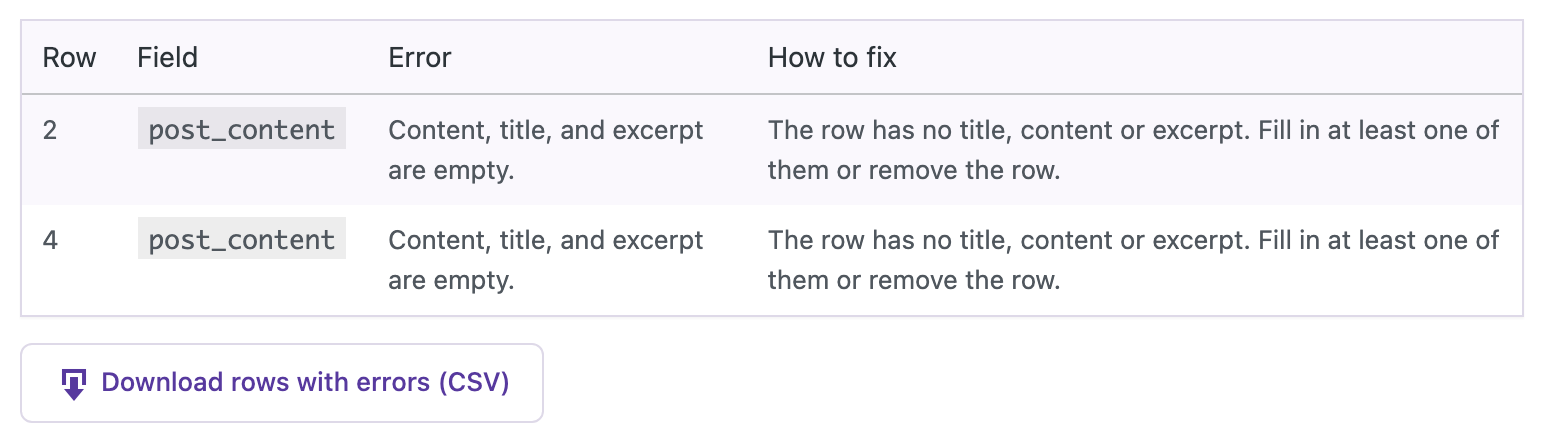
Download rows with errors (CSV) saves only the failed rows. The first columns explain the error, the rest hold the values of the row under the WordPress field names:
Row,Field,Error,How to fix,post_title,post_content,meta_event_id
2,post_content,"Content, title, and excerpt are empty.","The row has no title, content or excerpt. Fill in at least one of them or remove the row.",,,EV-2042
4,post_content,"Content, title, and excerpt are empty.","The row has no title, content or excerpt. Fill in at least one of them or remove the row.",,,
Row 2 still has its event ID, so we filled in the title and description of EV-2042 and deleted row 4, which was empty. Because the value columns use WordPress field names, Auto Map maps them when you import the corrected file; the first four columns are not needed and stay unmapped. With the event ID as the match field, the import updates or creates only these events and leaves the three imported ones alone.
Before you import corrections into a live site, create a backup.
Step 5: Use the webhook in your own system
The webhook is a JSON POST with the job, its counts and the first 20 failed rows. This is the body our test receiver got for the same import:
{
  "event": "job.finished",
  "site": { "name": "Example Store", "url": "https://www.example-roastery.com/" },
  "job": {
    "id": 62, "name": "Weekly events", "type": "import", "content_type": "post",
    "status": "completed", "total": 5, "success": 3, "failed": 2, "skipped": 0,
    "started_at": "2026-11-09 11:07:24", "completed_at": "2026-11-09 11:07:25",
    "url": "https://www.example-roastery.com/wp-admin/admin.php?page=rsl-ie-jobs-log"
  },
  "errors": [
    { "row": 2, "field": "post_content", "message": "Content, title, and excerpt are empty.",
      "hint": "The row has no title, content or excerpt. Fill in at least one of them or remove the row." },
    { "row": 4, "field": "post_content", "message": "Content, title, and excerpt are empty.",
      "hint": "The row has no title, content or excerpt. Fill in at least one of them or remove the row." }
  ],
  "subject": "[Example Store] Import #62 completed with errors: 3 done, 2 failed",
  "text": "Import #62 Weekly events (post) completed with errors in 1s. …"
}
The headers X-RSL-Event, X-RSL-Timestamp and X-RSL-Signature come with it. The signature is an HMAC-SHA256 of the timestamp, a dot and the raw body, made with the signing secret. In Zapier, Make or n8n you can route on job.failed greater than 0; in your own code, check the signature before trusting the request:
function rsl_verify( $body, $timestamp, $signature, $secret ) {
	if ( abs( time() - (int) $timestamp ) > 300 ) {
		return false; // Older than 5 minutes: possible replay.
	}
	$expected = 'sha256=' . hash_hmac( 'sha256', $timestamp . '.' . $body, $secret );
	return hash_equals( $expected, $signature );
}
We checked this function against the request above: it returned true for the original body and false after one character of the body was changed. A test message has X-RSL-Event: test and "job": null.
If Slack or the webhook doesn’t answer, or answers with an error such as 503, the plugin tries again after 5 minutes and then after 30 minutes; the attempts are listed in Recent notifications. At most 30 notifications are sent per hour, so a mistake in a schedule can’t flood a channel.
With an AI agent
An AI agent connected through the WordPress MCP Adapter (see connecting Claude Code to WordPress) can set up the alerts and work through the failed rows:
Add editor@example.com to the import alerts. Then import events-may.csv into
Blog Posts and tell me which rows failed and how to fix them.
In our run, the agent read the settings with rsl-ie/notification-settings-get and added the address with rsl-ie/notification-settings-update, which returned the recipients and only masked addresses for the webhook. It uploaded and imported a file of three events, one of them empty. After the job finished, the email and the signed webhook were sent, and rsl-ie/job-errors with csv: true returned row 2 with the field post_content, the fix and the error CSV. rsl-ie/notification-log confirmed both deliveries for the job, and rsl-ie/notification-test sends a test the same way the button does.
FAQ
Can I get an email only when an import fails?
Yes. Choose “Only when a job failed or some rows failed”. You get a message when the job fails or when at least one row is not imported.
Do notifications work for scheduled imports?
Yes. They are sent when the job finishes, whether it was started in the browser, by a schedule or by an AI agent.
The test email doesn’t arrive. What can I check?
The plugin sends with the site mailer (wp_mail). If other emails from your site don’t arrive either, set up an SMTP plugin; the webhook is a good second channel meanwhile.
What does the row number mean?
The position of the row among the data rows of the file: row 1 is the first line under the header.
Which jobs can send notifications?
Imports, exports, Content Sync and Content Migration jobs. Choose them in the Jobs setting. Cancelled jobs don’t send notifications.
Related Guides
- Trigger WordPress Imports and Exports with Webhooks and Events
- Save and Reuse Field Mapping Templates for Recurring WordPress Imports
- How to Use Jobs Log and Schedule WP Import and Export Jobs
- Automatic Supplier Feed Import for WooCommerce (Hourly or Daily)
- How to Import a Large CSV (100,000 Rows) into WordPress Without Crashing Your Site
- Connect WordPress Imports and Exports to n8n: Webhooks, Job Status and Signed Alerts
Get the free plugin on WordPress.org.

Comments 0
Have a question or a tip to share? Leave it below.