
If you import the same kind of file every week, such as an event list from a booking system, a price list from a supplier or new posts from another tool, you map the same columns to the same WordPress fields every time. A mapping template saves that work: map the first file once, save it under a name, and load it for every next file. The example uses Import Export by RockStarLab for a weekly event list. The second file had its columns in a different order, one column more and one column less, and the template still mapped it in one click: one event was updated, one was created, nothing was duplicated.
Free: mapping templates for posts, pages, custom post types, comments, media and every other import type, saving templates from the Jobs Log, and the template abilities for AI agents. PRO: field transformations, which a template keeps along with the mapping.
Short Answer
- Import the first file as usual and map its columns in step 4.
- In step 5, choose the field that identifies an item (for example an event ID), set what to do with existing items, and click Save as Template.
- Next time, upload the new file, open step 4, choose the template and click Load Template.
- Check the message about missing columns, go to step 5 (the settings are already filled in) and start the import.
What a template saves
| Saved | Not saved |
|---|---|
| Which file column goes to which WordPress field, by column name | The file and its rows |
| Custom fields and taxonomies you added in the mapping, with the term format | The position of columns in the file |
| Field transformations (PRO) | Paths or links to the file |
| Step 5: the field used to find existing items, If Match Found, If No Match Found, batch size, media and link options | Progress of earlier imports |
Templates belong to a content type: a template saved for Blog Posts is offered only when you import Blog Posts. They are shared by all administrators of the site.
Step 1: Map the first file
Our booking system exports this file every Monday:
Headline,Body,Section,Event ID
Spring Cupping Night,Taste three new single-origin coffees with our roasters.,Events,EV-1041
Latte Art Workshop,Learn to pour a heart and a tulip in two hours.,Events,EV-1042
Roastery Open Day,Tours of the roastery every hour from 10 to 4.,Events,EV-1043
Go to Import Export → Import, choose Blog Posts, upload the file and continue to step 4. Drag Headline to Title and Body to Content. For Section, click + Add next to Taxonomy, enter category and drop the column on it. For Event ID, click + Add under Custom Fields, enter event_id and drop the column on the new meta_event_id field.
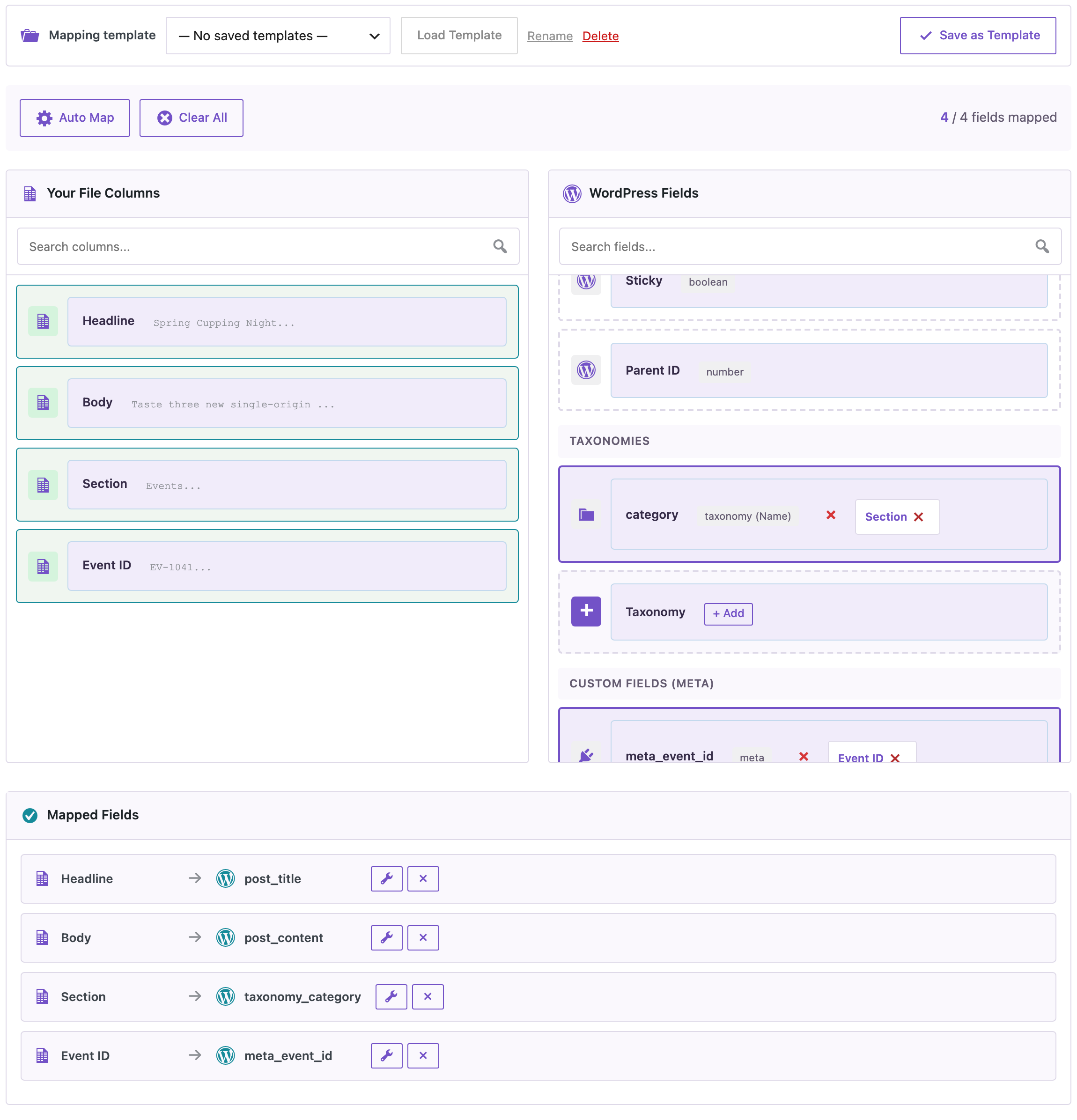
The Event ID matters more than it looks: titles change (“Latte Art Workshop” may become “Latte Art for Beginners”), but the ID from the booking system stays the same. Saving it in a custom field lets the next import find the post again.
Step 2: Choose how existing posts are found, then save
In step 5, set Check for Existing Items by Field to the event ID, If Match Found to Update and If No Match Found to Create.

Now click Save as Template at the bottom of step 5, next to Start Import, and enter a name such as “Weekly events”. Saving here keeps the mapping and these settings together; the same button in step 4 saves only what is set up to that point. If a template with the same name exists for this content type, you are asked whether to replace it. Then start the import. Our first file created three posts.
Before you import into a live site, create a backup. A template makes the next import quick to start, and an import with Update changes existing posts.
Step 3: Load the template for the next file
A week later the booking system was updated and the export looked different:
Event ID,Headline,Body,Price
EV-1042,Latte Art Workshop,"Learn to pour a heart, a tulip and a rosetta in two hours.",35
EV-1044,Cold Brew Masterclass,Make cold brew and nitro at home.,25
The columns are in another order, there is a new Price column and no Section. Upload the file, open step 4, choose Weekly events and click Load Template.
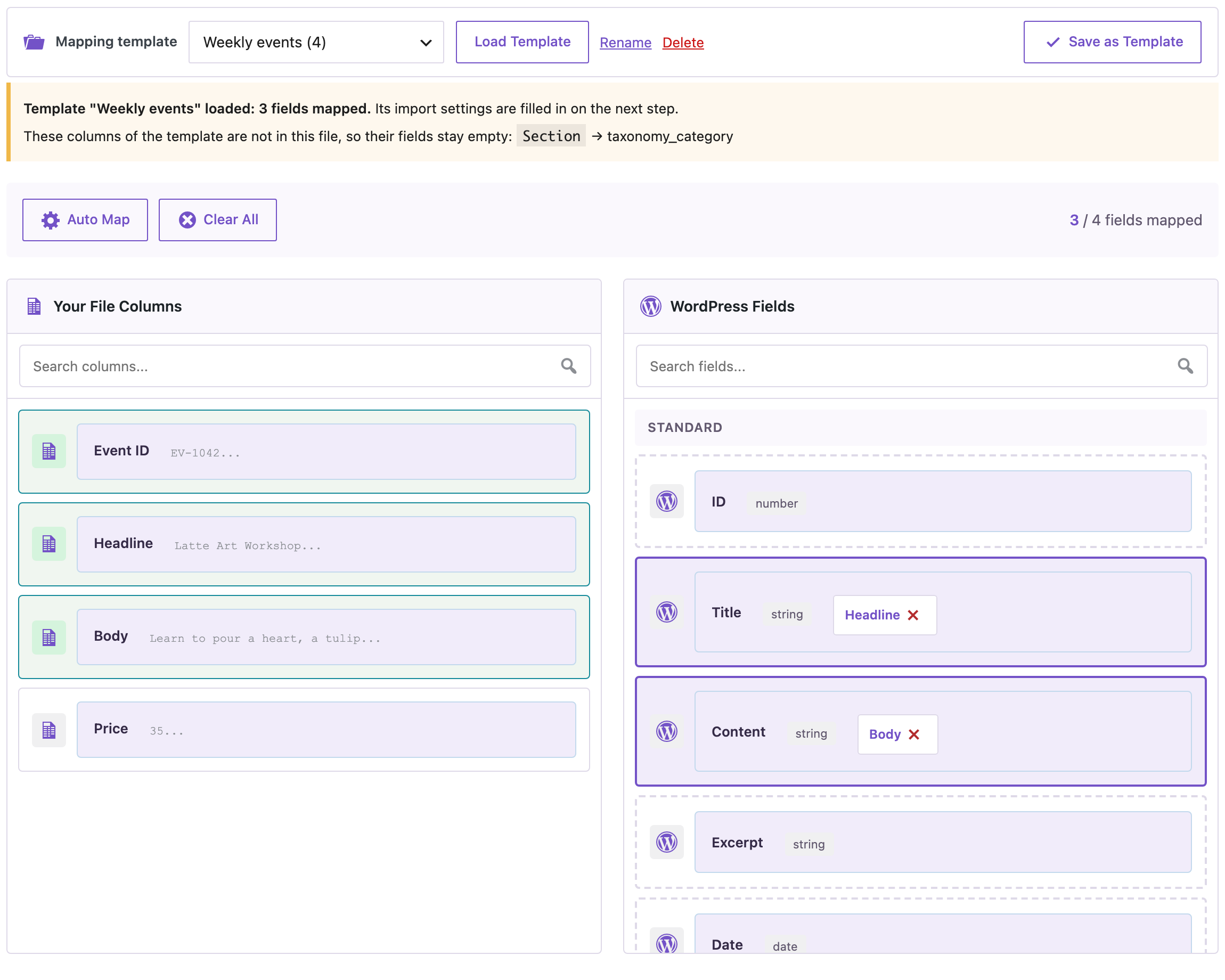
Columns are matched by name; upper and lower case and spaces around the name don’t matter. The three known columns were mapped. The message says that Section is not in this file, so the category stays empty for these rows, and the category field is highlighted in the list. Price is not in the template, so it stays unmapped until you map it. Nothing is guessed: if a column was renamed in the new export, map it by hand and save the template again.
Step 4: Check the settings and import
Step 5 already has the event ID as the match field and Update / Create selected. Click Start Import.

EV-1042 already existed, so the Latte Art Workshop post was updated with the new text. EV-1044 was new, so Cold Brew Masterclass was created. The three posts from the first week were not touched or copied, because the import found them by their event ID.
Save a template from an earlier import
If you already imported a file and mapped it carefully, you don’t need to map it again. Open Import Export → Jobs Log, find the import and click the folder icon (Save field mapping as template). The template gets the column names, the target fields and the step 5 settings of that import. Templates can be renamed or deleted with the links next to the template list in step 4; imports made with a template are not affected when you delete it.
With an AI agent
An AI agent connected through the WordPress MCP Adapter (see connecting Claude Code to WordPress) can use the same template, so a recurring import can run without anyone opening the import screen:
Import events-week-47.csv into Blog Posts with the "Weekly events" mapping
template. Tell me which events were updated and which were created.
In our run, the agent found the template with rsl-ie/mapping-template-list, uploaded the file with rsl-ie/upload-create, upload-chunk and upload-complete, and called rsl-ie/mapping-template-apply with the template and file IDs. The week 47 file had yet another column order (Section, Event ID, Headline, Body); the ability matched all four columns by name and returned a mapping and settings that the agent passed unchanged to rsl-ie/import-start. The job finished with one post updated (EV-1044, Cold Brew Masterclass, which also got its Events category) and one created (EV-1045, Decaf Explained). Agents can also create templates with mapping-template-save or mapping-template-from-job, and remove them with mapping-template-delete.
FAQ
Does the next file need the columns in the same order?
No. Columns are matched by name, so the order can change. Upper and lower case and spaces around a column name are ignored.
What happens if a column is missing from the new file?
Its field is left empty for this import, and the import screen lists the missing column and highlights the field. The rest of the mapping is loaded.
Does a template store my file?
No. It stores column names, target fields and import settings only. The file is uploaded again for every import.
Which field should I use to find existing posts?
A value that never changes for an item, such as an ID from the system that exports the file. Save it in a custom field and choose that field in step 5. Titles work too, but a renamed title creates a new post.
Can I use a template for WooCommerce products?
Yes. Templates work for every import type, including products in PRO; they are offered when you import the same content type again.
Related Guides
- How to Import CSV Files into WordPress with Field Mapping
- How to Use Jobs Log and Schedule WP Import and Export Jobs
- Automatic Supplier Feed Import for WooCommerce (Hourly or Daily)
- Mapping Templates, Job Notifications and Fixable Import Errors: What’s New in 2.1.35
Get the free plugin on WordPress.org.

Comments 0
Have a question or a tip to share? Leave it below.