
Import Export by RockStarLab 2.1.35 is for imports you run again and again: a supplier sends a new file every week, a newsroom tool exports new posts every morning, an AI agent loads data at night. You can now save the field mapping of an import as a template, get an email or a webhook when a job finishes, and see each failed row with the reason and how to fix it. Everything in this release is in the Free plugin.
Mapping templates
Map the columns of a file once and save the result under a name. Next time, open step 4 of the import, choose the template and click Load Template. The template keeps the column mapping and the import settings of step 5: the field used to find existing items, what to do when a match is found or not found, and the batch size.

- Columns are matched by name, so the next file may have them in another order. Upper and lower case and spaces around the name don’t matter.
- A column the template expects but the new file doesn’t have is listed above the mapping, and its field is highlighted. Nothing is guessed.
- Any earlier import in Jobs Log can be saved as a template with one click, so you don’t have to map it again.
- Templates can be renamed and deleted. They never store the file or its rows.
Also fixed for recurring imports: when you chose a custom field, such as a supplier code, as the field to check for existing posts, pages or custom post types, the import created a new item every time. Custom fields now work as the match key, and the list in step 5 offers only fields an existing item can be found by.
Step-by-step guide: Save and Reuse Field Mapping Templates for Recurring WordPress Imports.
Notifications when a job finishes
The new Notifications tab next to Jobs Log and Schedules sends a message when an import or export finishes: always, or only when the job failed or some rows failed. Send it by email, to a Slack channel, or as a webhook to Zapier, Make, n8n or your own system.
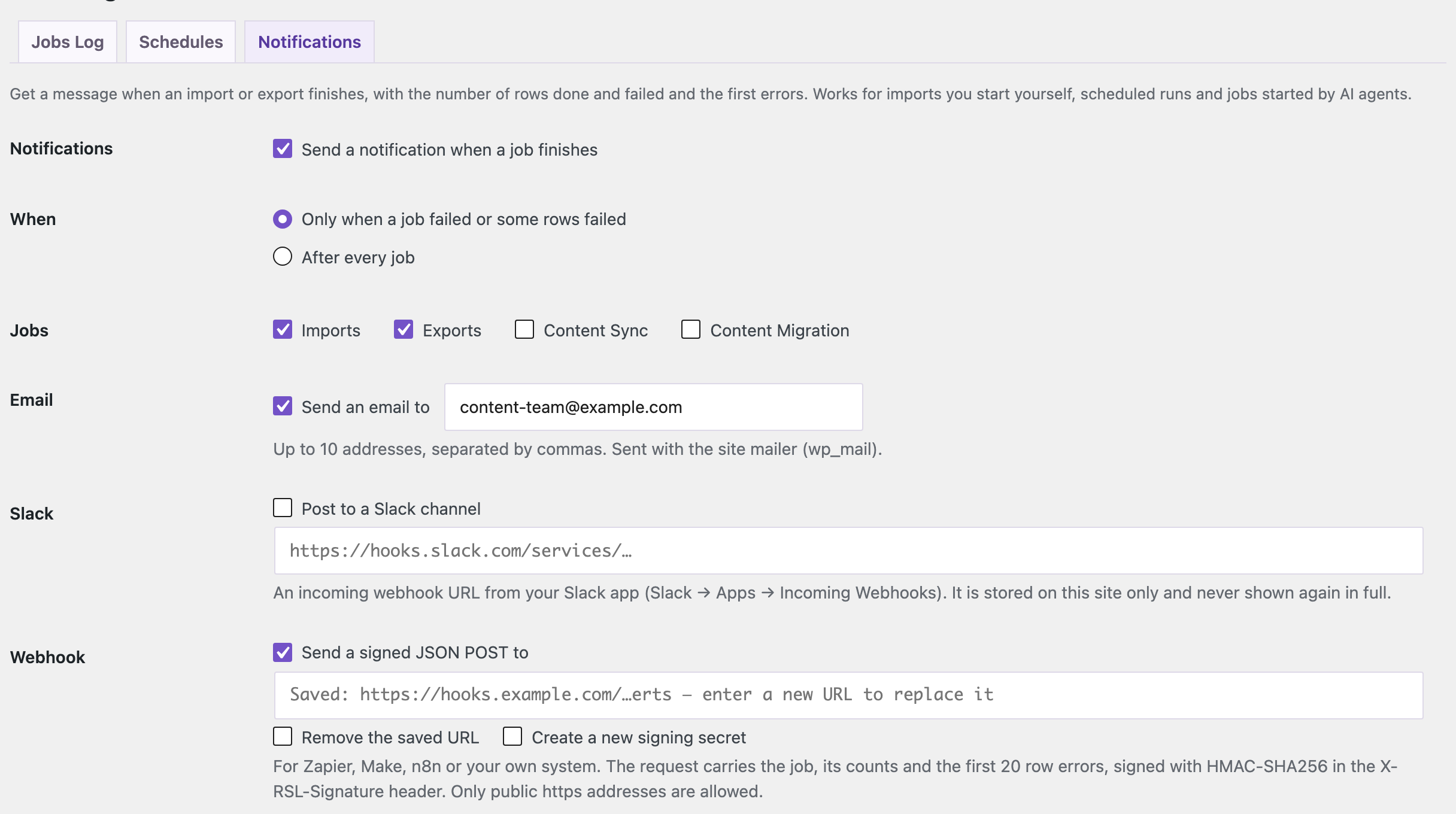
- The message has the job, the number of rows done and failed, and the first errors. Edit the subject and text with placeholders such as
{failed}and{errors}. - The webhook is a JSON POST signed with HMAC-SHA256, so the receiver can check that it came from your site. The signing secret is shown once, when it is created.
- Slack and webhook addresses are masked after saving and never appear in logs. Webhooks go only to public https addresses.
- Failed Slack and webhook deliveries are tried again after 5 and 30 minutes, and Send Test Notification checks the setup before a real job runs.
Notifications work for imports you start in the browser, scheduled runs and jobs started by AI agents, because they are sent when the job finishes, not by the screen that started it.
Step-by-step guide: Get Email and Webhook Alerts When a WordPress Import Finishes (and Fix Failed Rows).
Import errors you can fix
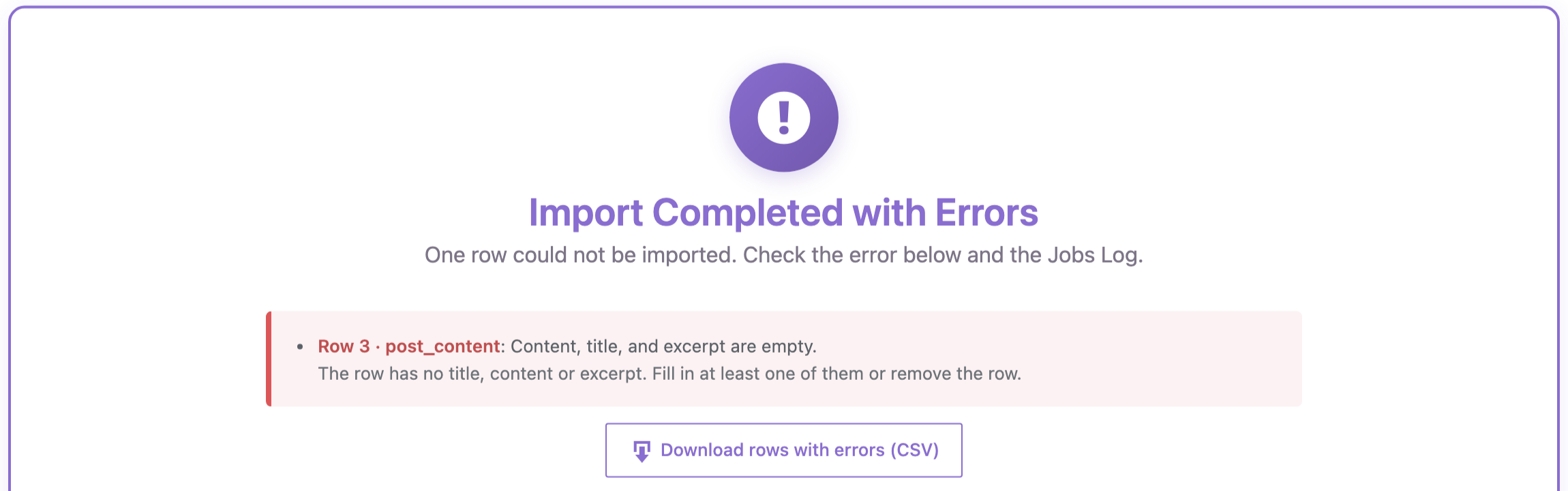
When rows fail, the result screen and the job details in Jobs Log now show the row number in the file, the field, the error and how to fix it. Download rows with errors (CSV) saves only the failed rows with their values. The columns use the WordPress field names, so you can correct the file and import it again with Auto Map.
For AI agents
An AI agent connected through the WordPress MCP Adapter (see connecting Claude Code to WordPress) can use all of this. In our test the agent uploaded a new weekly file, called rsl-ie/mapping-template-apply with the saved template, and passed the returned mapping and settings unchanged to rsl-ie/import-start: one post was updated by its custom-field key and one was created. In a second run it changed the email recipients with rsl-ie/notification-settings-update, imported a file with an empty row, and read the failed row with its fix and the error CSV through rsl-ie/job-errors. The new abilities are:
mapping-template-list,-get,-save,-delete,-from-joband-applynotification-settings-get,notification-settings-update,notification-testandnotification-logjob-errors
Before you import
A template makes an import fast to start, and an import changes your content. Before importing into a live site, create a backup, especially the first time you use a template with a new file.
FAQ
Are mapping templates and notifications in the free plugin?
Yes. Both are part of the Free plugin from version 2.1.35.
Does a template work if the columns of the next file are in a different order?
Yes. Columns are matched by name, not position. Columns missing from the new file are listed, and their fields stay empty.
Can I get notified only when something goes wrong?
Yes. Choose “Only when a job failed or some rows failed” in the Notifications tab.
Which services can receive the webhook?
Any service that accepts a JSON POST over https, such as Zapier, Make or n8n, or your own endpoint. Check the X-RSL-Signature header with the signing secret.
Try it
Update Import Export by RockStarLab from Plugins in your WordPress dashboard, or get the free plugin on WordPress.org. The full list of changes is in the plugin’s changelog.
Related Guides
- Save and Reuse Field Mapping Templates for Recurring WordPress Imports
- Get Email and Webhook Alerts When a WordPress Import Finishes (and Fix Failed Rows)

Comments 0
Have a question or a tip to share? Leave it below.