
n8n is an automation tool you can host yourself or use in the cloud. With Import Export by RockStarLab, an n8n workflow can start a WordPress import with a new file, wait until the job is done, and receive a signed message when any import or export finishes. The plugin gives you both workflows ready to import into n8n. In the example, a coffee roastery’s product posts are connected to n8n: a new CSV file comes in, posts are created or updated, and an alert goes out when a row fails.
Free: webhook triggers, the file URL option, job status, signed job notifications and both n8n workflows. n8n is a separate product with its own free and paid plans.
Short Answer
- Run the import once by hand, so the plugin knows the content type, mapping and options.
- Go to Import Export → Jobs Log → Triggers, choose that job, select Webhook URL is called, tick Accept a file URL in the request and create the trigger. Copy the token: it is shown once.
- Click Download n8n workflow next to the trigger and import the file in n8n.
- Paste the token into both HTTP Request nodes and put your file’s address in the request body.
- Run the workflow. It starts the import, checks the job every 30 seconds and stops when the job is finished.
How the pieces fit
- n8n → WordPress: a POST to the trigger’s webhook URL with the token in the
X-RSL-Tokenheader starts a new job with the settings of the job you chose. The answer contains thejob_id. - n8n reads the status: a GET to
…/triggers/{trigger_id}/jobs/{job_id}with the same header returns the status and the counts: created, updated, skipped and failed rows. - WordPress → n8n: when a job finishes, the plugin can send a JSON message signed with HMAC-SHA256 to an n8n webhook. The n8n workflow checks the signature, so it only trusts messages from your site.
For triggers on WordPress events instead, such as a published post or a new WooCommerce order, see Trigger WordPress Imports and Exports with Webhooks and Events.
Step 1: Create a webhook trigger that accepts a file URL
We imported a small CSV of three coffees as posts (job #69), then created the trigger from it. Accept a file URL in the request appears for imports with a webhook. With it, each call can bring its own file, for example a file just added to Google Drive or Dropbox, instead of re-reading the job’s original file.
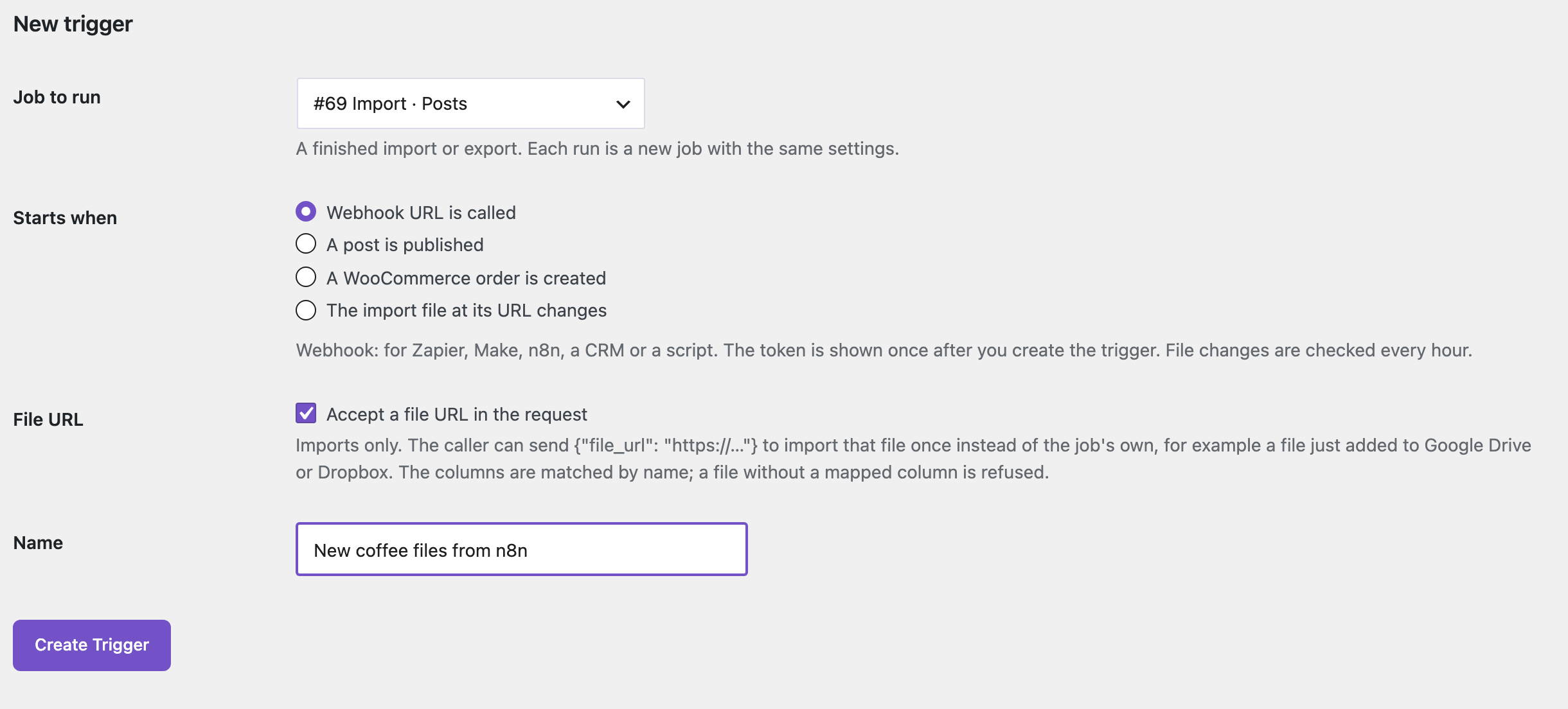
After you click Create Trigger, the page shows the token once, with a curl example and the status URL:

Keep the token in n8n or a password manager. The site stores only a hash of it, so if you lose it, click New Token; the old one stops working at once. Send it in the header, never in the URL.
The trigger row shows the webhook URL, that it accepts a file URL, the last run and the Download n8n workflow link:

Step 2: Import the workflow into n8n
In n8n, create a workflow and choose Import from File in the menu, then pick the downloaded file. It has five nodes:

- Start the job: POST to your trigger URL. Replace
PASTE-THE-TRIGGER-TOKEN-HEREwith your token andhttps://example.com/files/import.csvwith the address of your file. - Wait 30 seconds, then Check the job: GET the job status. Paste the token here too.
- Finished? If
finishedis true, the workflow continues from the true output, where you can add your own steps, such as a message to your team. If not, it waits and checks again.
The Start node runs the workflow by hand. Replace it with the trigger you need, such as a schedule, a new file in Google Drive, or a form, and pass the file’s address into the file_url field of the request body.
Step 3: Run it with a new file
Our November file had two rows, with the columns in a different order than the first file:
post_status,post_title,post_content
publish,Rwanda Nyamasheke,"Red currant, black tea, honey."
publish,Colombia Huila,"Caramel, red apple, medium body. Back in stock."
The plugin matches the columns by name, so the order doesn’t matter. If a column used in the mapping is missing, the call is refused with a clear message and nothing is imported.
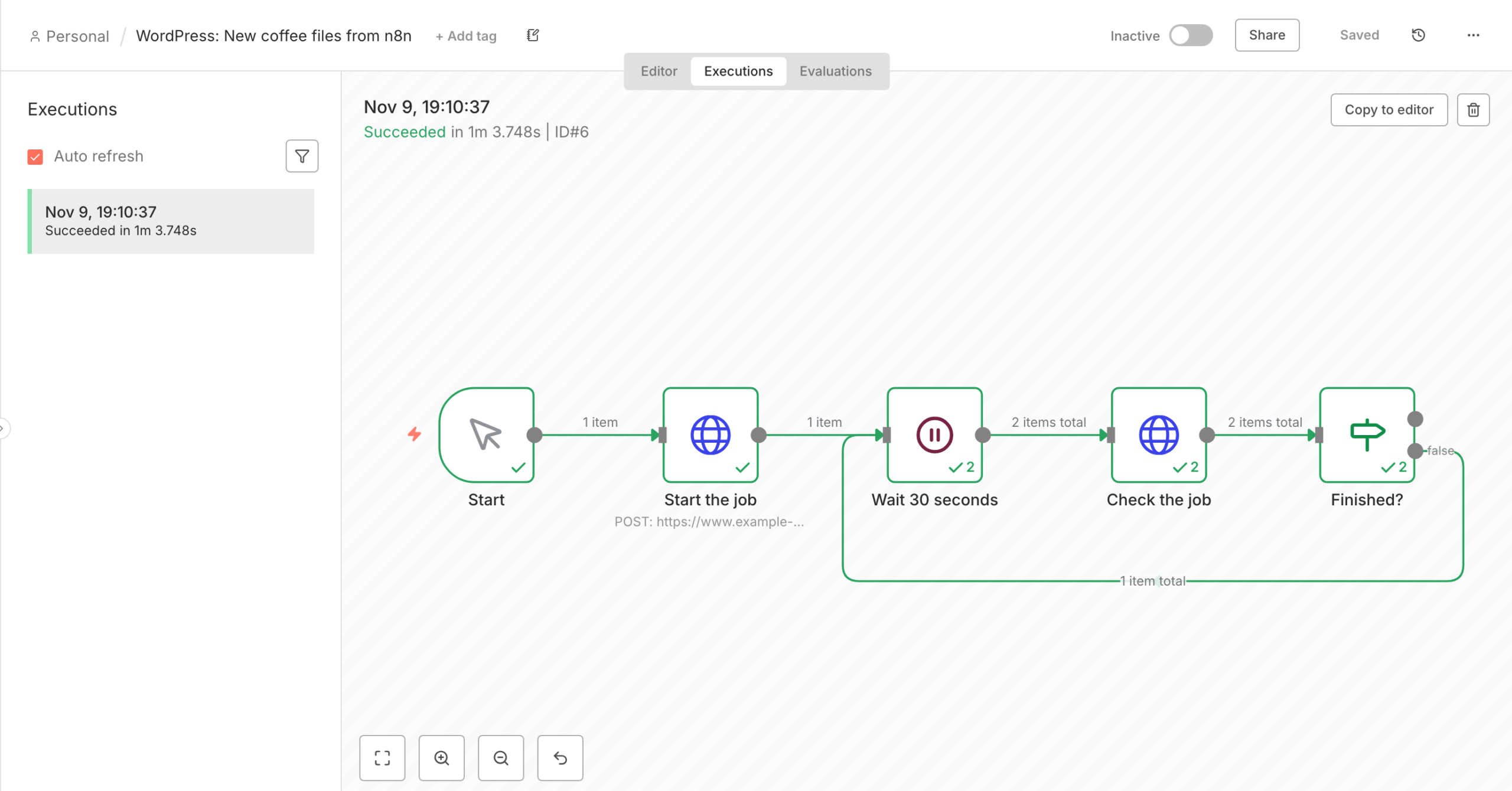
The run took about a minute. The first check, 30 seconds after the start, said the job was still pending; the second one returned:
{"job_id": 70, "type": "import", "status": "completed", "finished": true,
 "total": 2, "processed": 2, "created": 1, "updated": 1,
 "skipped": 0, "failed": 0, "errors": 0}
Rwanda Nyamasheke was created, and Colombia Huila, already on the site from the first import, was updated. The job runs in the background with WP-Cron, so on a quiet site it can wait for the next visit; the loop simply checks again.
Two limits protect the site: while a job from the trigger is still running, another call is refused (HTTP 409), and a trigger starts at most once a minute (HTTP 429). Twenty wrong tokens in an hour from one address block that address for the rest of the hour.
Step 4: Get a signed message when a job finishes
The loop above tells n8n about one job. To hear about every job, including scheduled ones and imports someone runs by hand, use the job notifications. In Jobs Log → Notifications, tick Send a signed JSON POST to and click Download an n8n workflow that receives it and checks the signature.

Import that workflow in n8n, then:
- Replace
PASTE-THE-SIGNING-SECRET-HEREin the Check signature node with the signing secret. It is shown once when the webhook is saved; tick Create a new signing secret if you need a new one. - Allow the crypto module in n8n’s Code node. On a self-hosted n8n, set the environment variable
NODE_FUNCTION_ALLOW_BUILTIN=crypto. - Activate the workflow and paste its production webhook URL (it ends in
/webhook/rsl-job-finished) into the plugin’s webhook field. Only public https addresses are accepted.
We then started the December file from n8n. One of its two rows had no title or content, so the import finished with one failed row, and the notification arrived in n8n:

The Check signature node returned:
{
 "event": "job.finished",
 "job_id": 72,
 "status": "completed",
 "failed": 1,
 "errors": [{"row": 2, "field": "post_content",
   "message": "Content, title, and excerpt are empty.",
   "hint": "The row has no title, content or excerpt. Fill in at least one of them or remove the row."}],
 "text": "Import #72 (post) completed with errors in 0s. ..."
}
The run above it in the list is a request we sent with a made-up signature: the node stopped it with “Signature does not match: not sent by your WordPress site”. Connect the output of Check signature to whatever should happen next: an email to the editor, a task in your project tool, or a row in a sheet. Under When, choose Only when a job failed or some rows failed if you don’t want a message for every successful run.
Zapier and Make
The same two calls work from any tool that can send an HTTP request with a custom header, for example Webhooks by Zapier or Make’s HTTP module: a POST to the trigger URL with the X-RSL-Token header, then a GET to the status URL. We built and tested the ready workflows for n8n only.
With an AI agent
An AI agent connected through the WordPress MCP Adapter (see connecting Claude Code to WordPress) can set this up and check it for you:
List my import triggers, give me the n8n workflow for the coffee one,
and tell me what happened in the last runs.
In our run, the agent called rsl-ie/trigger-list and found the trigger “New coffee files from n8n” (webhook, accepts a file URL, 3 runs). rsl-ie/trigger-n8n-workflow returned the workflow with the token as a placeholder; its workflow_json field is the exact file to import. rsl-ie/trigger-log listed the three calls from n8n with jobs 70, 71 and 72, and rsl-ie/job-get-result for job 72 named the failed row: row 2, “Content, title, and excerpt are empty.” These abilities never return the token: a token is returned once, only when a trigger is created or gets a new token. rsl-ie/notification-n8n-workflow gives the receiving workflow the same way.
Before you connect it
A webhook import changes your content without anyone opening the wizard, so back up the site first and try the workflow on a staging copy. Start with a small file and check the result in Jobs Log before you schedule it.
FAQ
Do I need a paid n8n plan?
No. The self-hosted community edition runs both workflows. n8n Cloud works too, within your plan’s limits.
Can n8n send a different file each time?
Yes, if the trigger accepts a file URL. Send {"file_url": "https://..."} in the body; the columns are matched by name.
What happens if n8n calls the webhook twice in a row?
If the first job is still running, the second call gets HTTP 409. Calls less than a minute apart get HTTP 429. Nothing runs twice.
Where do I see what the trigger did?
In Jobs Log, on the Triggers tab: the last run and the run log, and each job’s details with the failed rows.
How does n8n know a notification came from my site?
Each message is signed with your signing secret. The Check signature node recalculates the signature and stops any message that doesn’t match.
Related Guides
- Trigger WordPress Imports and Exports with Webhooks and Events
- Get Email and Webhook Alerts When a WordPress Import Finishes (and Fix Failed Rows)
- WordPress Jobs Log: Check, Retry and Schedule Imports & Exports
- Import Content from a URL into WordPress with AI
Get the free plugin on WordPress.org.

Comments 0
Have a question or a tip to share? Leave it below.