
Turning an existing web page into WordPress content usually means copying text, cleaning formatting, moving images, and rebuilding structure by hand. AI URL Importer reduces that manual work by extracting content from a source URL and preparing it for WordPress.
With WP Import Export by RockStarLab, you can import one URL or a list of URLs, preview the AI-generated result, and create posts, pages, or supported custom post types using the OpenAI API.
Short Answer
To import content from a URL into WordPress with AI, open Import Export -> AI URL Importer, enter one URL or a list of URLs, choose the target content type, configure how the AI should extract and structure the content, preview the result, and start the import.
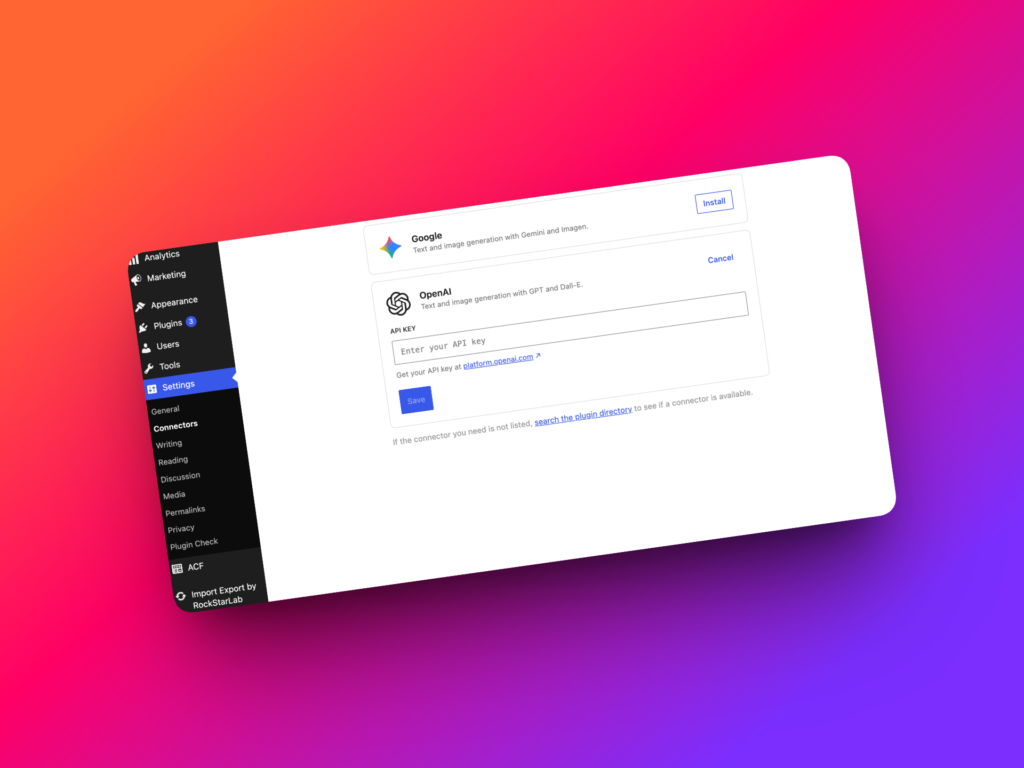
The AI URL Importer requires an OpenAI API key. Configure the key in WP Options -> Connectors before starting an AI import workflow.
When to Use AI URL Importer
Use AI URL Importer when content already exists on another web page and you want to recreate it as structured WordPress content. It can reduce manual copying, cleanup, and formatting work during content migration or publishing projects.
Common use cases include:
- Importing articles from old websites into WordPress.
- Turning public resource pages into WordPress posts.
- Creating draft pages from source URLs for editorial review.
- Moving landing page content into a new WordPress content model.
- Extracting content from URL lists during site migrations.
- Storing extracted values in post content or supported ACF fields.
- Preparing imported content for custom post types where supported by the active setup.
AI URL Importer is best used as a structured drafting and migration assistant. Human review is still important before publishing imported content.
What WP Import Export Supports
| Task | Supported? | Notes |
|---|---|---|
| Import content from one URL | Yes | Enter a source URL in the AI URL Importer workflow. |
| Import content from a list of URLs | Yes | Use URL list input when importing multiple pages. |
| Create WordPress posts | Yes | AI URL Importer can create posts from extracted URL content. |
| Create WordPress pages | Yes | Choose pages as the target content type when appropriate. |
| Create custom post types | Yes, where supported | Registered custom post types can be used when available in the active setup. |
| Store extracted values in ACF fields | Yes, where supported | Useful for structured fields such as subtitles, summaries, specs, or content sections. |
| Preview before import | Yes | Review AI-generated content before creating WordPress records. |
| Delay between URL imports | Yes | Use delays to reduce rate-limit issues when importing many URLs. |
Before You Start
Before importing content from URLs, make sure the source pages are accessible and that you have permission to reuse or migrate the content. AI can help extract and structure information, but it does not replace editorial, legal, or copyright review.
You should also decide where the content should land in WordPress. A blog article may become a post, a service page may become a page, and structured content may belong in a custom post type with ACF fields.
OpenAI API Key Requirement
AI URL Importer requires an OpenAI API key. Without a configured key, the plugin cannot send page content to an AI model for extraction and structuring.
Configure the API key in WP Options -> Connectors. This connector setting is used by AI-powered workflows such as AI URL Importer and AI Function Generator.
Choose a Safe Test URL
Start with one representative URL before importing a long list. A small test helps confirm that the AI extracts the title, body content, images, and structured fields in the way you expect.
After the test import, review both the WordPress editor and the frontend output. This is especially important when the target content type uses custom templates or ACF fields.
Step-by-Step Workflow
Step 1: Open AI URL Importer
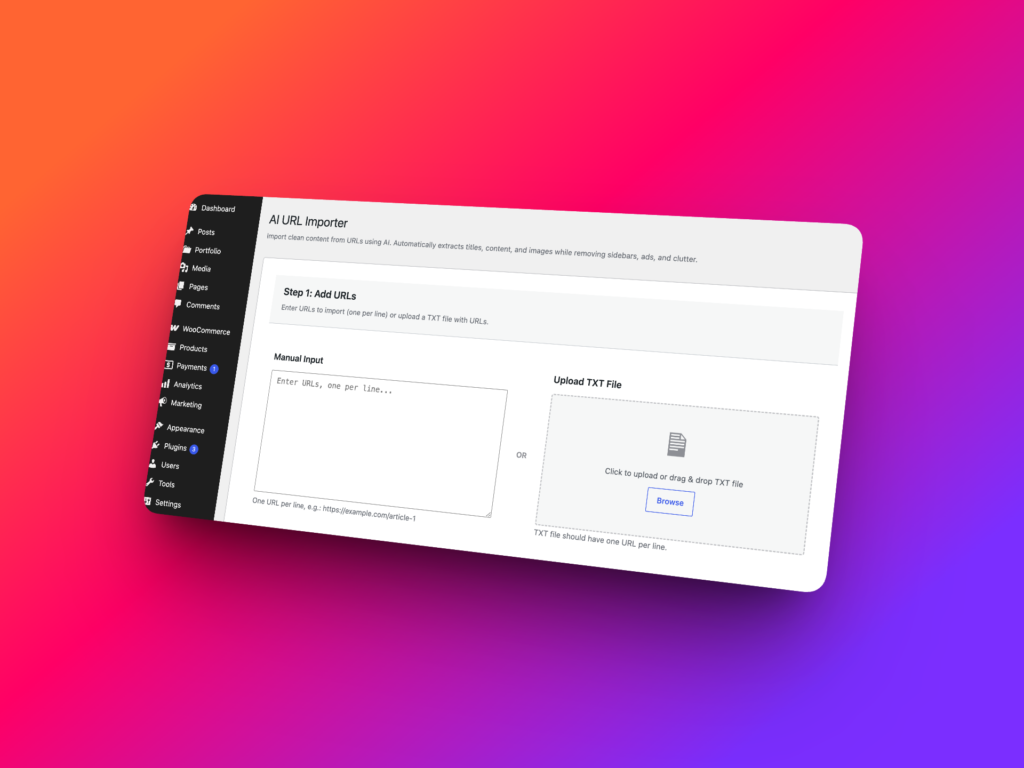
In the WordPress admin area, go to Import Export -> AI URL Importer.
This screen is used to enter source URLs, configure AI extraction, preview generated content, and create WordPress records from URL content.
Step 2: Enter One URL or a List of URLs
Enter the URL you want to import. If you need to process multiple pages, use the list option and add each URL according to the plugin interface.
Use clean, public URLs whenever possible. Pages that require login, block crawlers, load most content through scripts, or return inconsistent markup may produce weaker extraction results.
Step 3: Choose the Target Content Type
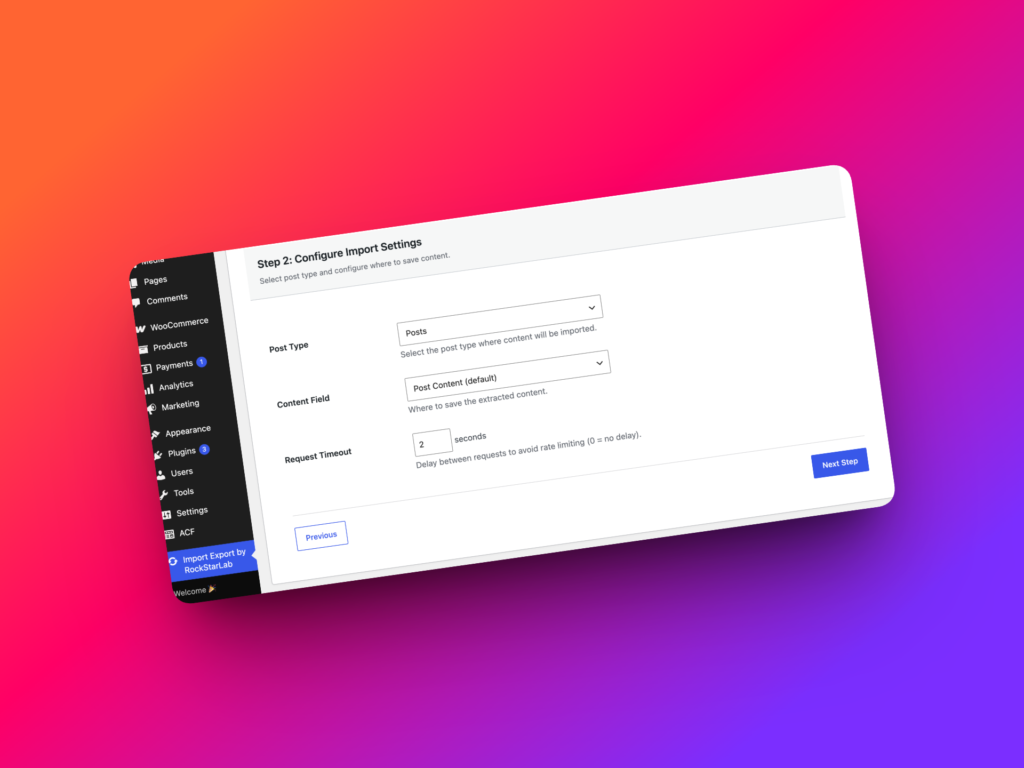
Choose whether the imported content should become a post, page, or registered custom post type. The right choice depends on how the destination WordPress site is structured.
Use posts for articles, updates, and blog-style content. Choose pages for evergreen site pages. Select a custom post type when the content belongs to a structured model such as listings, resources, case studies, products, or documentation entries.
Step 4: Configure AI Extraction
Configure how the AI should read and structure the source page. The goal is to tell the importer what content matters and where it should go in WordPress.
For simple articles, you may want the title, body content, excerpt, and featured image. For structured content, you may want specific fields such as subtitle, summary, specifications, calls to action, location, author, or content sections.
Step 5: Map Extracted Content to WordPress Fields
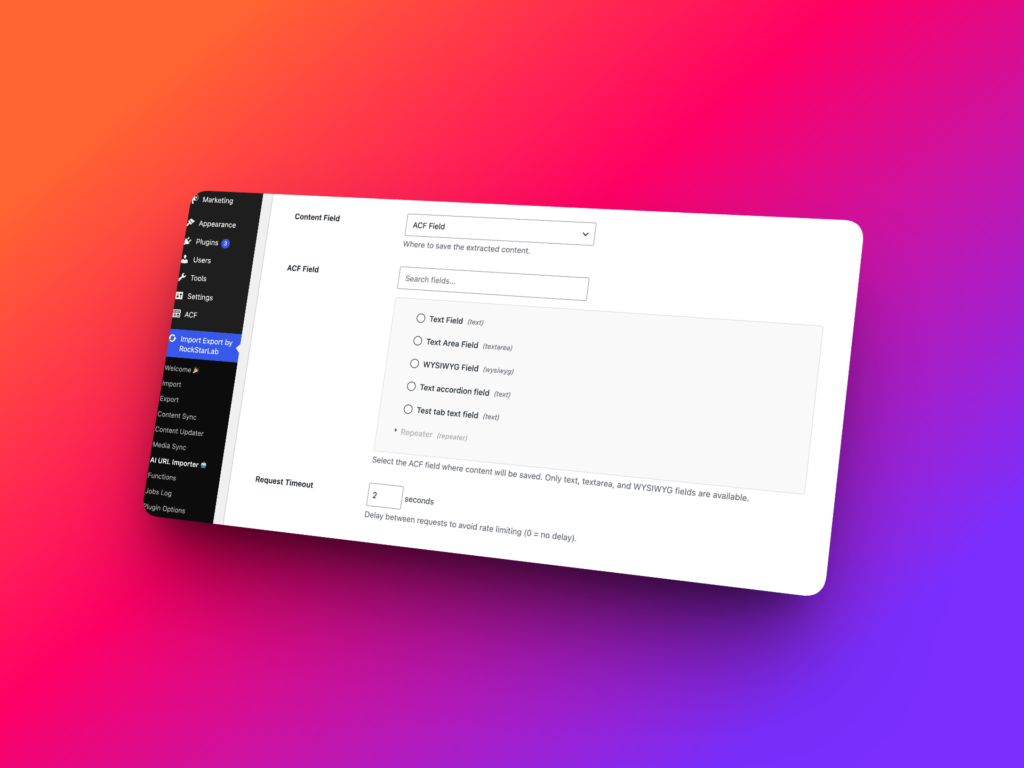
Map the generated content to the correct WordPress destination fields. This can include post title, post content, excerpt, featured image, taxonomy terms, custom fields, or supported ACF fields.
WP Import Export supports mapping to Advanced Custom Fields where supported by the active setup. For example, extracted values can be mapped to fields such as acf_subtitle, acf_summary, acf_specs, or acf_flexible_content when the field structure is available and supported.
Step 6: Preview the Generated Content
Preview the AI-generated content before importing it. Check whether the title is accurate, the body content is readable, and the extracted fields match the destination content model.
Look closely for missing sections, repeated navigation text, unrelated footer content, broken image references, or content that needs editorial cleanup. The preview step is where you catch problems before records are created.
Step 7: Set Delay for Multiple URL Imports
When importing a list of URLs, configure a delay between URL imports if the option is available. Delays can reduce rate-limit issues and make long-running AI imports more stable.
This is especially useful when importing many pages from the same source website or when OpenAI API usage limits need to be managed carefully.
Step 8: Start the Import
After previewing and confirming the settings, start the import. WP Import Export will use the AI URL Importer workflow to create the selected WordPress content records.
For larger URL lists, monitor the job status and review the created content after completion. Open several imported posts or pages in the WordPress editor and on the frontend before considering the migration complete.
Example: Import an Article from a URL into a WordPress Post
Suppose you have an old article at https://example.com/blog/import-guide and want to recreate it as a WordPress post.
A practical workflow would be:
- Open
Import Export -> AI URL Importer. - Enter the source URL.
- Choose Post as the target content type.
- Ask the AI importer to extract the page title, main article body, excerpt, and featured image.
- Map the title to the WordPress post title.
- Map the article body to post content.
- Map the summary to excerpt if needed.
- Preview the generated result.
- Start the import after the preview looks correct.
After import, review the post manually. Check formatting, links, image placement, headings, categories, tags, and SEO metadata before publishing.
Example: Import Structured Content into ACF Fields
AI URL Importer can also help when the destination site uses structured content. Instead of placing everything into post content, you can extract specific values and map them to supported ACF fields.
For example, a source page might include a title, subtitle, feature list, specifications, location, and call-to-action text. Those values can be mapped into fields such as acf_subtitle, acf_feature_list, acf_specs, or acf_cta_text where supported by the active setup.
Test structured ACF imports on a staging site first. Complex field groups, ACF PRO fields, and flexible layouts may require careful mapping and validation before production use.
Common Mistakes
The most common mistake is importing too many URLs before testing one page. Start with a single URL, inspect the result, adjust the settings, and then move to a larger URL list.
Another mistake is treating AI-generated content as final. AI can extract and structure content quickly, but editors should still review accuracy, tone, formatting, links, images, and duplicated boilerplate.
Do not ignore the destination content model. If a page should use ACF fields or a custom post type, mapping everything into post content may create extra cleanup later.
Also avoid importing content without checking rights and source quality. The AI URL Importer is a content operations tool, not a substitute for permission, editorial review, or content strategy.
Best Practices
- Configure the OpenAI API key in
WP Options -> Connectorsbefore starting an AI import workflow. - Test with one URL before importing a long list.
- Use clear instructions for what the AI should extract.
- Preview generated content before import.
- Map structured values to supported ACF fields when the site uses ACF.
- Use delays between URL imports to reduce rate-limit issues.
- Review imported content in both the WordPress editor and frontend templates.
- Keep a backup or use staging for large migration projects.
Recommended Links
FAQ
Can I import content from a URL into WordPress with AI?
Yes. WP Import Export includes AI URL Importer, which can use the OpenAI API to extract content from a source URL and create WordPress posts, pages, or supported custom post types.
Does AI URL Importer require an OpenAI API key?
Yes. AI URL Importer requires an OpenAI API key configured in WP Options -> Connectors.
Can I import more than one URL?
Yes. AI URL Importer accepts one URL or a list of URLs, which is useful for migration and bulk content creation workflows.
Can AI URL Importer create pages instead of posts?
Yes. AI URL Importer can create posts, pages, or registered custom post types where supported by the active WordPress setup.
Can imported URL content be stored in ACF fields?
Yes. Extracted content can be stored in post content or supported ACF fields where available. Complex ACF field structures should be tested on staging first.
Can I preview AI-generated content before importing?
Yes. AI URL Importer supports preview before import, so you can review the generated content before WordPress records are created.
Should I review AI-imported content before publishing?
Yes. AI-generated imports should be reviewed for accuracy, formatting, links, images, permissions, and editorial quality before publishing.