
Some WordPress data lives outside posts, pages, products, and users. Custom plugins, integrations, reports, and operational tools may store important records in MySQL tables that need their own import and export workflow.
WP Import Export can export or import MySQL table data where database table support is available in the active setup. You can choose a table, filter rows, select columns, map incoming data, apply transformation functions, and control how existing rows are handled.
Short Answer
To export MySQL table data, open Import Export -> Export, choose MySQL Database Table, select the table, choose columns, set the export format, and download the file.
To import MySQL table data, open Import Export -> Import, choose MySQL Database Table, upload the file, preview the rows, map the file columns to the target table fields, configure import options, and start the import.
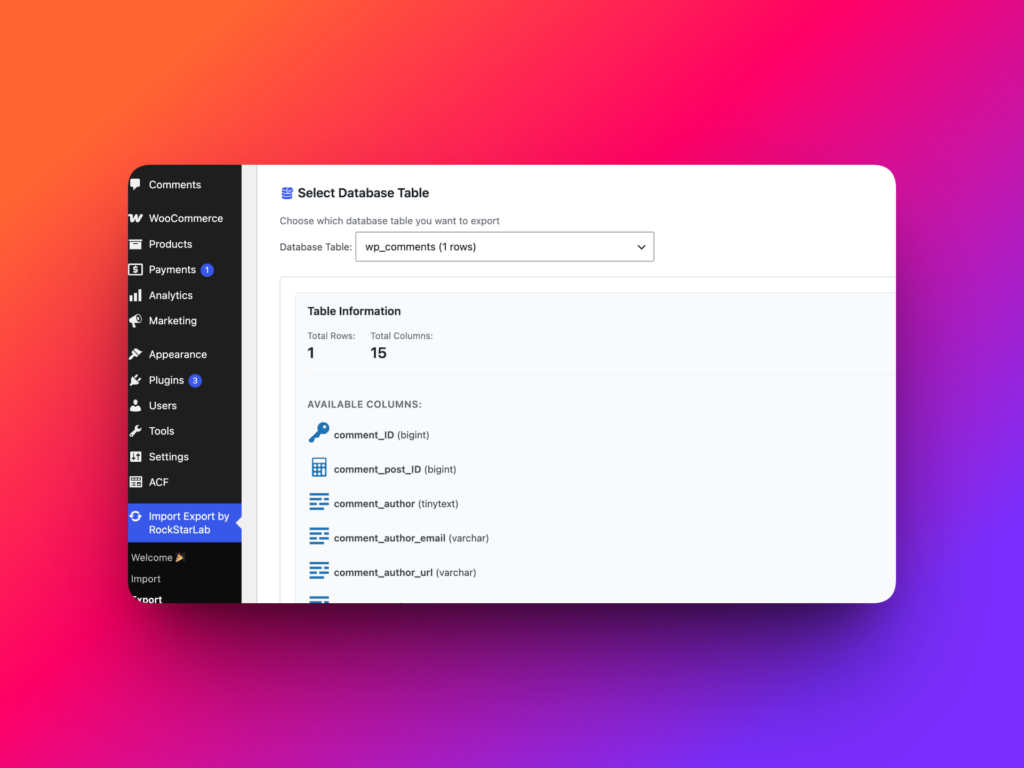
When to Use Database Table Import and Export
Use database table import and export when your data does not fit neatly into standard WordPress posts, pages, users, WooCommerce products, or taxonomy terms. Some WordPress sites store important operational data in custom plugin tables, reporting tables, lookup tables, or integration tables.
This workflow can help with migrations, backups, audits, bulk edits, staging-to-production moves, and data cleanup projects. It is especially useful for developers, agencies, and advanced site owners who understand the structure of the table they are importing or exporting.
Because database tables can contain sensitive or structural data, always back up the site before importing or updating table rows.
What WP Import Export Supports
| Task | Supported? | Notes |
|---|---|---|
| Export MySQL database table data | Yes, where available | Choose MySQL Database Table in the Export workflow. |
| Import MySQL database table data | Yes, where available | Choose MySQL Database Table in the Import workflow and map incoming fields to the target table. |
| Filter table data before export | Yes | Add filters when you only need selected rows from a table. |
| Select specific columns for export | Yes | Choose only the columns you want in the exported file. |
| Assign transformation functions | Yes | Transformation functions can be assigned to exported or imported fields where supported (available in PRO Add-on). |
| Handle existing rows during import | Yes | Use matching and duplicate handling options to update, skip, or create rows. |
Before You Start
Database table workflows require more care than normal post or product imports. A wrong mapping or duplicate handling choice can change table data in ways that affect plugins, reports, integrations, or frontend output.
Before importing table data, make a database backup and test the workflow on staging. Confirm the table structure, required columns, unique identifiers, and expected value formats before running the import on production.
Know the Target Table
Before exporting or importing, identify the table you want to work with. Check which columns are required, which column can identify existing rows, and whether the table is managed by WordPress core, a plugin, WooCommerce, or custom code.
If the table belongs to a third-party plugin, avoid changing structural fields unless you understand how that plugin uses them.
Choose a Matching Field Carefully
For imports, the matching field decides whether an incoming row should update an existing item, be skipped, or create a new item. Use a stable unique field whenever possible.
Good matching fields are usually IDs, unique codes, slugs, emails, SKUs, or another column designed to be unique. Avoid matching by a field that can repeat across many rows unless duplicate updates are intentional.
How to Export MySQL Database Table Data
The export workflow lets you choose a table, filter rows, select columns, apply transformations (available in PRO Add-on), and download a file for review, migration, or backup.
Export Step 1: Choose MySQL Database Table
Open Import Export -> Export. In Step 1, choose MySQL Database Table as the export data type.
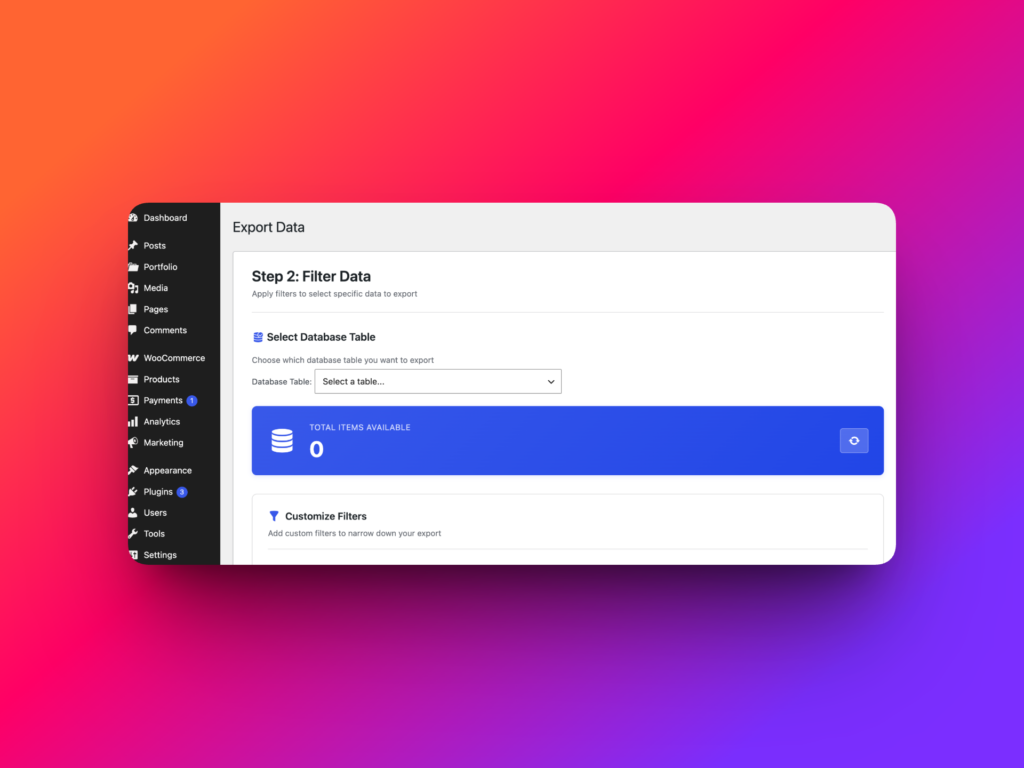
Export Step 2: Select a Table and Add Filters
In Step 2, choose the database table you want to export. If you only need some rows, add filters before continuing.
Filters are useful when you want to export recent records, records with a specific status, rows connected to a specific plugin feature, or data that matches a known condition.
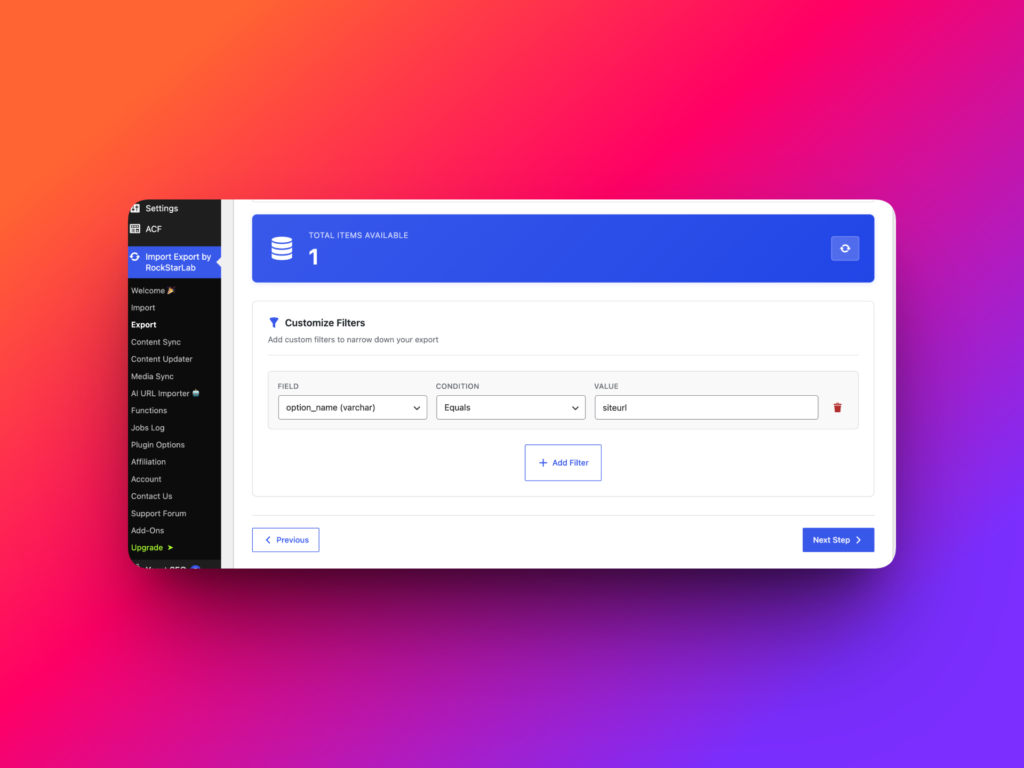
Export Step 3: Choose Columns and Assign Functions
In Step 3, choose the columns you want to include in the export. You do not need to export every column if the file is meant for review, reporting, or a focused migration.
With PRO Add-on, you can also assign transformation functions to exported data where needed. For example, a function can format dates, clean text, normalize values, remove HTML, or prepare values for another system.
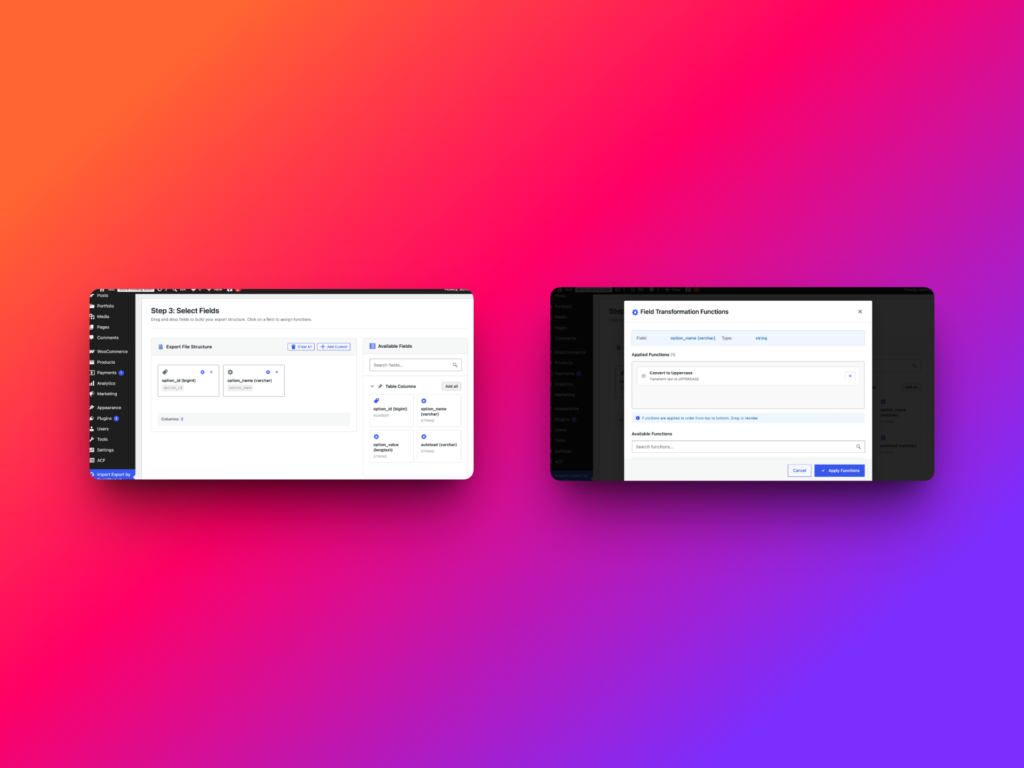
Export Step 4: Choose the Export Format
In Step 4, choose the data format for the export. Select the format that matches how the file will be used after download.
CSV is useful for spreadsheet review, bulk editing, and handoff to non-technical users. JSON is useful for structured data workflows, development, and integrations.
Export Step 5: Download the File
After the export runs, download the completed file. If the export is processed as a job, you can review it in Import Export -> Jobs Log and download the file when it is ready.
Open the exported file and confirm that the expected table rows and columns are present before using it for migration, reporting, or editing.
How to Import MySQL Database Table Data
The import workflow lets you upload a file, preview the incoming rows, choose the target table, map columns, apply transformations, and configure how existing rows should be handled.
Import Step 1: Choose MySQL Database Table
Open Import Export -> Import. In Step 1, choose MySQL Database Table as the import data type.
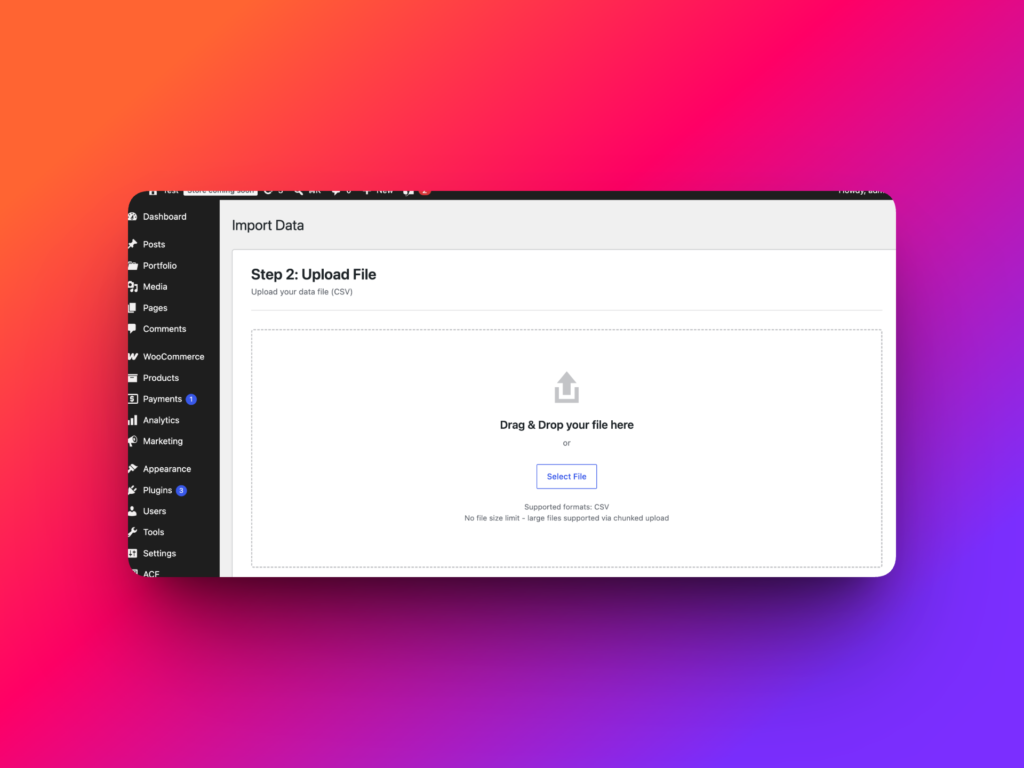
Import Step 2: Upload the File
In Step 2, upload the file that contains the database table data you want to import.
Use a clean file with consistent columns and predictable values. If the file was edited in a spreadsheet, check that IDs, dates, numeric values, and special characters were not changed unexpectedly.
Import Step 3: Preview the Data
In Step 3, review the data preview before mapping fields. Check that the columns are detected correctly and that sample rows match the expected values.
This preview helps catch delimiter issues, broken rows, missing headers, incorrect encoding, and unexpected empty values before the import modifies the database.
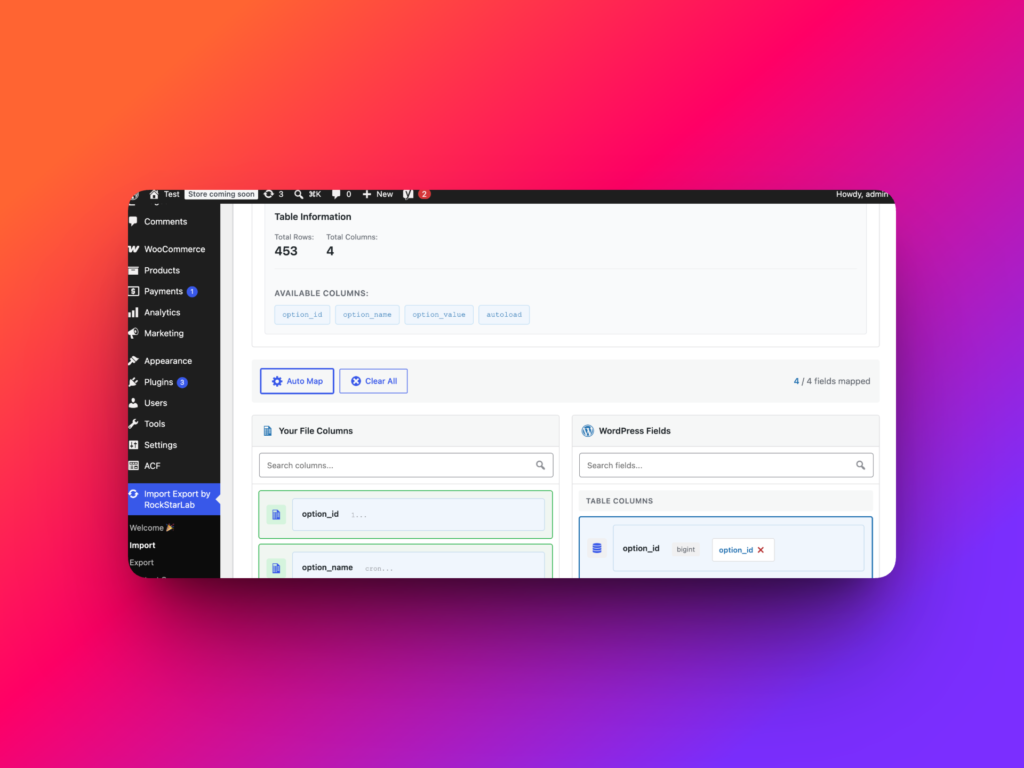
Import Step 4: Choose the Target Table and Map Data
In Step 4, choose the target database table and map incoming file columns to the correct table columns.
Mapping is the most important part of the database import workflow. Match each incoming value to the correct destination column, and avoid mapping values into columns that should not be changed.
You can also assign transformation functions to imported data where needed. A transformation function can clean text, normalize dates, format numbers, set fallback values, or adjust values before they are saved.
Import Step 5: Choose Import Options
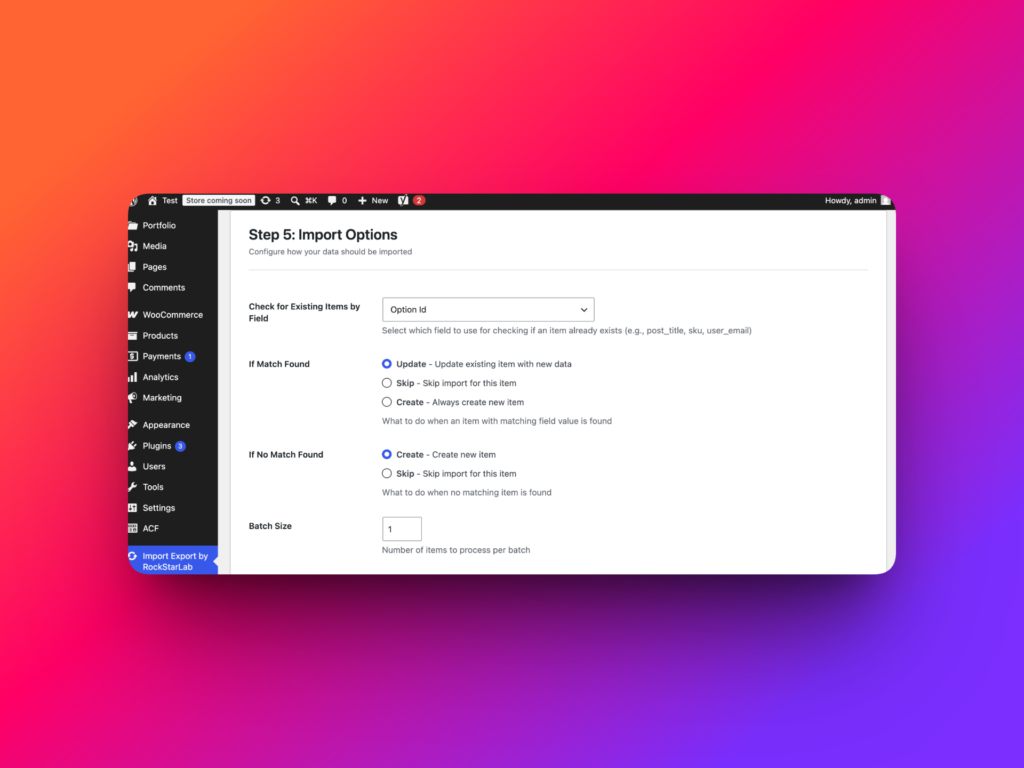
In Step 5, configure how WP Import Export should handle existing and new rows.
| Option | What it controls | Recommended use |
|---|---|---|
| Check for Existing Items by Field | Selects which field is used to check whether an item already exists. | Choose a stable identifier such as an ID, SKU, email, slug, code, or another unique column. |
| If Match Found: Update | Updates the existing item with the new data. | Use when the import file is meant to refresh existing table rows. |
| If Match Found: Skip | Skips the import for that item. | Use when existing rows should not be changed. |
| If Match Found: Create | Always creates a new item even when a match is found. | Use only when duplicate rows are intentional. |
| If No Match Found: Create | Creates a new item when no matching row exists. | Use when the file contains new rows that should be added to the table. |
| If No Match Found: Skip | Skips rows that do not match existing data. | Use when the import should only update existing rows. |
| Batch Size | Controls how many items are processed per batch. | Use smaller batches on limited hosting or when testing sensitive imports. |
Example: Export a Custom Plugin Table
Suppose a site stores directory entries in a custom table. You want to review those entries in a spreadsheet before moving them to another site.
A practical export workflow would be:
- Open
Import Export -> Export. - Choose MySQL Database Table.
- Select the custom directory table.
- Add filters if only certain rows are needed.
- Select the columns needed for review or migration.
- Assign transformation functions if values need cleanup during export.
- Choose the export format.
- Run the export and download the file.
After download, open the file and confirm that the rows and columns match the expected table data.
Example: Import Updated Table Rows
Suppose you exported table data, edited several values in a spreadsheet, and now want to update existing rows.
A safe import workflow would be:
- Back up the database.
- Open
Import Export -> Import. - Choose MySQL Database Table.
- Upload the edited file.
- Preview the data.
- Select the target table.
- Map incoming columns to table columns.
- Assign transformation functions if imported values need cleanup.
- Choose a stable matching field.
- Set If Match Found to Update.
- Set If No Match Found based on whether new rows should be created or skipped.
- Choose a batch size.
- Start the import.
After the import, review sample rows in the database, plugin interface, or frontend output to confirm the update behaved as expected.
Using Transformation Functions with Table Data
Transformation functions are useful when table values need cleanup before export or before import. They can reduce manual spreadsheet editing and make repeatable table workflows safer.
For exports, transformation functions can prepare data for another system. For imports, they can clean or normalize values before saving them into the target table.
Common database table transformations include:
- Formatting dates into a consistent format.
- Trimming extra spaces from text fields.
- Converting status values into the format expected by the target table.
- Normalizing phone numbers, prices, codes, or identifiers.
- Replacing old URLs or domains inside text fields.
- Setting fallback values when incoming fields are empty.
Test transformation functions with sample values before applying them to a full table import or export.
Common Mistakes
The most common mistake is importing table data without a backup. Database table imports can directly affect plugin behavior, frontend output, reports, and integrations.
Another common mistake is choosing the wrong matching field. If the selected field is not unique, the import may update or skip rows in ways you did not expect.
Do not map incoming values to system-managed columns unless you understand how those columns are used. Some table columns may store internal IDs, serialized data, timestamps, or plugin-specific state.
Also avoid using a large batch size before testing. Start with a small file or a small batch, confirm the result, and then process the full dataset.
Best Practices
- Back up the database before importing MySQL table data.
- Test the workflow on staging before production.
- Export the current table before importing changes.
- Use filters to keep exports focused.
- Select only the columns needed for the export.
- Use a stable unique field for matching existing items.
- Preview import data before mapping fields.
- Assign transformation functions only when the rule is tested and clear.
- Use smaller batch sizes for sensitive or large imports.
- Review the affected table data after import.
Recommended Links
FAQ
Can WP Import Export export MySQL database table data?
Yes, where database table support is available in the active setup. Choose MySQL Database Table in the Export workflow, select a table, choose columns, and export the data.
Can WP Import Export import data into a MySQL database table?
Yes, where database table import support is available. Choose MySQL Database Table in the Import workflow, upload a file, preview the data, select the target table, and map incoming columns to table columns.
Can I filter database table rows before export?
Yes. During export, you can select a MySQL table and add filters when you only need specific rows.
Can I choose which table columns to export?
Yes. The export workflow lets you choose specific columns, so the exported file only includes the fields you need.
Can I use transformation functions with database table data?
Yes. Transformation functions can be assigned to imported or exported fields where needed, which helps clean, format, or normalize table values.
How does the import check for existing items?
The import can check for existing items by a selected field. Choose a stable field such as an ID, SKU, email, slug, code, or another unique column when possible.
What happens if a matching item is found during import?
You can choose to update the existing item, skip the item, or create a new item. Choose the option that matches whether your file should update existing rows or create additional rows.
Should I back up the database before importing table data?
Yes. MySQL table imports can directly modify database records, so you should back up the database and test on staging before production imports.