
Reprint is the new site-copy tool from the WordPress project: a plugin on the source site and a command-line client on the computer that receives the copy. It pulls every file and the whole database, so in a few minutes you have a working clone to test updates, redesign a page or try a plugin. The harder part comes after you edited something on the clone and want only those edits on the live site, which kept taking orders, comments and new posts in the meantime. We cloned a small coffee blog with Reprint, changed two posts on the copy, published a new post on the live site, and moved the two edits back with Import Export by RockStarLab.
Free: everything below works in the free plugin. We tested with Reprint 0.11.10, Import Export by RockStarLab 2.2.44 and WordPress 7.1.5, with a WordPress Playground site as the live site and a SQLite copy on the same Mac.
Short Answer
- Reprint copies the whole site in one direction, from the live site to a copy. Pulling again replaces the copy’s database, and push back to the live site is not part of the WordPress.org build.
- Import Export by RockStarLab moves selected content: export the posts changed on the copy, import them on the live site matched by slug, and only those posts change.
- Use both: Reprint to make the copy, the plugin to bring the edits back.
Step 1: Clone the Site with Reprint
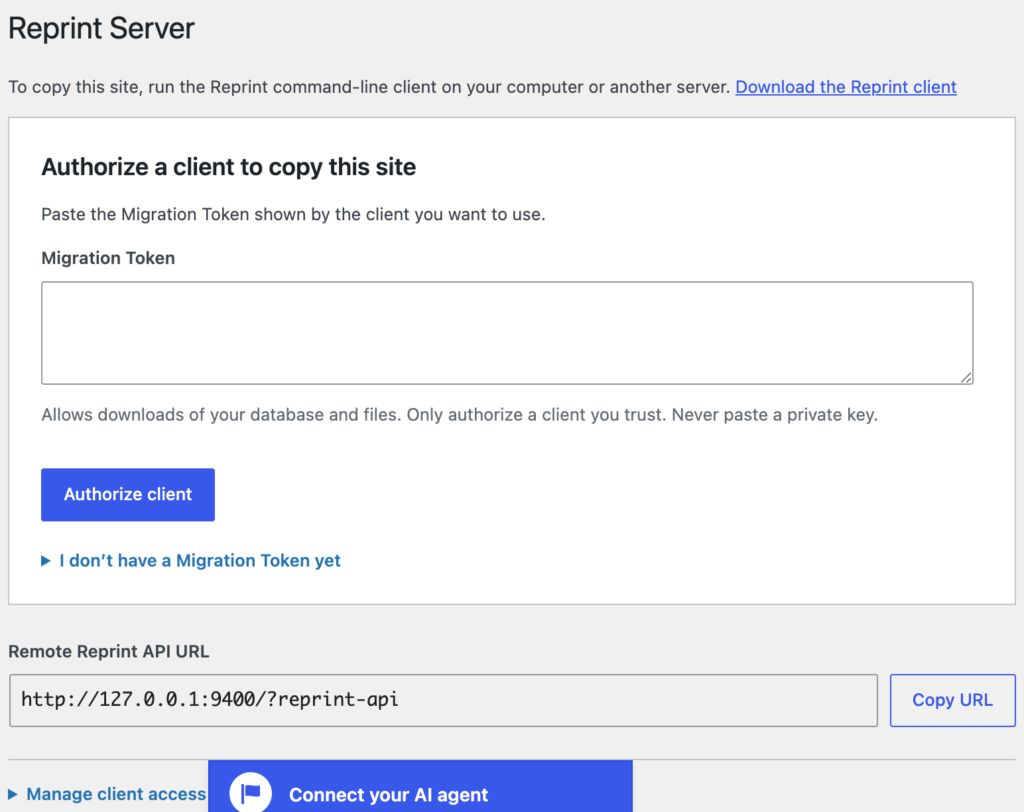
On the live site we installed the Reprint plugin from WordPress.org and opened Tools > Reprint Server. On the computer for the copy, Reprint is one PHP file:
curl -fL https://plugins.svn.wordpress.org/reprint/downloads/reprint.phar -o reprint.phar
php reprint.phar keygen 'https://example.com/?reprint-api' --state-dir=./state
keygen prints a Migration Token. We pasted it into the Reprint Server screen and clicked Authorize client. The token allows downloads only:
Then one command made the copy, with SQLite, so no database server was needed:
php reprint.phar pull 'https://example.com/?reprint-api' \
  --state-dir=./state --fs-root=./files \
  --target-engine=sqlite --new-site-url=http://localhost:8881
Our small test site took 18 seconds: 6,687 files (212 MB, mostly WordPress core and three plugins), the database dump and a PHP server for the copy at http://localhost:8881. Posts, categories and users were all there, and the post links pointed to the new address. A live site with gigabytes of uploads takes longer; rerunning the same pull command resumes an interrupted copy.
Step 2: Edit on the Copy
On the copy, we rewrote the tasting notes of Kenya AA Roast Profile and published a new post, Colombia Huila Roast Profile. On the live site, we published Gift Cards Are Here after the copy was made. That is the usual situation: both sites changed, in different places.
What Reprint Does Next, and What It Doesn’t
We ran Reprint’s database pull again to refresh the copy:
php reprint.phar pull-db 'https://example.com/?reprint-api' \
  --state-dir=./state --fs-root=./files --target-engine=sqlite \
  --new-site-url=http://localhost:8881
The copy then had Gift Cards Are Here, but Colombia Huila was gone and Kenya AA had its old text again. A database pull drops and recreates every table, which the Reprint handbook says too: it does not merge changes from both sides.
In the other direction, php reprint.phar db-push stopped with “Push is not included in this build.” Push needs a server build that a host sets up, and even there it replaces the live site’s tables, removing rows created on the live site since the copy. For a live site that keeps getting orders or comments, a full push is the wrong tool anyway.
Step 3: Export Only What Changed on the Copy
Before refreshing the copy, export the posts you edited there. In the plugin’s Export, choose Blog Posts and add a filter on the modified date, greater or equal to the time of the copy. On the copy we used WP-CLI, which the plugin also supports:
wp rsl-ie export --type=post \
  --fields=post_title,post_name,post_content,post_status,category_names \
  --options='{"date_query":[{"column":"post_modified_gmt","after":"2026-11-21 16:00:27","inclusive":true}]}' \
  --output=./changed-on-copy.csv --user=admin
The file had exactly the two posts we changed:
post_title,post_name,post_content,post_status,category_names
"Colombia Huila Roast Profile",colombia-huila-roast-profile,"<!-- wp:paragraph --><p>Caramel and red apple. …",publish,"Roasting Notes"
"Kenya AA Roast Profile",kenya-aa-roast-profile,"<!-- wp:paragraph --><p>Blackcurrant, grapefruit and a long sugarcane finish. …",publish,"Roasting Notes"
The file uses the slug, not the post ID. Our new post got ID 10 on the copy, while ID 9 on the live site was already Gift Cards Are Here, so matching by ID would have overwritten the wrong post.
Step 4: Import on the Live Site
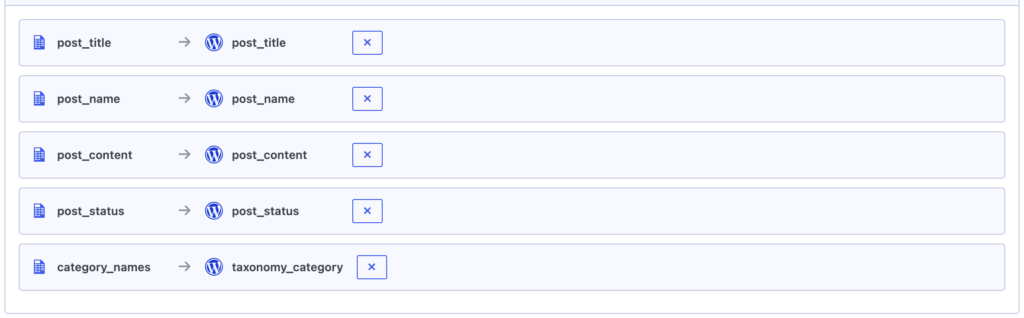
On the live site, in Import Export by RockStarLab > Import, we chose Blog Posts and uploaded the CSV. Auto Map mapped all five columns, including the category names:
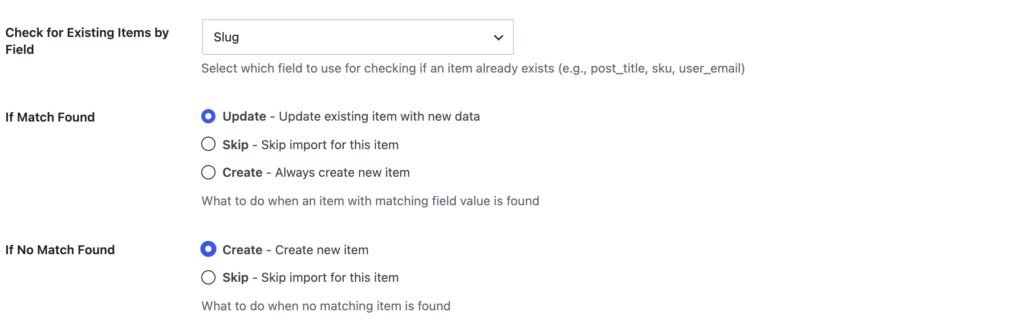
On the Options step, existing posts are matched by slug: Update for matches, Create for new slugs:
The import updated one post and created one:
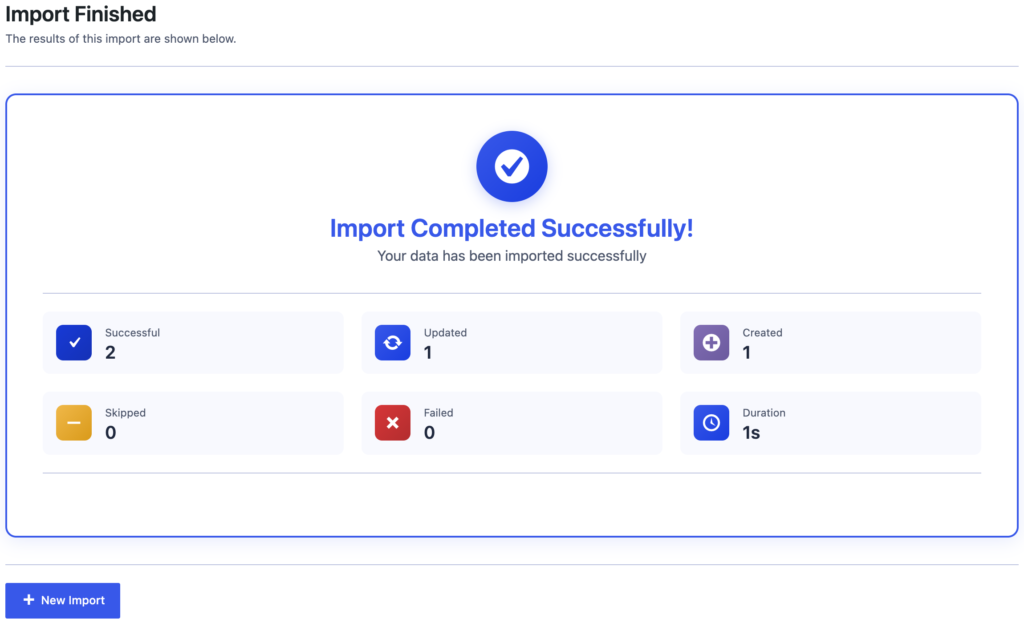
The live site then had the new Kenya AA notes, the Colombia Huila post in Roasting Notes, and Gift Cards Are Here untouched. Nothing else changed: the import writes only the posts and columns in the file.
Reprint and the Plugin Side by Side
| Reprint | Import Export by RockStarLab | |
|---|---|---|
| What it moves | All files and the whole database | The content you choose: posts, pages, products, users, media, terms, fields |
| Direction | Live site to copy (push only on hosts with a server build) | Both ways, between any two sites with the plugin |
| Changes on both sides | Not merged: a new pull replaces the copy’s database | Items matched by slug, SKU, email or ID; others stay as they are |
| Runs from | Command line on the receiving computer | wp-admin, WP-CLI, schedules, or an AI agent |
| Typical use | A full local or staging copy, moving to another host | Moving edits, new content or products to the live site |
Things to Check on the Copy
- Live services: the copy keeps the live site’s mail, payment and API settings. Turn them off on the copy before you test checkouts or forms.
- SQLite copies: some plugins need MySQL. In our SQLite copy, the
wp_optionstable also lost its unique index onoption_name, which the MySQL dump had. If a plugin misbehaves only on the copy, try--target-engine=mysql. - Plugin version: Import Export by RockStarLab runs on SQLite sites (WordPress Studio, Playground and Reprint copies) from version 2.2.44. Before that, imports and exports there failed with “request_busy” or “file_busy”.
- Back up first: the import changes posts on the live site, so back up the site, or ask your AI agent to start the backup.
With an AI Agent
An AI agent connected to the copy through the WordPress MCP Adapter (see connecting Claude Code to WordPress) can tell you what to move before you refresh the copy:
Which posts on this site were changed after 16:05 UTC today? Show the title and slug.On our copy, after the Reprint refresh and one more edit, the agent called rsl-ie/export-preview for posts with a date_query on post_modified_gmt and got one post: Kenya AA Roast Profile, kenya-aa-roast-profile, modified at 16:12. The same filter in the export gives the file for the live site.
If both sites have the plugin and are connected, Content Sync pushes selected posts straight from the copy to the live site, with their images and fields, without a file.
FAQ
What is Reprint in WordPress?
A tool from the WordPress project that copies a site’s files and database over HTTP. The Reprint plugin runs on the source site, and a PHP command-line client on the receiving computer makes the copy with MySQL or SQLite.
Can Reprint push changes back to the live site?
Not with the WordPress.org build: db-push answered “Push is not included in this build.” Push needs a server build configured by the host, and it replaces the live site’s tables instead of merging.
What happens to my edits if I pull again with Reprint?
A database pull replaces the copy’s tables, so posts you created or edited on the copy are lost. Export them first.
How do I move only the posts I changed on a copy back to the live site?
Export the posts with a filter on the modified date, then import the file on the live site with Check by Slug, If Match Found Update and If No Match Found Create.
Related Guides
- All-in-One WP Migration Alternative for Moving Selected Content
- WP Migrate Alternative: Pull Single Posts From Live to Staging
- WooCommerce Staging to Live Without Losing Orders
- WP-CLI Import and Export for WordPress: CSV, Excel and Cron Scripts
Get the free plugin on WordPress.org.

Comments 0
Have a question or a tip to share? Leave it below.