
Sale campaigns are often prepared on a staging store: new coupon codes, new amounts, an expiry date. On launch day they have to be on the live store, exactly as tested. And sometimes it goes the other way: marketing creates a coupon on the live store and you want it on staging too. With Import Export by RockStarLab PRO you push or pull chosen coupons from the WooCommerce Coupons screen.
PRO: Sync Coupons needs Import Export PRO 2.1.13 or later and a Content Sync connection between the two stores.
Short Answer
- Go to Marketing → Coupons, select the coupons and click Sync Coupons.
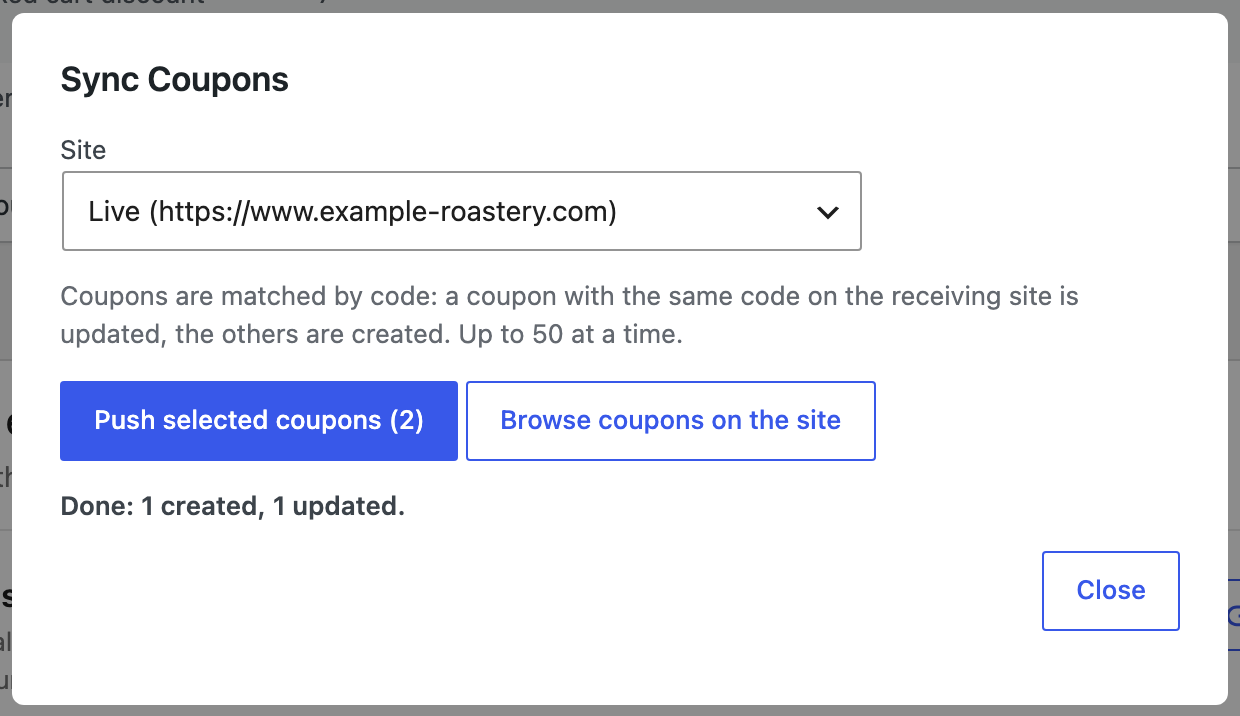
- Choose the other store and click Push selected coupons. A coupon with the same code on that store is updated, the others are created.
- To bring coupons from the other store, click Browse coupons on the site, tick the ones you want and click Pull selected coupons.
Push coupons from staging to live
On staging we created the coupon blackfriday25 (25%, usage limit 500, expires 30 November 2026) and changed save5 from 5 to 7. We selected both on the Coupons screen:
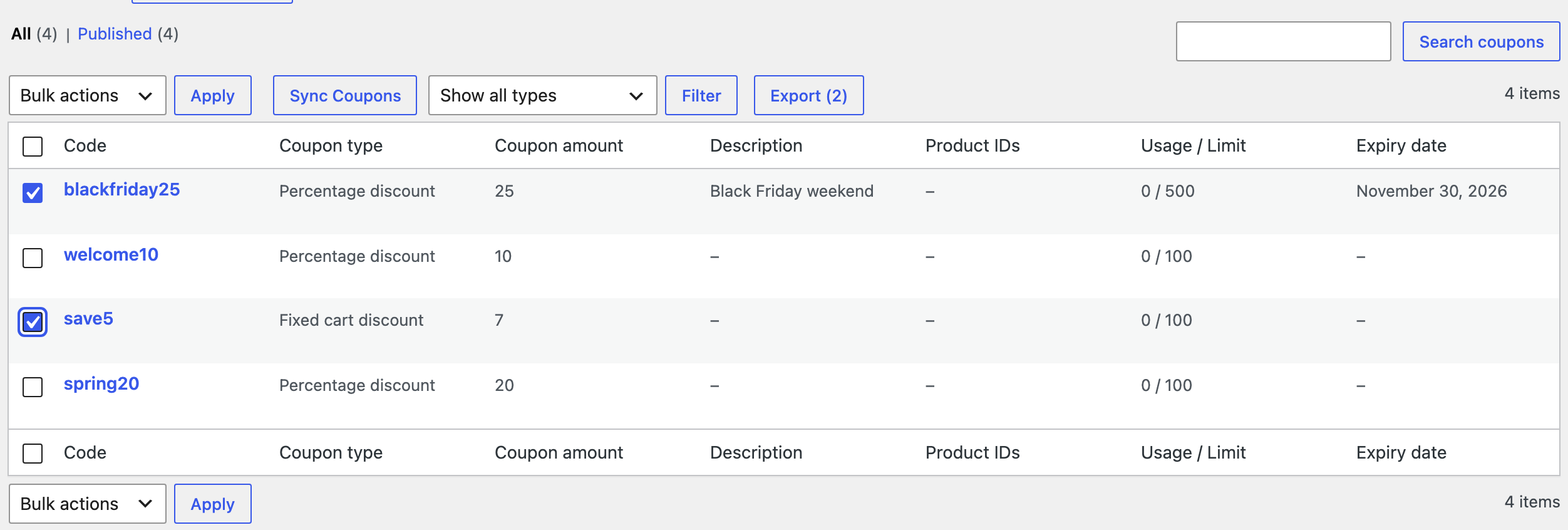
In Sync Coupons, with the live store selected, Push selected coupons (2) reported one created and one updated:
On the live store, blackfriday25 was there with 25%, the expiry date 30 November 2026 23:59:59, the usage limit 500 and its description, and save5 had the amount 7.
Pull a coupon from live into staging
On live, marketing had created vip15 (15%, individual use only). On staging, Browse coupons on the site lists the coupons on the live store and marks the ones that already exist on staging with “exists here, will be updated”:
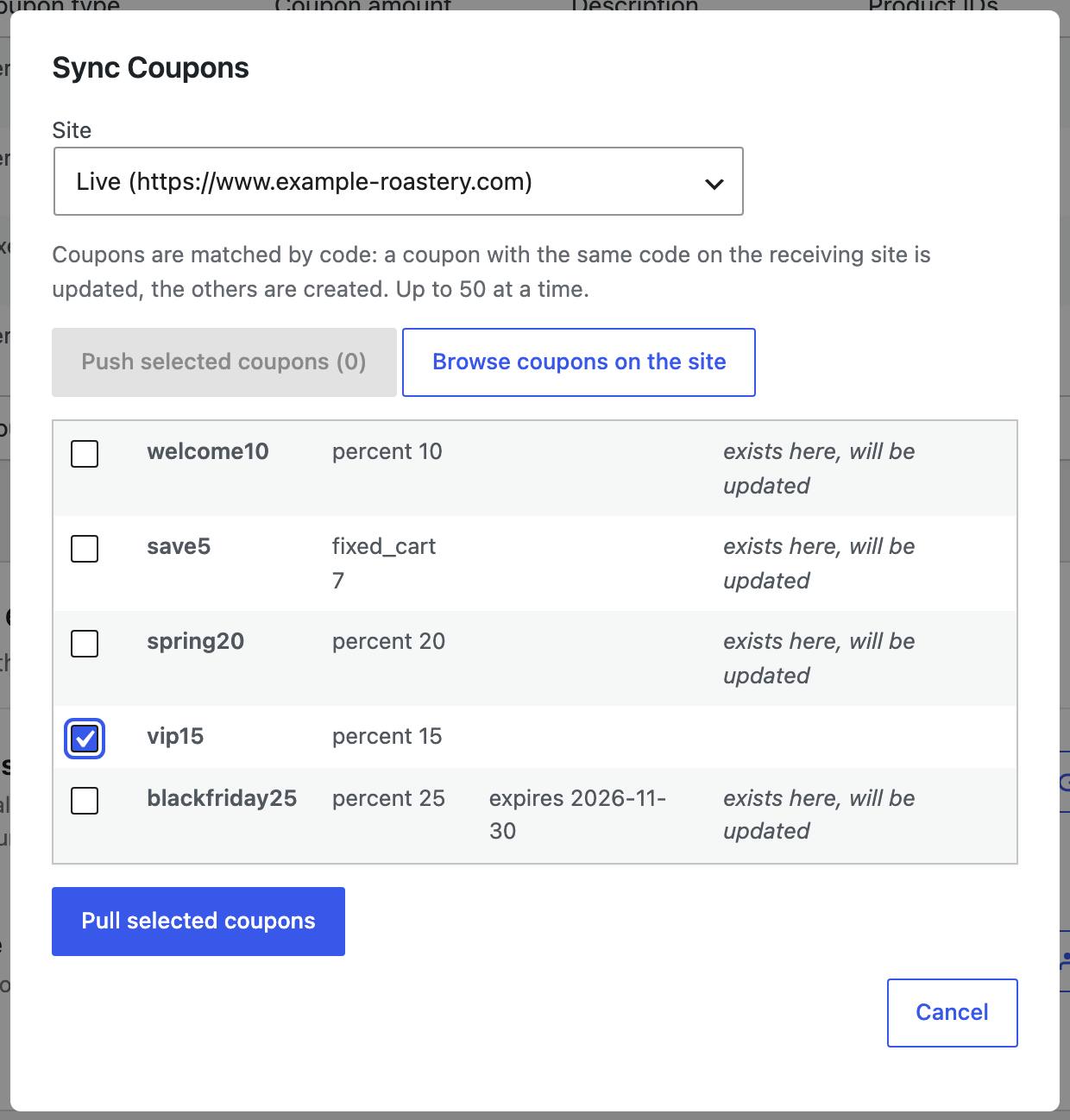
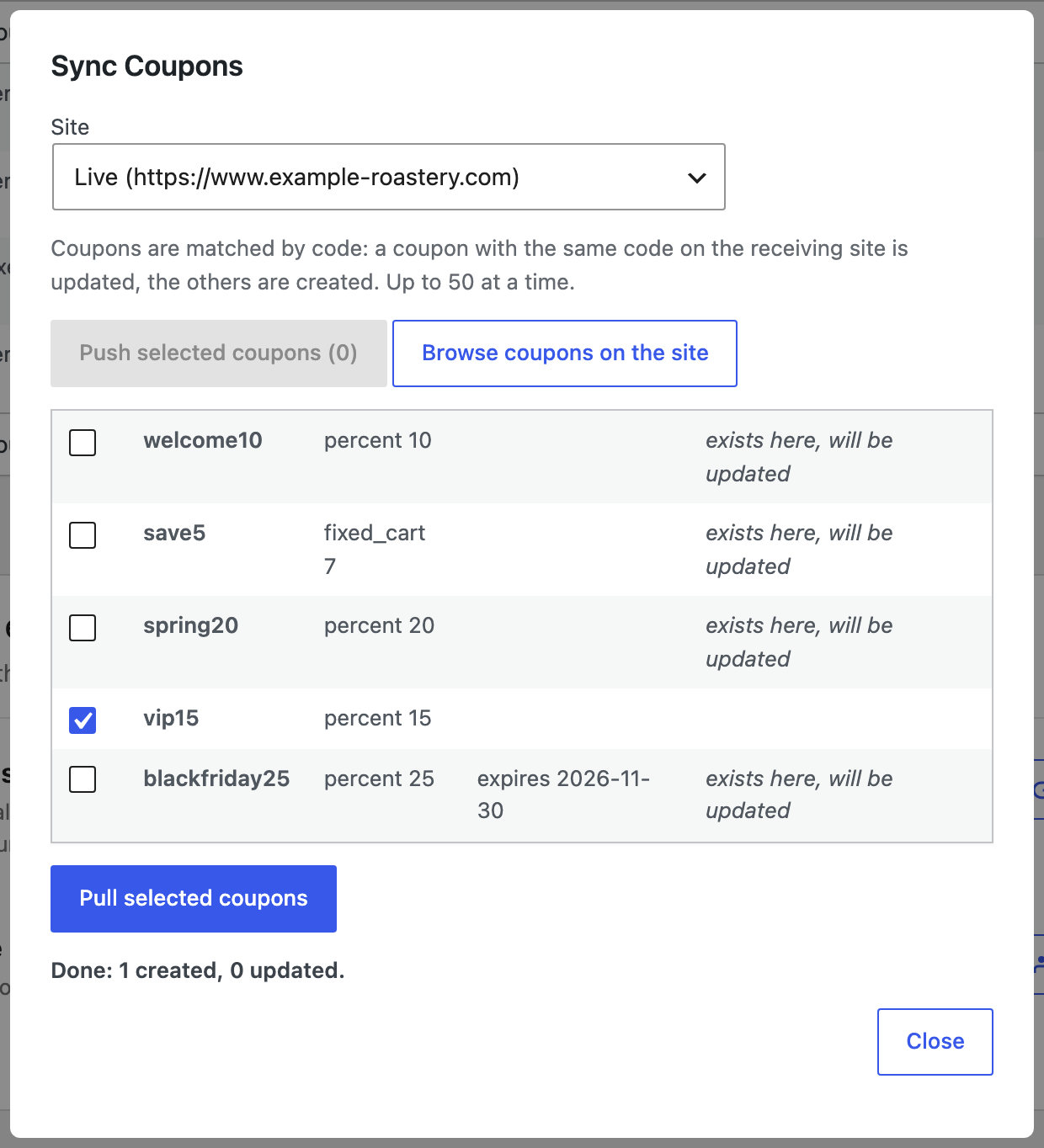
We ticked vip15 and clicked Pull selected coupons. The result was one created, and the coupon appeared on staging with 15%, individual use only and its description:
How coupons are matched
- By code. The same code on the other store is updated with the values of the coupon you send; other codes are created.
- Up to 50 coupons at a time.
- Pull needs a connection that allows pulling; push needs one that allows pushing. Connections added in Content Sync allow both.
Before you sync
A push updates coupons with the same code on the other store. Back up the store you send to, especially before a sale starts.
With an AI agent
An AI agent connected to the live store through the WordPress MCP Adapter (see connecting Claude Code to WordPress) can check the coupons after the push:
List the coupons on the live store with type, amount, expiry date and usage limit.In our run, the agent called rsl-ie-pro/export-preview for woo_coupon. It returned five coupons, including blackfriday25 (percent, 25, expires 2026-11-30 23:59:59, limit 500) and save5 (fixed cart, 7).
FAQ
What if the code already exists on the other store?
That coupon is updated with the values you send. In our test, save5 on live changed from 5 to 7 and kept its ID.
Can I sync coupons on a schedule?
The Sync Coupons button is for the coupons you choose now. For repeated syncs, AI agents and scripts can use the coupon sync abilities rsl-ie-pro/sync-woo-coupons-push and rsl-ie-pro/sync-woo-coupons-pull.
Does it work for more than two stores?
Yes. Each connection appears in the site list of the Sync Coupons window; push to one store at a time.
Related Guides
- How to Import WooCommerce Coupons
- Best Plugins to Sync Content Between WordPress Sites
- What’s New in 2.1.49
Get the free plugin on WordPress.org.

Comments 0
Have a question or a tip to share? Leave it below.