
Many suppliers, warehouses and ERP systems do not offer a download link. They put a CSV file on an FTP or SFTP server every morning and expect you to pick it up. Since version 2.1.49, Import Export by RockStarLab can import a file from an FTP, FTPS or SFTP server on a schedule, and upload exports to a server folder. The example is a daily price and stock update from a supplier’s SFTP server.
Free: saved servers, imports of posts, pages and other free content types from a server, uploads of exports. PRO: WooCommerce products and orders, as used in this example. Needs version 2.1.49 or later.
Short Answer
- Save the server once in Import Export → Jobs Log → Servers.
- On step 2 of an import, choose the server, click Browse and click the file.
- Finish the import once, then create a daily schedule from it in Schedules. Every run downloads the current file from the server.
- For exports, choose Upload to a server and a folder on the export options step.
Step 1: Save the server
Go to Import Export → Jobs Log → Servers and click Add Server. Enter a name, the protocol (FTP, FTPS or SFTP), host, port, user name and password:
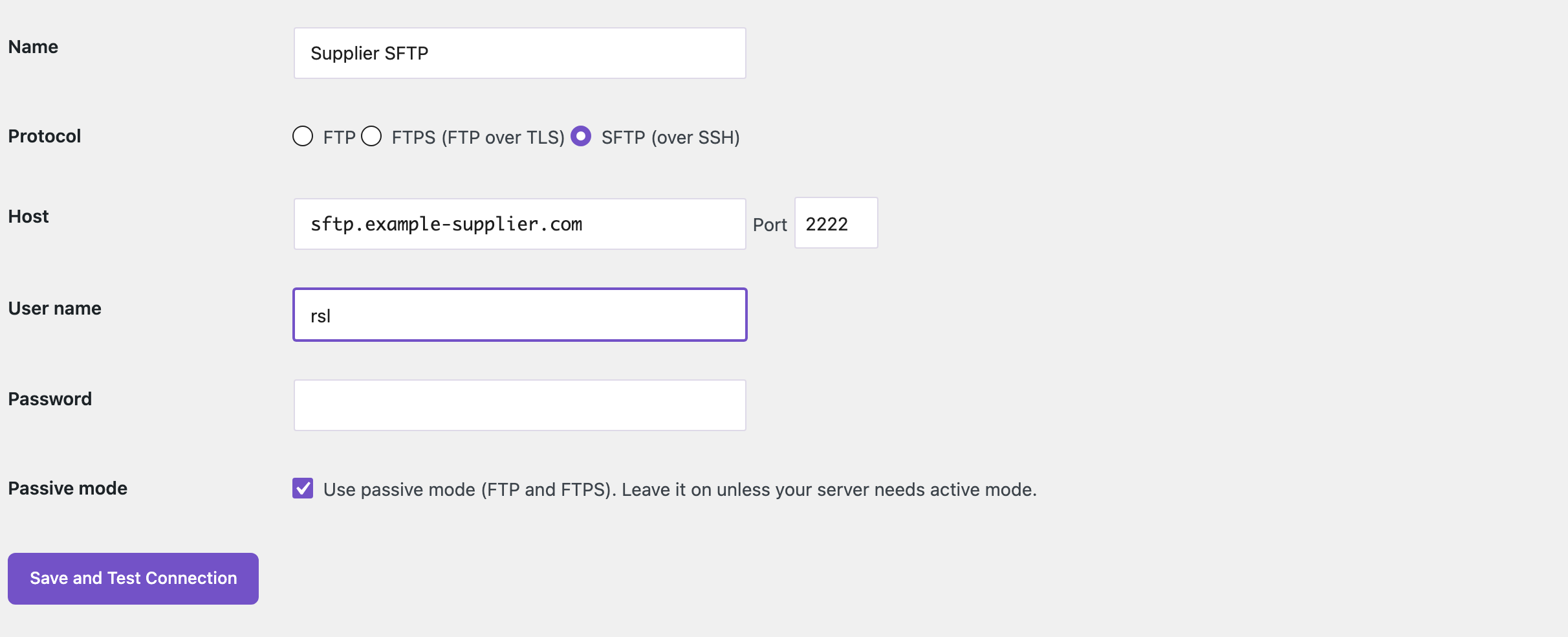
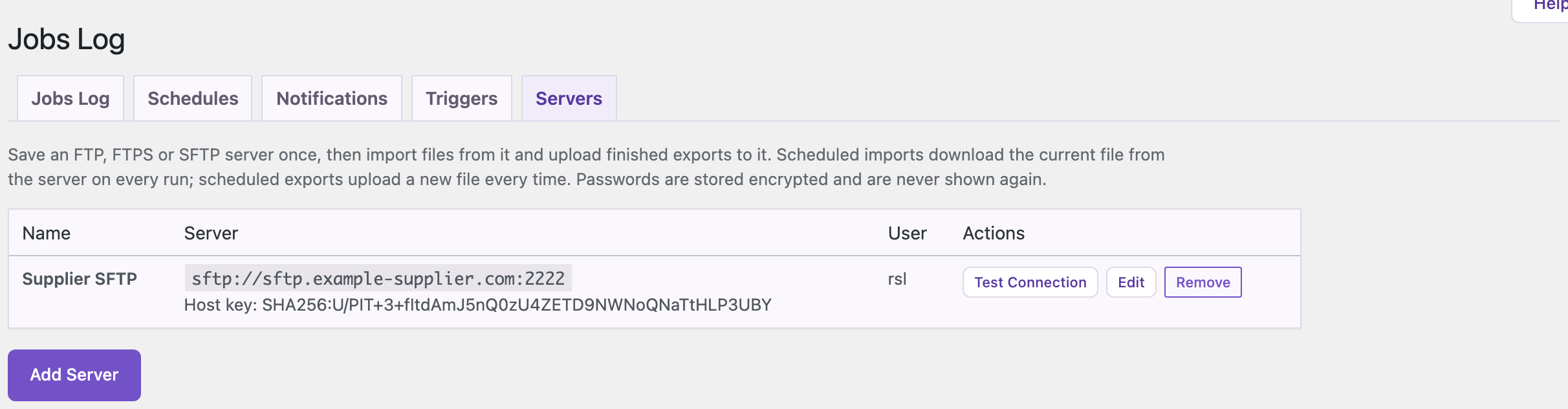
Save and Test Connection saves the server and connects right away, so a typo shows up now and not at the first scheduled run. The password is stored encrypted and is not shown again. For SFTP, the plugin remembers the server’s host key on the first connection and shows it in the list:
Step 2: Import the supplier file
Our supplier puts prices.csv in the folder /supplier/, with the columns sku, regular_price and stock_quantity. Go to Import Export → Import, choose WooCommerce Products, and under Or import a file from an FTP or SFTP server choose the server, enter /supplier/ and click Browse:
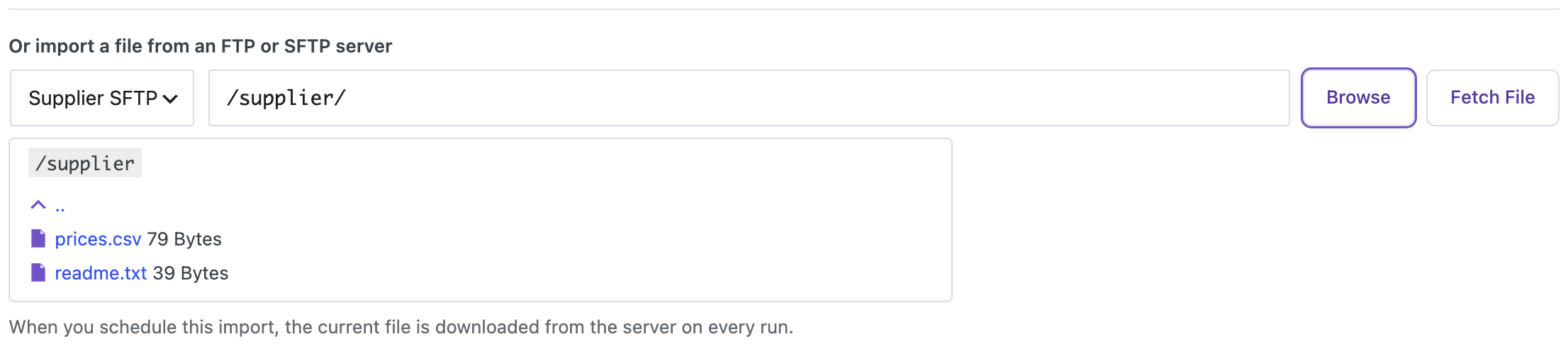
Click prices.csv. The file is downloaded and the import goes on as with an uploaded file:
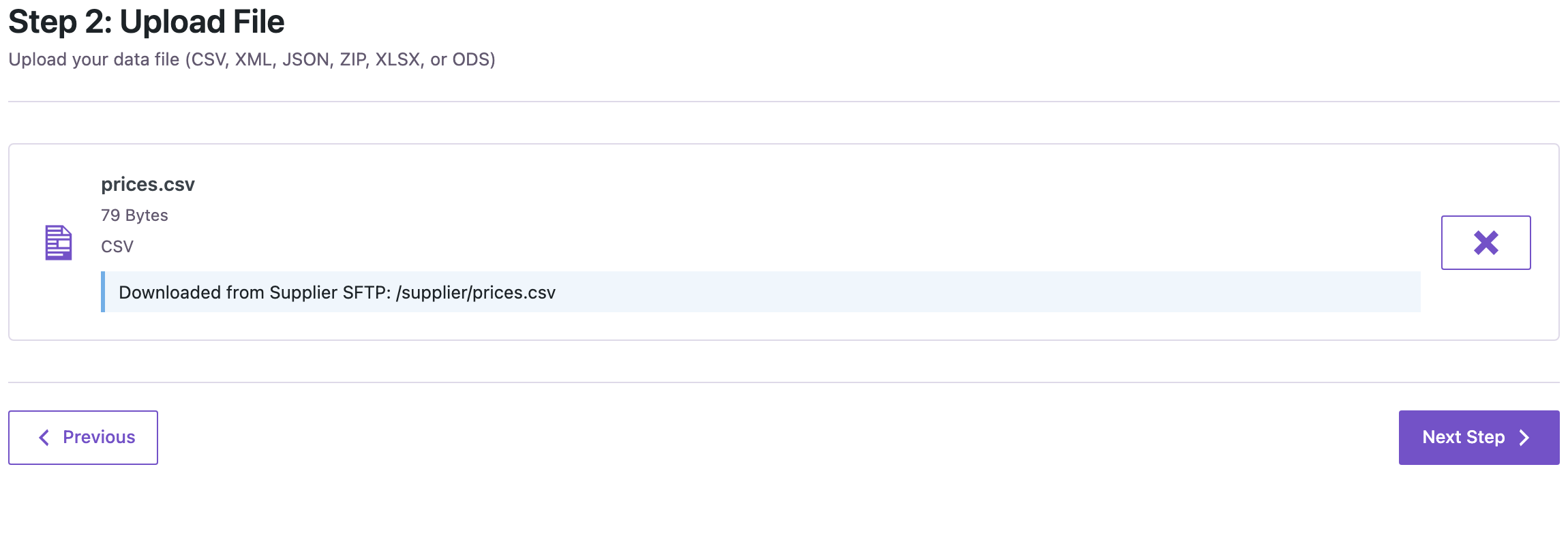
Auto Map mapped the three columns. In the options we checked existing products by sku, chose Update for matches and Skip for SKUs that are not in the store, so the file can only change existing products:
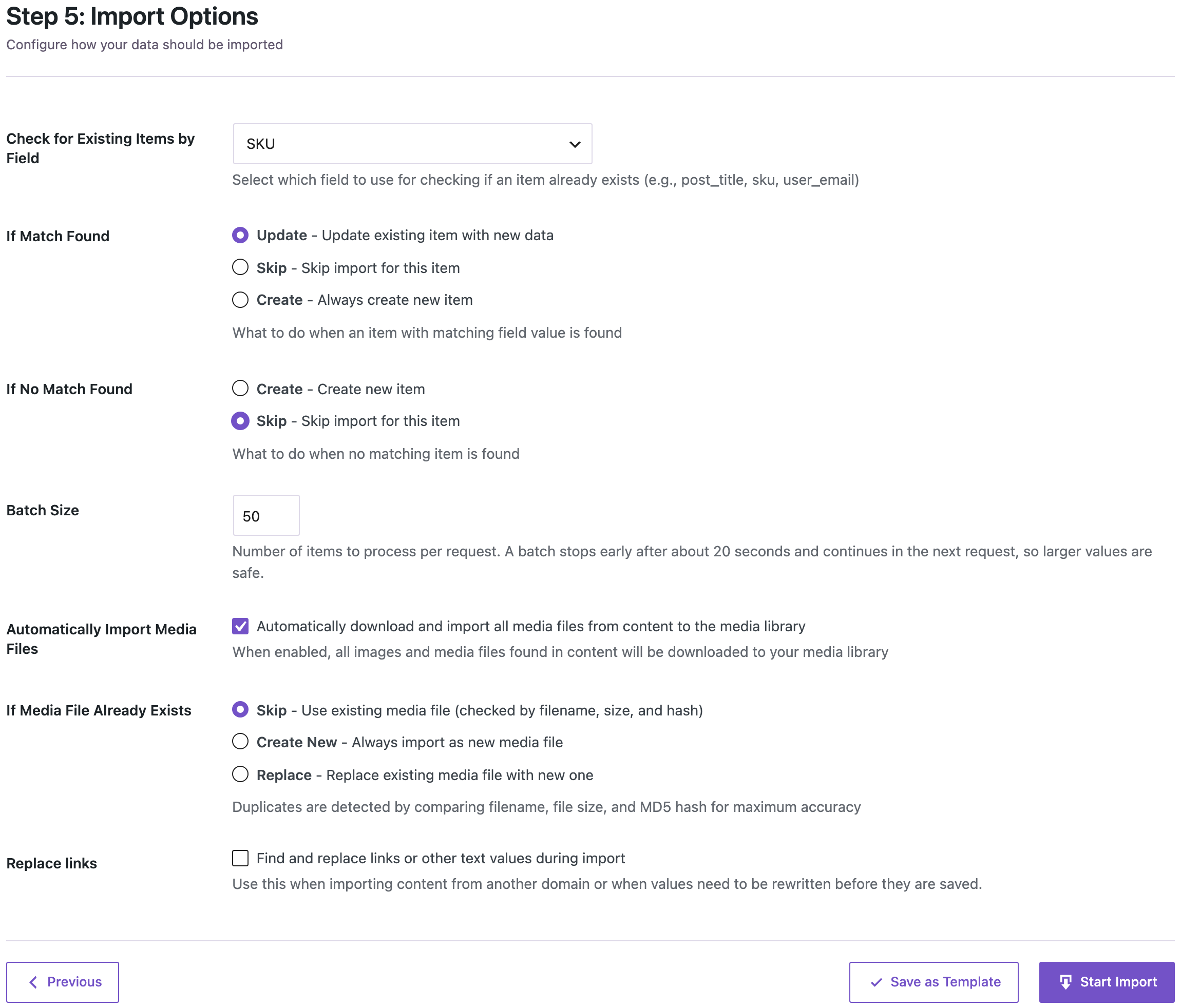
All three products were updated: the Beanie went from 20 to 22 with stock 35, the Cap from 18 to 19 with stock 40, the Belt from 65 to 68 with stock 12.
Step 3: Run it every day
Go to Import Export → Jobs Log → Schedules, choose this import as the source job and set Recurring, Daily and the first run time. The schedule keeps the server address of the file, not a copy of the file:

To test it, we replaced prices.csv on the server with new prices (Beanie 23, Belt 69) and stock, and let the schedule run. The run downloaded the new file and updated the three products again: Beanie 23 with stock 30, Cap 19 with stock 38, Belt 69 with stock 10. The next run moved to the same time the next day.
Schedules run with WordPress cron, which needs visits to the site or a real cron job on the server. If a run does not start, see scheduled imports not running.
Upload exports to the server
It works the other way too, for example a daily order file for the warehouse. On the export options step, choose the server under Upload to a server and a folder:

After the export, the screen shows where the file was uploaded. The file stays available for download in WordPress as well:
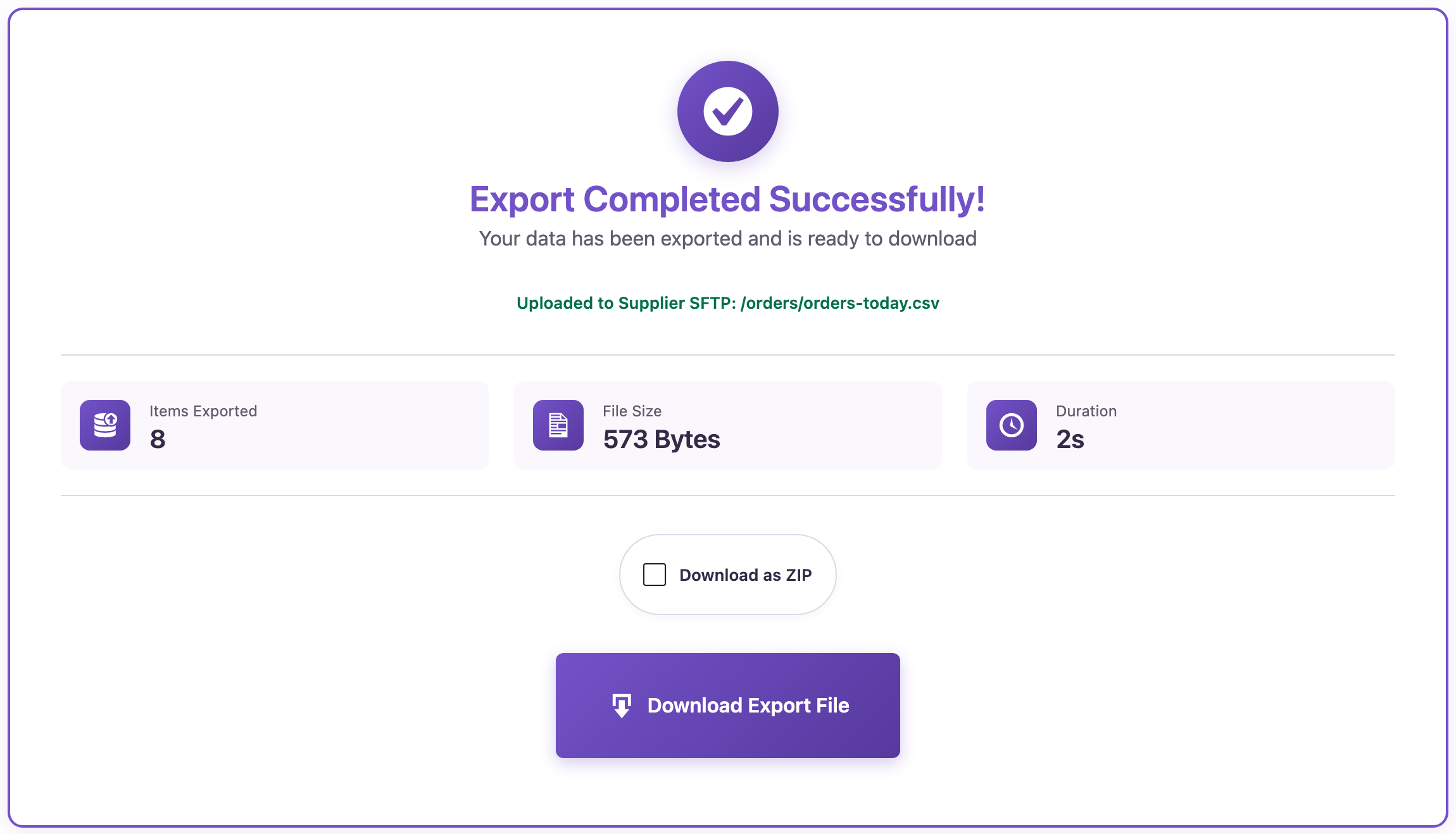
Our order export was uploaded as /orders/orders-today.csv. A scheduled export uploads a new file on every run; a file with the same name is replaced.
Before you schedule an import
A scheduled import changes the store every day without anyone looking at the file. Back up the store, run the import once by hand as above, and use Skip for items that are not in the store unless you want the file to create new ones.
With an AI agent
An AI agent connected to the store through the WordPress MCP Adapter (see connecting Claude Code to WordPress) can look at the supplier folder and the schedule:
What is in the supplier's /supplier folder, and when does the price import run next?In our run, the agent called rsl-ie/remote-browse for the saved server and the folder /supplier: it listed prices.csv (79 bytes) and readme.txt with their addresses. Then rsl-ie/schedule-get returned the schedule “Supplier prices (SFTP)”: daily, active, last run job 96, with the next run time. The agent never sees the server password.
FAQ
Which is better, FTP or SFTP?
SFTP or FTPS, if the server offers them: both encrypt the password and the file on the way. Plain FTP sends them unencrypted.
Does SFTP need a PHP extension?
No. SFTP is built into the plugin. FTP and FTPS use the PHP FTP extension that most hosts have.
Where is the password stored?
In the WordPress database, encrypted with a key from the site’s secret keys. Jobs, schedules and AI agents only see the server name and the path of the file, never the password.
Related Guides
- Schedule a WordPress Import from a URL
- How to Update WooCommerce Prices and Stock by SKU Using CSV
- How to Schedule Repeated Exports in WordPress
- What’s New in 2.1.49
Get the free plugin on WordPress.org.

Comments 0
Have a question or a tip to share? Leave it below.