
Some pages change on staging all the time: opening hours, a price list, a menu, a “what’s on this week” page. Pushing them to the live site by hand every day is easy to forget. With Import Export by RockStarLab you push the page once with Content Sync and then turn that push into a daily schedule.
Free: scheduled Content Sync pushes of posts and pages. PRO: custom post types and WooCommerce products. Scheduling a push that was started from the Pages screen needs version 2.1.49 or later.
Short Answer
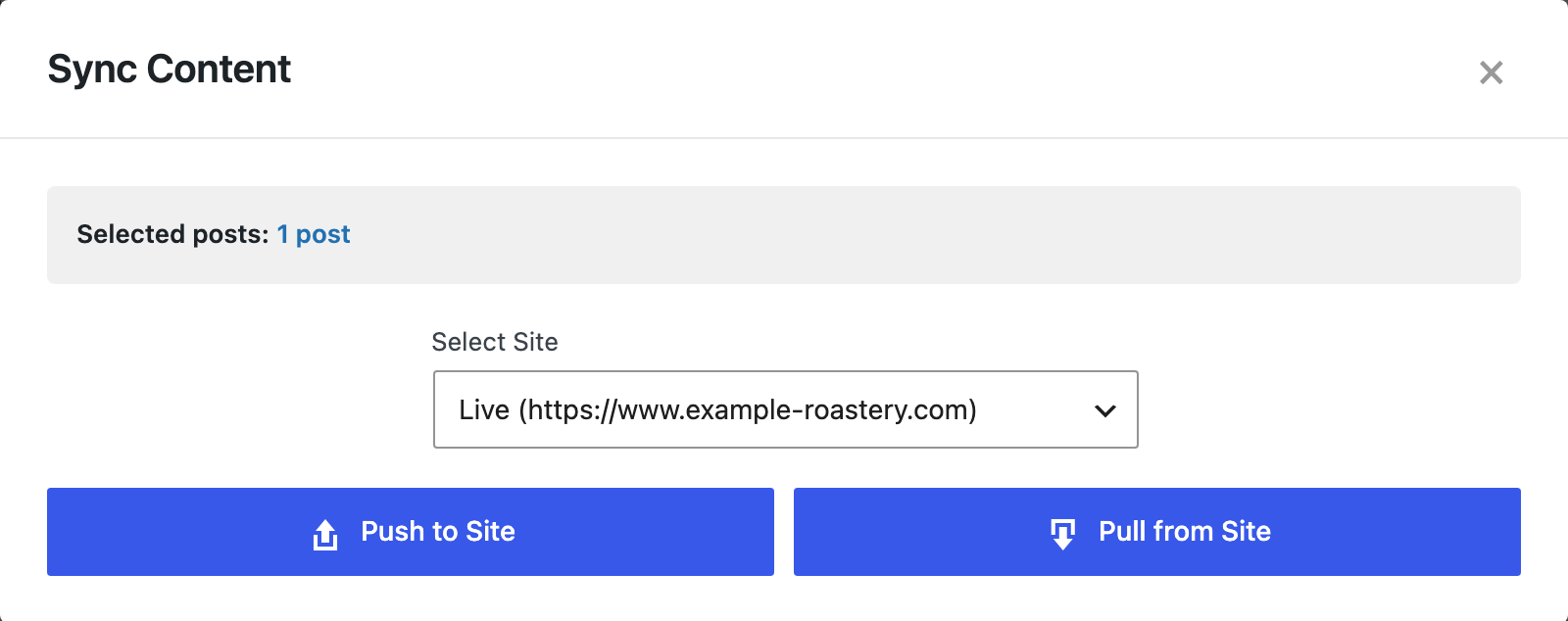
- Push the page once: Pages → select it → Sync Content → the live site → Push to Site.
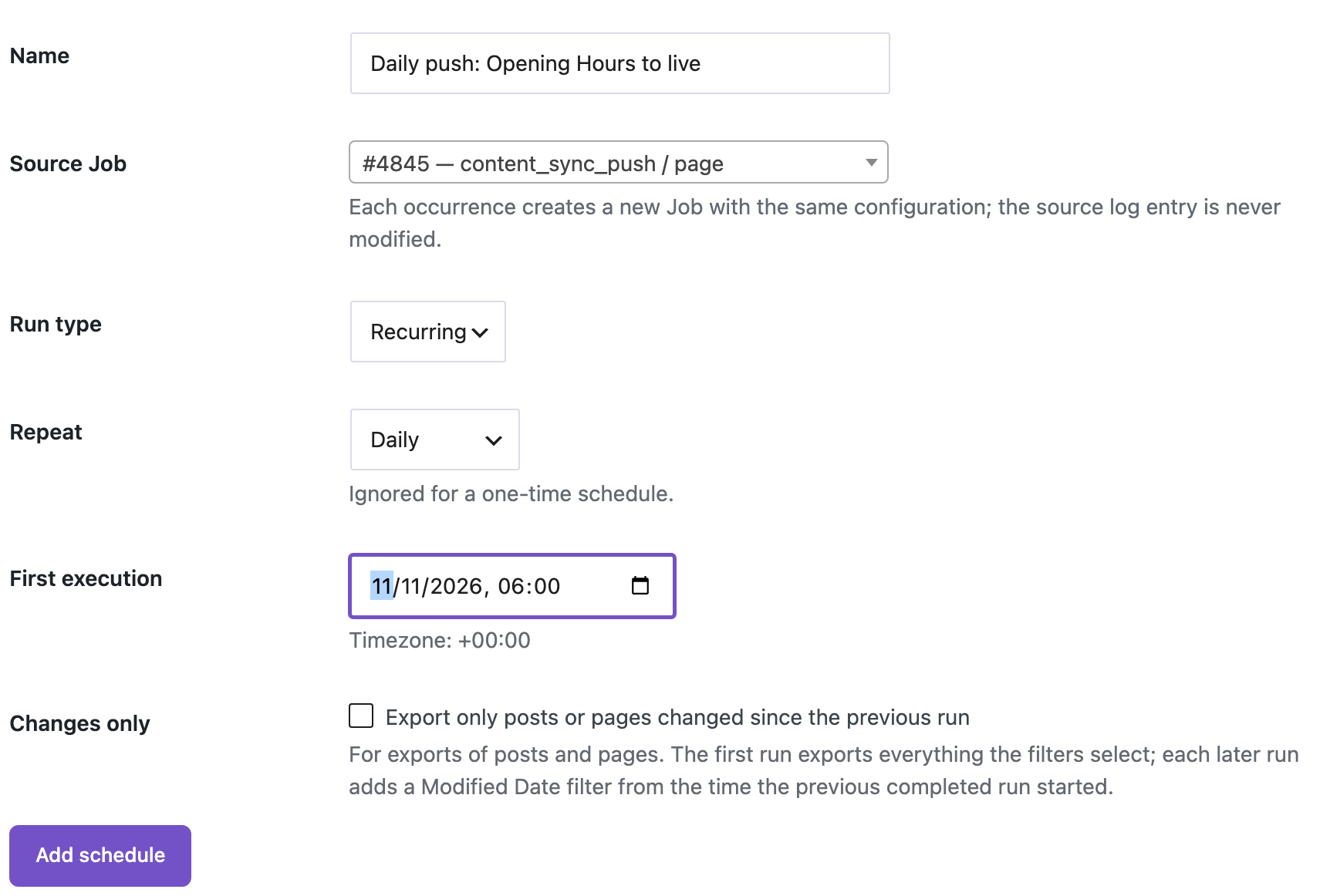
- Go to Import Export → Jobs Log → Schedules, choose that push as the Source Job, set Recurring and Daily, and click Add schedule.
- Every run pushes the current version of the page to the same page on the live site.
Step 1: Push the page once
On staging we created the page “Opening Hours”. On the Pages screen, we selected it, chose Sync Content and the live site:
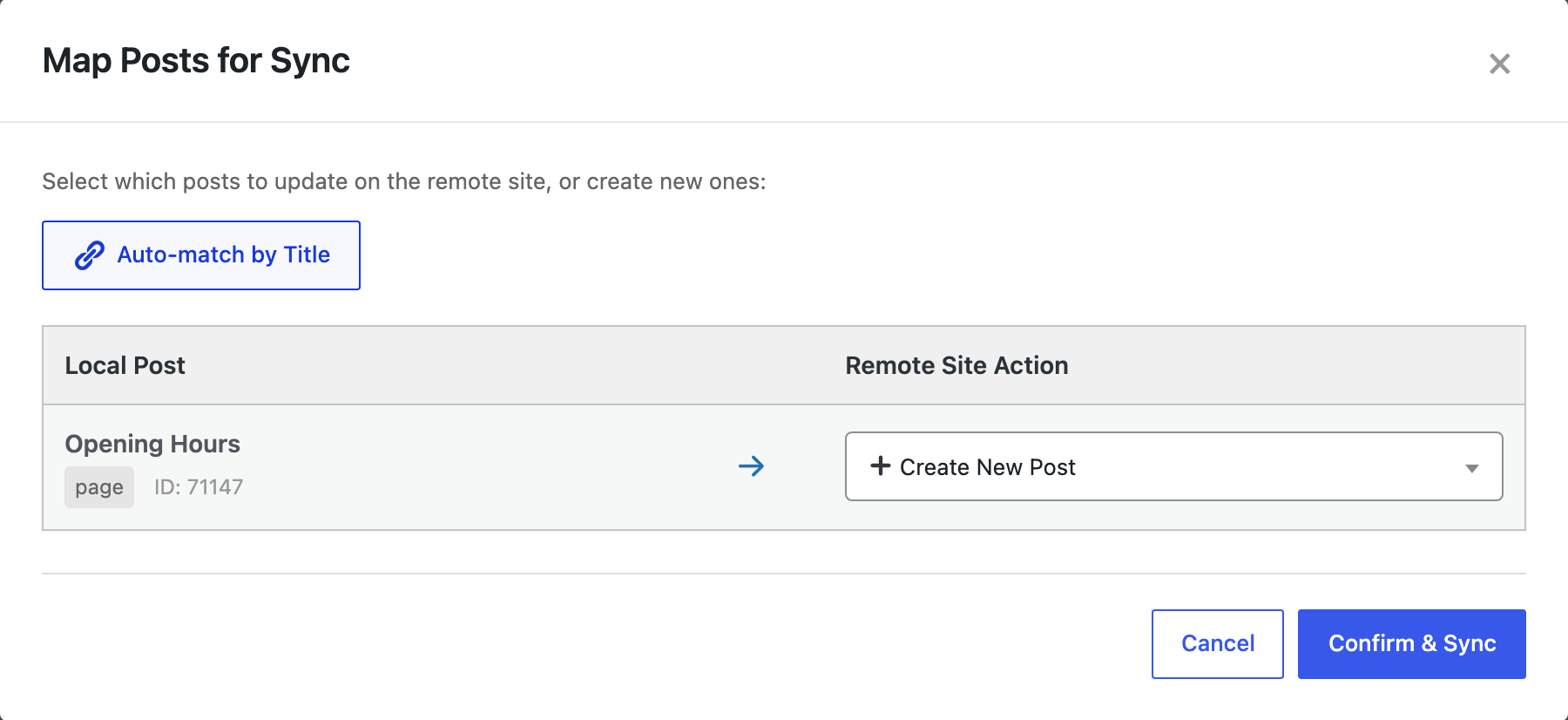
The live site had no such page yet, so the mapping stayed at Create New Post:
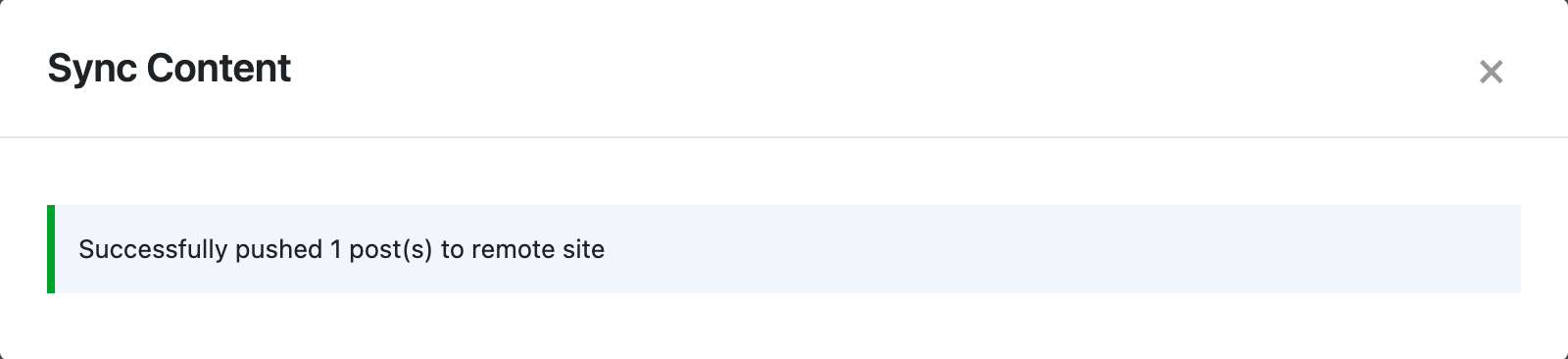
The push created the page on the live site:
Step 2: Make it a daily schedule
Go to Import Export → Jobs Log → Schedules. Enter a name, choose the push job as the Source Job (search the Jobs Log by its number or type), set Recurring, Daily and the time of the first run:
After Add schedule, the schedule is listed with its next run:

What happens on each run
We added holiday hours to the page on staging and let the schedule run. The run pushed the page again: the job reported 0 created and 1 updated, and the live page had the holiday hours. A second run updated the same page again. The live site still had one “Opening Hours” page, not a new copy for every run, even though the first push used Create New Post.
The schedule pushes the posts and pages selected in the source job. A page added later on staging is not part of it: push it once and create a schedule for that push too.
Schedules run with WordPress cron, which needs visits to the site or a real cron job on the server. If a run does not start, see scheduled imports not running.
Before you schedule a push
A scheduled push overwrites the page on the live site every day, also when someone edited it there. Make staging the only place where this page is edited, and back up the live site.
With an AI agent
An AI agent connected to the staging site through the WordPress MCP Adapter (see connecting Claude Code to WordPress) can check the schedule and its last run:
Show the "Daily push: Opening Hours to live" schedule and the result of its last run.In our run, the agent called rsl-ie/schedule-get: the schedule was active, daily, with the last run job 4848 and the next run at 06:00. Then rsl-ie/sync-job-status for that job returned completed, “Successfully pushed 1 post(s) to remote site”, 0 created and 1 updated, with the page “Opening Hours” and its target ID on the live site.
FAQ
Can I push every changed post automatically?
A schedule repeats the selection of its source job. To include new posts, push them once and add them to a schedule.
How often can a schedule run?
Hourly, twice daily, daily or weekly, or once at a set time.
How do I stop it?
Delete the schedule in Schedules. The pages already pushed to the live site stay as they are.
Related Guides
- WP Staging Alternative: Push Only the Pages You Changed
- Push Draft, Scheduled and Private Posts with Content Sync
- How to Use the Jobs Log and Schedule Import and Export Jobs
- Best Plugins to Sync Content Between WordPress Sites
Get the free plugin on WordPress.org.

Comments 0
Have a question or a tip to share? Leave it below.