
You built a page on staging, moved it to the live site, and the images are gone or the links still go to staging.example.com. This happens because WordPress stores full addresses in the post content: every image and every internal link carries the domain of the site where it was written, and every image block refers to an attachment ID that only exists on that site. Below are the causes, and how a Content Sync push in Import Export by RockStarLab takes care of them.
Free: Content Sync for posts and pages with their images. PRO: custom post types and WooCommerce products.
Short Answer
- Broken images come from image files that were not copied to the live site, or from content that still points to the staging address.
- Links to staging come from addresses saved in the content that nobody replaced.
- Images that show but do not open in the editor come from attachment IDs of the staging site.
- A Content Sync push copies the images to the live media library and rewrites the addresses and image IDs in the content.
Why images and links break
The content still points to staging
An image block stores the full address of the file, for example https://staging.example-roastery.com/wp-content/uploads/2026/11/spring-latte-1024x597.jpg, and a link to another page stores the staging address of that page. If the content is copied as it is, the live page loads images from staging (or not at all, when staging is password-protected or gone) and sends visitors there.
The image files are not on live
Copying only the database, or only some posts, leaves the files in wp-content/uploads behind. Even with the right address, the live site then has no file to show.
The image IDs belong to staging
Image blocks and featured images refer to an attachment ID, for example wp-image-71147. On the live site, that ID is another attachment or nothing at all, so the editor cannot find the image and the featured image is wrong or empty.
Push the post with Content Sync
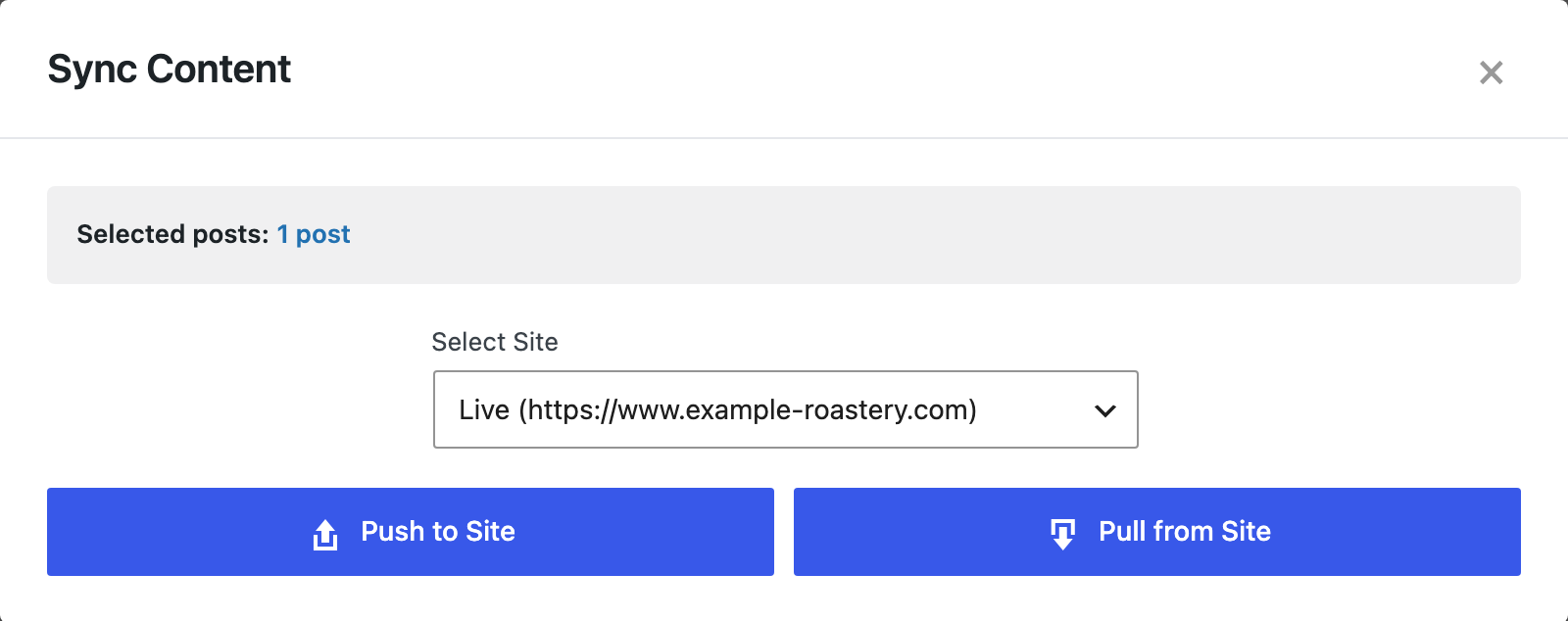
Our test post on staging, “Spring Menu 2027”, had a new image (uploaded only on staging) as an image block and as the featured image, and a link to the staging Services page. We selected it on the Posts screen, chose Sync Content and the live site:
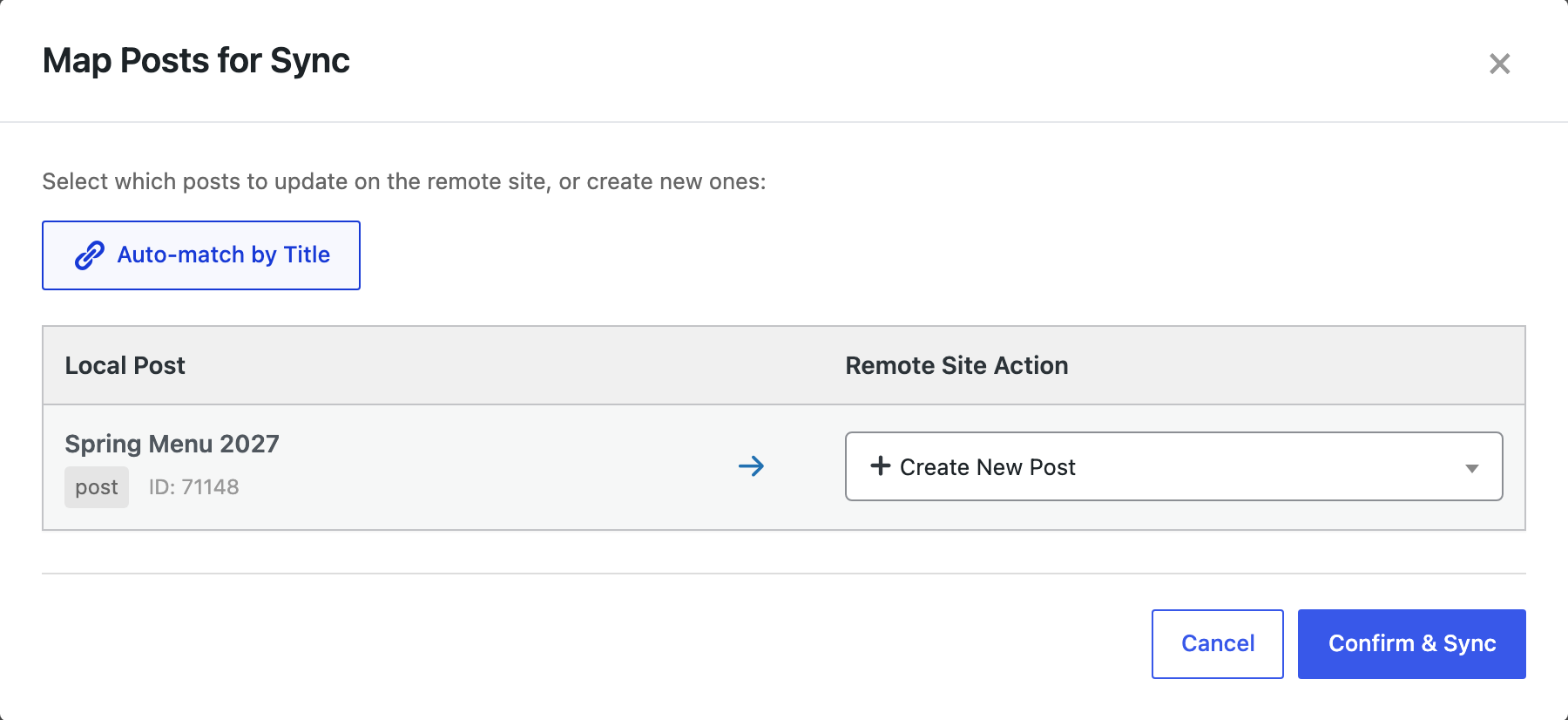
The post was new on live, so it stayed on Create New Post:

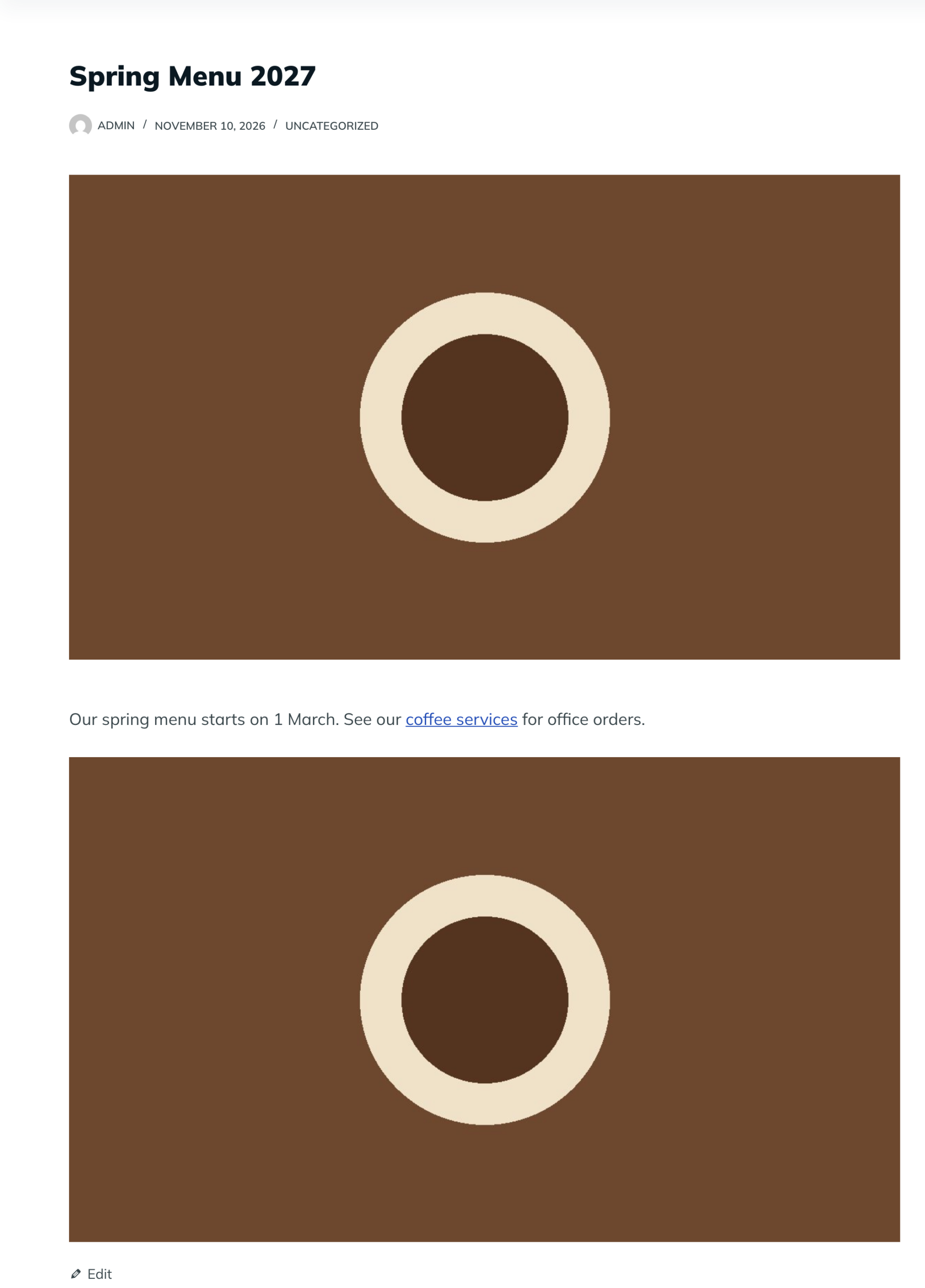
What arrived on the live site
- The image file was copied into the live media library, with its sizes. It got a new ID on live (2048 instead of 71147 on staging).
- The image block points to the live file and uses the live ID:
wp-image-2048and{"id":2048}. - The featured image is the same live attachment.
- The link to Services points to the Services page on the live address.
Fix pages that are already broken
If a page on live already has staging addresses, push it again from staging with Update for the live page (use Auto-match by Title). The push replaces the content with a version that has live addresses and live image IDs. For many old posts with staging links but no staging copy, an import with Replace links can rewrite the addresses; see moving posts between sites.
Before you push
Keep the staging site reachable for the live site until the push is done, because the images are copied from it. Back up the live site first.
With an AI agent
An AI agent connected to the live site through the WordPress MCP Adapter (see connecting Claude Code to WordPress) can check a pushed post for staging addresses:
Show the content and featured image of "Spring Menu 2027" on the live site. Is anything still pointing to staging?In our run, the agent called rsl-ie/export-preview for the post. The content had the live address in the link and in the image, the image block used wp-image-2048, and the featured image URL was on the live site. Nothing pointed to staging.
FAQ
Does the push copy every image size?
In our test the live uploads folder had the image in all sizes after the push, including the 1024 px version used in the post.
Do links to other pages change too?
Yes, links with the staging address are rewritten to the live address. In our test the link to the Services page pointed to live after the push.
Do I need PRO for this?
No. Pushing posts and pages with their images is part of the free plugin. PRO adds custom post types and WooCommerce products.
Related Guides
- Sync Featured Images and Media Between WordPress Sites
- WP Staging Alternative: Push Only the Pages You Changed
- Featured Images Missing After WordPress Import
Get the free plugin on WordPress.org.

Comments 0
Have a question or a tip to share? Leave it below.