
You imported your posts, the titles and text are there, but the blog page shows grey boxes where the pictures should be. Featured images go missing after an import for a handful of reasons, and most of them come down to the image column in your file. Five event posts are imported with Import Export by RockStarLab below. Three of them have the usual problems, and each one is found and fixed.
Free: everything in this guide works in the free plugin.
Short Answer
- Check that the image column is mapped to Featured Image URL. An unmapped column is ignored.
- Use full, public URLs that point to the image file itself:
https://…/photo.jpg. - Read the import result: rows whose image couldn’t be downloaded are listed with the reason.
- Fix those URLs and import a small file with the title and image, with Update on matching titles.
The file
Title,Content,Featured Image
Harvest Cupping Evening,Taste five new spring lots.,https://old.example-roastery.com/wp-content/uploads/old-blog/spring-cupping.jpg
Barista Basics Class,Learn milk texturing.,https://old.example-roastery.com/wp-content/uploads/old-blog/latte-art-class.jpg
Decaf Tasting,Brew cold brew at home.,https://old.example-roastery.com/wp-content/uploads/old-blog/cold-brew-masterclass.jpg
Coffee Quiz Night,Tours every hour.,https://old.example-roastery.com/shop/
Holiday Gift Market,Six pairings to try.,/wp-content/uploads/old-blog/cold-brew-day.jpg
The first two images are fine. The other three show the most common mistakes: a file that no longer exists, a link to a page instead of an image, and a path without the domain.
Cause 1: the image column isn’t mapped
The importer only uses columns that are mapped. Our column is called “Featured Image”, which Auto Map recognises; names like “Thumbnail” or “Photo” may need dragging onto Featured Image URL by hand:

If this field is missing from the Mapped Fields list, the posts are created without images and there is nothing to warn about, so check it before you start.
Read the import result
All five posts were created. The result says three images couldn’t be downloaded and lists each one with its row and the reason:
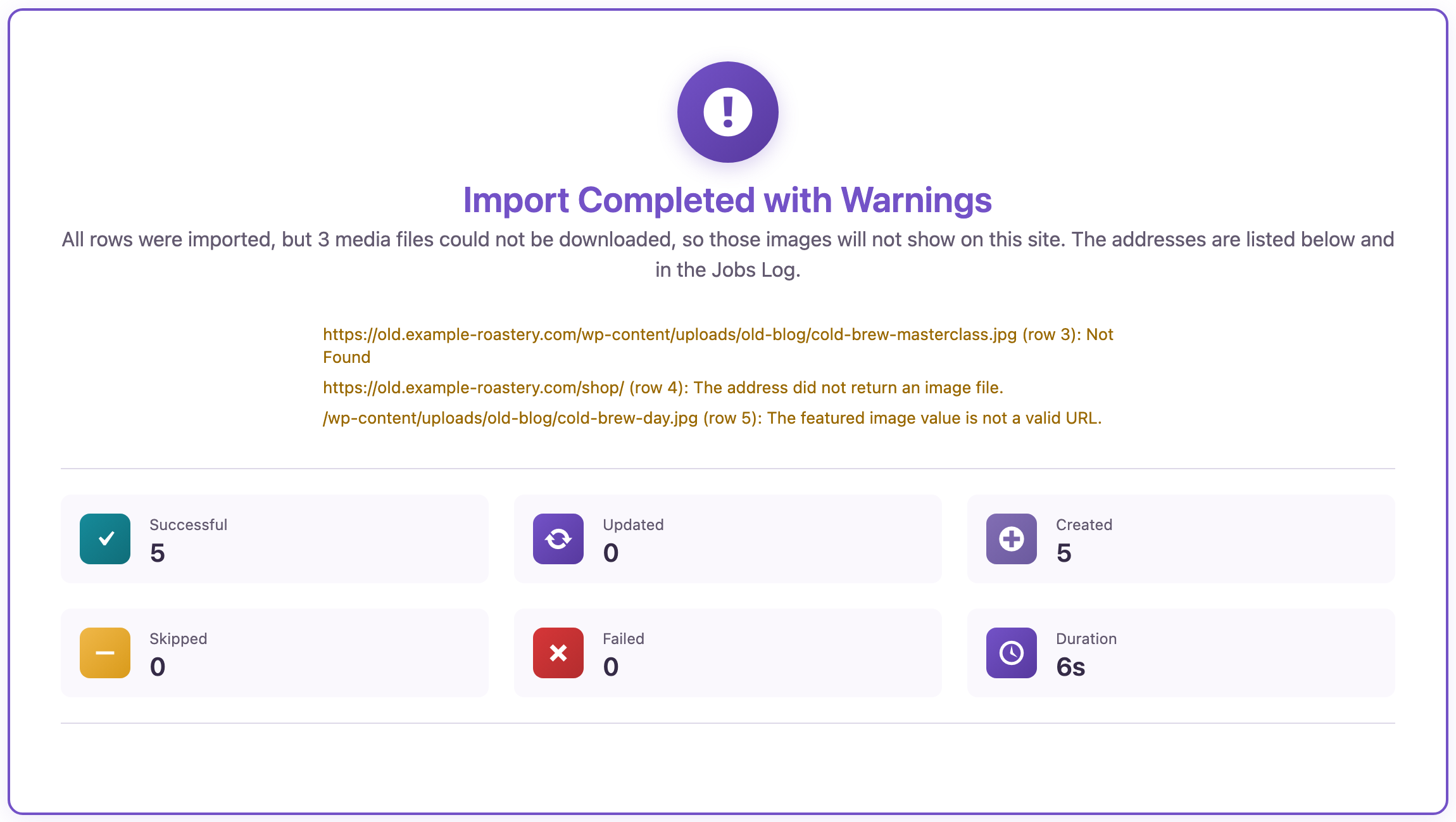
The same list is in Jobs Log under the job’s details. Here is what each reason means.
Cause 2: the file isn’t there (Not Found)
Row 3 returned “Not Found”: the server answered with HTTP 404. The image was deleted, renamed, or the URL has a typo. Open the URL in a browser; if you see an error page, find the right address on the old site or upload the image elsewhere.
Cause 3: the link opens a page, not an image
Row 4 says “The address did not return an image file.” The link pointed to a web page. This happens with gallery pages, shop pages, and share links from cloud drives and photo services. Right-click the image on that page and copy the image address; it usually ends in .jpg, .png or .webp.
Cause 4: a path without the domain
Row 5 says “The featured image value is not a valid URL.” A path like /wp-content/uploads/… only makes sense on the old site. Add the old site’s domain in front of it. In a spreadsheet, Find and Replace on the image column does it for every row at once.
Other causes worth checking
- The old site blocks downloads. Some hosts and security plugins refuse requests from other servers. If the URL works in your browser but the import says it can’t download it, ask the old host or move the images to a public folder first.
- The images are imported but don’t show. If the Media Library has the image but the page doesn’t, check that the theme shows featured images for that post type, and clear any page cache.
- Posts imported from a WordPress XML file. If the attachments weren’t in the file, featured images refer to IDs that don’t exist on the new site. Exporting with a Featured Image URL column avoids that.
Fix the missing images
You don’t have to import everything again. Make a file with the title and the corrected image URL of the three posts:
Title,Featured Image
Decaf Tasting,https://old.example-roastery.com/wp-content/uploads/old-blog/cold-brew-day.jpg
Coffee Quiz Night,https://old.example-roastery.com/wp-content/uploads/old-blog/spring-cupping.jpg
Holiday Gift Market,https://old.example-roastery.com/wp-content/uploads/old-blog/latte-art-class.jpg
Import it with Check for Existing Items by Field set to Title and If Match Found set to Update. In our run all three posts got their images and kept their text. Two of the images were already in the Media Library from the first import, and the plugin used those instead of downloading copies. For many posts, export them first and match by ID (see updating posts without duplicates).
Before you import
A big import with images writes many files to the uploads folder. Back up the site and try ten rows first to catch URL problems early.
With an AI agent
An AI agent connected through the WordPress MCP Adapter (see connecting Claude Code to WordPress) can find the missing images for you:
Which featured images failed in the last post import?In our run, the agent called rsl-ie/job-list to find the import (5 posts) and rsl-ie/job-get-logs with level warning. It returned the three image URLs with “Not Found”, “The address did not return an image file.” and “not a valid URL”, ready for the fix-up file above.
FAQ
Why does the import succeed when an image fails?
The post itself is fine, so it’s imported. The missing image is reported as a warning on the result and in Jobs Log.
Can I use Google Drive or Dropbox links?
Only links that download the image directly. Share links that open a preview page don’t work.
Will re-importing download the same images again?
No. An image that is already in the Media Library from an import is reused.
Which column name should I use?
Any name works if you map it to Featured Image URL. “Featured Image” and “Image URL” are matched by Auto Map.
Does it work for pages?
Yes. Pages have the same Featured Image URL field.
Related Guides
- How to Import WordPress Posts from CSV or Excel
- Bulk Import Images from URLs into the WordPress Media Library
- Export WordPress Posts with Featured Image URL and Categories to Excel
- Import WooCommerce Product Images from URLs (CSV)
Get the free plugin on WordPress.org.

Comments 0
Have a question or a tip to share? Leave it below.