
Moving a blog, taking over a client’s site or collecting photos from a supplier often starts with a list of image addresses. Uploading them one by one through Media → Add New takes an afternoon and still leaves the alt texts empty. Import Export by RockStarLab imports a CSV or Excel file of image URLs into the Media Library: it downloads each file, creates the thumbnails and saves the title, alt text, caption and description from the same row. In the example, six photos move from a coffee roastery’s old blog.
Free: everything in this guide works in the free plugin.
Short Answer
- Prepare a file with an image URL column and, optionally, Title, Alt Text, Caption and Description.
- Go to Import Export by RockStarLab → Import, choose Media and upload the file.
- Map the URL column to File URL and the other columns to their fields.
- Run the import. Rows whose image can’t be downloaded are listed with the reason.
The file
Image URL,Title,Alt Text,Caption,Description
https://old.example-roastery.com/wp-content/uploads/old-blog/opening-day-storefront.jpg,Roastery front,Front of the roastery with the new sign,Our roastery on opening day,Exterior photo for the opening announcement.
https://old.example-roastery.com/wp-content/uploads/old-blog/huila-farm-sorting.jpg,Farm visit,Sorting green coffee beans at the farm,Sorting beans in Huila,Taken during the 2025 harvest trip.
https://old.example-roastery.com/wp-content/uploads/old-blog/yirgacheffe-cupping-bowl.jpg,Ethiopia Yirgacheffe,Washed Ethiopia Yirgacheffe beans in a cupping bowl,,
https://old.example-roastery.com/wp-content/uploads/old-blog/weekly-cupping.jpg,Cupping session,Baristas cupping six coffees at the tasting table,Weekly cupping,
https://old.example-roastery.com/wp-content/uploads/old-blog/roaster-cooling-tray.jpg,Roasting machine,Coffee beans cooling in the roaster tray,,
https://old.example-roastery.com/wp-content/uploads/old-blog/espresso-bar.jpg,Espresso bar,Espresso bar with two grinders,,
Each URL must be public and point to the image file itself, not to a page that shows it. Empty cells are fine. The last photo had been deleted from the old site, which we left in on purpose.
Map the columns
Auto Map matched Title, Alt Text, Caption and Description. We dragged Image URL to File URL:
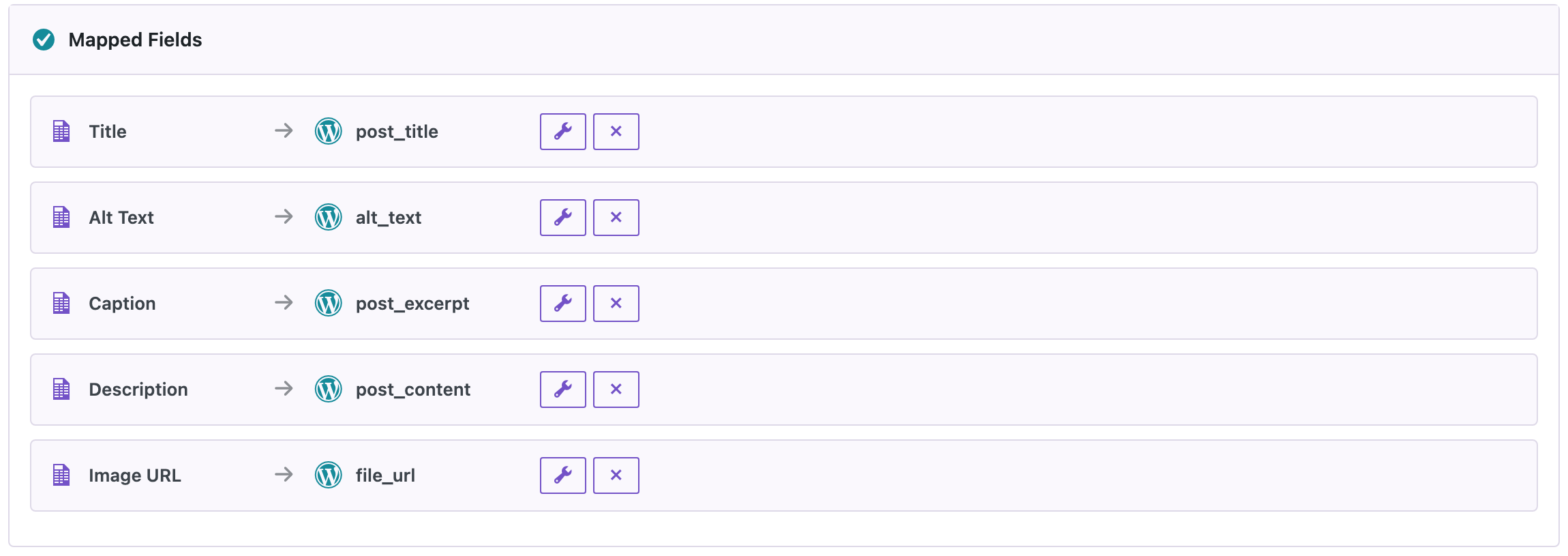
In WordPress terms, the caption is stored as the excerpt and the description as the content, which is why the right-hand side shows post_excerpt and post_content. On the next step we kept Check for Existing Items by Field on Title with Update, so running the file again updates the same images instead of adding copies.
Run the import
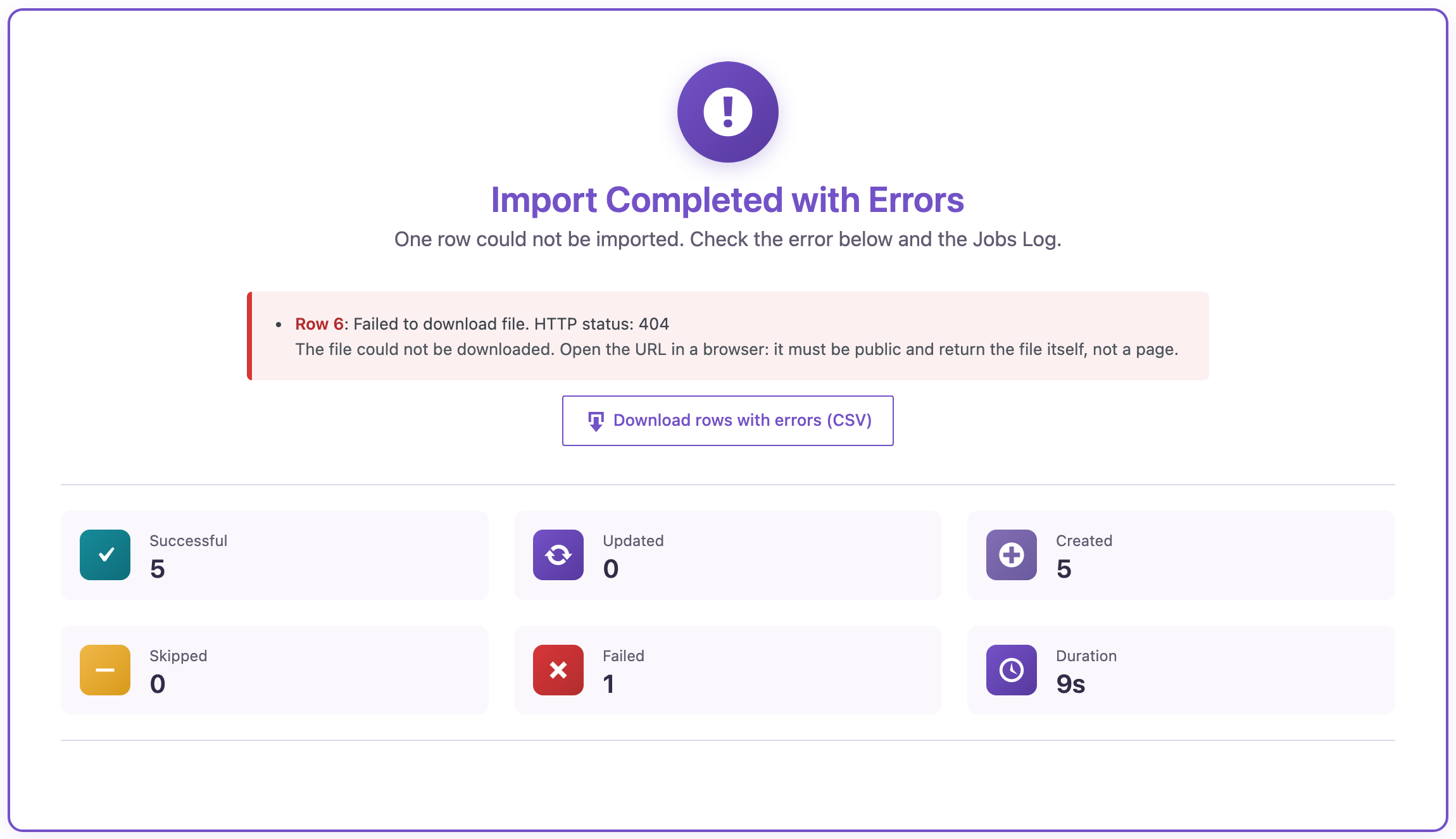
Five images were downloaded in 9 seconds. Row 6 failed with HTTP status 404, the server’s way of saying the file isn’t there. Download rows with errors (CSV) gives you that row to fix and import again; the same list is in Jobs Log.
Check the Media Library
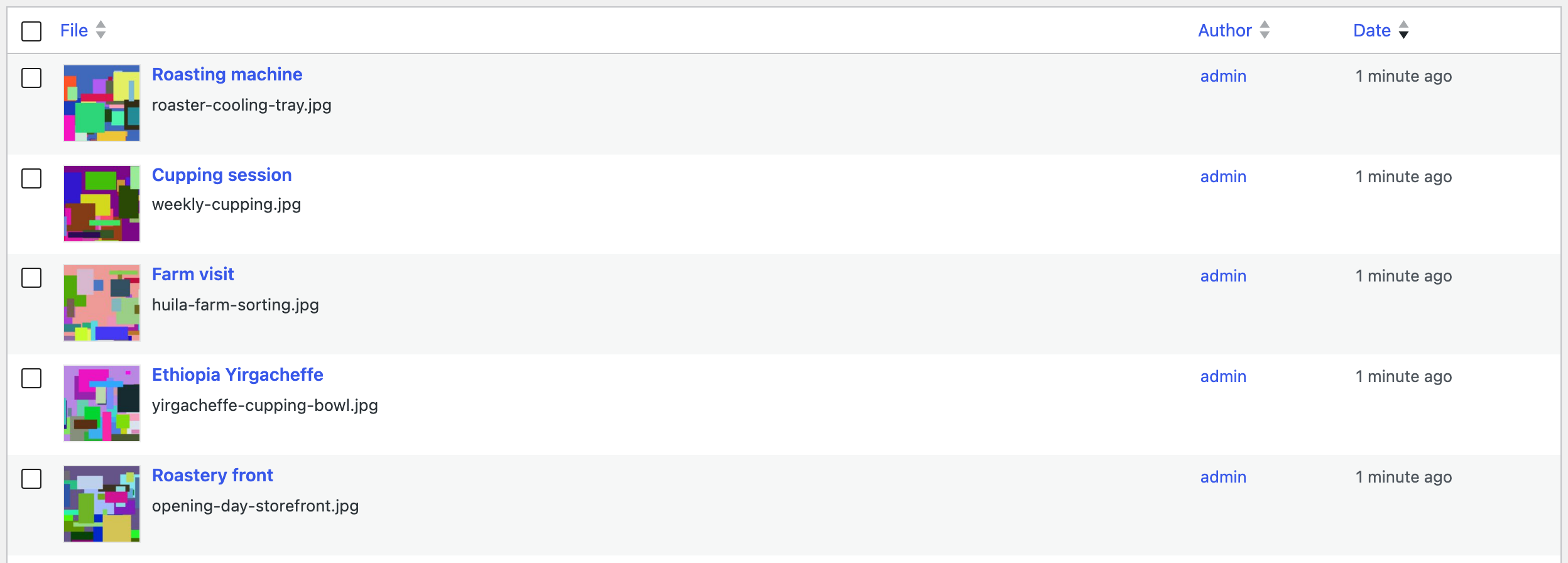
Each image has its title, alt text, caption and description, and WordPress created the usual thumbnail sizes, so the images are ready for posts and galleries. The file kept its folder from the old site’s uploads path (old-blog/), which makes it easy to replace old image links later with Replace links on the import options step.
We imported the same file a second time: the five images were updated, not duplicated, and no extra files appeared in the uploads folder.
Before you import
A large image import fills the uploads folder and the database quickly. Back up the site, check that the hosting has enough disk space and try the first ten rows before the whole file.
With an AI agent
An AI agent connected through the WordPress MCP Adapter (see connecting Claude Code to WordPress) can tell you which images didn’t come through:
Which images from the last media import failed, and why?In our run, the agent called rsl-ie/job-list for the latest import (6 rows, 5 succeeded, 1 failed) and rsl-ie/job-errors, which returned row 6, “Failed to download file. HTTP status: 404”, with the hint to open the URL in a browser and check that it returns the file itself.
FAQ
Can I import images from Excel instead of CSV?
Yes. The importer reads CSV, Excel (.xlsx), JSON and XML files.
Are thumbnails created?
Yes. WordPress creates the same sizes as for an image uploaded by hand.
What happens if an image URL doesn’t work?
That row fails with the HTTP status or error, the other rows are imported, and you can download the failed rows as a CSV.
Will importing the same file twice create duplicates?
No, when Check for Existing Items is set to a field like Title with Update. The second run updates the images.
Can I attach the images to posts?
Yes. Map a post ID to Attached To. To set featured images on posts, import the posts with a Featured Image URL column instead.
Related Guides
- How to Export the WordPress Media Library to CSV or Excel
- Import WooCommerce Product Images from URLs (CSV)
- Find Large Images in the WordPress Media Library
- Sync Featured Images and Media Between WordPress Sites
Get the free plugin on WordPress.org.

Comments 0
Have a question or a tip to share? Leave it below.