
You moved a blog from WordPress.com to your own WordPress site, the posts are there, but images are missing or still load from the old WordPress.com address. Below: why it happens, and how to import a WordPress.com export file with Import Export by RockStarLab so that the images in the posts are downloaded into your media library.
Free: importing posts and pages from a WordPress or WordPress.com export file, with the images in their content. Needs version 2.1.52 or later.
Short Answer
- A WordPress.com export (XML) file holds the text of your posts. The image files stay on the WordPress.com servers; the posts only contain their addresses.
- If the import does not download those files, the posts keep pointing to WordPress.com, or show nothing once the old site is closed.
- Import the XML file with Automatically Import Media Files turned on: the images in the content are downloaded into the media library and the addresses in the posts are changed to your site.
Why images go missing
- The export has no image files. It lists the posts, and image addresses inside the content. The files have to be downloaded during the import.
- The download stopped. Large imports can hit your host’s limits. The WordPress Importer’s own FAQ says the import “may run into your host’s configured memory limit for PHP” and suggests splitting the file (WordPress Importer).
- The content was not rewritten. An image can be downloaded while the post still contains the old address. Then the post works only as long as the old file exists.
Import the WordPress.com export
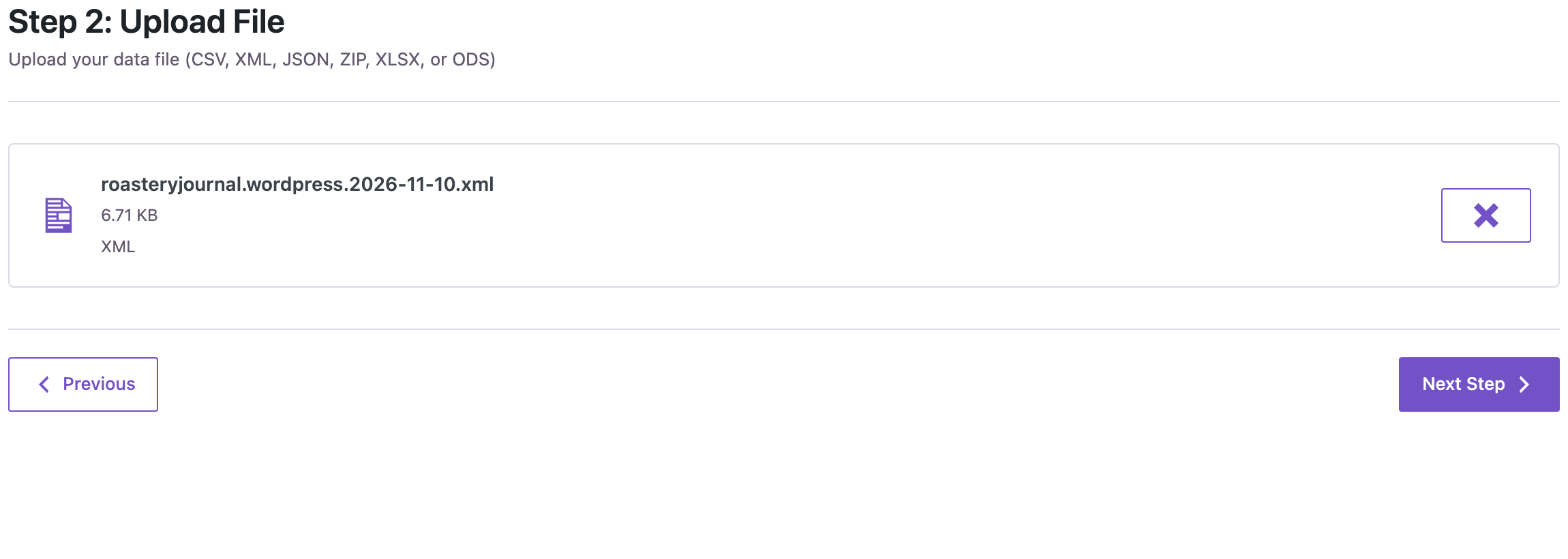
Our test file came from a WordPress.com blog with three posts, two of them with an image in the content, plus the usual lists of categories and tags. Go to Import Export → Import, choose Blog Posts and upload the XML file:
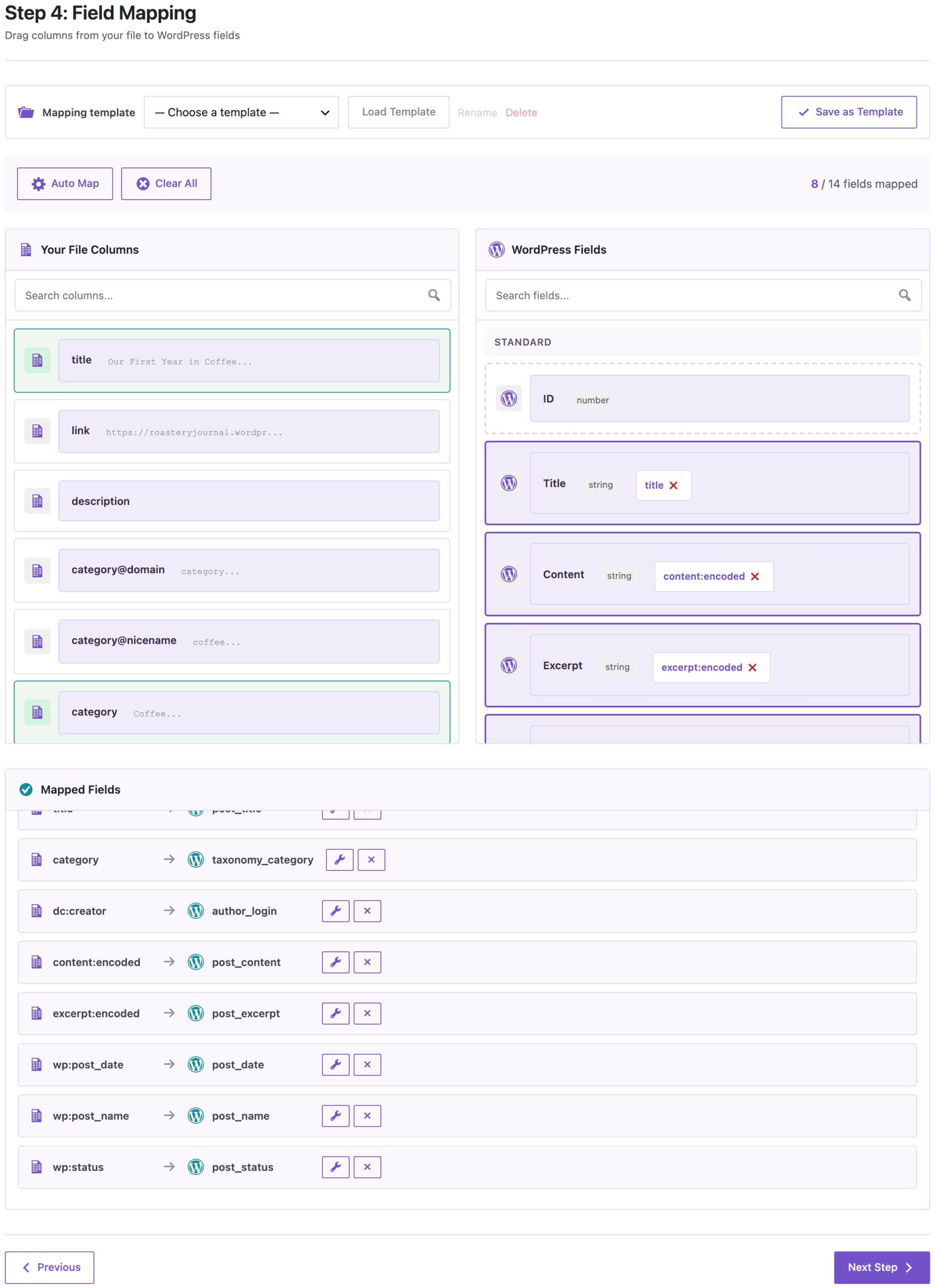
On the mapping step, Auto Map mapped title, content:encoded, excerpt:encoded, wp:post_date, wp:post_name, wp:status, category and dc:creator. Check the list: on our test site it also matched the link column (the old WordPress.com address) to a custom field that is also labelled “link”, so we removed that mapping with ×.
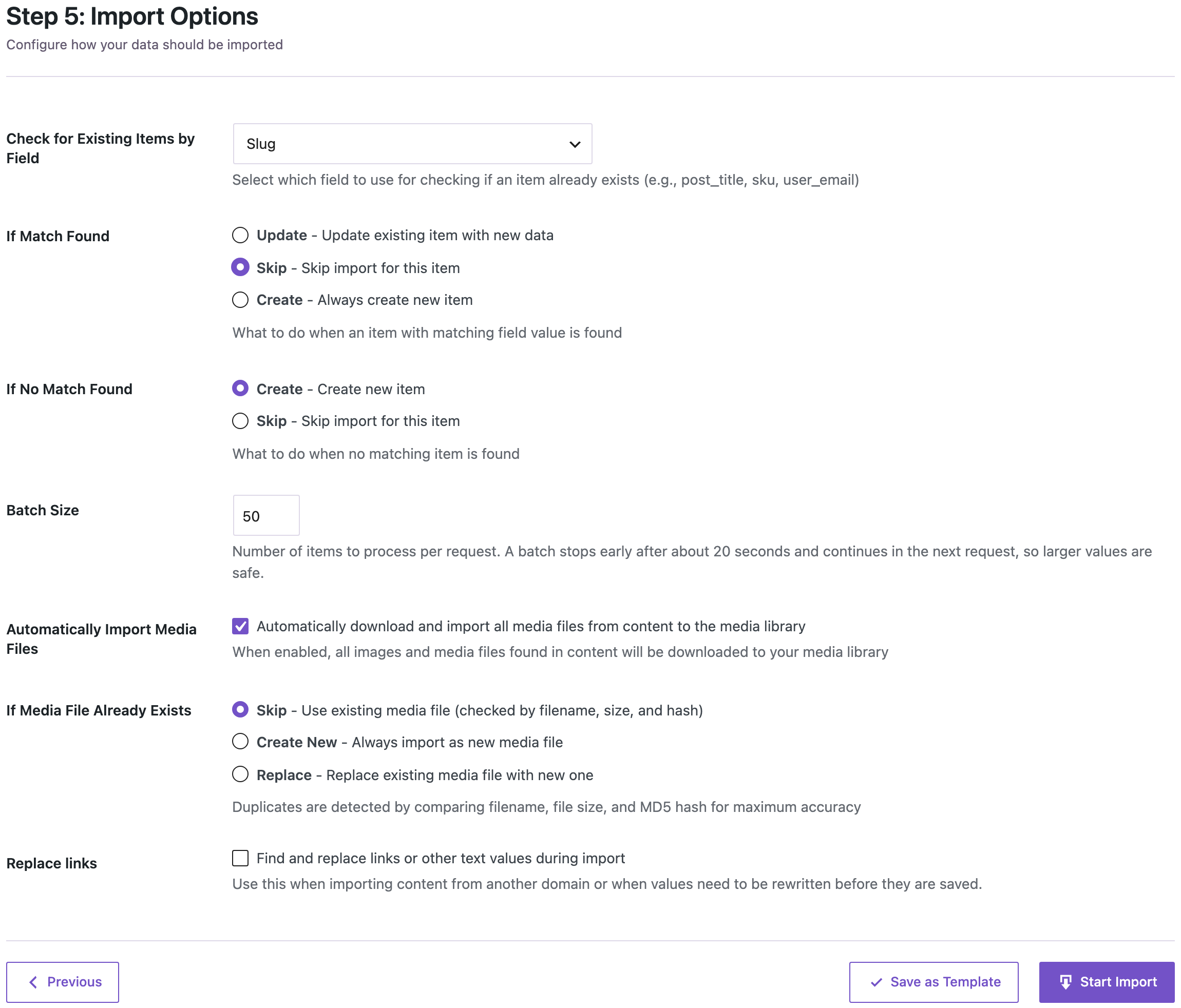
In the options, check existing posts by Slug, keep Automatically Import Media Files on, and choose what to do with images that are already in the media library:
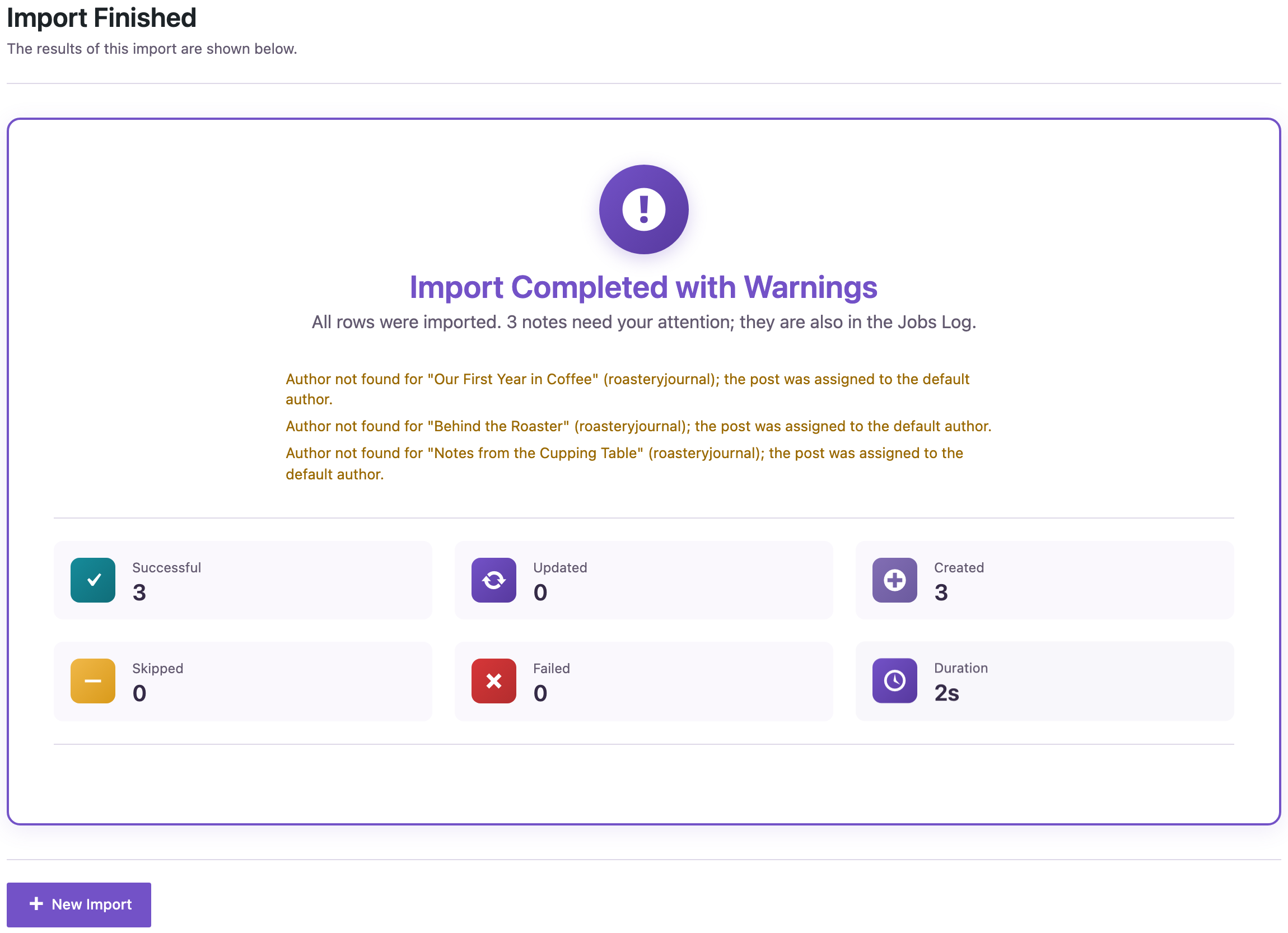
All three posts were created. The WordPress.com user roasteryjournal did not exist on the new site, so the plugin assigned the posts to the default author and listed this in the result:
What arrived
- The two images were downloaded into the media library, in the upload folders of the post dates (
/uploads/2024/03/and/uploads/2024/06/), and attached to their posts. - The image addresses in the posts point to the new site.
- The posts kept their dates, slugs and the category Coffee.
Before you import
Back up the new site, create the authors on the new site first if you want to keep them (authors are matched by login), and keep the WordPress.com site online until the import is done.
With an AI agent
An AI agent connected to the new site through the WordPress MCP Adapter (see connecting Claude Code to WordPress) can check the imported posts for old addresses:
Show the content of the imported posts. Do any images still load from WordPress.com?In our run, the agent called rsl-ie/export-preview for the two posts with images. Both image addresses were on the new site, in /uploads/2024/03/ and /uploads/2024/06/, and the posts had their original dates (10 March and 21 June 2024).
FAQ
Where do I get the WordPress.com export file?
WordPress.com offers an export of your content as an XML file in the dashboard. Download it while you still have access to the old site.
Are the authors kept?
Authors are matched by login (dc:creator in the file). Create users with the same logins on the new site before the import; otherwise the posts get the default author and the result says so.
Do I need PRO for this?
No. Importing posts and pages with their images from a WordPress.com export is part of the free plugin.
Related Guides
- Featured Images Missing After WordPress Import
- Images and Links Broke After Pushing Staging to Live
- How to Import a Ghost Export into WordPress
- What’s New in 2.1.52
Get the free plugin on WordPress.org.

Comments 0
Have a question or a tip to share? Leave it below.