
You changed the prices of a variable product on your staging store, ended a sale and added a new variation. Now the live store should get exactly these changes, without a second copy of every variation and without retyping prices. With Import Export by RockStarLab PRO, you select the product on staging and push it to live with Content Sync. The test is a real push of a hoodie with five variations.
PRO: Content Sync between two sites and WooCommerce products are part of PRO. Free: Content Sync push and pull for posts and pages.
What gets synced
When you push a variable product, the variations go with it. For each variation, Content Sync sends:
- the attribute values (for example Color Green, Logo Yes);
- SKU, regular price, sale price and sale dates;
- stock settings: stock quantity, stock status and backorders;
- weight, dimensions, tax class and the other variation fields.
On the live store, every variation from staging is matched to an existing variation: by the link saved at an earlier push, else by SKU, else by the same attribute values. A matched variation is updated, a new one is created, and a variation that you created only on live stays as it is.
Our example
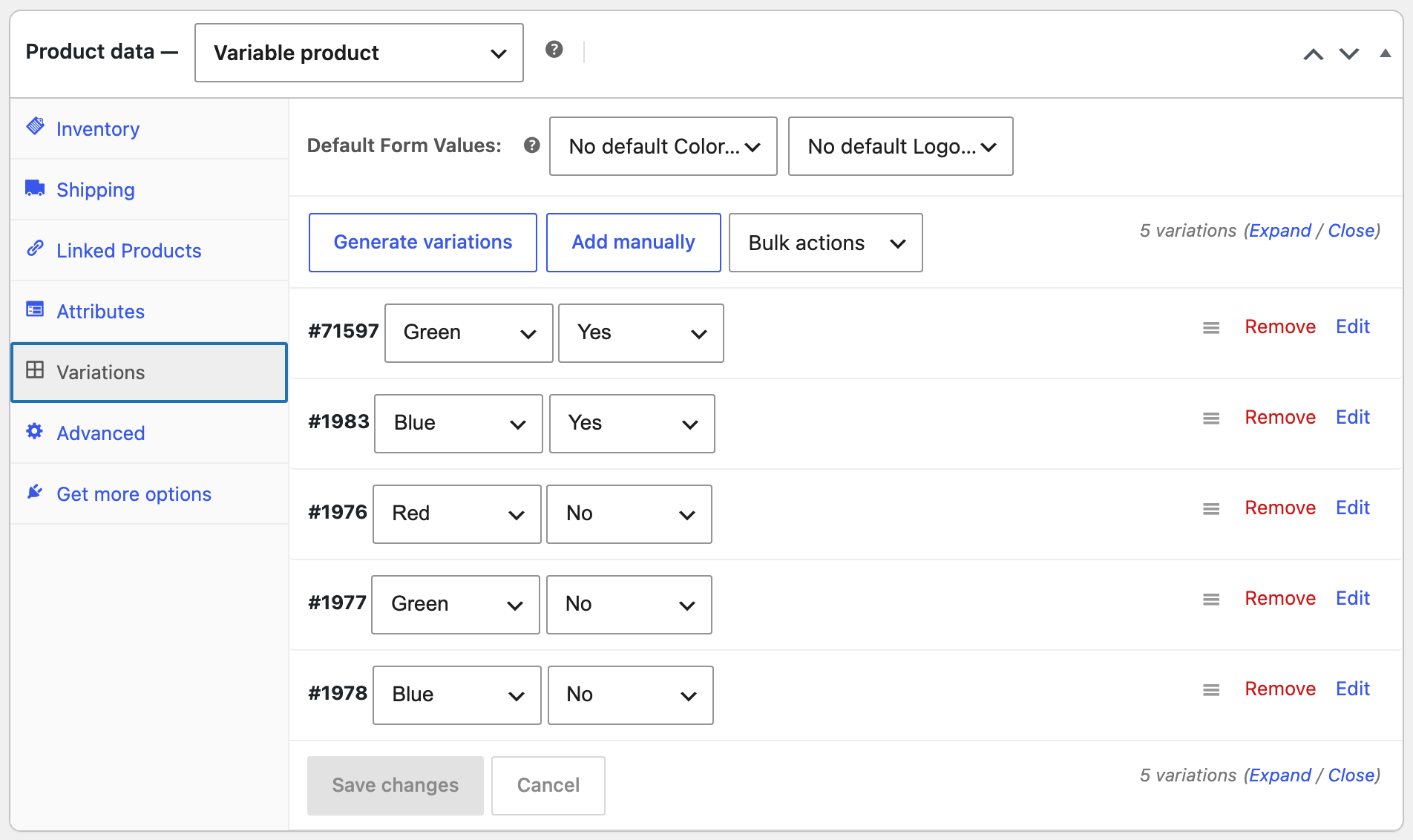
The Hoodie exists on both stores with four variations. On staging we made three changes:
- Red, no logo: the regular price went up to 48 and the sale ended (live still sold it at 42).
- Green, no logo: a sale price of 39.
- A new variation Green with logo, 49, with 15 in stock.
So staging now has five variations, one of them new (#71597):
Before you push
Both stores need PRO and a connection between them (Import Export → Content Sync); see how to sync WooCommerce products between two sites for the setup. Use PRO 2.1.15 or newer on both sites. A push changes products on the live store, so back up the live site first, through the plugin’s Backups or UpdraftPlus, or ask your AI agent to start the backup.
Step 1: Select the product and the site
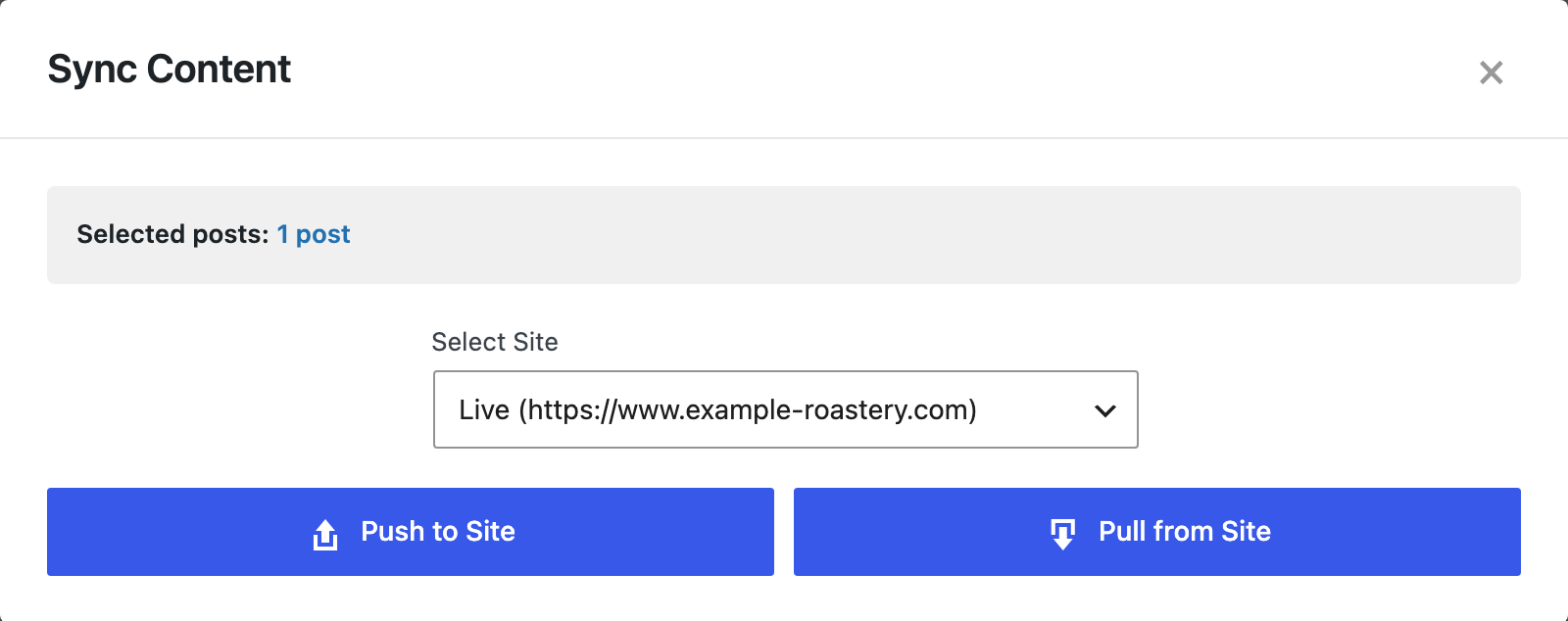
On staging, open Products → All Products, tick the variable product and click Sync Content above the list. Choose the live site and click Push to Site:
Step 2: Confirm the mapping
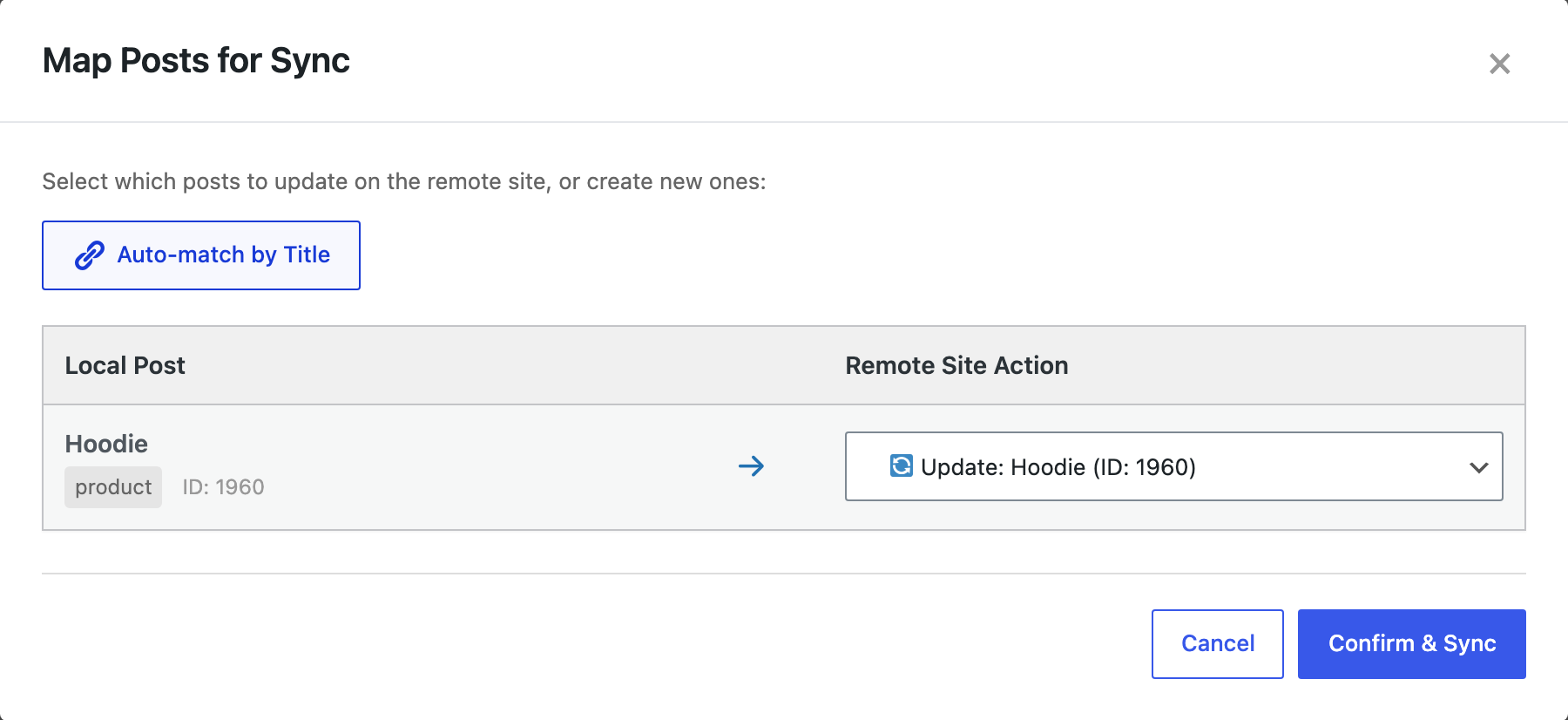
Click Auto-match by Title. The Hoodie on staging is matched to the Hoodie on live, and the action is Update. You map only the product; its variations are matched automatically. Click Confirm & Sync:
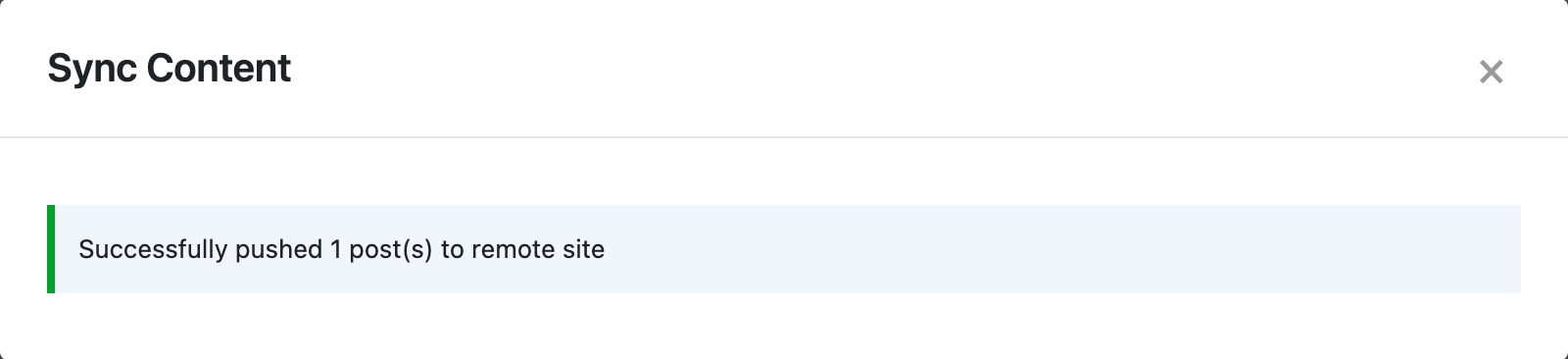
After a few seconds the plugin reports the push:
Step 3: Check the live store
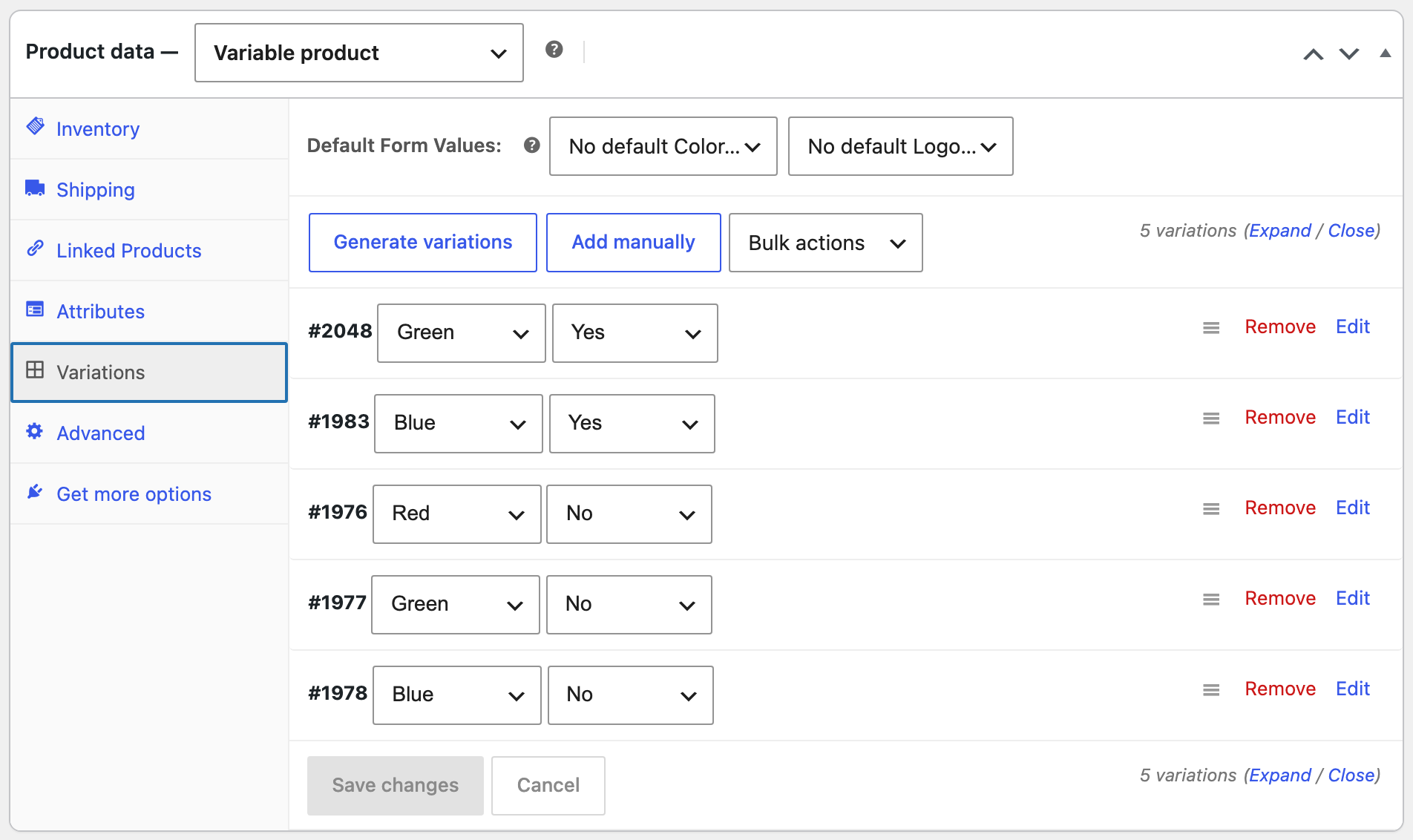
On live, the Hoodie now has five variations: the four old ones with their old IDs and the new Green with logo (#2048). No variation was added twice:
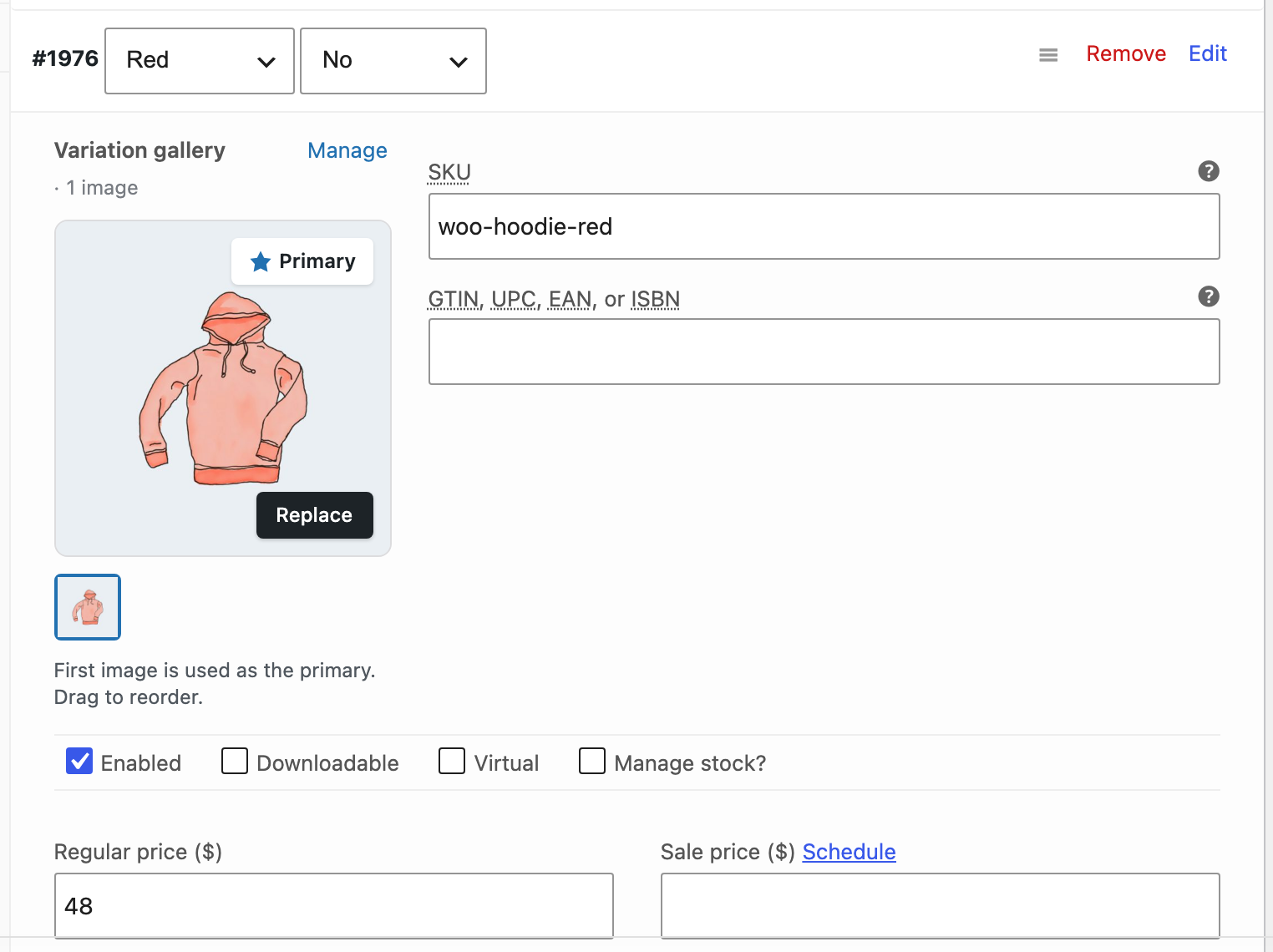
The Red variation has the regular price 48 from staging and no sale price, so the shop shows it at 48 without a sale badge:
The Green variation sells at 39 and the new Green with logo at 49 with 15 in stock, as on staging.
Tips
- Keep SKUs the same on both stores. SKU is the most reliable match for a variation that was never synced.
- Removed variations: a variation that came to live with an earlier push and that you deleted on staging is deleted on live at the next push of the product.
- Many products: tick several products in the list; each one is pushed with its variations.
With an AI agent
An AI agent connected to the live site through the WordPress MCP Adapter (see connecting Claude Code to WordPress) can check the result of the push:
List the SKU, price, sale price and stock of every Hoodie variation.In our run, the agent called rsl-ie-pro/export-preview for the Hoodie with the option variation_rows. It returned five rows with five different SKUs: woo-hoodie-red at 48 with no sale price, woo-hoodie-green at 45 with the sale price 39, and woo-hoodie-green-logo at 49 with 15 in stock.
FAQ
Do I have to map every variation?
No. You map the product; its variations are matched by the link from an earlier push, by SKU, or by the same attribute values.
What happens to variations that exist only on the live store?
Variations created on live are kept. Only a variation that came from an earlier push and no longer exists on staging is deleted.
Is a sale that ended on staging removed on live?
Yes. If the variation has no sale price on staging, the sale price on live is cleared with the push.
Can I move variations without Content Sync?
Yes. With PRO you can also export the variations to a CSV file with SKU, price and stock, and import the file on the other store.
Related Guides
- How to Sync WooCommerce Products Between Two Sites
- Export WooCommerce Product Variations with SKU, Price and Stock
- Sync WooCommerce Coupons Between Two Stores (Push and Pull)
- Variable Products in Content Sync (What’s New in PRO 2.1.15)
Get the free plugin on WordPress.org.

Comments 0
Have a question or a tip to share? Leave it below.