
You build pages and posts on a local copy of your site in LocalWP, and you want to move them to the live site without exporting files. You may also want to bring fresh posts from the live site down to your local copy. The usual worry: a local site has a domain such as roastery.local that the internet cannot reach. With Content Sync in Import Export by RockStarLab, that is not a problem, because the live site never has to contact your computer.
Free: Content Sync push and pull for posts and pages. PRO: the same for products and other content types.
Why a local site can sync with a live site
Every Content Sync request starts on the site where you click the button, here the local site:
- Push: the local site sends the post, its images and their files to the live site.
- Pull: the local site asks the live site for posts and downloads them, with their images.
We tested this with a rule on the live site that blocked and logged every request to the local site. A push of a post with a featured image and an image in the content, a pull of a live post with an image, and the connection test all worked, and the log stayed empty: the live site did not try to reach the local site once.
So you need only one thing: the local site must be able to open the live site’s address, as your browser can. You do not need a tunnel, a public address for your computer or open ports. We tested with LocalWP; DDEV, Lando and other local setups work the same way as long as the local WordPress can reach the live site.
Step 1: Copy the API key of the live site
On the live site, open Import Export → Content Sync and click Show Details in This Site Configuration. Copy the site URL and the API key:
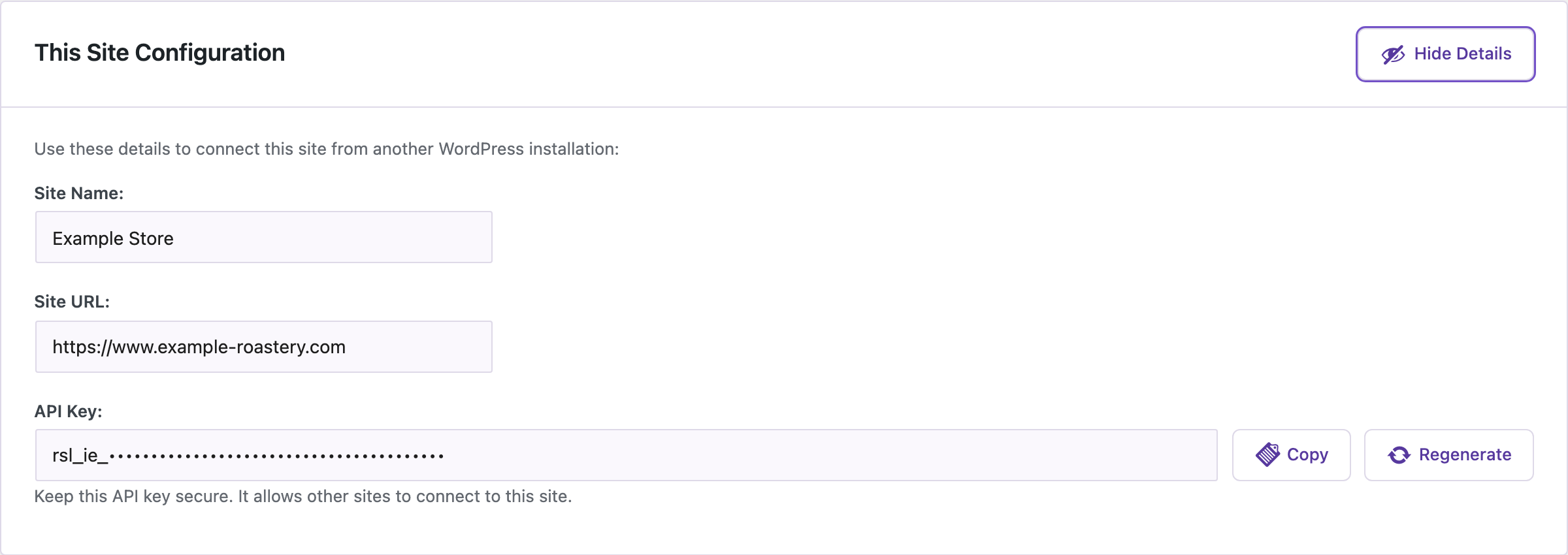
The live site does not need a connection to your local site. It only checks the API key of each request.
Step 2: Add the live site on the local site
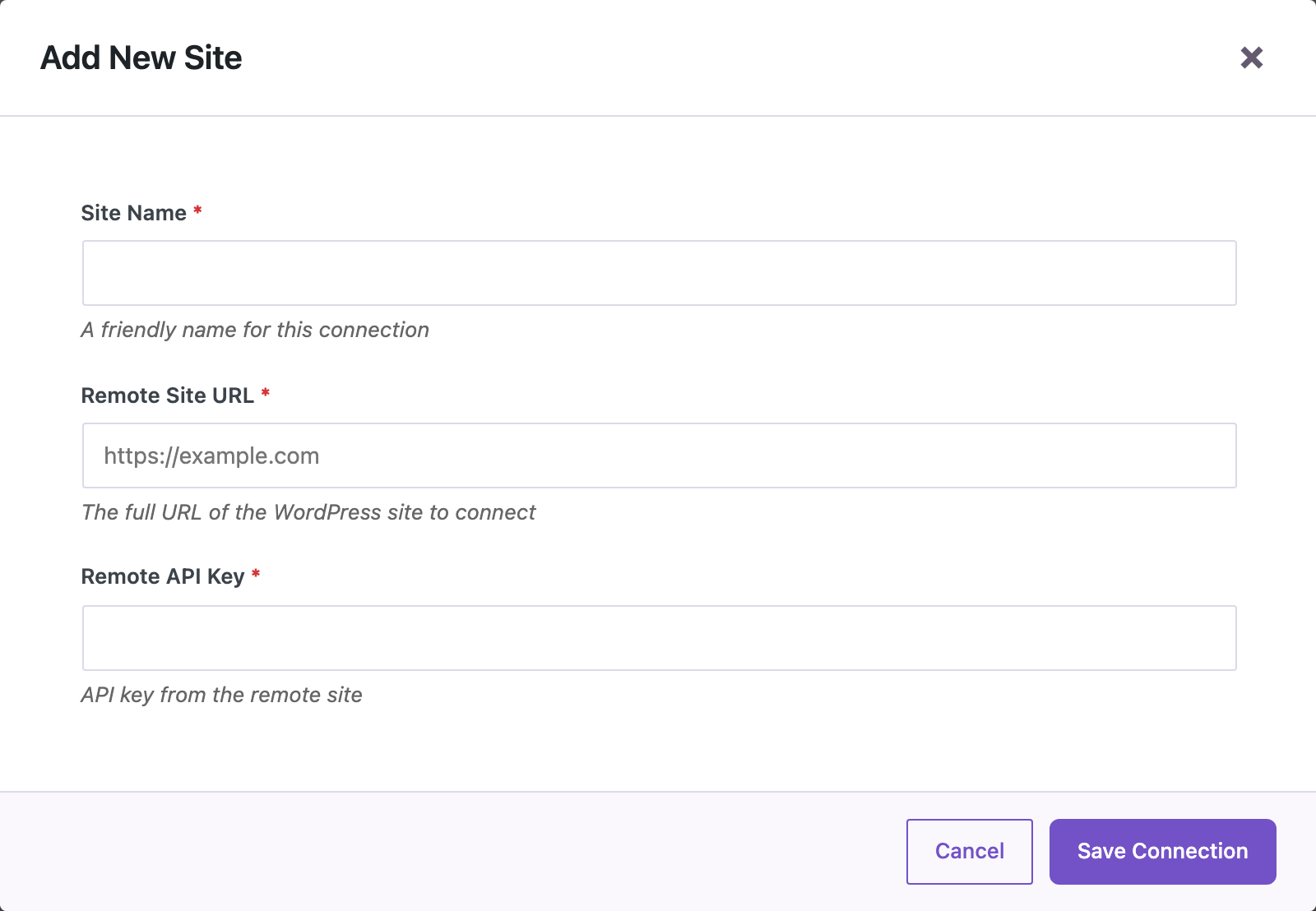
On the local site, open the same screen and click Add New Site. Enter a name (for example Live), the live URL and the API key, and click Save Connection:
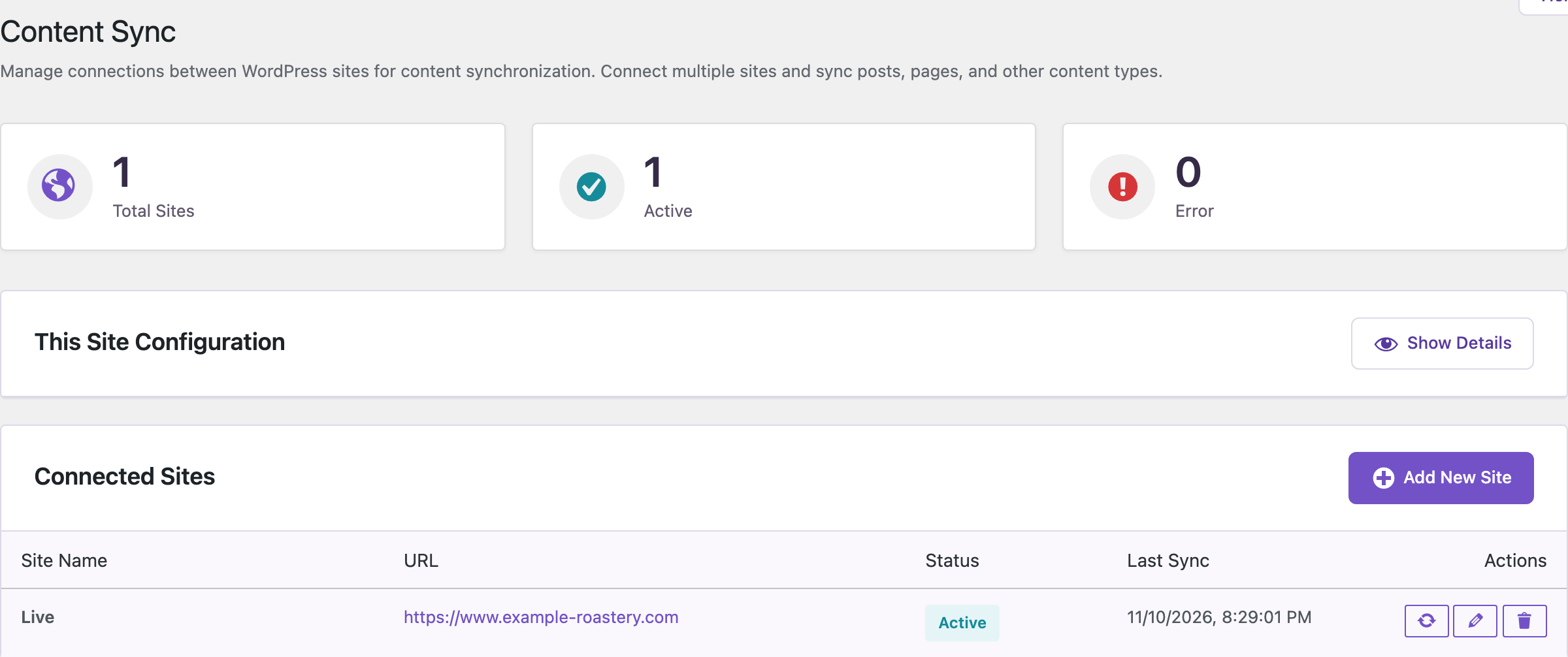
The live site appears under Connected Sites as Active:
Step 3: Push a post from local to live
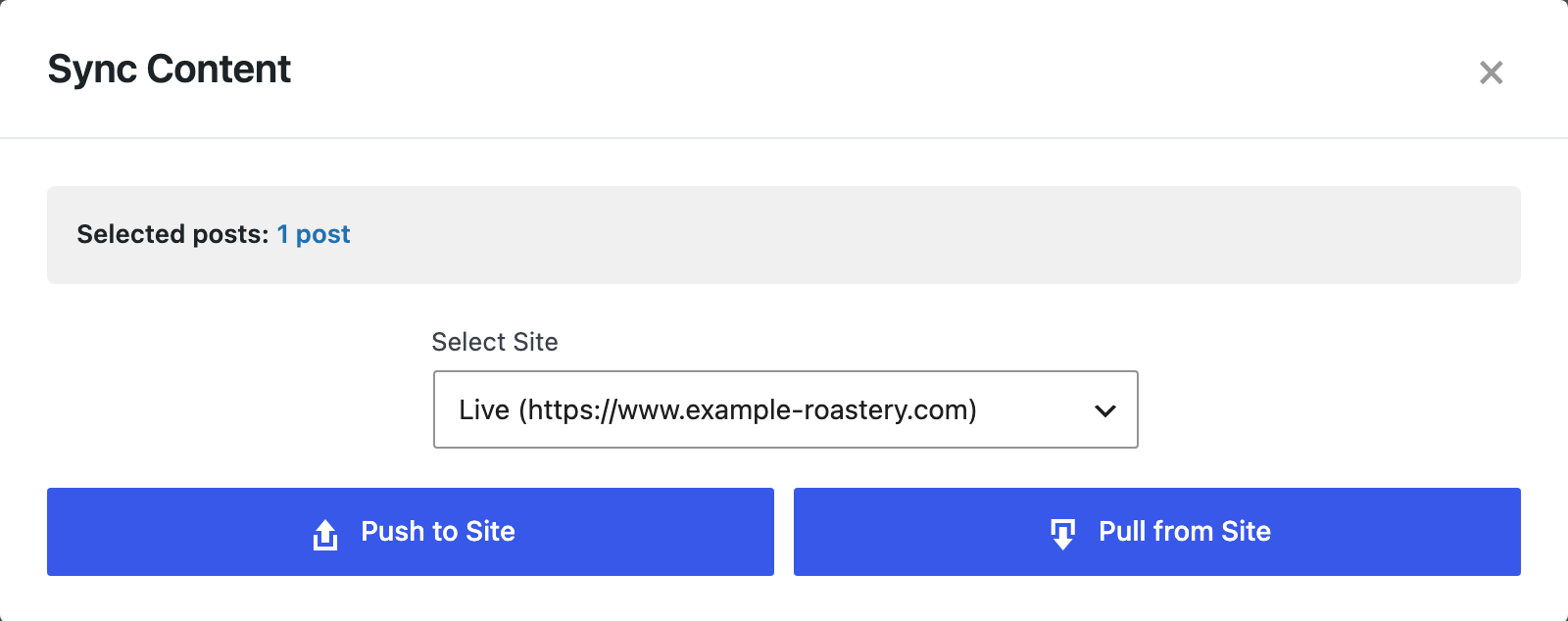
On the local site, open Posts, tick the post and click Sync Content. Choose the live site and click Push to Site:
Confirm the mapping (a new post, or the post on live to update) and wait for the result:
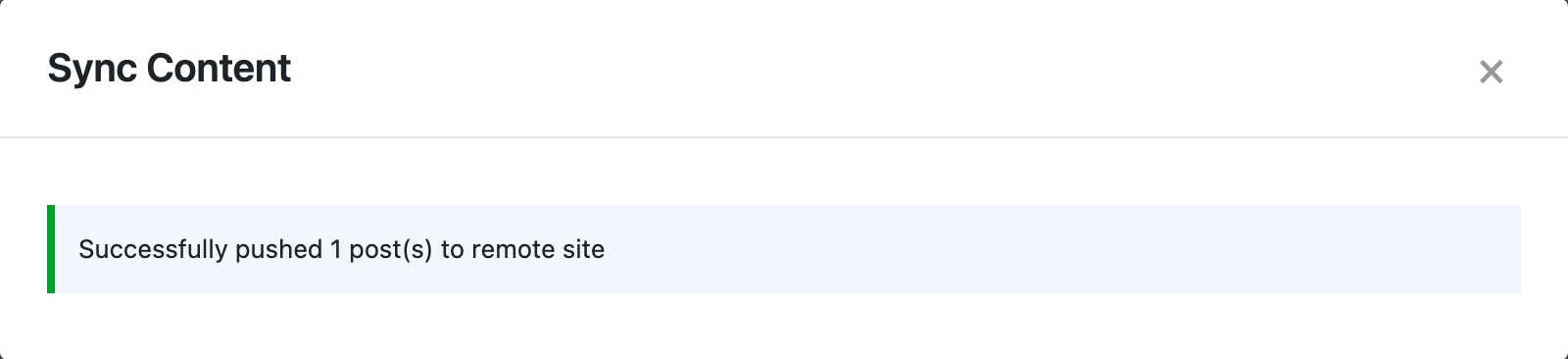
On the live site, our post had its featured image and the image in the content, both uploaded to the live media library. The image address in the content pointed to the live site, not to roastery.local. When we changed the post locally and pushed it again to the same post, the live post was updated, not copied.
Back up the live site before you push, especially the first time.
Step 4: Pull a post from live to local
To bring live content down, open Posts on the local site, click Sync Content without selecting posts and choose the live site. The list of live posts opens. Tick the posts and click Pull Selected Posts:
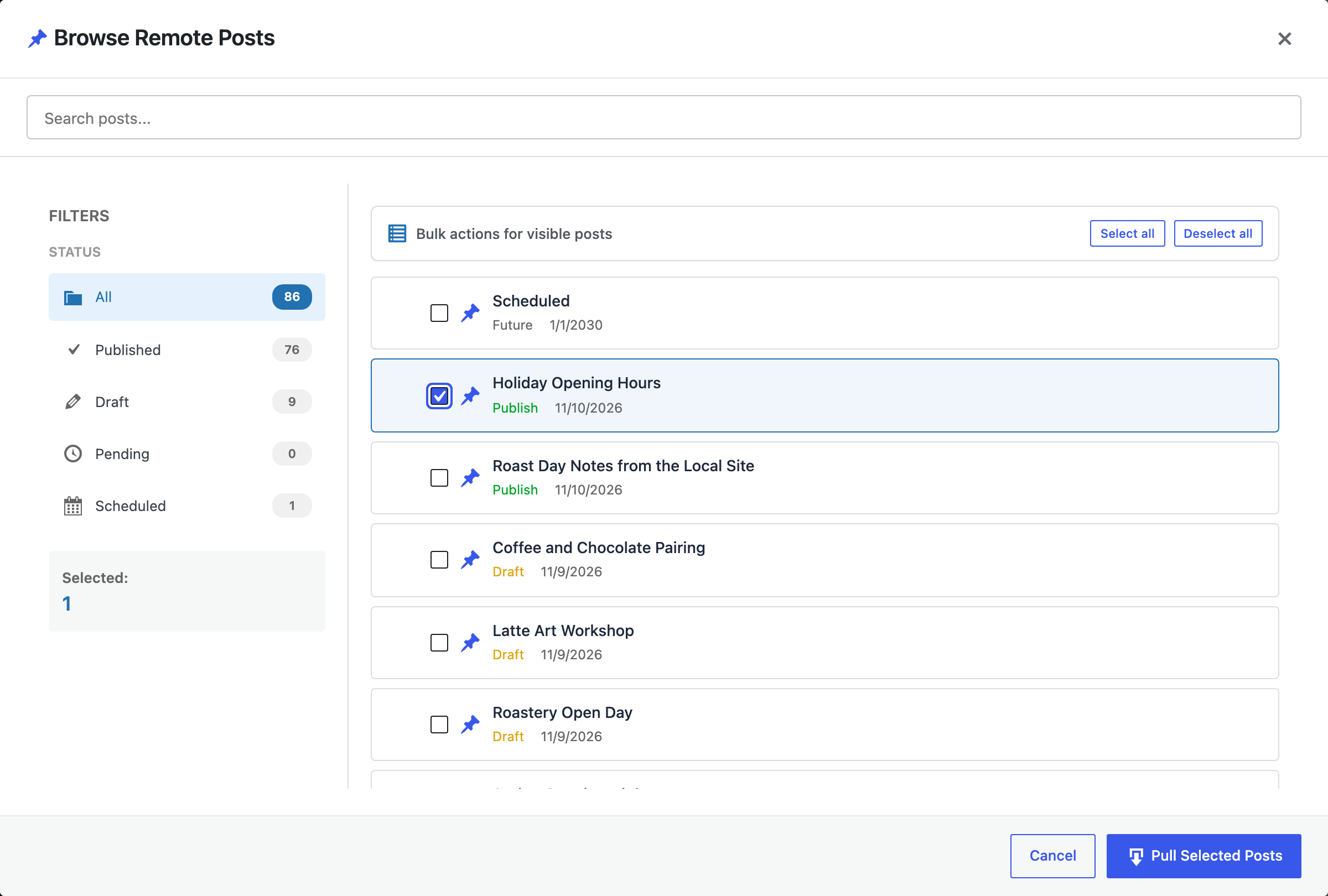
Our post was created locally in about 8 seconds, with its image in the local media library:
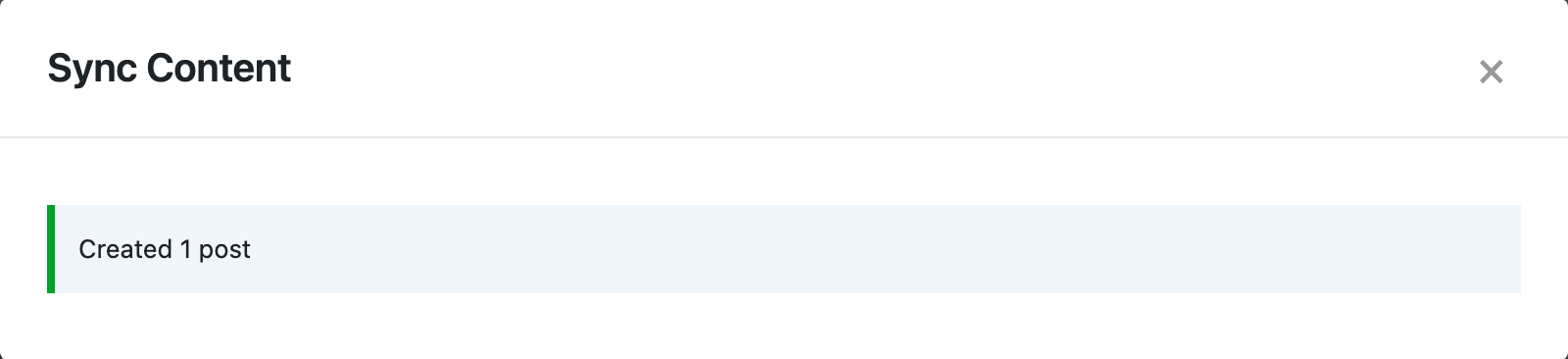
When the post changed on live and we pulled it again, the local copy was updated.
Tips for local sites
- Keep the local site running. A push started by an AI agent runs in the background through WP-Cron, and WP-Cron on a local site runs only while the site gets requests, for example while you have its admin open.
- The local URL does not matter. Since the live site never calls back, it makes no difference that the local site uses a
.localdomain or a port number.
With an AI agent
An AI agent connected to the local site through the WordPress MCP Adapter (see connecting Claude Code to WordPress) can check the connection and push a post:
Check the connection to the live site, then push "Roast Day Notes from the Local Site" to the same post on live.In our run, the agent called rsl-ie/connection-test (result: “Connection successful. API key is valid.”), then rsl-ie/sync-push-start with the post and its live ID, and polled rsl-ie/sync-job-status until the job was completed: 1 post updated, 1 image synced. The live post showed the new text.
FAQ
Does the live site need to reach my computer?
No. In our test the live site blocked every request to the local site, and push, pull and the connection test still worked.
Do I have to add the local site on the live site?
No. You add the live site on the local site. The live site only needs its own API key.
Are images copied?
Yes. Images used by the post are uploaded to the media library of the receiving site, and their addresses in the content are changed to that site.
Is this a free feature?
Yes, for posts and pages. Products and other content types need PRO.
Related Guides
- How Content Sync Works: API Keys, Push and Pull
- WP Migrate Alternative: Pull Single Posts From Live to Staging
Get the free plugin on WordPress.org.

Comments 0
Have a question or a tip to share? Leave it below.