
When you move posts to a new WordPress site, a basic copy-and-paste or a careless import gives every post today’s date, assigns everything to the admin and changes the URLs. Archives get scrambled, “Updated” dates become meaningless, and links from other sites break. Import Export by RockStarLab exports the fields that hold this information and imports them back as they were. In the example, a coffee roastery’s journal (two published posts from 2019 and 2024, a draft and a scheduled post) moves to a new site, and we check what arrived.
Free: everything in this guide works in the free plugin for posts and pages. PRO: the same for custom post types and WooCommerce products, plus a separate user import if you want to move users with their roles first.
Short Answer
- Export the posts with the columns Slug (
post_name), Status, Date (post_date), Modified Date (post_modified), Author Email, Author Name and Categories, plus Title and Content. - Import the file on the new site. Auto Map matches every column by name.
- Set Check for Existing Items by Field = Slug and If Match Found = Update, so a second run doesn’t create duplicates.
The posts keep their publish dates, modified dates, slugs, statuses and categories. Authors are matched by email; authors who don’t exist on the new site yet are created.
What each column keeps
| Column | What it keeps |
|---|---|
post_name (Slug) |
The URL. With the same permalink settings on both sites, every post keeps its address. |
post_date (Date) |
The publish date, which drives archives, feeds and date-based URLs. |
post_modified (Modified Date) |
The “last updated” date. Without it, every post would look updated today. |
post_status (Status) |
Published, draft or scheduled. A scheduled post stays scheduled for the same time. |
author_email, author_name |
Who wrote the post. The import finds the user with that email or creates one. |
taxonomy_category (Categories) |
The categories, with their names and slugs. Missing categories are created. |
Don’t export the ID column for a move. Post IDs on the new site are different, and an ID column would try to update whatever post happens to have that number there.
Export from the old site
In Export, we chose Posts, added a Taxonomy Filter for the Roastery Journal category and got 4 posts. The export includes drafts and scheduled posts unless you filter by status. On the field step we added these columns:
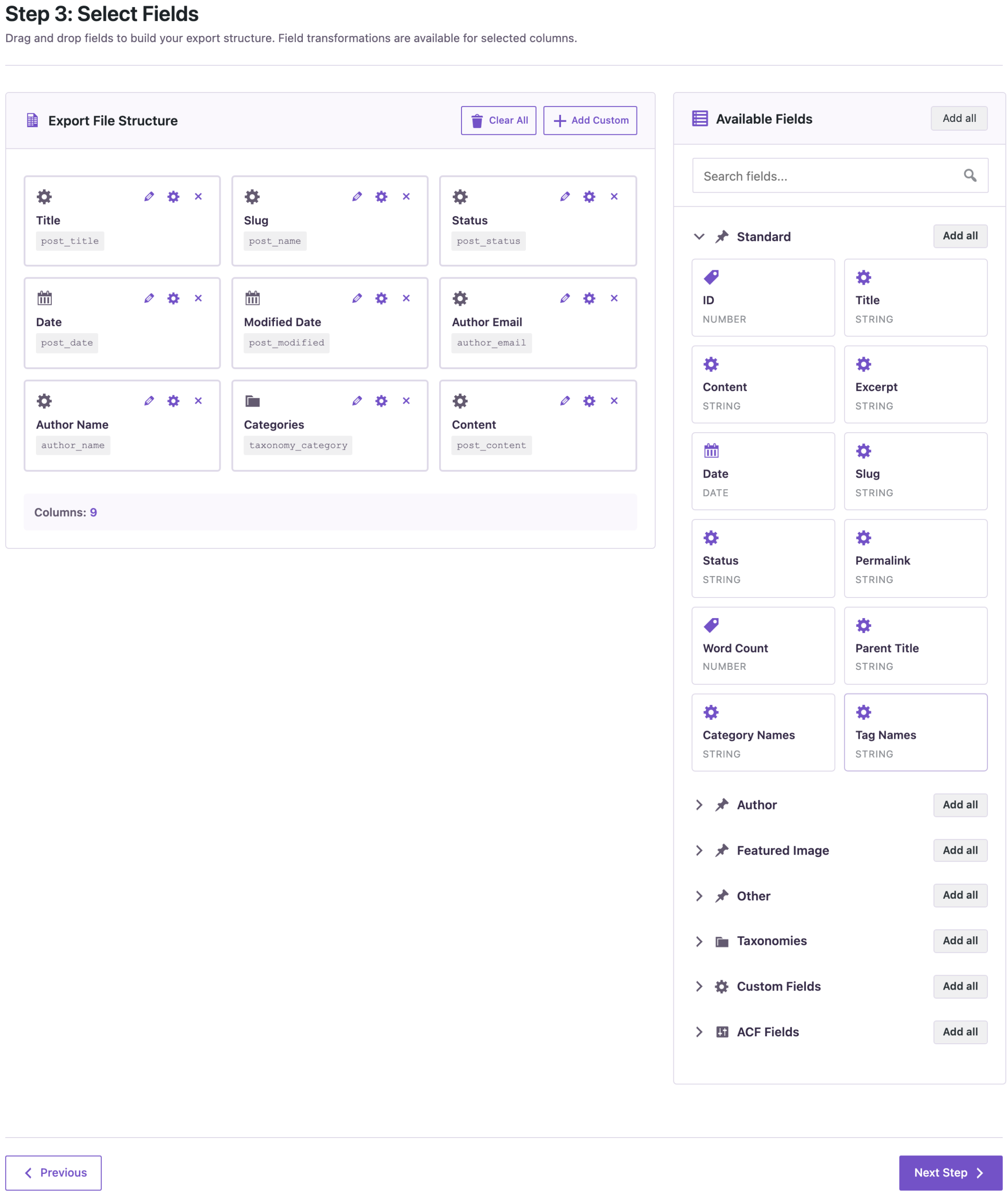
The CSV we downloaded (content shortened):
| post_title | post_name | post_status | post_date | post_modified | author_email |
|---|---|---|---|---|---|
| Draft: New Espresso Blend | new-espresso-blend | draft | 2026-11-05 10:00:00 | 2026-11-08 09:00:00 | lena@example-roastery.com |
| Holiday Opening Hours | holiday-hours | future | 2026-12-20 07:00:00 | 2026-11-09 12:00:00 | admin@… |
| Ten Years of Single Origins | ten-years-single-origins | publish | 2024-09-01 09:00:00 | 2025-02-10 16:20:00 | tomas@example-roastery.com |
| Our First Roast | 2019-our-first-roast | publish | 2019-03-14 08:30:00 | 2021-06-01 10:00:00 | lena@example-roastery.com |
The Categories column holds each category as JSON with its name and slug, so the new site gets the same slug (journal) even if the name changes later.
Import on the new site
In Import, choose Posts, upload the CSV and click Auto Map on the mapping step. Because the column names are the field names, all nine columns are matched:

On the options step, match existing posts by slug:
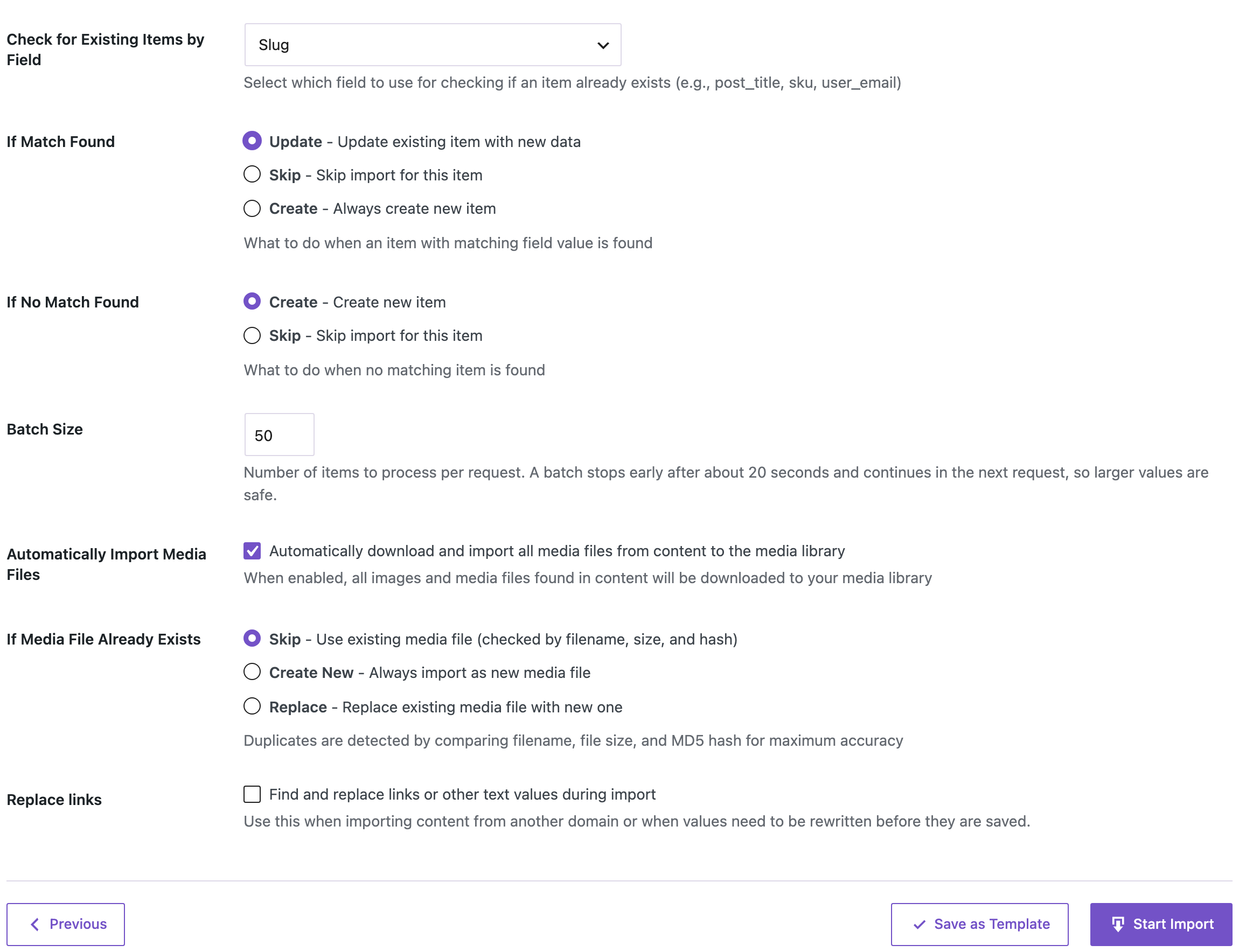
- Check for Existing Items by Field: Slug. A post with the same slug on the new site is updated instead of duplicated.
- If Match Found: Update. Useful when you rerun the import after fixing the file.
- If No Match Found: Create. New posts are created with the dates, author and slug from the file.
The import created the 4 posts. The posts list on the new site:

- “Our First Roast” is published on 14 March 2019 at 8:30 and keeps its modified date of 1 June 2021. Its URL is
/2019/03/14/2019-our-first-roast/, the same as on the old site. - “Ten Years of Single Origins” keeps 1 September 2024 and its author, Tomás Rivera.
- “Holiday Opening Hours” is still scheduled for 20 December 2026 at 7:00, and WordPress has the scheduled publish event for it.
- The draft stays a draft, with Lena Novak as its author.
- All four are in Roastery Journal, not in Uncategorized.
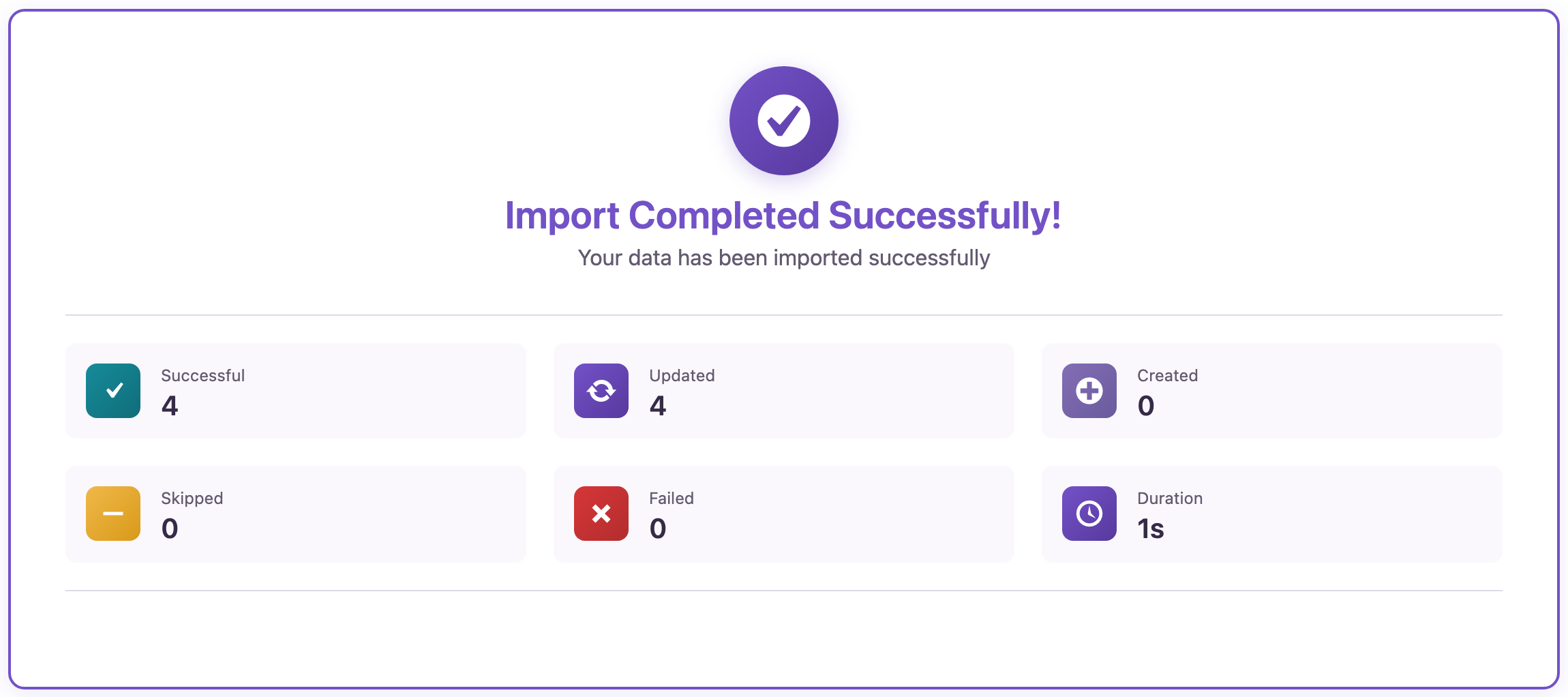
We ran the same file a second time. The import updated the 4 posts and created none:
Authors who don’t exist on the new site
Lena and Tomás had no accounts on the new site. The import created them from the email and name in the file:
- The username is taken from the email (
lena,tomas), and the display name from the Author Name column. - New users get the Author role. Tomás was an Editor on the old site, so his role needs to be changed in Users after the import.
- No password or welcome email is sent. Each person sets a password with “Lost your password?” when they need to log in.
If the authors already exist on the new site with the same emails, the posts are assigned to them and no users are created. To move users with their exact roles first, export and import users with the user import (PRO), then import the posts.
See assigning authors from a CSV for the other ways to set the author.
Before you import
Back up the new site before the first run, and import a few rows first to check dates, authors and URLs. Check that Settings → Permalinks uses the same structure as the old site; otherwise the slugs are kept, but the URLs around them change.
With an AI agent
An AI agent connected through the WordPress MCP Adapter (see connecting Claude Code to WordPress) can compare the result with the old site:
On the new site, list the posts in Roastery Journal with any status: slug, status, publish date, modified date and author email.In our run, the agent called rsl-ie/export-preview on the new site with those fields, the statuses publish, future and draft, and the category journal. It returned the four posts with exactly the values from the exported file: the same slugs, dates and author emails, one scheduled post and one draft.
FAQ
Will the posts keep their original publish dates?
Yes. Include the Date column (post_date). The import uses it as the publish date.
Can I keep the “last modified” date too?
Yes. Include the Modified Date column (post_modified). Without it, WordPress sets the modified date to the moment of import.
Will the URLs stay the same?
The slug is kept from the post_name column. The full URL is the same when both sites use the same permalink structure.
What happens to scheduled posts and drafts?
They keep their status. A scheduled post is published at its original time on the new site.
What if an author doesn’t exist on the new site?
The import creates a user with the email and name from the file and the Author role. Existing users with the same email are reused.
Can I run the import again?
Yes. With Check for Existing Items by Field set to Slug and If Match Found set to Update, a rerun updates the same posts.
Related Guides
- Import WordPress Posts and Assign Authors from a CSV
- Bulk Update WordPress Posts from CSV Without Duplicates
- Export Posts by Category, Tag or Author to CSV
- Staging to Production Checklist for Client Sites
- Set Custom Slugs and Keep Old Permalinks When Importing Posts
Get the free plugin on WordPress.org.

Comments 0
Have a question or a tip to share? Leave it below.