
When you move posts from another site or a spreadsheet, the author ID from the old site means nothing on the new one. Import Export by RockStarLab finds the author by login, email or display name instead, can create an account for a new writer, and tells you when it can’t find someone. The example has four guest posts for a coffee roastery blog, each written by a different person.
Free: everything in this guide works in the free plugin.
Short Answer
- Add author columns to your CSV: Author Login, Author Email or Author Name (the display name). One of them per row is enough.
- Go to Import Export by RockStarLab → Import, choose Posts and upload the file.
- On the mapping step, click Auto Map or drag the columns to the Author Login, Author Email and Author Name fields.
- Run the import. Posts whose author can’t be found go to the default author, and the result lists them.
The file
Title,Content,Status,Author Login,Author Email,Author Name
Why We Roast Light,Light roasts keep the origin flavours.,publish,lena.barista,,
Inside the Roastery: A Day with Tomás,From green beans to the first crack.,publish,,tomas@example-roastery.com,Tomás Rivera
Milk Texturing for Beginners,Steam wand angles and temperatures.,publish,,,Maria Santos
Decaf Without the Compromise,How Swiss Water decaf works.,publish,old.writer,,
On the site, Lena (login lena.barista) and Maria (display name “Maria Santos”) already have accounts. Tomás is a new guest writer without one, and old.writer is a login from the old blog that doesn’t exist here.
How the plugin finds the author
For each row, the plugin checks the columns in this order and stops at the first match:
- Author Login: a user with that username.
- Author Email: a user with that email. If there is none, the plugin creates a user with the Author role (the part of the email before @ becomes the username, and Author Name becomes the display name).
- Author Name: a username, or the display name of exactly one user. If two users share a display name, the plugin doesn’t guess.
If nothing matches, the post goes to the default author (the user running the import) and the job log says which post and which value. Existing users are never renamed or changed by the import. Prefer login or email when you have them: display names aren’t unique.
Map the author columns
Because our columns are named like the plugin’s fields, Auto Map matched all six:
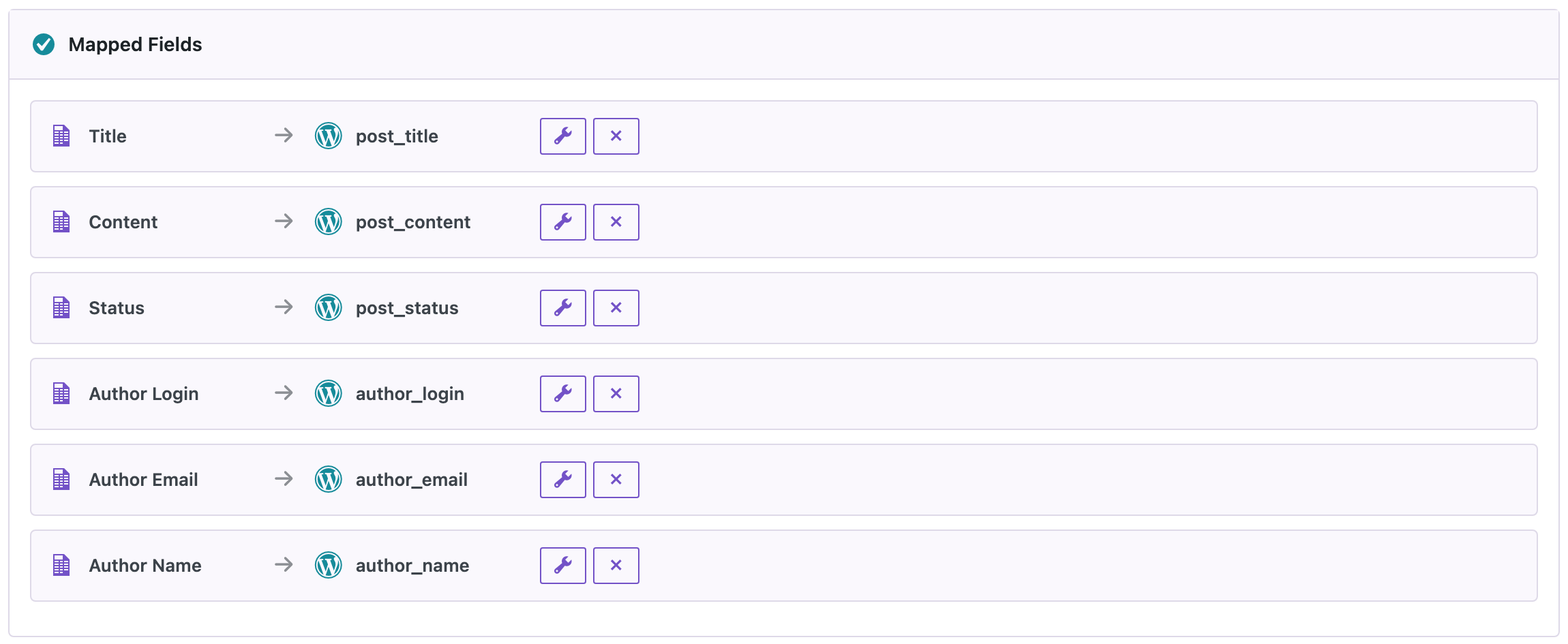
With other column names (for example “Writer” or “By”), drag them to the fields in the Author group on the right. Don’t map an old author ID to Author ID unless the IDs are the same on both sites.
Run the import and read the result
All four posts were created. Because one author wasn’t found, the result says so and names the post:

The same note is in Jobs Log: open the job with the eye icon and look under Warnings. In the Posts list, three posts have their writers, including Tomás, whose account the import created, and the fourth went to the admin:

Tomás’s new account got a random password, and no email was sent. When he should log in, he can use Lost your password? on the login page, or you can send him a password reset link from Users.
Fix the posts that went to the default author
You don’t need to import everything again. Make a small file with the title and the right author:
Title,Author Login
Decaf Without the Compromise,lena.barista
Import it with Check for Existing Items by Field set to Title and If Match Found set to Update. Only the mapped field changes: in our test the post moved to Lena and kept its content and status. With many posts, export them first and use the post ID or slug as the matching field (see updating existing posts without duplicates).
Before you import
An import can create users and change who owns posts. Back up the site first, and try a few rows before the whole file.
With an AI agent
An AI agent connected through the WordPress MCP Adapter (see connecting Claude Code to WordPress) can check an import for you:
Did any guest post from the last import end up under the wrong author?In our run, the agent called rsl-ie/job-list for the latest import (4 rows, 0 failed), then rsl-ie/job-get-logs with level warning, which returned the note about “Decaf Without the Compromise” and old.writer. From there it can prepare the small fix-up file above.
FAQ
Can I import the author ID from the old site?
Only if the users have the same IDs on both sites. Use the login, email or display name instead.
Does the import create missing authors?
Yes, when the row has an email that no user has. The new user gets the Author role and a random password; no email is sent.
What happens if the author isn’t found?
The post is imported under the user running the import, and the result and the Jobs Log list it.
Will the import change existing users?
No. Existing users are only looked up, never renamed or edited.
Can I change the author of posts that are already on the site?
Yes. Import a file with a matching field (title, slug or ID) and an author column, with If Match Found set to Update.
Related Guides
- How to Import WordPress Posts from CSV or Excel
- Export WordPress Posts by Category, Tag or Author to CSV
- Export and Import WordPress Users with ACF Fields
- WP-CLI Import and Export for WordPress: CSV, Excel and Cron Scripts
- Set Custom Slugs and Keep Old Permalinks When Importing Posts
Get the free plugin on WordPress.org.

Comments 0
Have a question or a tip to share? Leave it below.