
Someone asks for “a spreadsheet of everything on the website”: a manager planning a content audit, an SEO consultant, a client before a redesign. WordPress has an export tool built in, but it doesn’t make a spreadsheet. Below, the built-in Tools → Export is compared with exporting to Excel through Import Export by RockStarLab, and a coffee roastery’s blog posts go into an .xlsx file.
Free: posts, pages, comments, media and site URLs. PRO: custom post types, users, menus, taxonomy terms, WooCommerce data and database tables.
Short Answer
- WordPress Tools → Export makes an XML file (WXR) for moving content into another WordPress site. Excel can open it, but you get tags and code, not a table.
- To get an Excel file, go to Import Export by RockStarLab → Export, choose the content type, pick the columns and choose XLSX.
What the built-in export gives you
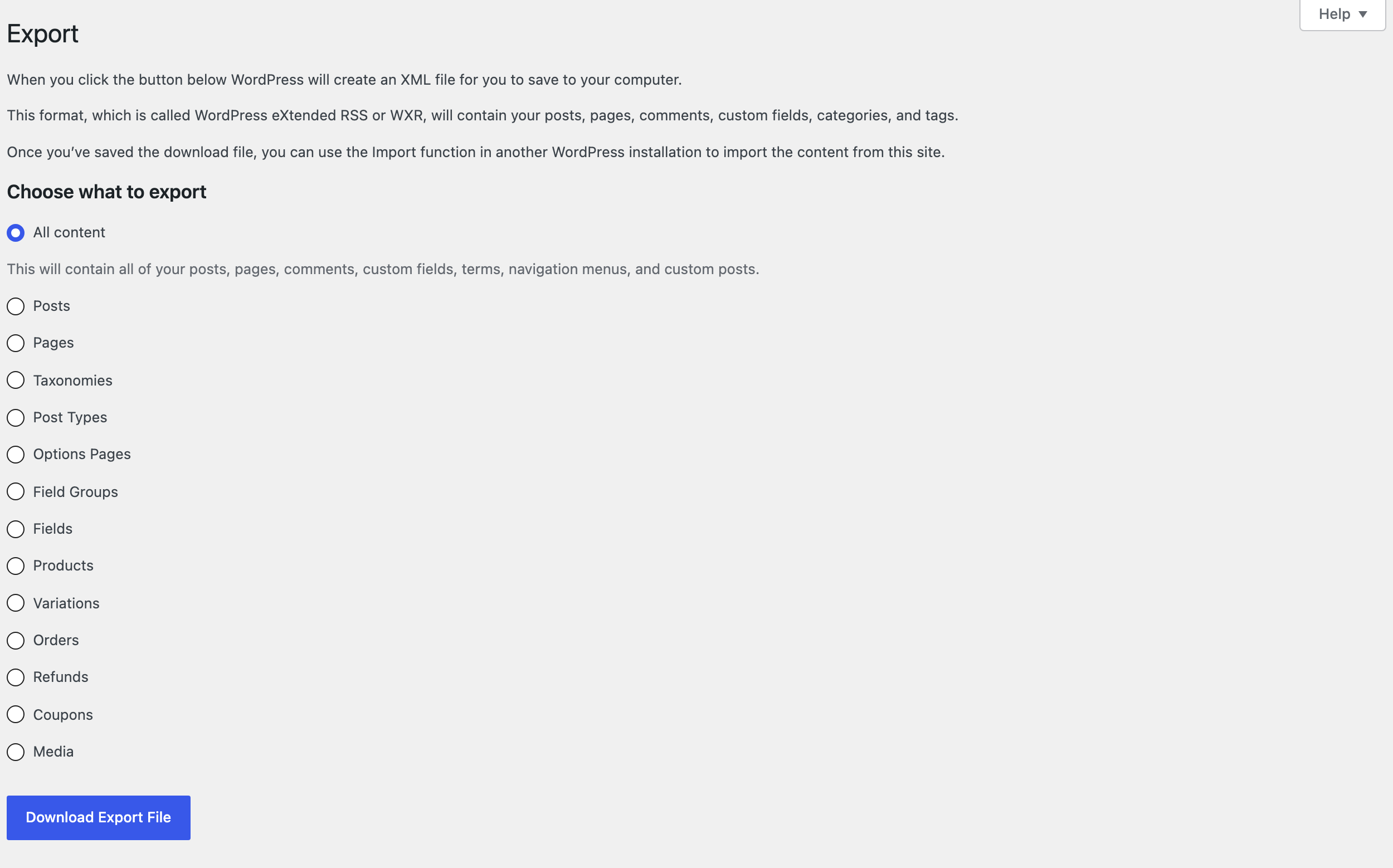
The built-in tool lets you choose all content or one type, with a few filters for posts (category, author, dates, status). The result is a WXR file: XML made for the WordPress Importer. Our blog’s posts came out as a 600 KB XML file where each post looks like this:
<item>
  <title><![CDATA[Nunc Scelerisque Viverra Mauris Aliquam]]></title>
  <link>https://www.example-roastery.com/2022/05/12/nunc-scelerisque-viverra-mauris-in-aliquam/</link>
  <pubDate>Thu, 12 May 2022 15:10:59 +0000</pubDate>
  <dc:creator>admin</dc:creator>
  <content:encoded><![CDATA[<!-- wp:paragraph --> …
That’s the right format for moving a site, but nobody wants to sort or filter it. You also can’t choose which fields go in, add a word count or a public link, or get users, products or orders the same way.
Export to Excel with the plugin
Step 1. Choose what to export:

Our screenshot shows the full list with PRO active. The free plugin has Blog Posts, Pages, Comments, All Site URLs and Media.
Step 2. Optionally filter: by status, date, category, author or a custom field. We exported all posts.
Step 3. Choose the columns. We added Title, Date, Status, Author Name, Category Names, Permalink and Word Count.
Step 4. Choose XLSX and give the file a name:

The download was an Excel workbook with a header row and one row per post, 84 posts in our case:
| post_title | post_date | post_status | author_name | category_names | word_count |
|---|---|---|---|---|---|
| Coffee and Chocolate Pairing | 2026-11-09 11:14:11 | draft | admin | Uncategorized | 8 |
| Latte Art Workshop | 2026-11-09 11:10:53 | draft | admin | Uncategorized | 11 |
| Roastery Open Day | 2026-11-09 11:10:53 | draft | admin | Uncategorized | 10 |
Drafts are included unless you filter by Status equals publish. Numbers such as the word count are real numbers in Excel, so you can sort and add them up. If you prefer CSV, see opening CSV files correctly in Excel.
Side by side
| Tools → Export | Import Export by RockStarLab | |
|---|---|---|
| File format | XML (WXR) | XLSX, CSV, ODS, JSON, XML |
| Choose columns | No | Yes |
| Filters | Category, author, dates, status | Any field, custom fields, taxonomies |
| Extra columns (word count, permalink, image URL) | No | Yes |
| Users, WooCommerce products and orders | No | PRO |
| Schedule repeated exports | No | Yes |
| Best for | Moving a whole site to another WordPress | Spreadsheets, audits, reports |
Before you edit and re-import
An export only reads your site. If you plan to change the spreadsheet and import it back, back up the site first and include the ID column, so the import updates the existing posts (see updating posts without duplicates).
With an AI agent
An AI agent connected through the WordPress MCP Adapter (see connecting Claude Code to WordPress) can make the file from one sentence:
Export all our pages to Excel with ID, title, status, link and last modified date.In our run, the agent called rsl-ie/export-start for pages in XLSX with those five fields. The job exported 33 pages, and rsl-ie/file-get returned all-pages.xlsx with its download link.
FAQ
Can I open the WordPress XML export in Excel?
Excel can open it, but you see XML elements, not one row per post. Use an XLSX or CSV export for a spreadsheet.
Can I export WordPress users or WooCommerce orders to Excel?
Yes, with PRO. Users, products, orders, coupons and customers are separate content types.
Does the Excel export include custom fields?
Yes. Add them from the Custom Fields or ACF Fields group on the column step.
Can I export to Google Sheets?
Export to XLSX or CSV and open the file in Google Sheets.
Can I import the Excel file back?
Yes. The importer reads XLSX, and Auto Map matches columns named after WordPress fields, like post_title.
Related Guides
- Export WordPress Posts by Category, Tag or Author to CSV
- Export WordPress Posts with Featured Image URL and Categories to Excel
- How to Export WordPress Post Meta (Custom Fields) to CSV or Excel
- How to Export All WordPress URLs to CSV or Excel
- Export WordPress Content for Translators and Import the Translations Back
Get the free plugin on WordPress.org.

Comments 0
Have a question or a tip to share? Leave it below.