
Translators don’t want a WordPress login. They want a spreadsheet: one row per page, the text in one column, room for the translation next to it. When the file comes back, the translated text has to go back into the right posts without breaking anything. Import Export by RockStarLab does both halves: it exports the text to Excel and imports the translated file back by post ID. In the example, a coffee roastery’s brewing guides go out for German translation and the German text comes back onto the site.
Free: everything in this guide works in the free plugin for posts and pages. PRO: the same for custom post types and WooCommerce products.
Short Answer
- Export the posts to XLSX with the columns ID, Title, Excerpt and Content (plus SEO fields if you use an SEO plugin).
- The translator replaces the text in those columns and doesn’t touch the ID column.
- Import the file back with Check for Existing Items by Field = ID, If Match Found = Update and If No Match Found = Skip.
This replaces the text in the existing posts. It’s the right approach when the whole site moves to another language, or when you send copy out for editing. For a site in several languages at once, use a multilingual plugin and its own translation workflow.
Export the text
We filtered the export to the Guides category and added four columns:

The ID column is what lets the import find each post later. Content is exported with its HTML, so headings and paragraphs come back in the same structure. If you use Yoast SEO or Rank Math, add their SEO title and meta description fields too; see exporting Yoast titles and descriptions.
The file we sent to the translator:
| ID | post_title | post_excerpt | post_content |
|---|---|---|---|
| 2035 | Water Temperature for Brewing | The best water temperature for filter and espresso. | <h2>90 to 96 °C</h2><p>Water just off the boil, around 93 °C, …</p> |
| 2034 | Grind Size Explained | Why grind size changes the taste of your cup. | <h2>Fine to coarse</h2><p>Espresso needs a fine grind, …</p> |
| 2033 | How to Store Coffee Beans | Keep beans fresh for weeks, not days. | <h2>Air, light, heat</h2><p>Keep beans in an airtight container …</p> |
Instructions for the translator
- Translate the text in place. Don’t add, remove or reorder columns, and don’t change the ID column.
- Leave the HTML tags (
<h2>,<p>,<a href="…">) as they are and translate only the text between them. Translation tools that understand HTML do this automatically. - Save the file as XLSX again. Excel and translation tools keep accented letters intact in XLSX; CSV files sometimes lose them.
Import the translation
Our translated file came back with the same IDs and German text. In the import wizard, Auto Map matched all four columns by name. On the options step:

- Check for Existing Items by Field: ID. Each row updates the post with that ID.
- If Match Found: Update. The translated title, excerpt and content replace the English ones.
- If No Match Found: Skip. A row with a wrong or deleted ID is skipped instead of creating a stray new post.
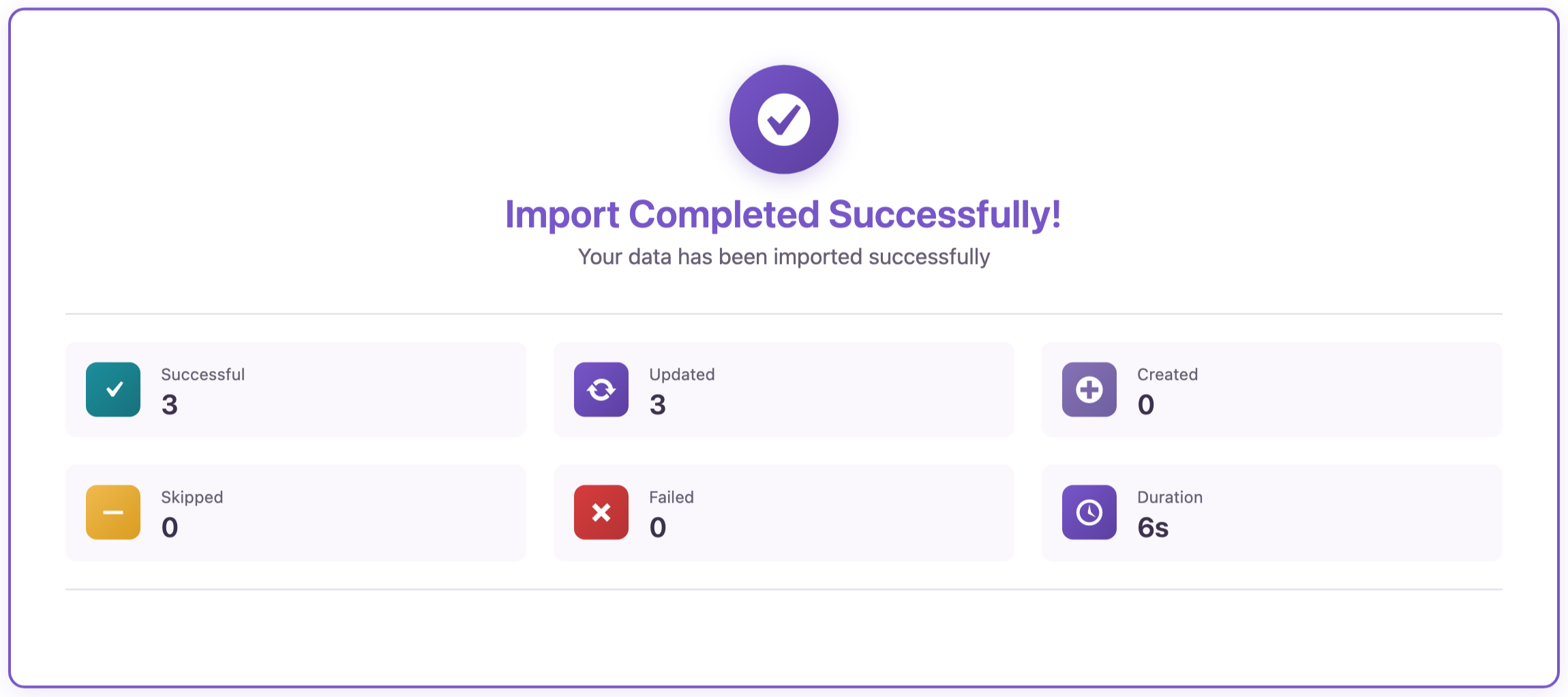
All three posts were updated: “How to Store Coffee Beans” became “Kaffeebohnen richtig lagern”, and so on. The slugs stayed the same, so existing links keep working. If you want German URLs, add the Slug column to the export and have it translated too, then set up redirects from the old addresses.
Before you import
This import overwrites the original text. Back up the site, keep the exported file as your copy of the original, and import one or two rows first to check the result on the page.
With an AI agent
An AI agent connected through the WordPress MCP Adapter (see connecting Claude Code to WordPress) can check the translated posts after the import:
List the titles and excerpts of the posts in the Guides category.In our run, the agent called rsl-ie/export-preview with ID, title and excerpt for that category. It returned the three posts with their German titles and excerpts, under the same IDs as before.
FAQ
Why is the ID column important?
The import uses it to find the post each row belongs to. Without it, matching by title fails as soon as the title is translated.
Will the HTML formatting survive?
Yes, as long as the translator keeps the tags. Content is exported and imported with its HTML.
Can I translate pages too?
Yes. Export and import Pages the same way.
Does this work with WPML or Polylang?
Here the translated text replaces the text in the same posts. Multilingual plugins keep each language as a separate linked post and have their own translation tools.
Can I translate the URLs?
Add the Slug column to the export, translate it, and redirect the old URLs after the import.
Related Guides
- Bulk Update WordPress Posts from CSV Without Duplicates
- Export Yoast SEO Titles & Meta Descriptions to CSV
- How to Export WordPress to Excel: Built-In Export vs a Plugin
- Import HTML Content into WordPress Without Breaking Formatting
Get the free plugin on WordPress.org.

Comments 0
Have a question or a tip to share? Leave it below.