
Since version 2.1.39, Import Export by RockStarLab has WP-CLI commands. You can import a CSV, Excel, JSON or XML file, export posts to a file, read failed rows and repeat jobs from the command line: in an SSH session, a deployment script, a server cron job or a CI pipeline. The job runs in the same process until it finishes, so it doesn’t wait for WP-Cron, and the exit code tells a script whether every row went in. In the example, a coffee roastery’s catalogue posts stay in sync with a CSV file the team edits.
Free: all commands for posts, pages, comments, media, URL lists and form entries. With PRO, the same commands import and export products, orders, users and the other PRO types.
Short Answer
# check the file and the mapping, import nothing
wp rsl-ie import coffees.csv --mapping=@coffees-mapping.json --dry-run --user=admin

# import: update posts that already exist (matched by slug), create the rest
wp rsl-ie import coffees.csv --mapping=@coffees-mapping.json --if-exists=update --unique-field=post_name --user=admin

# export to Excel
wp rsl-ie export --type=post --fields=ID,post_title,post_name --format=xlsx --output=coffees.xlsx --user=admin
Run every command as an administrator with --user=<login>. wp help rsl-ie lists all commands and options.
The file and the mapping
Our team keeps the catalogue in a spreadsheet with friendly column names:
Slug,Name,Tasting notes,Status,Category
ethiopia-guji,Ethiopia Guji,"Floral, peach and black tea. Light roast.",publish,Coffees
colombia-huila,Colombia Huila,"Caramel and red apple. Medium roast.",publish,Coffees
kenya-nyeri,Kenya Nyeri,"Blackcurrant and grapefruit. Light roast.",publish,Coffees
brazil-cerrado,,,publish,Coffees
Without a mapping, wp rsl-ie import only matches columns named exactly like WordPress fields, such as post_title. Ours aren’t, so the command stopped and listed the columns it found:
$ wp rsl-ie import coffees.csv --dry-run --user=admin
Error: No column matches a field by name. Give a mapping with --mapping or --template. File columns: Slug, Name, Tasting notes, Status, Category
A mapping is a small JSON file that says which column goes into which field. taxonomy_category is the Categories field; a name that doesn’t exist yet becomes a new category.
[
  {"source_field": "Slug", "target_field": "post_name"},
  {"source_field": "Name", "target_field": "post_title"},
  {"source_field": "Tasting notes", "target_field": "post_content"},
  {"source_field": "Status", "target_field": "post_status"},
  {"source_field": "Category", "target_field": "taxonomy_category"}
]
--dry-run checks the file and the mapping without importing anything:
$ wp rsl-ie import coffees.csv --mapping=@coffees-mapping.json --dry-run --user=admin
File: coffees.csv, 4 rows
  Slug -> post_name
  Name -> post_title
  Tasting notes -> post_content
  Status -> post_status
  Category -> taxonomy_category
Success: The file and the mapping are valid. Nothing was imported.
If you set up the same import in the wizard once, save it as a mapping template and use --template=tpl_... instead; wp rsl-ie ability mapping-template-list --user=admin shows the IDs.
Import and read the exit code
The Brazil row had no name or notes yet. The import created three posts and reported the fourth row:
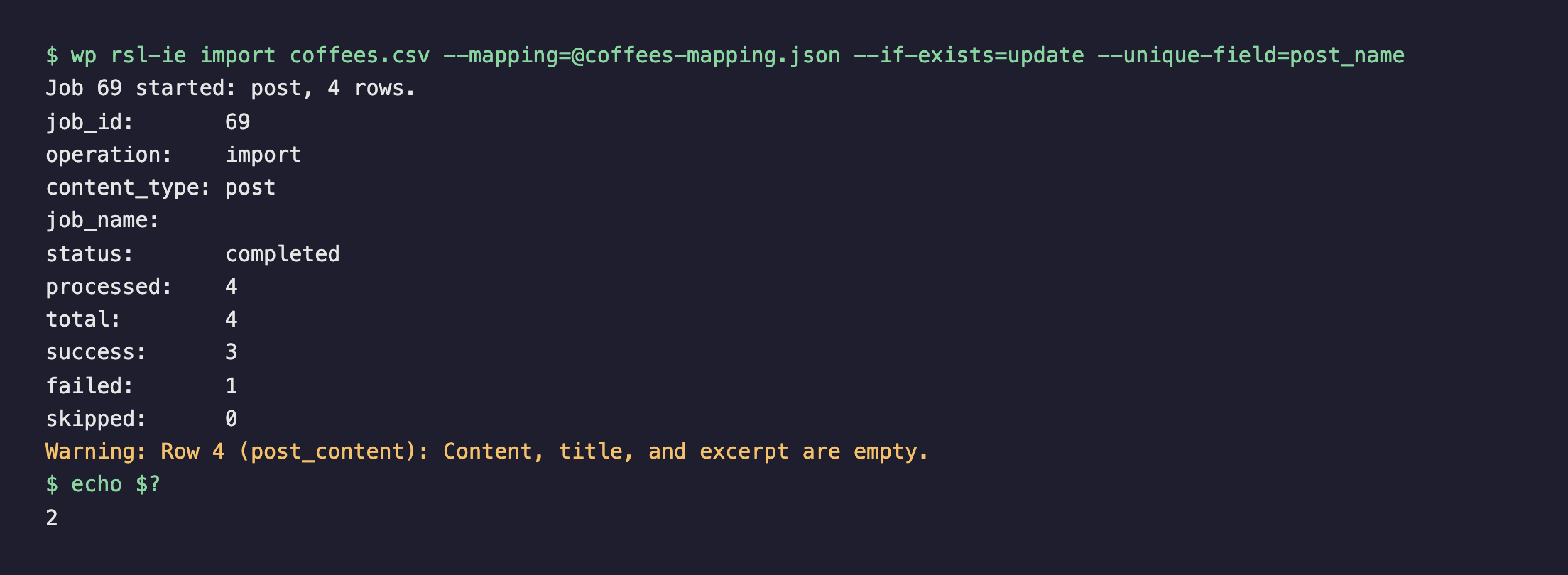
Exit code 2 means the job finished but some rows failed. The other codes are 0 (all rows done), 1 (an error: a bad file, a missing permission, a failed job) and 3 (still running after --timeout). job errors shows the reason and saves the failed rows as a CSV file, with their values under WordPress field names, ready to fix and import again:
$ wp rsl-ie job errors 69 --csv=failed-rows.csv --user=admin
Success: Failed rows saved to failed-rows.csv
row  field         message                                 hint
4    post_content  Content, title, and excerpt are empty.  The row has no title, content or excerpt. Fill in at least one of them or remove the row.
After the Brazil row was filled in, the same command ran again with exit code 0: Brazil Cerrado was created and the three other coffees were updated, matched by their slug, with no duplicates. Each row needs a value in the matching column: a row with an empty slug creates a new post on every run.
Export to a file
wp rsl-ie export runs the export and copies the file to --output. Filters go in --options as JSON, the same options the AI agent abilities take; --status and --search are shortcuts. This exports the posts in the Coffees category to Excel:
$ wp rsl-ie export --type=post --fields=ID,post_title,post_name,post_modified \
    --options='{"taxonomy":[{"taxonomy":"category","terms":["coffees"],"condition":"in"}]}' \
    --format=xlsx --output=coffees.xlsx --user=admin
Job 71 started: post export to xlsx.
status:       completed
processed:    4
file:         coffees.xlsx
The file had the four coffees with their IDs, names, slugs and modification dates. --porcelain prints only the path, which is handy in scripts.
A nightly import script
This script imports the catalogue with a saved template and keeps the failed rows for the team. We ran it with a good file (exit 0, nothing printed) and with a file whose only row had no name or notes (the failed row was saved and reported):
#!/bin/sh
# Import the coffee catalogue every night and keep the failed rows.
cd /var/www/roastery-data
wp rsl-ie import coffees.csv --template=tpl_95484a58596d --user=admin --porcelain > last-job.txt
code=$?
if [ $code -eq 2 ]; then
  wp rsl-ie job errors "$(cat last-job.txt)" --csv=failed-rows.csv --user=admin
  echo "Some rows failed, see failed-rows.csv"
elif [ $code -ne 0 ]; then
  echo "Import failed (exit $code)"
  exit $code
fi
Run it from your server’s cron, for example every night at 3:00: 0 3 * * * cd /var/www/html && sh /var/www/roastery-data/nightly-import.sh. WP-CLI needs to find WordPress, so start in the WordPress folder or add --path=/var/www/html to each command.
Other commands
wp rsl-ie jobs --status=failedlists jobs from Jobs Log;--format=jsonoridsfor scripts.wp rsl-ie job get 69shows a job’s status and counts,job wait 69finishes a job started with--no-wait,job rerun 69starts a new job with the same file and settings, andjob cancelstops one.wp rsl-ie schedule listandschedule run 3run a schedule’s job now without changing its next run time.wp rsl-ie trigger list,trigger runandtrigger logwork with event triggers.wp rsl-ie ability export-count '{"export_type":"post"}'calls any ability of the plugin;wp rsl-ie abilitieslists them and--help-schemashows the input of one.
The commands work even when AI agent access is off in Plugin Options. In a Multisite network, add --url= with the site’s address.
With an AI agent
An agent that can run commands, such as Claude Code, can use these commands directly. An agent connected through the WordPress MCP Adapter (see connecting Claude Code to WordPress) sees the same jobs, because the commands and the agent use the same abilities:
Did last night's catalogue import fail? Show me the rows.In our run, the agent called rsl-ie/job-list with type import. The newest job, the script’s run with the bad file, had 1 row processed and 1 failed. rsl-ie/job-errors returned row 1, field post_content, “Content, title, and excerpt are empty.”, with the hint to fill in a title, content or excerpt.
Before you automate it
A command that runs at night changes content while nobody is looking, so back up the site first, try the import with --dry-run and once by hand, and check the exit code in your script.
FAQ
Do the commands need WP-Cron?
No. The job runs in the same process until it finishes. Add –no-wait to leave it to WP-Cron instead.
How does a script know that rows failed?
From the exit code: 0 all rows done, 2 finished with failed rows, 1 error, 3 still running after –timeout.
Can I use friendly column names?
Yes, with –mapping (a JSON file) or –template (a mapping template saved in the wizard).
Which user should run the commands?
An administrator, with –user=<login>. Jobs appear in Jobs Log under that user.
Does it work with WooCommerce products?
With PRO: –type=product, and the other PRO types such as order and user.
Related Guides
- WP-CLI, Form Entries Export and Multisite Support (What’s New in 2.1.39)
- Save and Reuse Field Mapping Templates for Recurring WordPress Imports
- WordPress Jobs Log: Check, Retry and Schedule Imports & Exports
- Import a Large CSV (100k Rows) Without Crashing Your Site
Get the free plugin on WordPress.org.

Comments 0
Have a question or a tip to share? Leave it below.