
Import Export by RockStarLab 2.1.49 and Import Export PRO 2.1.13 add FTP, FTPS and SFTP servers: import a file from a server and upload finished exports to it, also on a schedule. The release also imports JSON files with deeper nested records, such as a Ghost export. In PRO, order exports can have one row per order item, and coupons can be pushed and pulled between sites from the Coupons screen.
Free: FTP/FTPS/SFTP servers, nested JSON records and the fixes below. PRO: one row per order item and Sync Coupons.
FTP, FTPS and SFTP servers
Many suppliers and systems share files on an FTP or SFTP server instead of a web address. You now save such a server once in Import Export → Jobs Log → Servers: name, protocol, host, port, user and password. Saving tests the connection right away. The password is stored encrypted and is not shown again, and imports, exports and schedules refer to the server, not to the password.
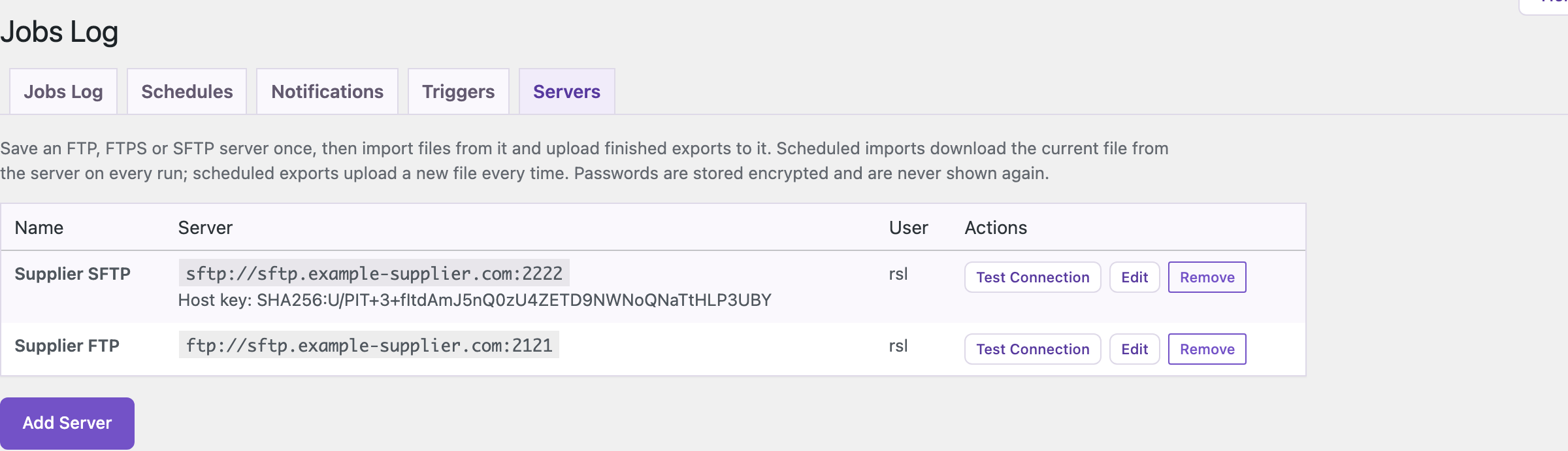
For SFTP, the plugin remembers the server’s host key on the first connection and refuses a different key later. SFTP works without extra PHP extensions; FTP and FTPS use the PHP FTP extension that most hosts have.
Import a file from a server
On step 2 of the import, under Or import a file from an FTP or SFTP server, choose the server and click Browse. Click a folder to open it and a file to download it:
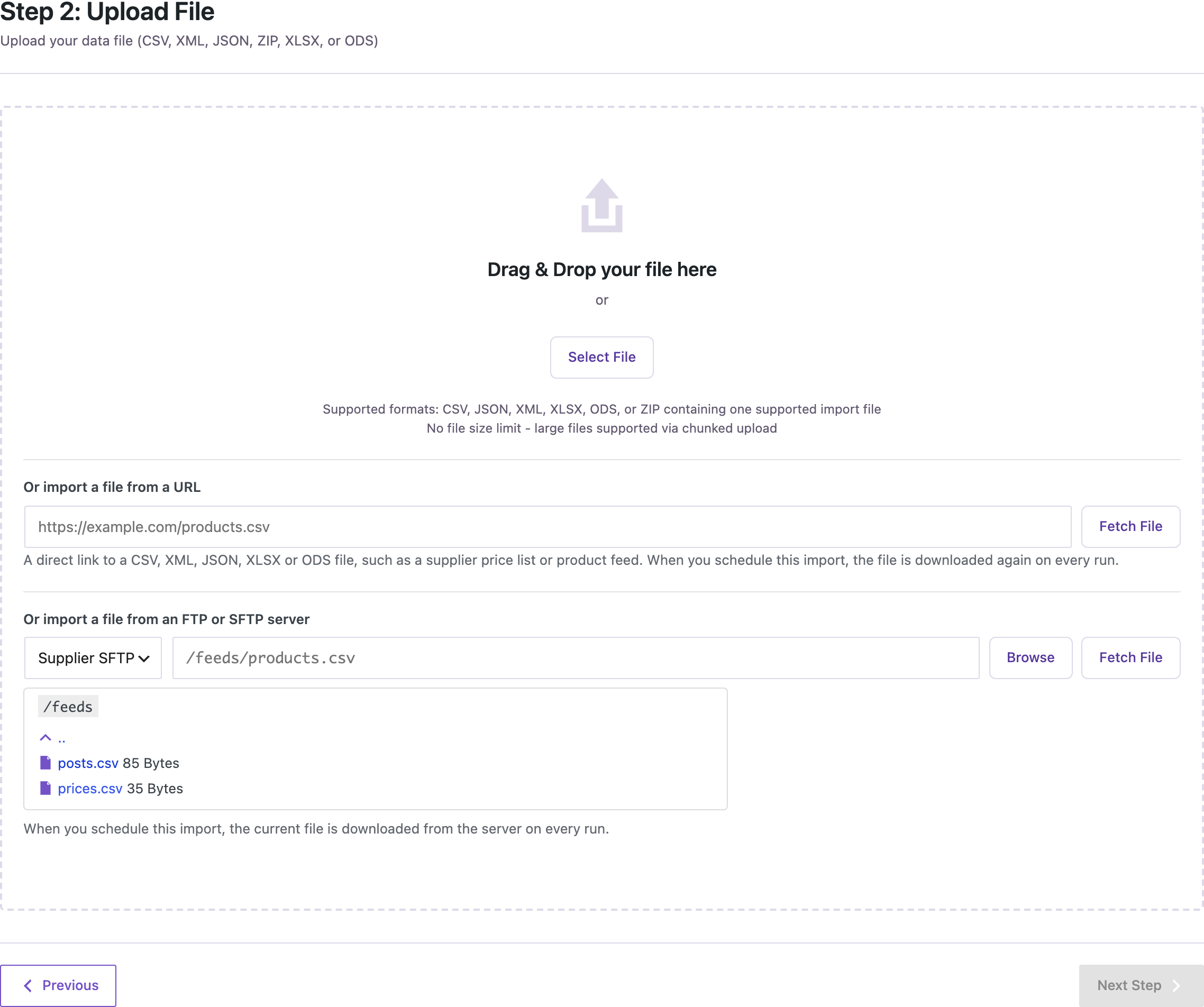
In our test the file /feeds/posts.csv was downloaded and the import went on as with an uploaded file. When you schedule this import, the current file is downloaded from the server on every run, and a File changed trigger can watch the file on the server.
Upload an export to a server
On the export options step, Upload to a server takes a server and a folder. The finished file goes to that folder with the export file name, and is still available for download. A scheduled export uploads a new file on every run.
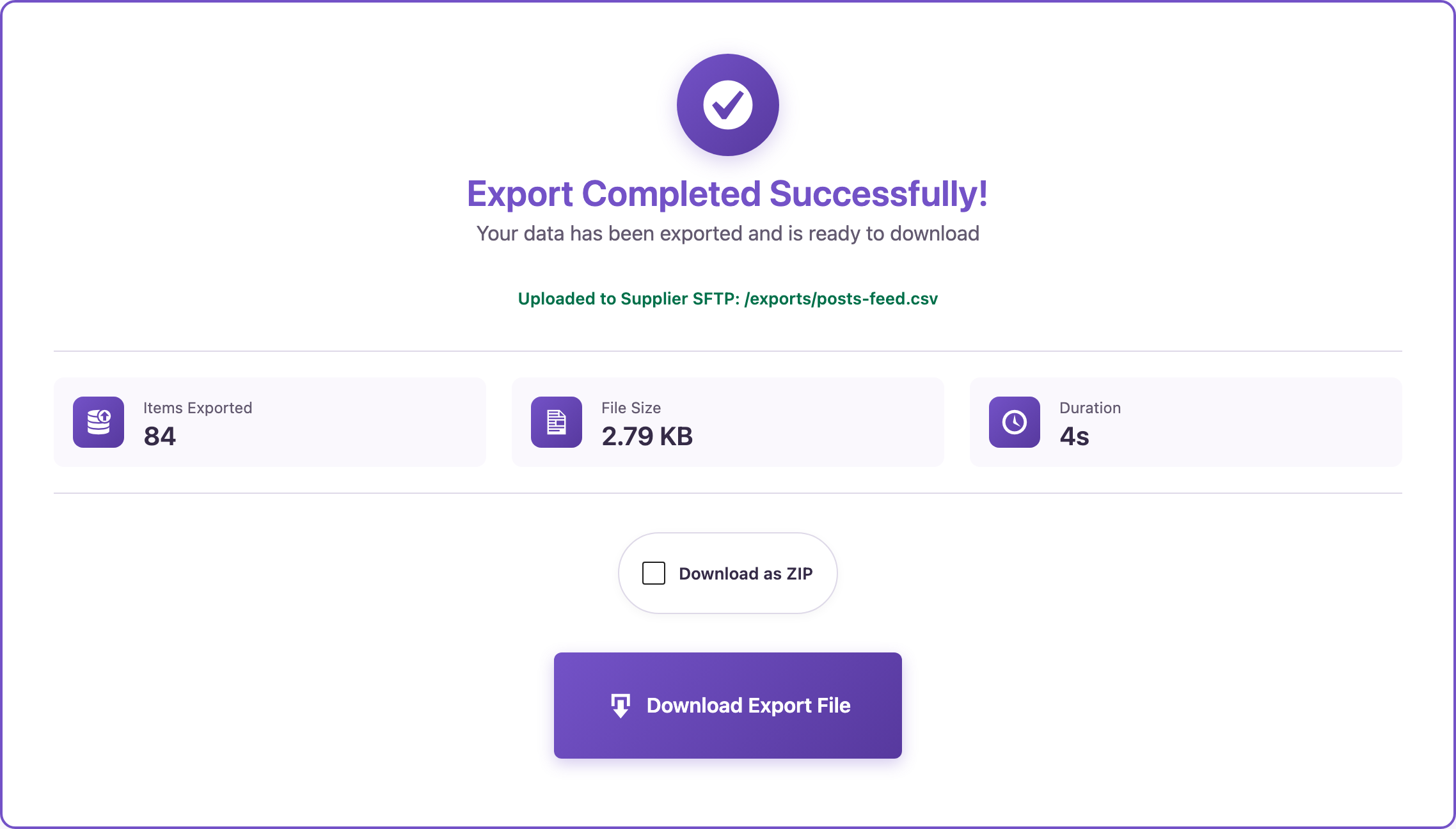
If the upload fails, for example because the folder does not exist, the export still completes and the screen shows the reason.
For AI agents
Agents can list the saved servers with rsl-ie/remote-servers (without passwords), list a folder with rsl-ie/remote-browse, import a file from a server with rsl-ie/upload-from-url and an rsl-remote:// address, and upload an export with options.remote_destination. Servers themselves are added by an administrator on the Servers screen.
Other changes
- JSON files whose records are nested deeper, such as a Ghost export, are imported: the plugin finds the list of records and shows where it found it, and each record becomes a row. Auto Map also recognizes the Ghost columns
html,published_at,custom_excerptandfeature_image. - PRO: the WooCommerce Orders export has Item columns (name, SKU, quantity, subtotal, total, tax, product and variation ID) and the option One row per order item, which repeats the order columns on every row.
- PRO: a Sync Coupons button on the WooCommerce Coupons screen pushes selected coupons to a connected site, or lists the coupons on that site so you can pull the ones you choose. Coupons are matched by code.
- A Content Sync push of pages started from the Pages screen can now be scheduled in Schedules.
- The export preview for AI agents shows at most ten rows when one product or order gives several rows.
How to update
Update the free plugin from Dashboard → Updates or the Plugins screen, or with wp plugin update import-export-by-rockstarlab. PRO updates the same way when your license is active; the new order export option needs both 2.1.49 and PRO 2.1.13. Your jobs, schedules, templates and settings stay as they are. As before any update, back up the site first.
FAQ
Where is the FTP password stored?
In the site database, encrypted with a key derived from the site’s secret keys. It is never shown on screen or returned to AI agents. If the site keys change, enter the password again on the Servers screen.
Does SFTP need the PHP ssh2 extension?
No. SFTP is built into the plugin. FTP and FTPS need the PHP FTP extension; if it is missing, those options are disabled on the Servers screen.
Can I import from a server on a schedule?
Yes. Import a file from the server once, then create a schedule from that import in Schedules. Every run downloads the current file from the server.
Related Guides
- Excel and ODS Files on PHP 7.4 (What’s New in 2.1.50)
- What’s New in 2.1.48: Bulk Comment Moderation from a Spreadsheet
- How to Schedule Repeated Exports in WordPress
- Import WooCommerce Products from an XML Supplier Feed
Get the free plugin on WordPress.org.

Comments 0
Have a question or a tip to share? Leave it below.