
WP Staging creates a copy of your site to work on, and its Pro version can push the staging site back to production. That push works with files and database tables. The problem starts when the live site keeps changing while you work on staging: new posts, comments and orders are on live but not on staging. There is another way to deploy: push only the pages you changed, with Content Sync in Import Export by RockStarLab, and leave everything else on live as it is.
Free: Content Sync for posts, pages, media and comments. PRO: custom post types, WooCommerce products, menus, users and terms.
Short Answer
- WP Staging is good for creating a staging site and, with Pro, for pushing a whole staging site or chosen database tables to live.
- When live has new content you must keep, push single pages or posts instead of tables.
- With Content Sync: select the pages on staging, choose Sync Content, pick the live site, click Push to Site, use Auto-match by Title and confirm.
What a table push means for new live content
WP Staging’s plugin page lists “Push staging changes to production” as a Pro feature, including plugins, themes and media files. Its documentation on merging explains that you can select database tables for the push, and that the plugin “can not know what data you want to keep” (WP Staging: merge staging to production). Posts written on production after the staging copy are overwritten when you push the posts table; the documentation recommends exporting those posts from production and importing them into staging before the push.
Content Sync works one level lower: it sends the posts and pages you select, and matches them with posts and pages on live. Other content on live is not part of the push.
Push only the changed pages
Our test: on staging we rewrote the Services page and created a new Wholesale page. In the meantime, the live site got a new blog post, “Holiday Gift Boxes Are Back”, and a new reader comment. It also had 9 WooCommerce orders.
On staging, go to Pages, select the two pages, choose Sync Content in the bulk actions and pick the live site:
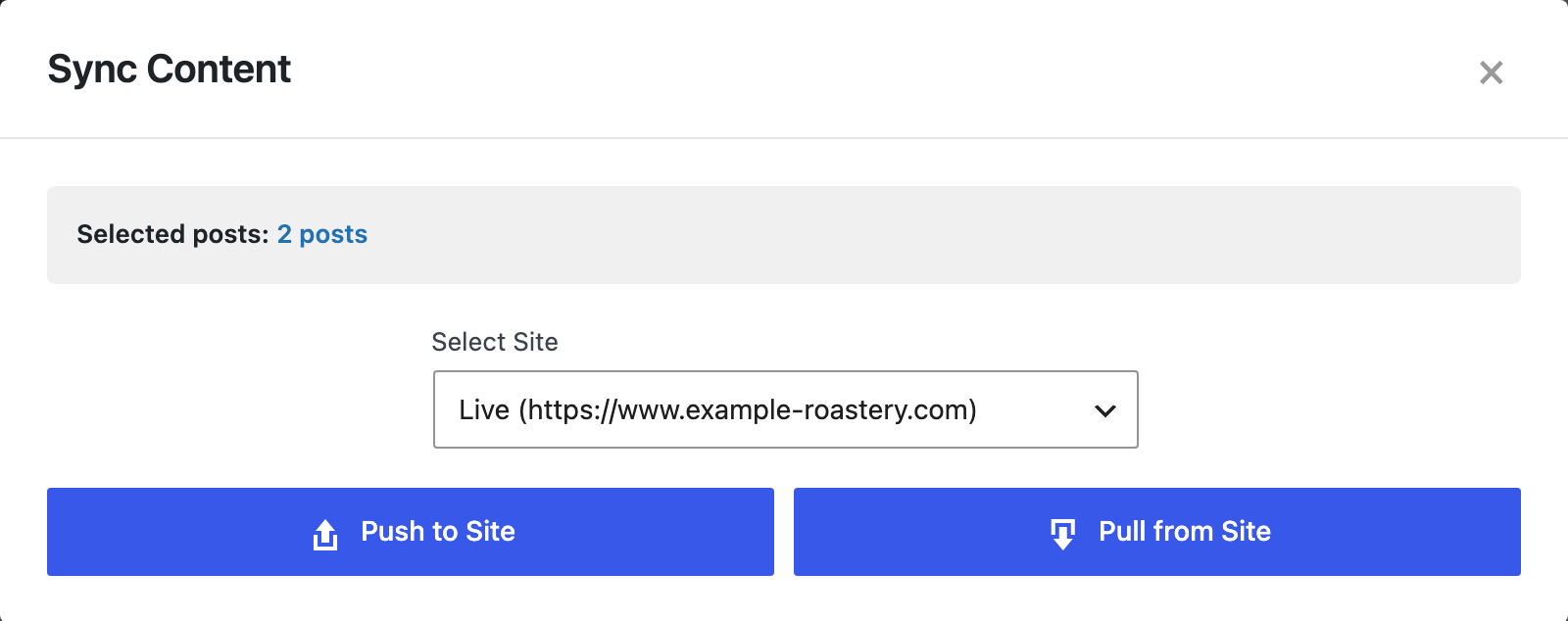
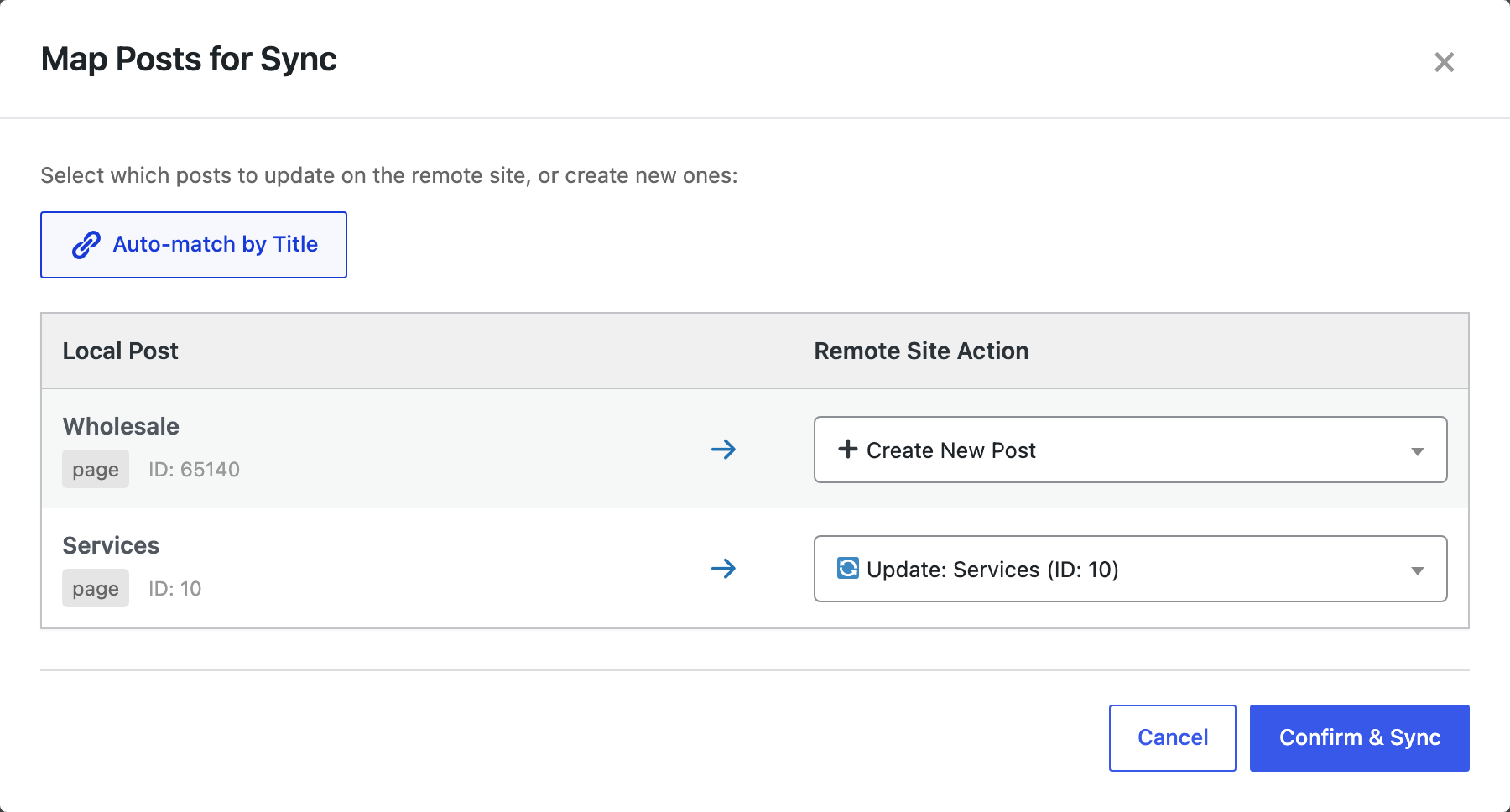
Click Push to Site, then Auto-match by Title. Services was matched with the existing Services page on live and set to Update; Wholesale had no match and stayed on Create New Post:
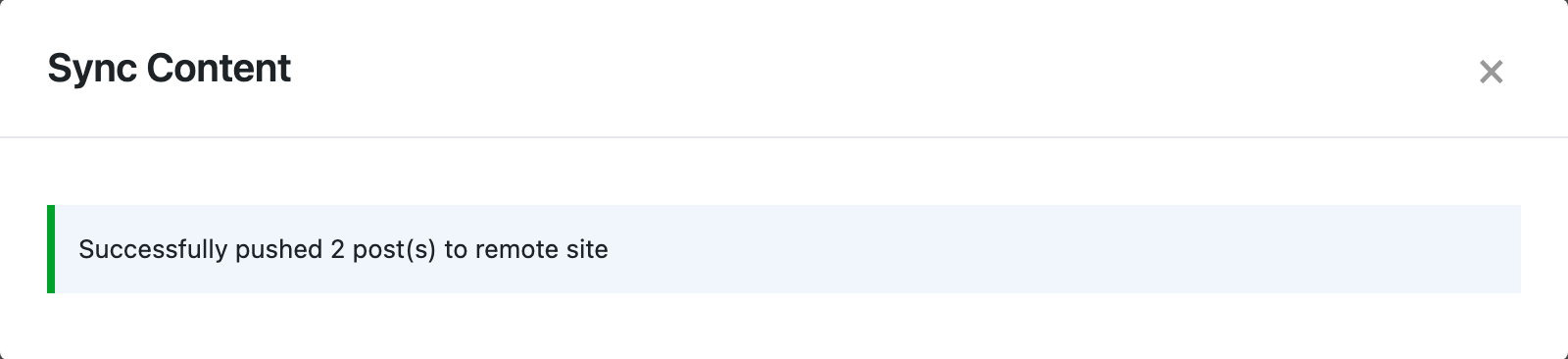
After Confirm & Sync, the push reported “Successfully pushed 2 post(s) to remote site”:
On live, the Services page had the new text and the Wholesale page was created. The new blog post, the reader comment and the 9 orders were still there, because they were not part of the push.
Which tool for which job
| Job | Better fit |
|---|---|
| Create a staging copy of the site | WP Staging (or your host’s staging) |
| Deploy plugin and theme updates, settings, a redesign of the whole site | WP Staging Pro push |
| Deploy a few pages or posts while live keeps getting posts, comments or orders | Content Sync |
| Send the same page to several sites | Content Sync |
The two work well together: create staging with WP Staging, edit content there, and push the finished pages with Content Sync.
Before you push
Content Sync overwrites the pages it updates on live with the staging version. Back up the live site first, and check the mapping: Update for pages that exist on live, Create New Post for new ones.
With an AI agent
An AI agent connected to the live site through the WordPress MCP Adapter (see connecting Claude Code to WordPress) can check what arrived:
Show the Services and Wholesale pages on the live site with their modified time.In our run, the agent called rsl-ie/export-preview for page with the two page IDs. It returned Wholesale and Services, both modified at the time of the push, with 14 and 17 words.
FAQ
Does Content Sync replace the live database?
No. It sends the posts and pages you select. In our test, posts, comments and orders that were only on live stayed.
Do I still need a staging plugin?
Content Sync needs two sites to connect. You can create the staging site with WP Staging, your host or a local tool such as LocalWP.
Can I push plugin or theme changes with Content Sync?
No. It moves content. Use your staging tool or deployment for plugins, themes and settings.
Related Guides
- Live Site Edited While You Worked on Staging
- Staging to Production Checklist for Client Sites
- Auto-Match by Title: Map Posts Between Sites
- Duplicator Alternative When You Don’t Need a Full-Site Package
Get the free plugin on WordPress.org.

Comments 0
Have a question or a tip to share? Leave it below.