
You spend a week on staging, and in the meantime someone edits a post on the live site: a new date, a sold-out note, a fixed price. When you push staging to live, the live post is replaced with the staging version, and that edit is gone. With Import Export by RockStarLab you can find out which posts changed on live, pull them into staging first, and then push without losing anything. The example uses two posts on a coffee roastery’s site.
Free: export with a Modified Date filter, and Content Sync push and pull for posts and pages. PRO: the same for custom post types and WooCommerce products.
Short Answer
- A push replaces the content of the live post with the staging version. Edits made only on live are not merged.
- Before you push, export the live posts with Modified Date on or after the day you started working on staging. That list is what changed on live.
- Pull those posts into staging (if you didn’t change them there), or copy the live edit into the staging version by hand. Then push.
The situation
On staging, the team rewrote the intro of “Five Single-Origin Coffees to Try This Winter”. On live, an editor added an update to “How We Source Green Coffee”: the new Ethiopian lot from Guji arrives on 2 December. Staging didn’t have that sentence.
1. Find what changed on live
On the live site, go to Export, choose Blog Posts and add the filter Modified Date, Greater or Equal, with the date you started working on staging (10 November here):

The counter showed 1 post. We added the columns ID, title, status, modified date and permalink and exported a CSV: it listed “How We Source Green Coffee”, modified on 10 November at 09:42. That is the post you must not overwrite blindly. For pages, run the same export with Pages. See exporting only what changed for more ways to use this filter.
2. Pull the changed post into staging
The staging copy of “How We Source Green Coffee” had no changes of its own, so we pulled the live version. On staging, in Posts, we selected the post, clicked Sync Content, chose the live site and Pull from Site. Auto-match by Title paired it with its live copy:
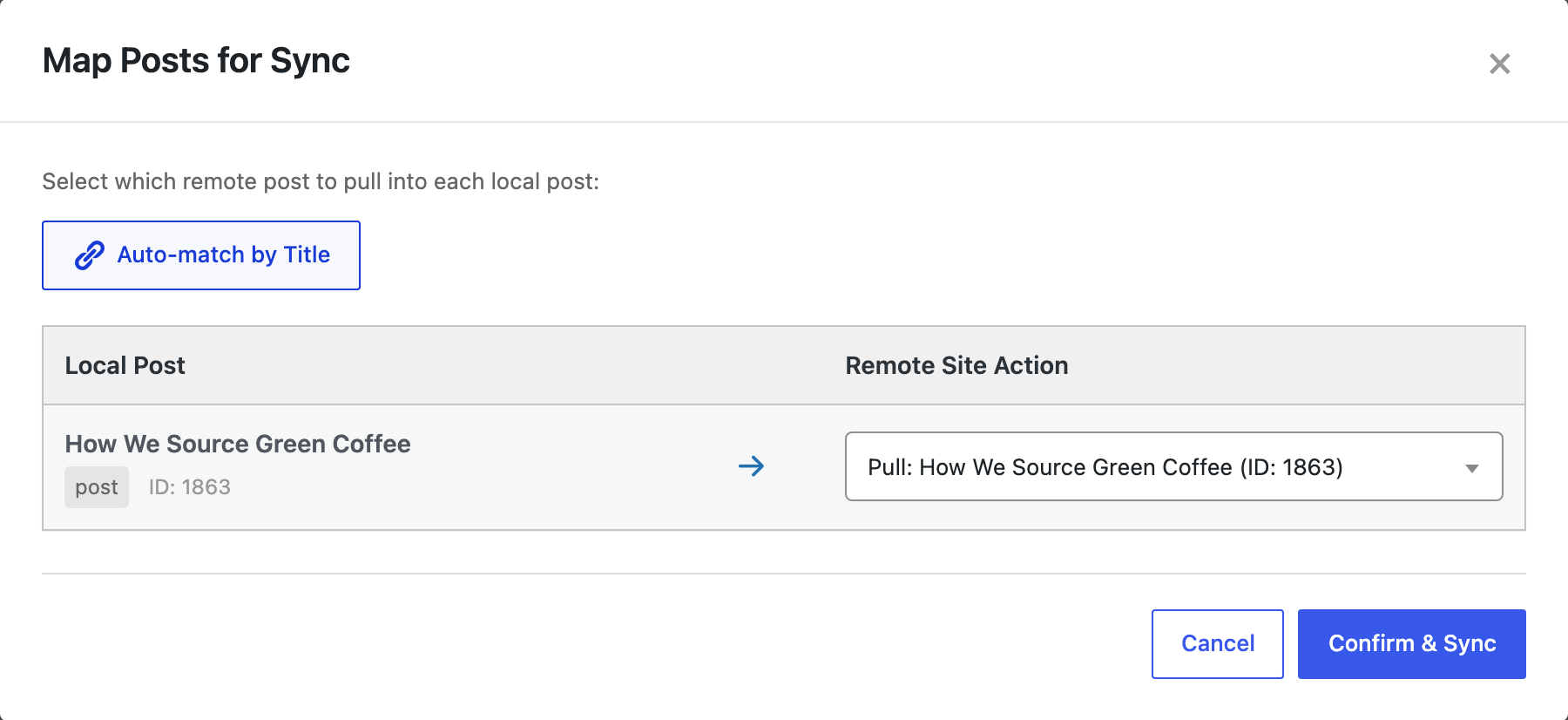
The result was “Updated 1 post”, and the staging post now had the Guji sentence. The connection to the live site must allow pulling. Connections added on the Content Sync screen work in both directions; a connection created as push-only, for example through the API, shows “The connection must be active and allow this direction”. Open it on the Content Sync screen and save it again, or have your AI agent set its direction to both ways (the ability rsl-ie/connection-update).
If you changed the same post on staging too, a pull would replace your staging work. In that case, open both versions and copy the live edit into the staging post by hand.
3. Push staging to live
Now select the posts you worked on, plus the ones you pulled, and push them. Both were matched by title and set to Update:
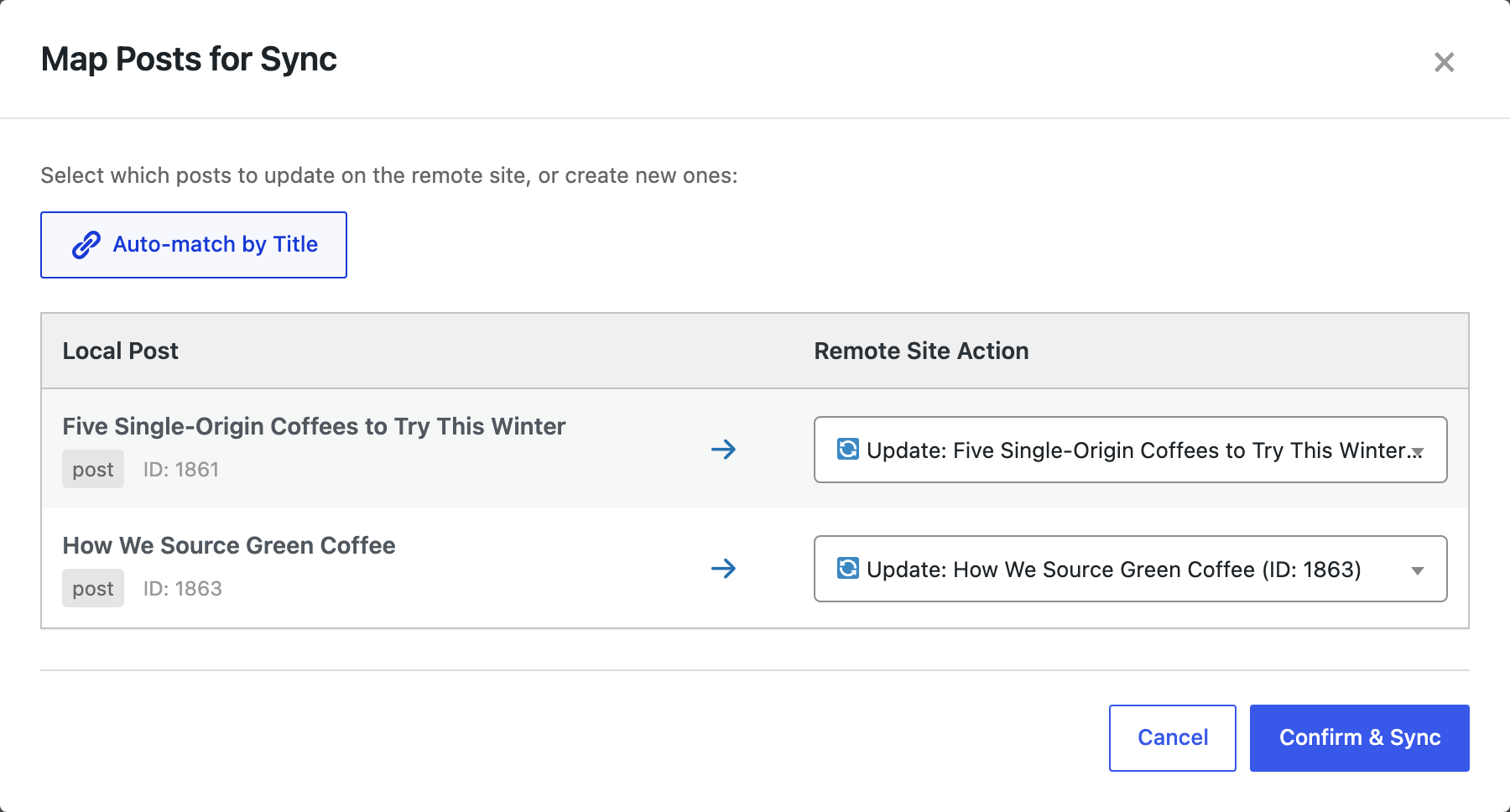
After “Successfully pushed 2 post(s)”, the live site had the new intro of “Five Single-Origin Coffees” from staging, and “How We Source Green Coffee” still had the Guji update, because staging had it now.
What happens if you skip the check
We tested that too. The editor added another line on live (“Sold out of the Kenya lot”), and we pushed the post from staging without pulling first. The line was gone on live after the push. WordPress kept it in the post’s revisions on live, so it could be restored from the Revisions screen, but only if someone notices.
Before you push
Run the Modified Date export every time before a push, and back up the live site before you push many posts. If live is edited often, agree on a content freeze while you push.
With an AI agent
An AI agent connected to staging through the WordPress MCP Adapter (see connecting Claude Code to WordPress) can do the pull step:
Pull "How We Source Green Coffee" from the live site into staging before we push.In our run, the agent called rsl-ie/sync-pull with the live post ID and a mapping to the staging post. The result was “Updated 1 post”, 0 failed, and the staging post then had the latest line from live (a tasting session on 6 December).
FAQ
Does Content Sync merge live edits with staging edits?
No. An update replaces the content of the post on the other site. Pull first, or copy the live edit into staging.
How do I see which posts changed on live?
Export Blog Posts (and Pages) on live with the filter Modified Date, Greater or Equal, and the date you started on staging.
Why can’t I pull?
The connection must allow pulling. Connections added on the Content Sync screen work both ways; one created as push-only through the API has to be changed to both directions.
Can I get an overwritten live edit back?
In our test the overwritten text was still in the post’s revisions on live, so it could be restored there.
Related Guides
- How to Refresh Staging With Live Content Without Overwriting Your Work
- Incremental WordPress Exports: Export Only What Changed Since Last Time
- Staging to Production Checklist for Freelancers Managing Client Sites
- Same Slug on Both Sites: What Content Sync Does and How to Free the URL
Get the free plugin on WordPress.org.

Comments 0
Have a question or a tip to share? Leave it below.