
A theme looks its best with the demo content it was designed around: the sample blog posts, the About and Contact pages, the images. If you build themes or set up sites for clients, you can pack that content into one ZIP on your demo site and let the customer import it on their own site. Import Export by RockStarLab does this with Content Migration. In the test, posts and pages are exported from a demo site and imported into an empty site, and we look at what the customer sees, including a second import of the same package.
Free: Content Migration for posts, pages, media and comments. PRO: menus, users, custom post types, taxonomies on their own, and WooCommerce data in the same package.
Short Answer
- On the demo site, go to Content Migration, choose Create export file, pick the content and download the ZIP.
- On the customer’s site, choose Upload export file, upload the ZIP, replace the demo site’s address with the new one and click Start migration.
- Images are not inside the ZIP. They are downloaded from the demo site during the import, so the demo site has to be online.
- Importing the same package again skips items that already exist, unless the customer chooses to update them.
Create the package on the demo site
In Content Migration, choose Create export file, then Choose content to migrate and select what the demo needs. For a blog theme, we selected Posts and Pages:

After Start migration, the package was ready in 4 seconds: 117 items (sample posts and pages) in a 176.79 KB ZIP. Click Download Migration Package and put the ZIP next to your theme, for example in its documentation or download area:
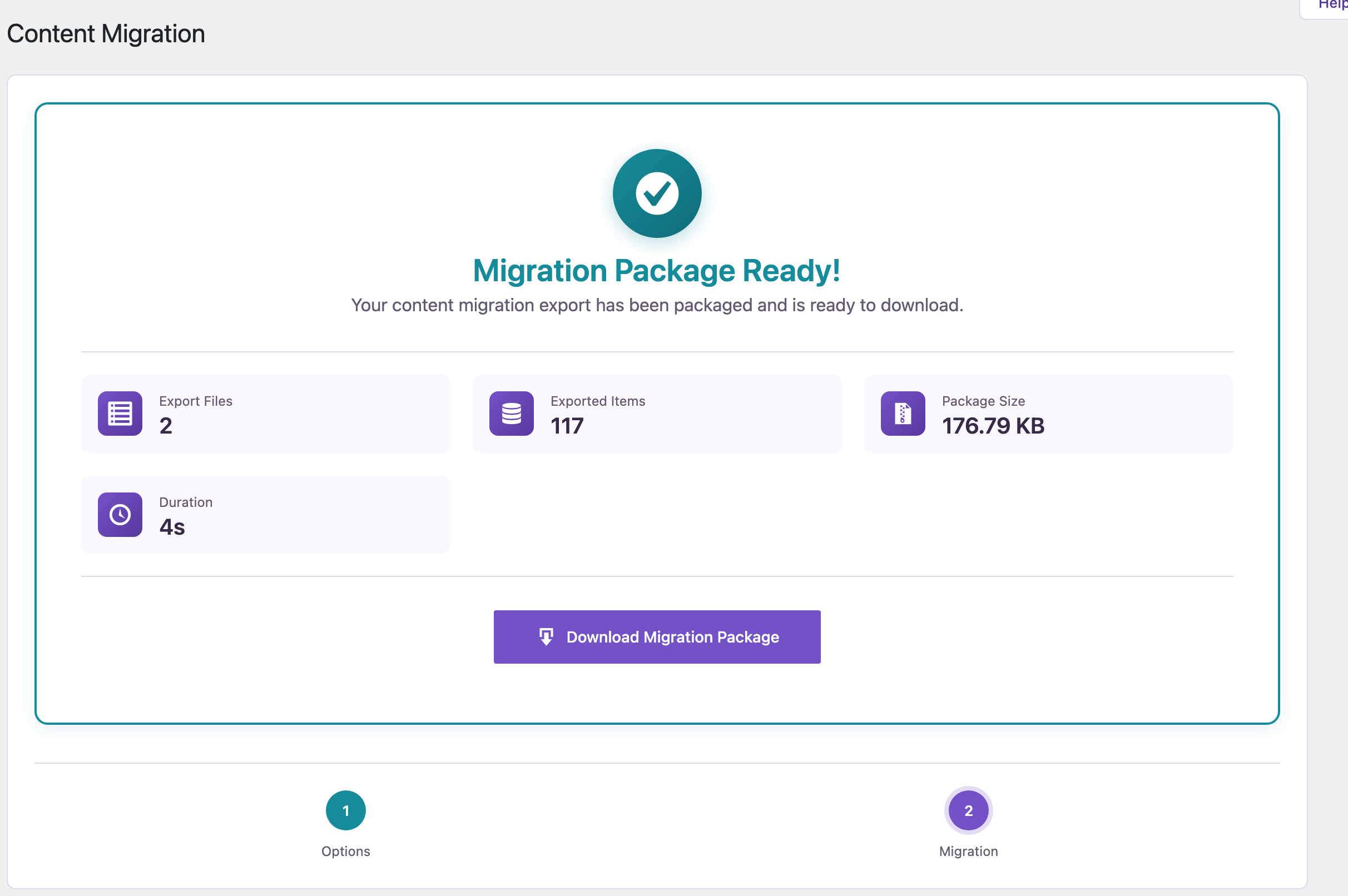
The notice on the screen says what the ZIP holds: the content data, not the image files, and not site settings or the theme itself. Keep that in mind for the customer instructions below.
Import the package on a new site
We tested on a site with no posts or pages, as a customer would have after installing WordPress and the theme. In Content Migration, choose Upload export file and select the ZIP. Then:
- Leave If an item already exists on this site at Skip it and keep the version on this site, so nothing the customer wrote is replaced.
- Turn on Replace URLs and replace the demo site’s address with the new site’s address, so links inside the posts point to the customer’s site.
- Click Start migration.

The import took 58 seconds: 117 created, 0 updated, and 455 URLs replaced. The categories of the sample posts were created on the new site, and the images were downloaded from the demo site into the Media Library (79 items):

Your demo site must stay online with its images reachable while customers import, because that is where the images come from. If you move or close the demo site, create a new package from the new address.
What if the customer imports it twice?
We ran the same import again on the same site. Nothing was duplicated: 0 created, 0 updated, 117 skipped because they already exist on this site.

To reset the demo pages after a customer has edited them, they can choose Update it with the version from the package instead. That replaces their changes in those posts and pages, so suggest it only for a fresh site.
Before you import
Ask customers to import demo content on a new site or to make a backup first. The import adds posts and pages to whatever is already there, and an import is easier to undo with a backup; see rolling back an import.
With an AI agent
An AI agent connected to the demo site through the WordPress MCP Adapter (see connecting Claude Code to WordPress) can build the package, for example after you update the sample content:
Create a new demo content package with all posts and pages.In our run, the agent called rsl-ie/migration-plan to list the available steps, then rsl-ie/migration-start with the steps post and page. The export ran in the background, and rsl-ie/migration-get reported it as completed with 2 of 2 steps done and a file ID for the new ZIP.
FAQ
Are images included in the ZIP?
No. The ZIP has the content data, and images are downloaded from the demo site during the import, so the demo site must be online.
Does the package include theme settings or widgets?
No. Site settings and themes are not included; the package moves content.
What happens if the customer already has a page with the same slug?
With the default setting, that page is skipped and the customer’s version stays.
Can I include menus?
Menus are part of PRO and are listed under Menus when you choose the content for the package.
Do links in the demo posts point to my demo site after the import?
Not if the customer turns on Replace URLs with the demo site’s address. In our test 455 URLs were replaced.
Related Guides
- How to Migrate Only Posts and Pages to a New WordPress Site
- Content-Only Backup: Export Your Posts, Pages and Comments to a ZIP
- LocalWP to Live Site: Push Content Without a Full Migration
- How to Roll Back a Bad WordPress Import or Sync
Get the free plugin on WordPress.org.

Comments 0
Have a question or a tip to share? Leave it below.