
A full-site backup is the safety net for the whole site, but sometimes you only want the words: every post, page, category, tag and comment, in one file you can keep, without themes, plugins or a database dump. With Import Export by RockStarLab, Content Migration packs your content into a ZIP and can restore it later. On a coffee roastery’s site, we exported 340 items, deleted three posts by mistake, and brought them back from the ZIP without touching anything else.
Free: posts, pages, media records and comments. PRO: categories, tags and other taxonomies, users, menus, custom post types and WooCommerce data in the same package. Our example used PRO for the categories and tags.
Short Answer
- Go to Import Export → Content Migration, choose Create export file and Choose content to migrate.
- Tick posts, pages and comments (plus categories and tags with PRO), click Start migration and download the ZIP.
- To restore, choose Upload export file, keep Skip it and keep the version on this site, and start. Only what is missing is created again.
What a content-only backup is, and isn’t
The ZIP holds your content as data: titles, text, dates, authors, slugs, categories, tags, comments and the links between them. It does not hold image files, themes, plugins or site settings. The export screen says so itself:
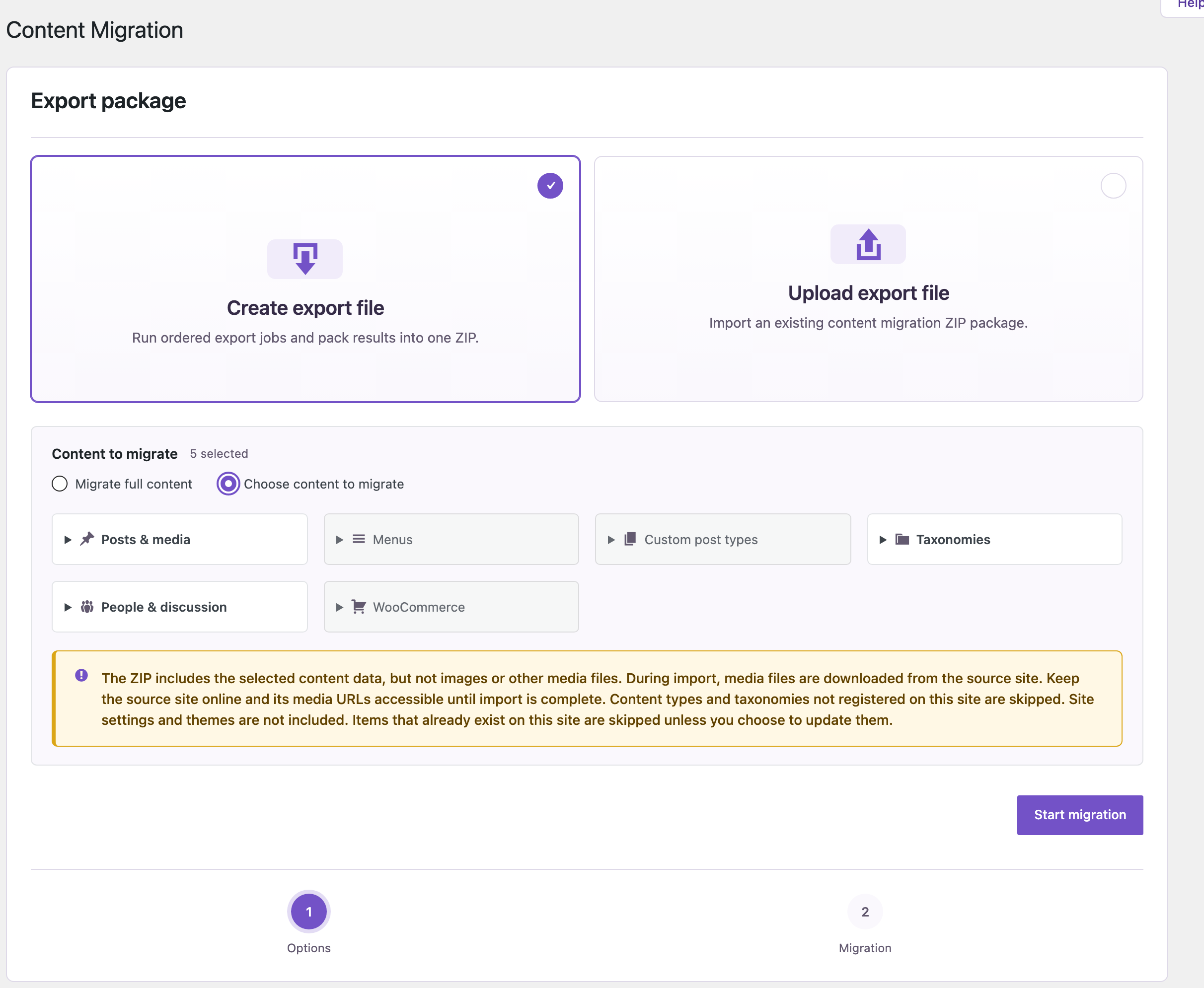
When you restore, media files are downloaded again from the site the package came from, so this works as long as that site and its uploads folder are still there. If the server itself is lost, you need a full backup; see creating and restoring a full WordPress backup.
Create the package
In Content Migration, choose Create export file, then Choose content to migrate. Under Posts & media we ticked Posts and Pages, under Taxonomies Categories and Tags, and under People & discussion Comments: 5 selected. Migrate full content takes everything the site has.
After Start migration, the plugin runs one export after another and packs them. Ours finished in 4 seconds: 5 files, 340 items, 187.76 KB. Click Download Migration Package and keep the ZIP somewhere other than the server. Inside are one JSON file per content type (categories, tags, posts, pages, comments) and a manifest.json that lists them in the order they are restored.
Restore what was deleted
We deleted three published posts permanently and changed the title of a fourth. To get the three back, choose Upload export file and upload the ZIP. Keep If an item already exists on this site on Skip it and keep the version on this site:

Click Start migration. The result:
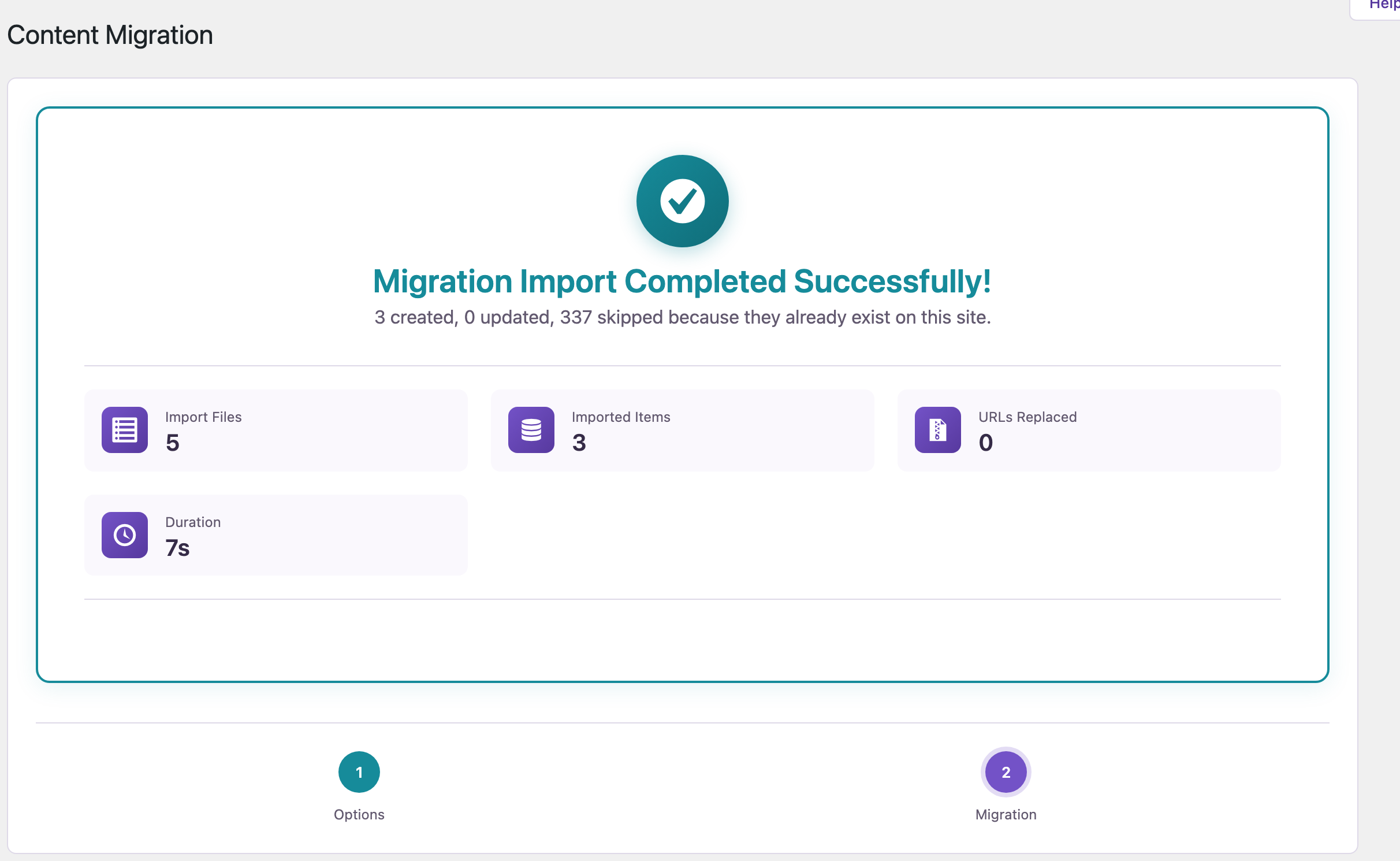
The three deleted posts were created again with their text, dates and featured images, as new posts with new IDs. The post with the changed title kept the new title, because Skip leaves existing items alone. The site had 11 drafts and 117 posts and pages before the restore and the same numbers after it: nothing was added twice.
Choose Update it with the version from the package only when you want to roll existing posts back to the version in the ZIP.
Before you restore
A restore writes to your live content. If you’re not sure which option you need, make a full backup first, or try the ZIP on a staging copy of the site.
With an AI agent
An AI agent connected through the WordPress MCP Adapter (see connecting Claude Code to WordPress) can plan a package before you create it:
What can you put into a content migration package for this site, and in what order?In our run, the agent called rsl-ie/migration-plan. It listed the steps in the order they are restored: users, WooCommerce attributes, categories, tags and other taxonomies, media, posts, pages, custom post types, products, coupons, customers, orders, refunds, reviews, comments and menus.
FAQ
Are images included in the ZIP?
No. The package has the image records and their URLs; the files are downloaded from the original site during the restore.
Can I restore the package on another site?
Yes, that’s what Content Migration is built for. Use Replace URLs to change links from the old domain to the new one. See merging two WordPress sites.
Will a second restore create duplicates?
No. With Skip, items that already exist are left as they are, including drafts that don’t have a slug yet.
How often should I make one?
Before big edits, clean-ups or plugin changes, and as often as your content changes. Keep a few dated ZIPs.
Related Guides
- How to Create a WordPress Website Backup and Restore It
- How to Merge Two WordPress Sites
- Move WordPress Posts and Keep Dates, Authors and Slugs
Get the free plugin on WordPress.org.

Comments 0
Have a question or a tip to share? Leave it below.