
Distributors, booking systems and partner networks often share their data as an XML feed: a list of shops, events or listings, each record with nested details. With Import Export by RockStarLab PRO you can import such a feed into a custom post type, with ACF fields and a taxonomy, and run it again when the feed changes. In the example, a distributor’s list of stockists goes into a coffee roaster’s Stockists post type.
PRO: importing into a custom post type. Free: the same XML import into posts and pages, with ACF fields and categories.
Short Answer
- In Import, choose Custom Post Types and upload the XML file. The plugin finds the repeating record element and turns nested elements into columns such as
location/city. - On the mapping step, choose the post type, map the columns to the title, content, ACF fields and taxonomy.
- When the feed changes, import it again with Check for Existing Items by Field set to Title: existing entries are updated and new ones are created.
The feed
The distributor sends one <stockist> element per shop inside a <stockists> list, with the address and contact details nested:
<feed>
  <stockists>
    <stockist id="S-101">
      <name>Café Lumen</name>
      <description>Espresso bar serving our House Blend…</description>
      <region>North</region>
      <location><city>Leeds</city><address>14 Briggate, Leeds LS1 6HD</address></location>
      <contact><phone>+44 113 496 0101</phone><website>https://cafe-lumen.example.com</website></contact>
    </stockist>
    …
  </stockists>
</feed>
On the site, the post type Stockists has ACF fields City, Address, Phone and Website and a taxonomy Regions, set up as in building a directory from a CSV file.
1. Upload and preview the feed
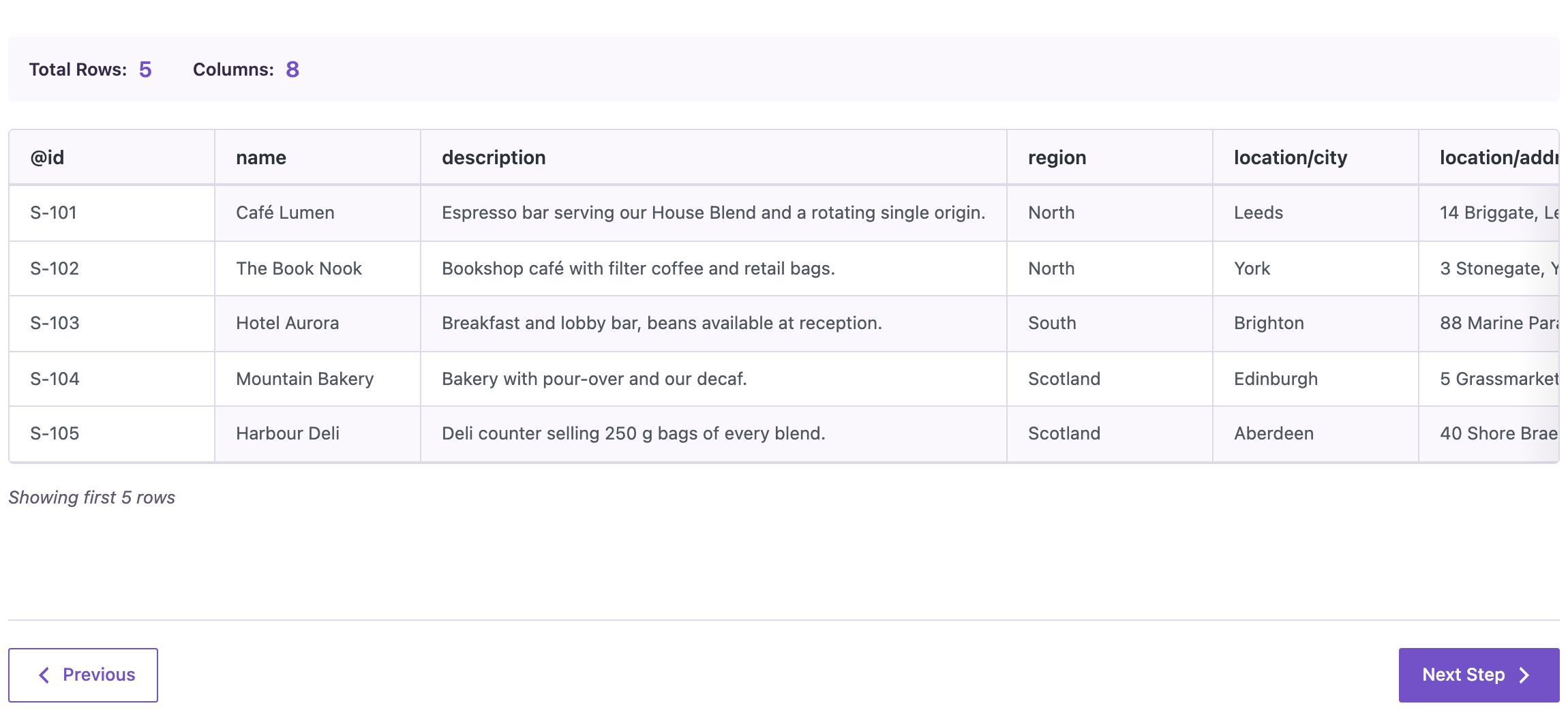
Go to Import, choose Custom Post Types, click Next Step and upload the XML file. The preview showed 5 rows and 8 columns. Each <stockist> became a row, its id attribute became @id, and nested elements became columns with a path, like location/city and contact/phone:
2. Map the columns
On the mapping step, choose Stockists as the post type. Auto Map matched name to the title; we dragged the rest:
description→ content;location/city,location/address,contact/phone,contact/website→ the ACF fields City, Address, Phone, Website;region→ the taxonomystockist_region, added with Taxonomy + Add and set to match terms by name.
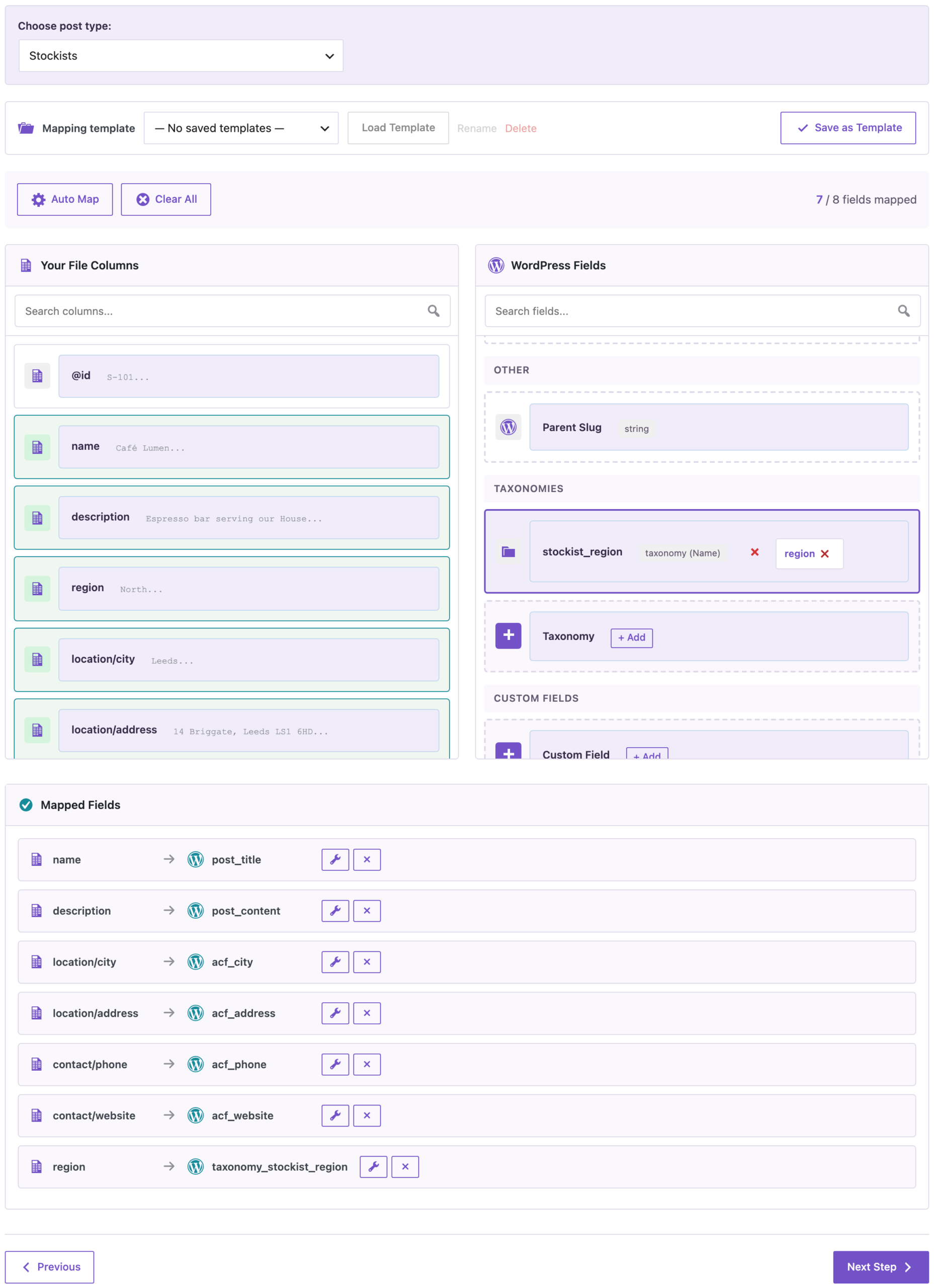
7 of 8 columns were mapped; @id stayed unmapped. Save the mapping as a template if you will import this feed regularly; see mapping templates.
3. Import
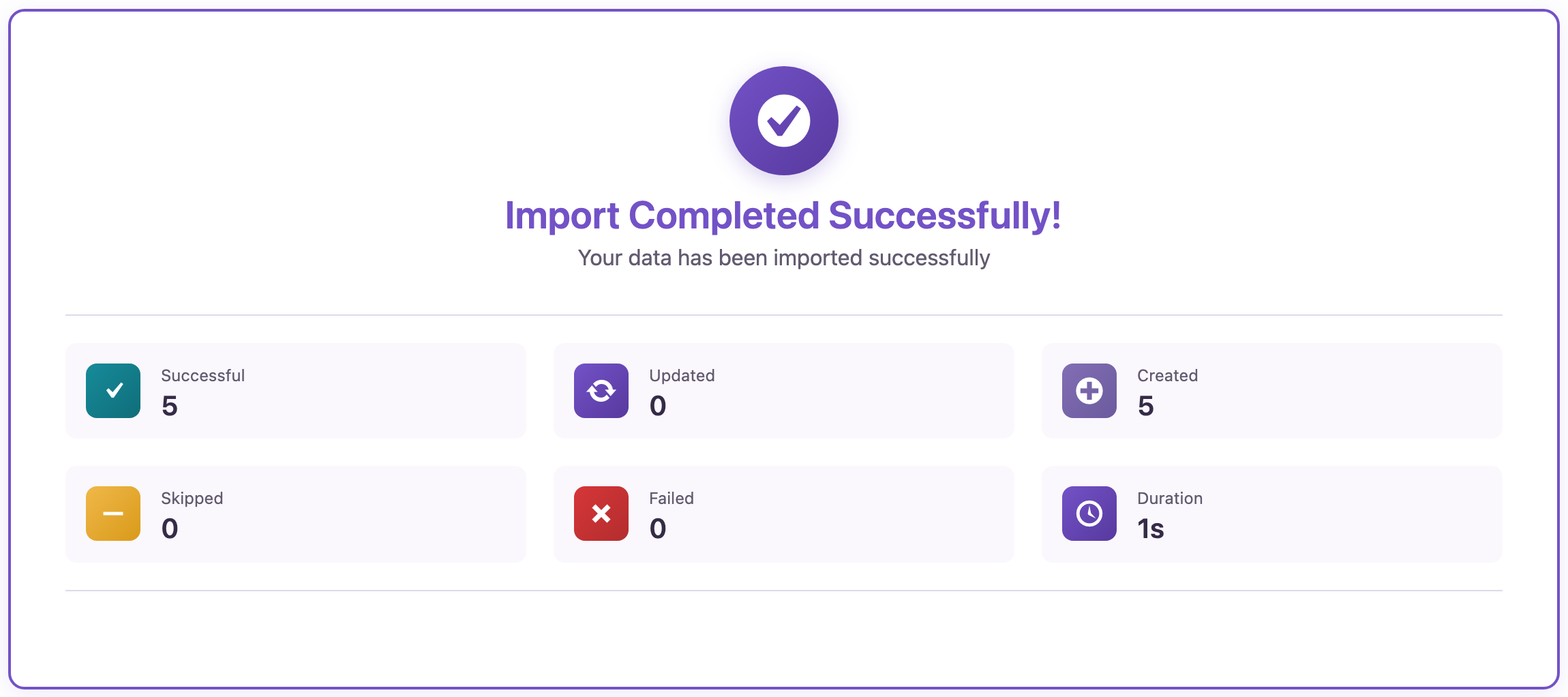
On the options step, Check for Existing Items by Field was set to Title. The import created 5 stockists in 1 second, with the city, address, phone and website in the ACF fields and the regions North, South and Scotland assigned:
The feed has no status, so the stockists were created as drafts. Review them and publish them, for example with Bulk actions → Edit in the Stockists list.
4. Import the feed again when it changes
The next version of the feed had a new phone number for The Book Nook and a sixth stockist in Bristol. We imported it the same way, with Title as the field to check:

5 were updated and 1 was created. The Book Nook had the new number, and the Bristol stockist was added. When we imported the feed once more after publishing, the stockists stayed published; an update doesn’t change the status if the feed has none. To run this automatically, import the feed from its URL on a schedule; see scheduled import from a URL.
Before you import
Run the first import on a staging site or back up the site first. With Title as the matching field, records with the same name can be matched to the same entry, so check that names in the feed are unique.
With an AI agent
An AI agent connected through the WordPress MCP Adapter (see connecting Claude Code to WordPress) can check the result of the import:
List the stockists with their city and phone number.In our run, the agent called rsl-ie-pro/export-preview with the export type custom_post_types, the post type stockist and the fields title, status, acf_city and acf_phone. It returned all six stockists as published, including The Book Nook with +44 1904 496 222 and Riverside Roasters Café in Bristol.
FAQ
Do I have to tell the plugin which XML element is a record?
No. It found the repeating <stockist> element by itself; the preview shows one row per record.
How are nested elements and attributes imported?
Nested elements become columns with a path, such as location/city, and attributes become columns with @, such as @id. Map them like any other column.
Can I fill ACF fields and a taxonomy from the feed?
Yes. In our test City, Address, Phone and Website went to ACF fields and the region to a taxonomy.
What status do imported entries get?
Without a status in the feed, new entries are drafts. Existing entries keep their status when they are updated.
Does this work for products?
For WooCommerce products, see importing products from an XML supplier feed.
Related Guides
- Build a Directory in WordPress from a CSV File
- How to Import WooCommerce Products from an XML Supplier Feed
- Automatic WordPress Import from a URL on a Schedule (CSV, XML or Google Sheets)
- Save and Reuse Field Mapping Templates for Recurring WordPress Imports
Get the free plugin on WordPress.org.

Comments 0
Have a question or a tip to share? Leave it below.