
After a push, the message in the sync window says how many posts went over, and then it closes. The full record stays in the Jobs Log of Import Export by RockStarLab: which posts were created or updated on the other site, their IDs there, which images were copied and whether anything failed. Below, three posts are pushed and we read the job they left behind.
Free: Jobs Log and Content Sync for posts and pages. PRO: the same for custom post types and WooCommerce products.
Short Answer
- Every push or pull is a job in Import Export → Jobs Log, of the type Content Sync – Push or Content Sync – Pull. Filter by type to see only syncs.
- View Details shows the counts (Success and Failed) and a Result with
created,updated, each post’s ID on the other site and the images that were copied. - The other site’s own count is in
remote_result, with anerrorslist.
The push
We selected three posts in Posts and clicked Sync Content. Two already existed on the other site and were matched with Auto-match by Title; the third, “Winter Opening Hours”, was new:
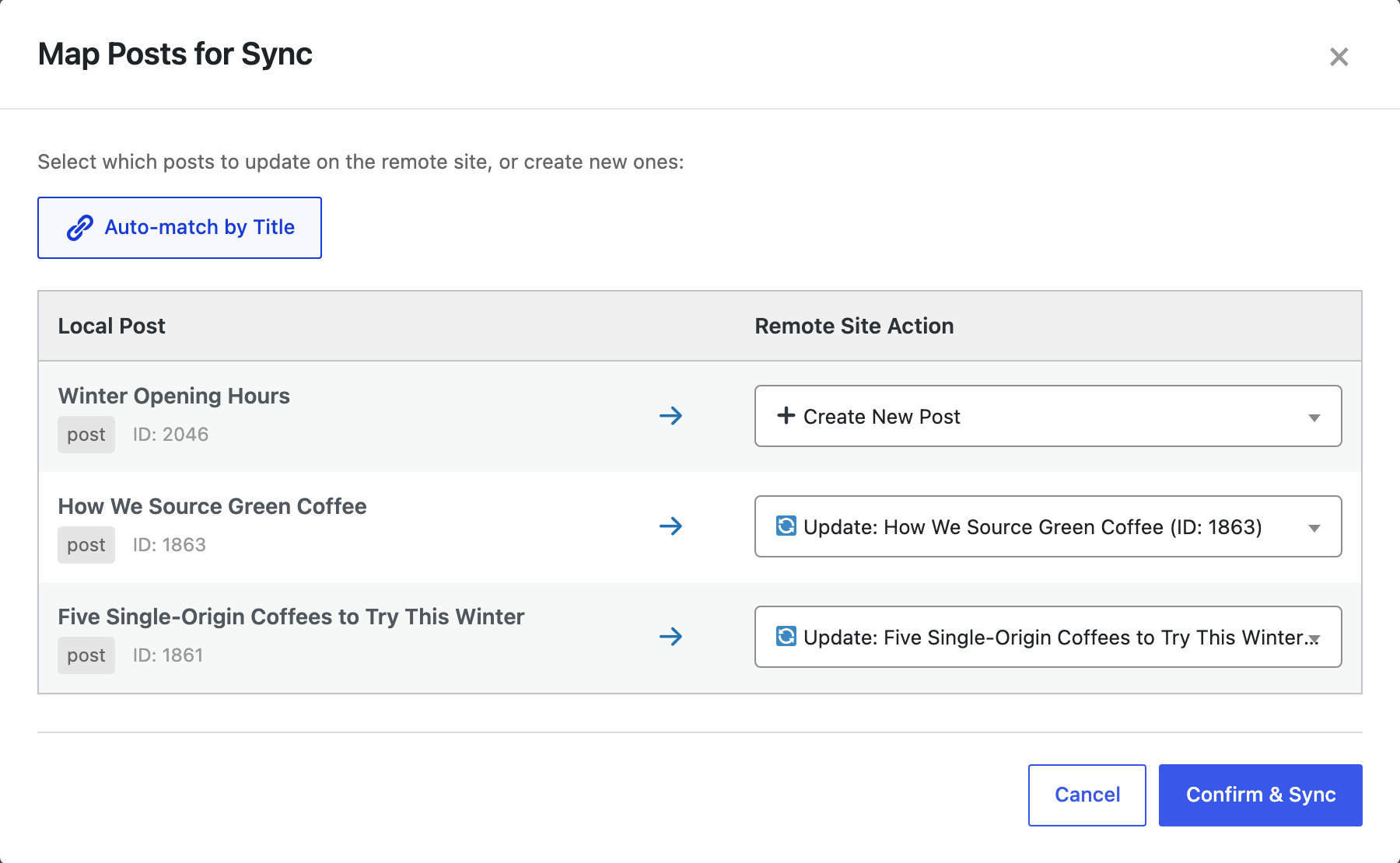
After Confirm & Sync, the window reported the push as done. Everything else is in the Jobs Log.
Find the job
Go to Import Export → Jobs Log. Choose Content Sync – Push in Type and click Apply Filters. Each push is one row with its status, the number of items and when it ran:

Our push was job #92: Completed, 3 of 3 items. Use Status to list only Failed jobs when you look for problems.
Read the details
Click View Details (the eye icon). The top shows the type, status and Items: 3 / 3 (Success: 3, Failed: 0), with the start and end time:

Parameters holds what you selected: the connection and the post IDs. Result is what happened. In our job it said:
"created": 1,
"updated": 2,
"post_mapping": { "1861": 1861, "1863": 1863, "2046": null },
"images_synced": 4,
"posts": [
  { "target_id": 57492, "source_id": 2046, "title": "Winter Opening Hours", "slug": "winter-opening-hours" },
  …
],
"remote_result": { "created": 1, "updated": 2, "total": 3, "errors": [] }
How to read it:
post_mappingis what you chose in the mapping window. A number is the post that was updated on the other site;nullmeans Create New Post.postslists each post with its ID on this site (source_id) and on the other site (target_id). “Winter Opening Hours” became post 57492 there, so you can open it directly.images_syncedandimage_mapshow the media that went with the posts: 4 images here, each with its ID on both sites.remote_resultis the other site’s own count.errorswas empty: the other site reported no problems.
Next to View Details, the row has Restart, Retry (its tooltip: “Create new job with same parameters”) and Delete, which removes the record.
Before you push
The Jobs Log tells you what happened; a backup lets you undo it. Back up the receiving site before a large push, and see large syncs and timeouts if a push stops halfway.
With an AI agent
An AI agent connected through the WordPress MCP Adapter (see connecting Claude Code to WordPress) can check a sync job by its ID:
Did sync job 92 finish without errors?In our run, the agent called rsl-ie/job-get with job 92. It returned the operation content_sync_push for posts, status completed, 3 processed of 3, 3 successful, 0 failed and 0 skipped.
FAQ
Where do I see which posts a push created on the other site?
In the job’s View Details, under posts in the Result: each post has its target_id on the other site.
Are pulls logged too?
The Type filter has Content Sync – Pull next to Content Sync – Push; choose it to list pulls.
How do I see only failed syncs?
Set Status to Failed and Type to Content Sync – Push or Pull, then click Apply Filters.
Does the log show which images were copied?
Yes. images_synced counts them and image_map pairs each image’s ID on this site with its ID on the other site.
Related Guides
- How Content Sync Works: API Keys, Push, Pull and What Gets Copied
- Large Content Sync in WordPress: Batching, Timeouts and Re-running a Push
- How to Use Jobs Log and Schedule WP Import and Export Jobs
- Live Was Edited While You Worked on Staging: How to Push Without Losing Changes
Get the free plugin on WordPress.org.

Comments 0
Have a question or a tip to share? Leave it below.