
Hiding last year’s event posts, keeping this year’s and sending a few back to draft means three different statuses in one category. Bulk Edit sets one status for the posts on one screen, so a spreadsheet is faster here. With Import Export by RockStarLab you export the posts with their ID and status, change the status column and import the file back. The example is a coffee roastery’s Events category.
Free: export and import of posts and pages, including the status. PRO: the same for custom post types and WooCommerce products.
Short Answer
- Export the posts with the columns
ID,post_titleandpost_status, filtered to the ones you want to change. - In the spreadsheet, set
post_statustopublish,draft,pendingorprivatefor each row. - Import the file into Blog Posts with Check for Existing Items by Field set to ID, If Match Found: Update and If No Match Found: Skip.
1. Export the posts you want to change
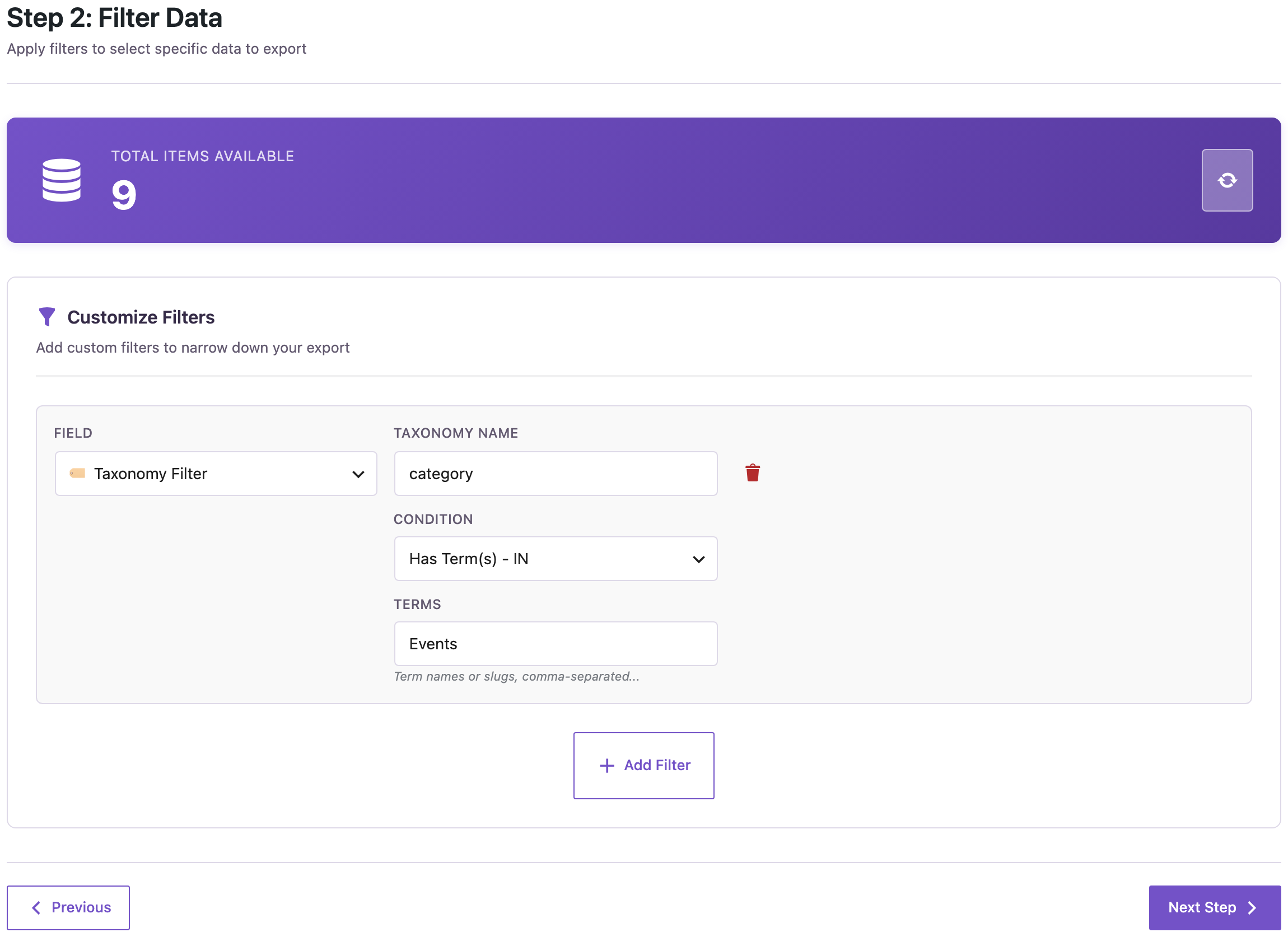
Go to Export, choose Blog Posts and add a Taxonomy Filter: taxonomy category, condition Has Term(s) – IN, term Events. The counter showed 9 posts:
On the field step, we kept only ID, Title, Status and Date and exported a CSV. The date column helps you decide; it isn’t needed for the import. The headers in the file are the field keys (ID, post_title, post_status), which makes the import map them by itself. For other ways to pick posts, see exporting one category, tag or author.
2. Change the status in the spreadsheet
Five events had already taken place, so we set them to private: they stay in the dashboard for the team, but visitors can’t open them. We left the scheduled workshop as future and three drafts as draft, and deleted the date column:
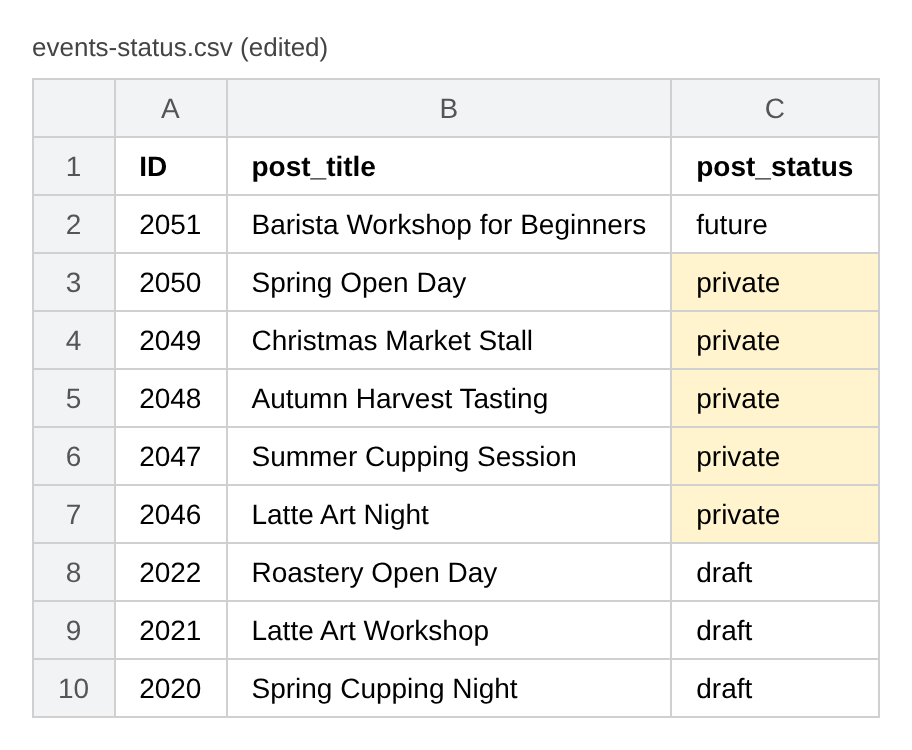
Use the status names WordPress uses: publish, draft, pending, private or future.
3. Import the file back
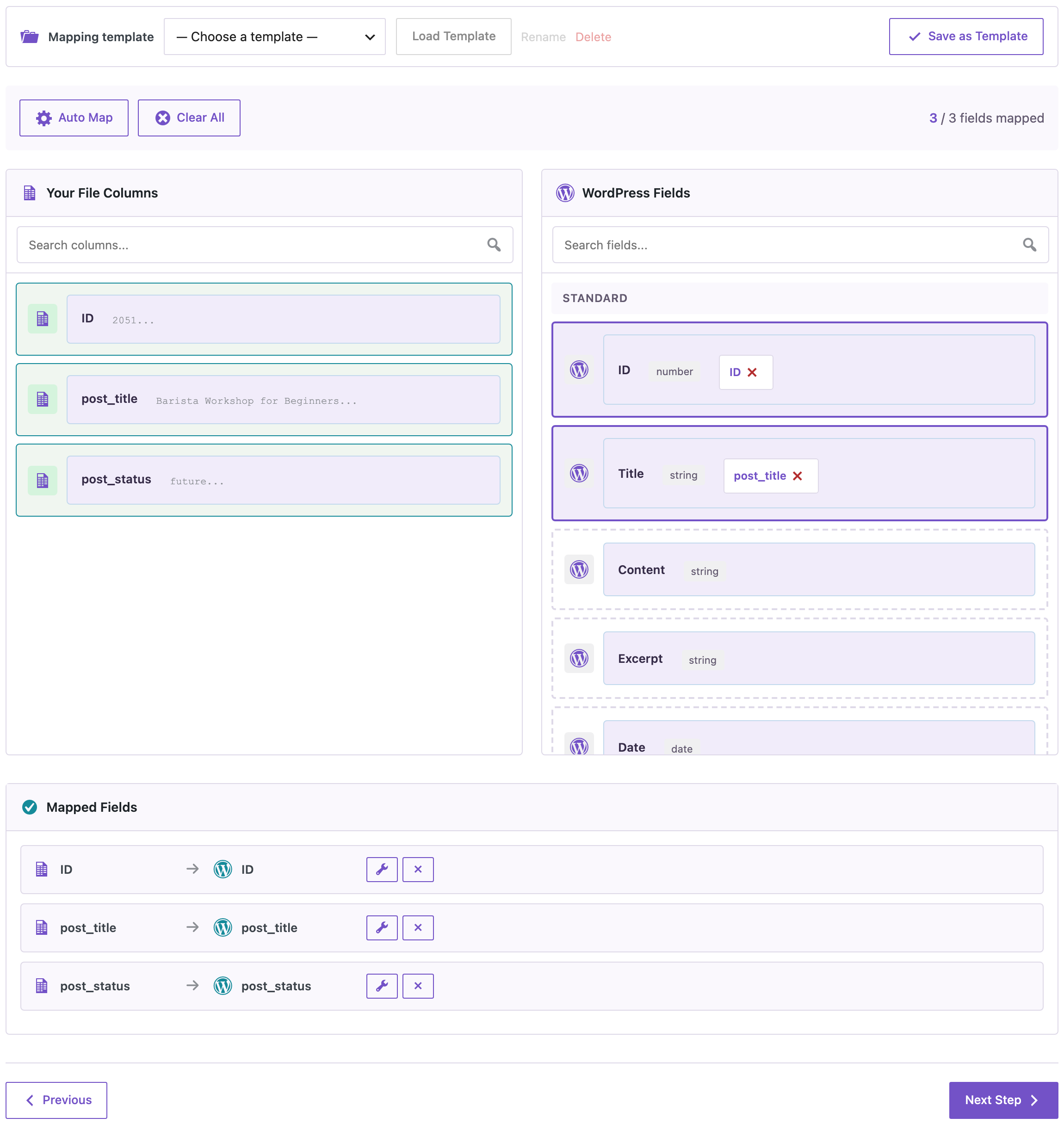
Go to Import, choose Blog Posts, upload the CSV and click Auto Map. All three columns were mapped to ID, Title and Status:
On the options step, set Check for Existing Items by Field to ID, If Match Found to Update and If No Match Found to Skip, so a wrong ID can’t create a new post:

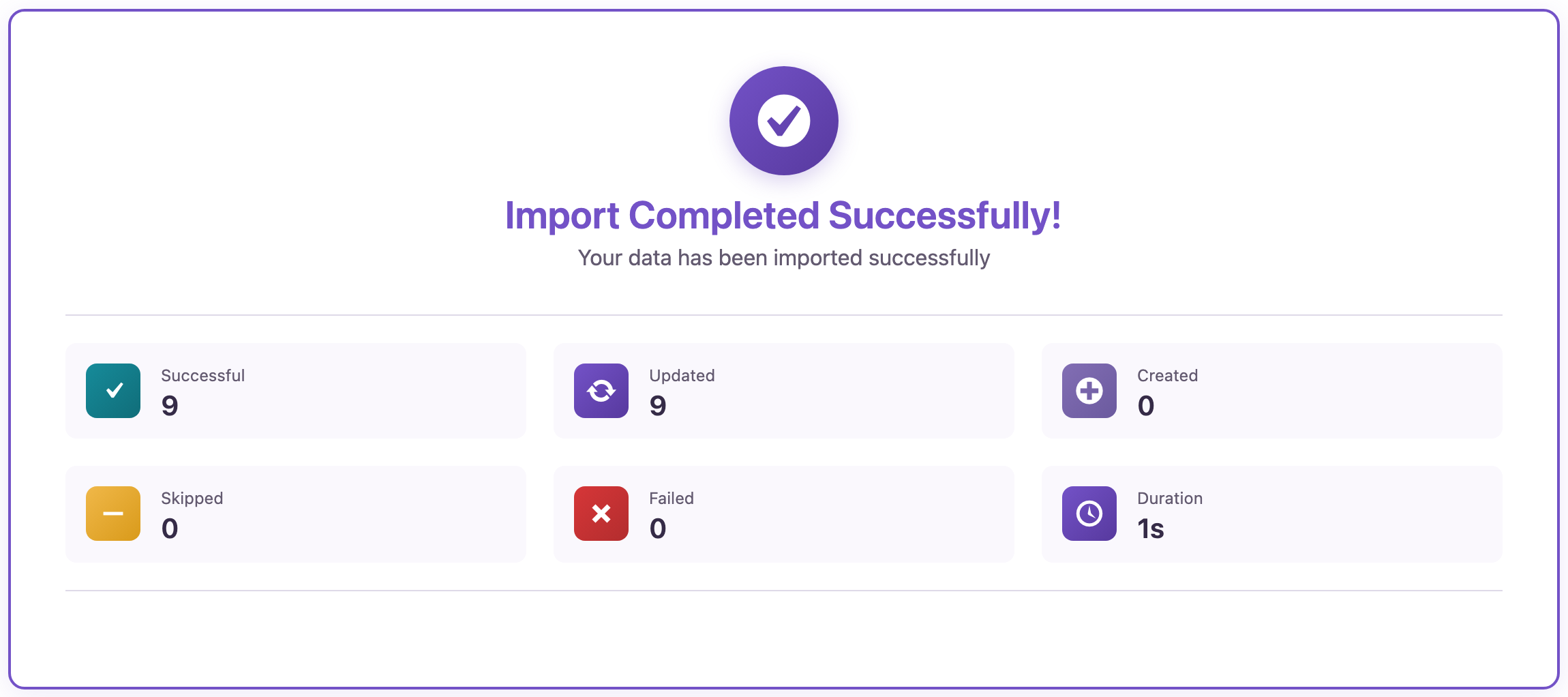
The import updated 9 posts in 1 second, with 0 created and 0 failed:
The five past events were private, the workshop was still scheduled for 12 December, and the drafts were still drafts. The published dates, content and category of the private posts stayed as they were, because the file only had ID, title and status. A visitor opening one of the private posts got a 404 page.
Before you import
An import with Update changes live posts. Check the status column once more, and back up the site before you change many posts. Keep the exported file as a record of the statuses before the change.
With an AI agent
An AI agent connected through the WordPress MCP Adapter (see connecting Claude Code to WordPress) can check the result:
List the posts in the Events category with their status.In our run, the agent called rsl-ie/export-preview for posts with the fields ID, title and status and a category filter for events. It returned nine posts: the Barista Workshop as future, the five past events as private and three drafts.
FAQ
Which status values can I use in the file?
publish, draft, pending, private and future, the names WordPress uses.
Will the import change anything else in the posts?
Only the mapped columns. In our test the file had ID, title and status, and the dates, content and categories of the published posts stayed as they were.
What if an ID in the file doesn’t exist?
With If No Match Found set to Skip, that row is skipped and no post is created.
Related Guides
- Export Drafts and Pending Posts for Editorial Review (and Import the Decisions Back)
- Export Posts from One Category, Tag or Author to CSV
- Bulk Update ACF Field Values with a Spreadsheet
- Export Your Content Calendar: Scheduled WordPress Posts to Excel
Get the free plugin on WordPress.org.

Comments 0
Have a question or a tip to share? Leave it below.