
Drafts pile up: half-finished ideas, posts waiting for review, pieces nobody has looked at in weeks. An editor can work through them in a spreadsheet much faster than by opening each post in WordPress: one row per post, a decision in the status column, a note for the author. With Import Export by RockStarLab, the same spreadsheet then goes back into WordPress and applies the decisions. The example is one review round for a coffee roastery’s blog.
Free: everything in this guide works in the free plugin for posts and pages. PRO: the same for custom post types.
Short Answer
- In Export, choose Posts, add the filter Status In
draft,pending, and export ID, Title, Status, Author Name and Word Count to XLSX. - The editor changes the status (
publish,pending,draft), fixes titles and adds notes in an extra column. - Import the file with Check for Existing Items by Field = ID and If Match Found = Update. Posts set to
publishgo live; the notes column is ignored.
Export the review queue
WordPress has two statuses for unfinished posts: draft and pending (shown as “Pending Review”). The condition In takes both at once:
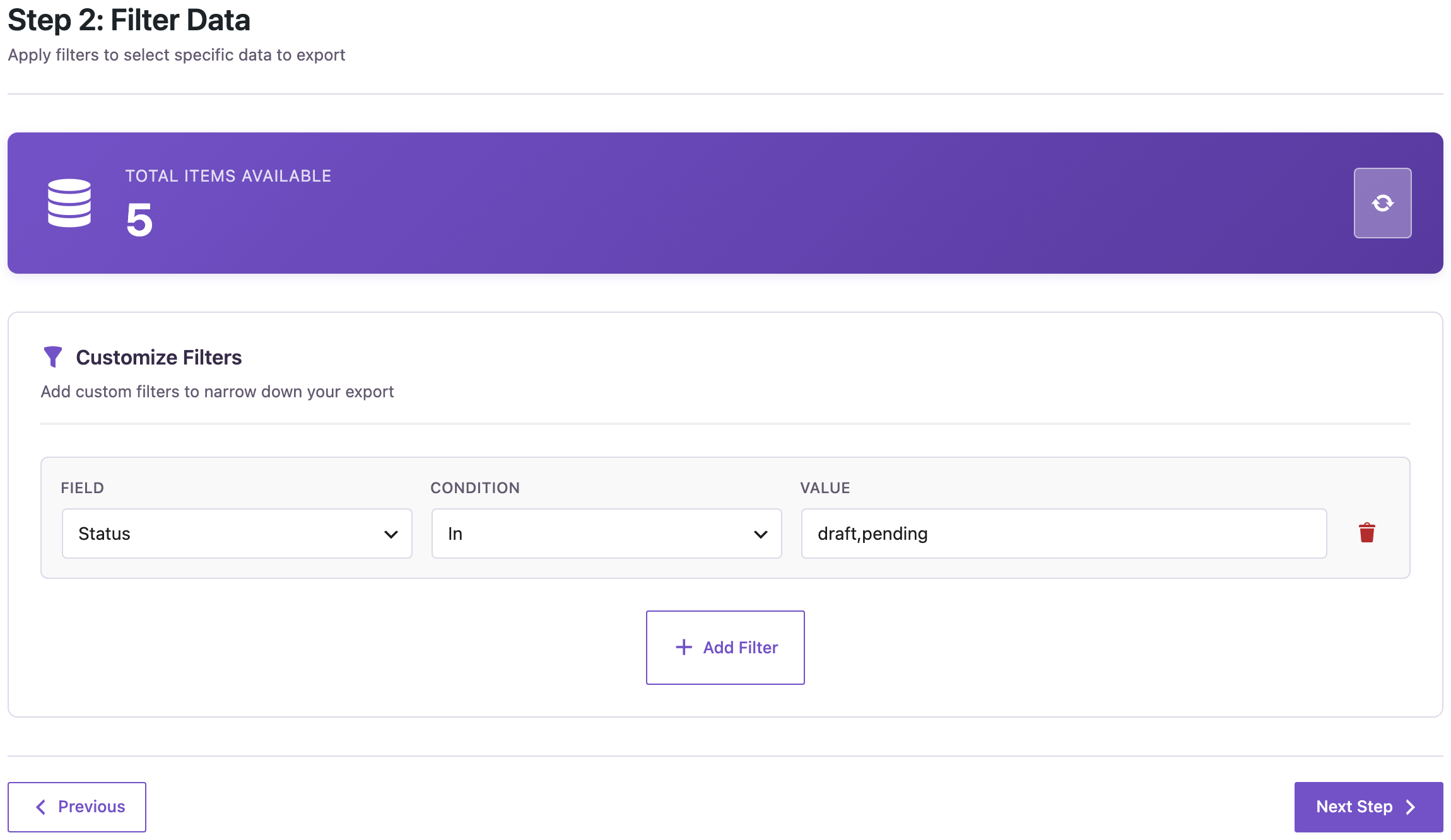
Our blog had three drafts and two posts pending review, by two authors. We exported these columns to XLSX:
- ID, so the decisions go back to the right posts.
- Title and Status, the two things the editor changes.
- Author Name, so the editor knows whom to talk to.
- Word Count, a quick sign of how finished a draft is: our “Untitled idea: decaf” had 80 words, the interview 1,400.
The editor’s decisions
The editor worked through the file, changed the status column, fixed one title and added an Editor notes column:

- publish: the post goes live when the file is imported.
- pending: back in the review queue, for example after a final read.
- draft: stays with the author, and the note says what’s missing.
Use the WordPress names: publish, pending, draft, and private if you need it.
Import the decisions
In Import, choose Posts, upload the edited file and click Auto Map:

ID, Title, Status and Author Name are mapped. Word Count and Editor notes aren’t WordPress fields, so they stay unmapped and nothing is written from them. On the options step, set Check for Existing Items by Field to ID, If Match Found to Update and If No Match Found to Skip.
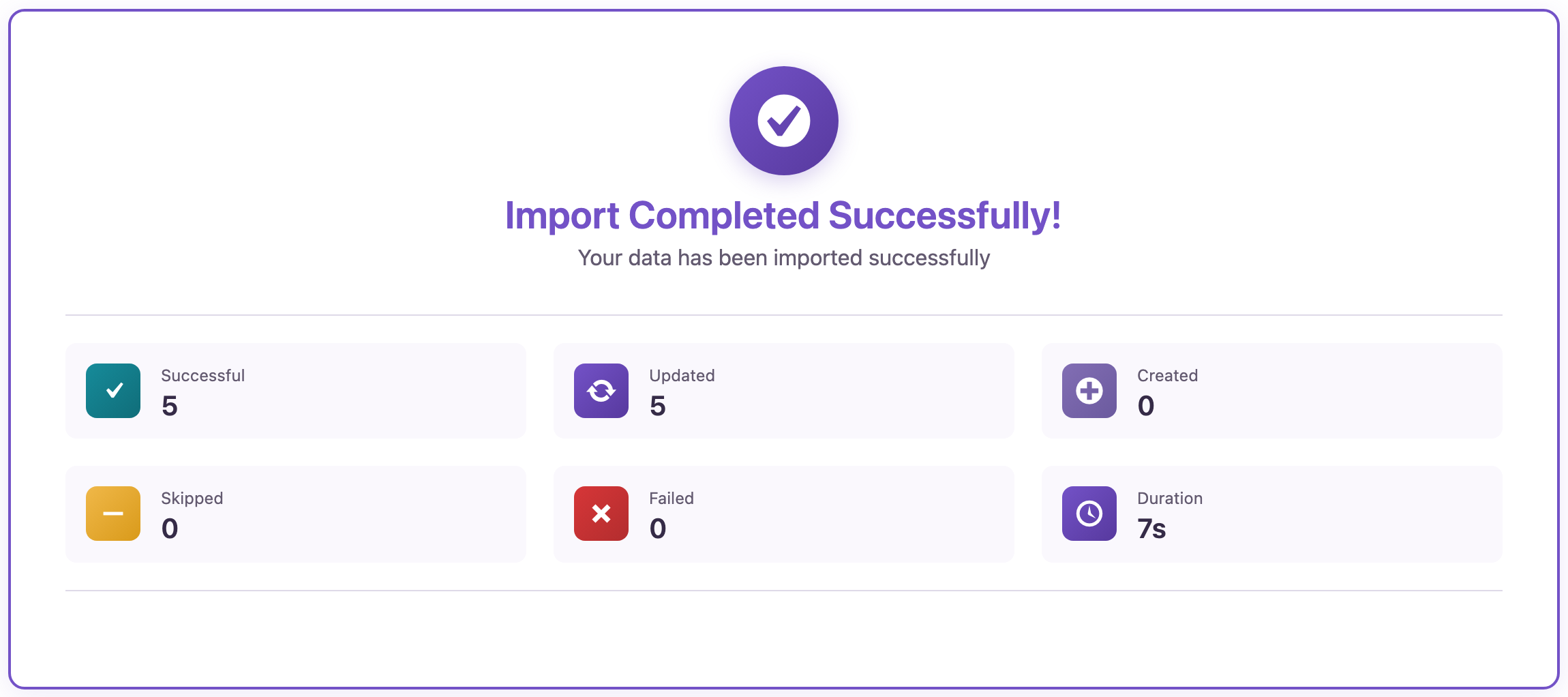
What changed on our site:
- “Interview with Our New Head Roaster” and “Why We Switched to Compostable Coffee Bags” were published, with the publish date set to the moment of the import. The second one went live with the corrected title, and both got their URL slugs from their titles.
- “Five Ways to Use Leftover Coffee” moved from draft to Pending Review.
- The two other drafts stayed drafts.
- The authors didn’t change: Author Name matched the same users.
To publish at a planned time instead of right away, set the status to future and add a Date column (post_date) with the date and time; see exporting your content calendar for the scheduled side.
Sharing the notes with authors
The notes stay in the spreadsheet; they aren’t saved in WordPress. Send the file to the authors, or filter it by Author Name and send each author their rows. Keep the file with the date as a record of the review round.
Before you import
An import with publish in the status column makes posts public right away. Check the status column once more, try one row first, and back up the site before larger rounds.
With an AI agent
An AI agent connected through the WordPress MCP Adapter (see connecting Claude Code to WordPress) can show what’s left in the queue after a round:
List the posts that are still drafts or pending review, with their authors.In our run, the agent called rsl-ie/export-preview with the status filter In draft,pending. It returned three posts: the two drafts and “Five Ways to Use Leftover Coffee”, now pending review. The two published posts were no longer in the list.
FAQ
What’s the difference between draft and pending?
A draft is still being written. Pending (“Pending Review”) means the author has submitted it for an editor to review.
Will importing a status change the publish date?
When a draft becomes publish, WordPress sets the publish date to the time of the import, unless the file has a Date column.
Are the editor’s notes saved anywhere in WordPress?
No. Columns that aren’t mapped to a field are ignored. Map a column to a custom field if you want to keep notes on the post.
Can authors see only their own drafts?
Filter the spreadsheet by Author Name, or add an Author filter to the export.
Can I include pages?
Yes. Run the same export and import with Pages.
Related Guides
- Export Your Content Calendar: Scheduled WordPress Posts to Excel
- Bulk Update WordPress Posts from CSV Without Duplicates
- Compare Two WordPress Exports to See What Changed
- Export Posts by Category, Tag or Author to CSV
Get the free plugin on WordPress.org.

Comments 0
Have a question or a tip to share? Leave it below.