
Open a CSV export of your posts in a text editor and it looks broken: one post spreads over a dozen lines, HTML tags are everywhere, and quotation marks appear doubled. That’s how CSV stores text that contains line breaks, commas and quotes, and the file is fine. It only breaks when someone edits it in a way that disturbs the quoting. In the test, two block-editor posts from a coffee roastery are exported with Import Export by RockStarLab, opened and resaved in a spreadsheet app and imported back. You’ll also see how to spot a file whose rows are broken.
Free: everything in this guide works in the free plugin. PRO: the same applies to product descriptions and other long text fields.
Short Answer
- A value that contains line breaks, commas or quotes is wrapped in quotation marks, and every quote inside it is doubled (
""). That keeps each post in one CSV row, however many lines it spans. - Edit such files in a spreadsheet app (Excel, Google Sheets, LibreOffice), not in a text editor.
- Before importing, check Total Rows in the preview step. If it’s lower than the number of posts in the file, a quote is missing somewhere.
What the export looks like
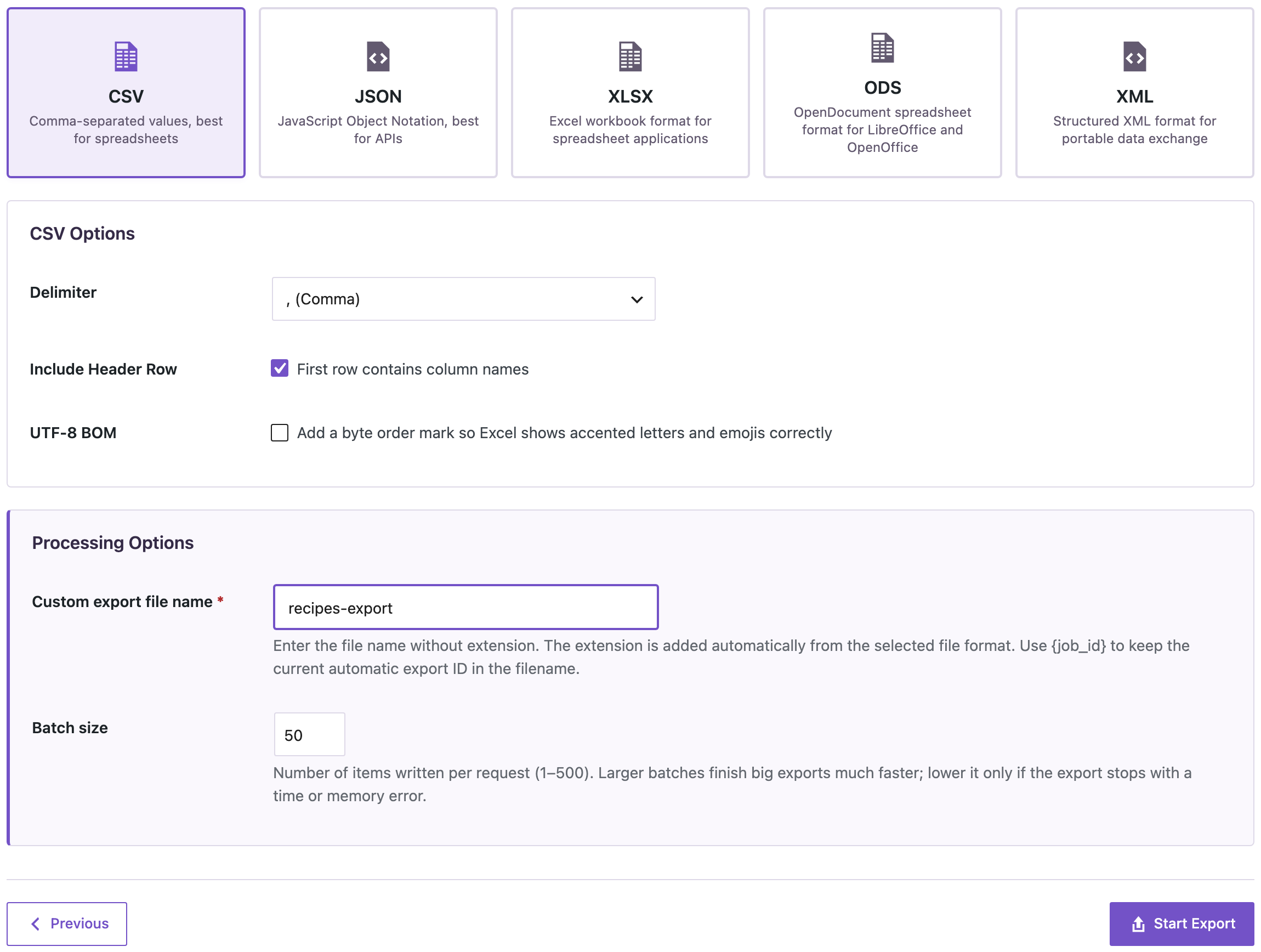
We exported ID, Title and Content of two posts written in the block editor: one with a heading, a paragraph and a list, the other with a table and a quote. On the format step nothing special is needed:
The start of the file:
ID,post_title,post_content
2038,"V60 Recipe Card","<!-- wp:paragraph -->
<p>Our recipe card:</p>
<!-- /wp:paragraph -->

<!-- wp:table -->
<figure class=""wp-block-table""><table><thead><tr><th>Step</th><th>Time</th></tr></thead><tbody><tr><td>Bloom, 40 g water</td><td>0:00–0:45</td></tr><tr><td>Pour to 250 g</td><td>0:45–2:00</td></tr></tbody></table></figure>
…- The content of each post is wrapped in quotation marks, so the line breaks inside it belong to the value, not to the file structure.
class=""wp-block-table""is a quote inside the value, written twice, as CSV requires.- The block comments (
<!-- wp:paragraph -->) are part of the content and come back on import, so the posts stay editable as blocks.
The file had 23 lines but only 2 posts. A tool that counts lines would report 22 records; a CSV reader reports 2.
Opening and saving in a spreadsheet app
We opened the CSV in LibreOffice Calc, saved it as CSV again and imported it back with Check for Existing Items by Field = ID and If Match Found = Update:
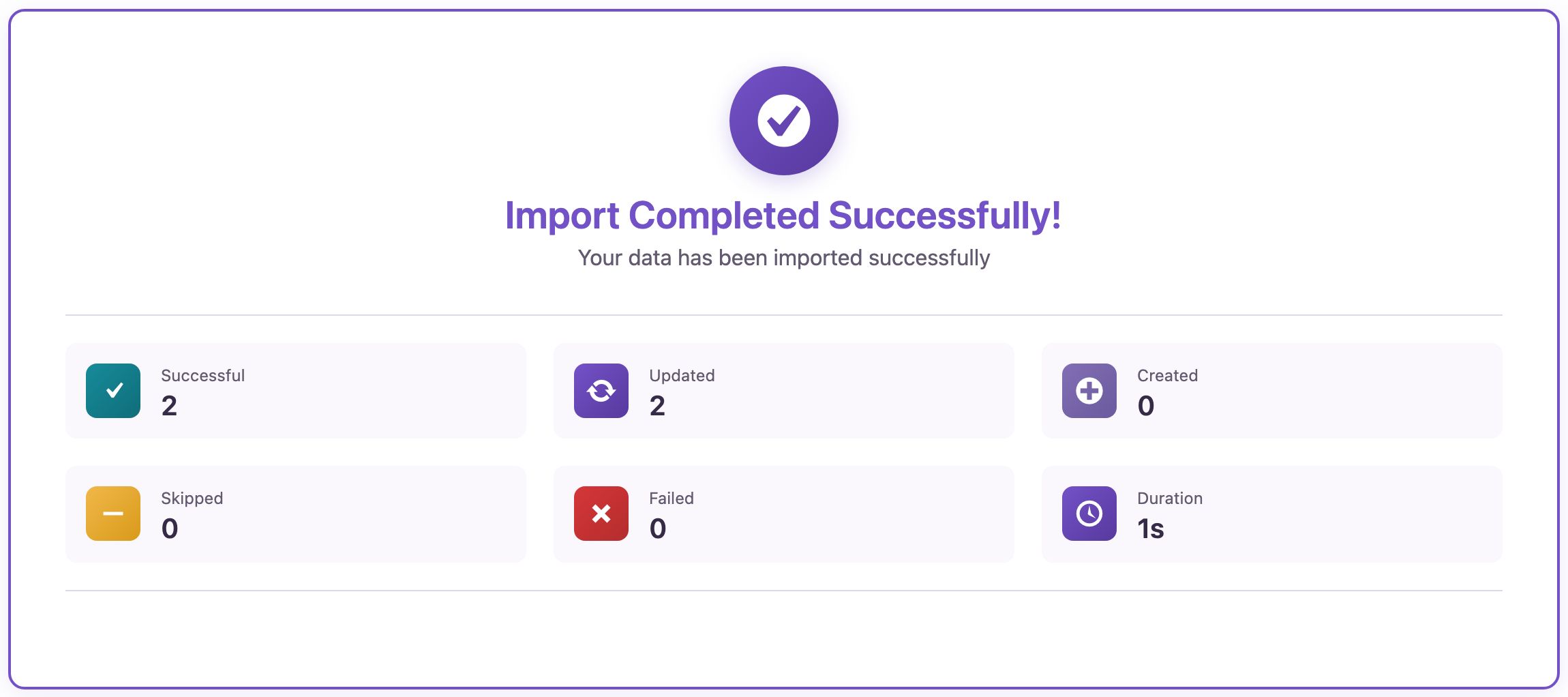
The content of both posts was byte-for-byte the same as before the export: the same line breaks, HTML and block comments. A spreadsheet app reads quoted line breaks as part of the cell and writes them back the same way; Excel and Google Sheets also follow these CSV quoting rules.
One limit to keep in mind: an Excel cell holds at most 32,767 characters. Very long posts are cut off when the file is saved from Excel. For long content, export to XLSX or JSON, or edit only the shorter columns.
How a CSV breaks
Problems start when the file is edited as plain text: in a text editor, by a script that joins lines, or by search-and-replace that removes a quotation mark. We deleted one closing quote at the end of the first post’s content and uploaded the file:

The preview says Total Rows: 1. Without the closing quote, the second post became part of the first post’s content. Importing this file would overwrite the V60 post with both posts’ text and skip the espresso post.
The fix: export again, or open the file in a spreadsheet app and check the row where the content suddenly includes the start of the next post. The number of rows in the preview should always match the number of posts you expect.
Tips for long HTML content
- Keep the ID column, so a re-import updates the right posts.
- For accented characters in Excel, turn on UTF-8 BOM on the export, or export to XLSX; see broken characters in Excel.
- For content that doesn’t need to be edited in a spreadsheet, JSON keeps line breaks and HTML without any quoting rules.
Before you import
Re-importing content replaces the existing text. Check the row count in the preview, import one row first, and back up the site before a large update.
With an AI agent
An AI agent connected through the WordPress MCP Adapter (see connecting Claude Code to WordPress) can check a file before anything is imported. It uploads the file with rsl-ie/upload-create, upload-chunk and upload-complete, and the response includes the row count and a preview.
Upload recipes-edited.csv and tell me how many rows it has before importing. I expect 2.In our run with the broken file, upload-complete returned total_rows: 1, and the preview showed the first post’s content ending with 2037,House Espresso, the start of the second row. The agent can stop there and report the problem instead of importing.
FAQ
Why are there double quotation marks everywhere?
CSV writes a quotation mark inside a value as two quotation marks. Spreadsheet apps and the importer turn them back into one.
Why does my CSV have more lines than posts?
Every line break inside the content adds a line to the file. Quoted values keep those lines inside one record.
Will the block editor still work after a round trip?
Yes. The block comments are part of the content and are exported and imported unchanged.
Can I edit the HTML in Excel?
Yes, inside the cell. Keep the structure of the HTML intact and don’t exceed Excel’s 32,767-character cell limit.
What if Total Rows is too low?
A quotation mark is missing or extra somewhere. Export a fresh file or find the row where the content runs into the next post.
Related Guides
- Import HTML Content into WordPress Without Breaking Formatting
- CSV, UTF-8 BOM and Broken Characters in Excel
- Compare Two WordPress Exports to See What Changed
- Excel Leading Zeros, Dates and Scientific Notation in CSV
Get the free plugin on WordPress.org.

Comments 0
Have a question or a tip to share? Leave it below.