
A supplier closes its shop, a partner moves to a new domain, or an affiliate program ends. Somewhere in your posts are links to that site, and WordPress has no list of them. With Import Export by RockStarLab, one export filter lists every post that links to a domain, and importing the same file back with a find-and-replace rule fixes the links in one pass. In the example, a coffee roastery’s links move from its old green-coffee supplier to the new one.
Free: everything in this guide works in the free plugin for posts and pages. PRO: the same for products and custom post types.
Short Answer
- In Export, choose Posts and add the filter Content Contains
the-domain.com. - Export ID, Title, Permalink and Content to CSV. That’s your list of posts to check.
- To change the links, import the same file with Check for Existing Items by Field = ID, If Match Found = Update and a Replace links rule from the old address to the new one.
- Repeat for Pages.
Find the posts
Our site had five posts; three of them linked to shop.greenbeans.example. In Export, we chose Posts and added one filter:

Use only the domain, without https:// or www, so that every link to it matches: the home page, product pages and links with tracking parameters such as ?utm_source=.
We exported ID, Title, Permalink and Content to CSV. The file listed the three posts:
| ID | Title | Links to the old shop |
|---|---|---|
| 2037 | Where We Buy Green Coffee | 2: the home page and /ethiopia-guji |
| 2038 | Home Roasting Starter Kit | 1: /sample-pack |
| 2039 | Cupping Notes: Kenya AA | 1: /kenya-aa?utm_source=roastery |
The Permalink column gives you a clickable list for checking each post by hand, and the Content column shows every link in context.
Replace the links in bulk
When the new address follows the same pattern, you don’t have to edit each post. Import the file you just exported, choose Posts, and click Auto Map. On the options step:
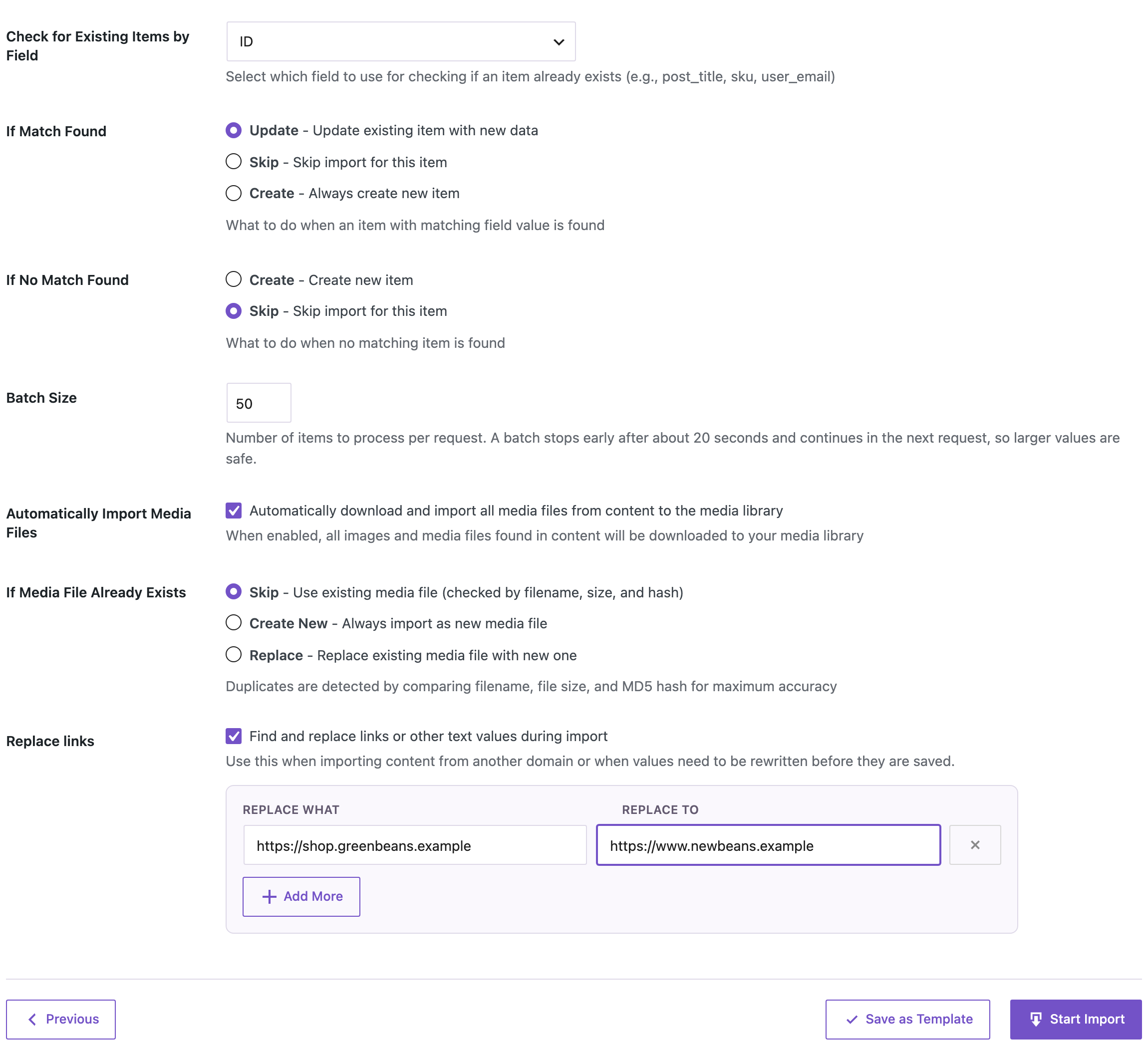
- Check for Existing Items by Field: ID and If Match Found: Update, so each row updates its own post.
- If No Match Found: Skip, so nothing new can be created by mistake.
- Replace links: Replace What
https://shop.greenbeans.example, Replace Tohttps://www.newbeans.example.

All three posts were updated, including both links in the first post and the link with the tracking parameter: https://www.newbeans.example/kenya-aa?utm_source=roastery. The slugs stayed the same. Auto Map sends the Permalink column to Slug, and the import takes the slug from that address.
The rule replaces the address and keeps the link text, so “Green Beans Co” still said “Green Beans Co”. If the name changed too, add a second rule with Add More, from the old name to the new one.
Don’t forget pages
An export of Posts doesn’t include pages. Our “Suppliers” page still linked to the old shop after the import. Run the same export and import with Pages, and with every custom post type that might contain the link.
Before you import
A find-and-replace rule changes every match in the content. Try it on one or two rows first, and back up the site before importing the full file. Keep the exported CSV: it’s a copy of the content before the change.
With an AI agent
An AI agent connected through the WordPress MCP Adapter (see connecting Claude Code to WordPress) can check that nothing is left:
How many posts and pages still contain greenbeans.example?In our run, the agent called rsl-ie/export-count with a “content contains” filter, once for posts and once for pages. It reported 0 posts and 1 page: the Suppliers page that still needed the same fix.
FAQ
Does this find links in excerpts or custom fields?
The Content filter searches the post content. For excerpts, use the Excerpt filter. For a custom field, add a Custom Field filter.
Can I find links to several domains at once?
Run one export per domain. Several Contains filters in one export must all match, so they find only posts that link to every one of the domains.
Will the import change anything else in the posts?
Only the mapped columns are written, and only text that matches the Replace links rule changes. In our test, titles and slugs stayed the same.
Can I just remove the links?
The rule replaces text with other text. To remove links but keep their words, edit the Content column in the CSV and import it back by ID.
What about links in menus and widgets?
They aren’t part of post content. Check Appearance → Menus and your widgets separately.
Related Guides
- How to Merge Two WordPress Sites into One
- Build a 301 Redirect Map from a WordPress URL Export
- Bulk Update WordPress Posts from CSV Without Duplicates
- Export Posts by Category, Tag or Author to CSV
Get the free plugin on WordPress.org.

Comments 0
Have a question or a tip to share? Leave it below.