
WordPress shows scheduled posts in the Posts list, but you can’t send that list to an editor, add notes next to it or print it for a planning meeting. A spreadsheet of what is going out, when and by whom is the simplest content calendar there is. In the example, a coffee roastery’s scheduled posts for December and January go to Excel with Import Export by RockStarLab.
Free: everything in this guide works in the free plugin for posts and pages. PRO: the same for custom post types and WooCommerce products.
Short Answer
- In Export, choose Posts and add a filter Status Equals
future. - Add two Date filters for the period: Greater or Equal the first day, Less or Equal the last day.
- Add the columns Title, Date, Author Name, Category Names, Word Count and Featured Image URL, choose XLSX and export.
Filter the scheduled posts
WordPress calls scheduled posts future, so that’s the value the Status filter needs. A date range keeps the calendar to the weeks you’re planning and leaves out anything scheduled far ahead:
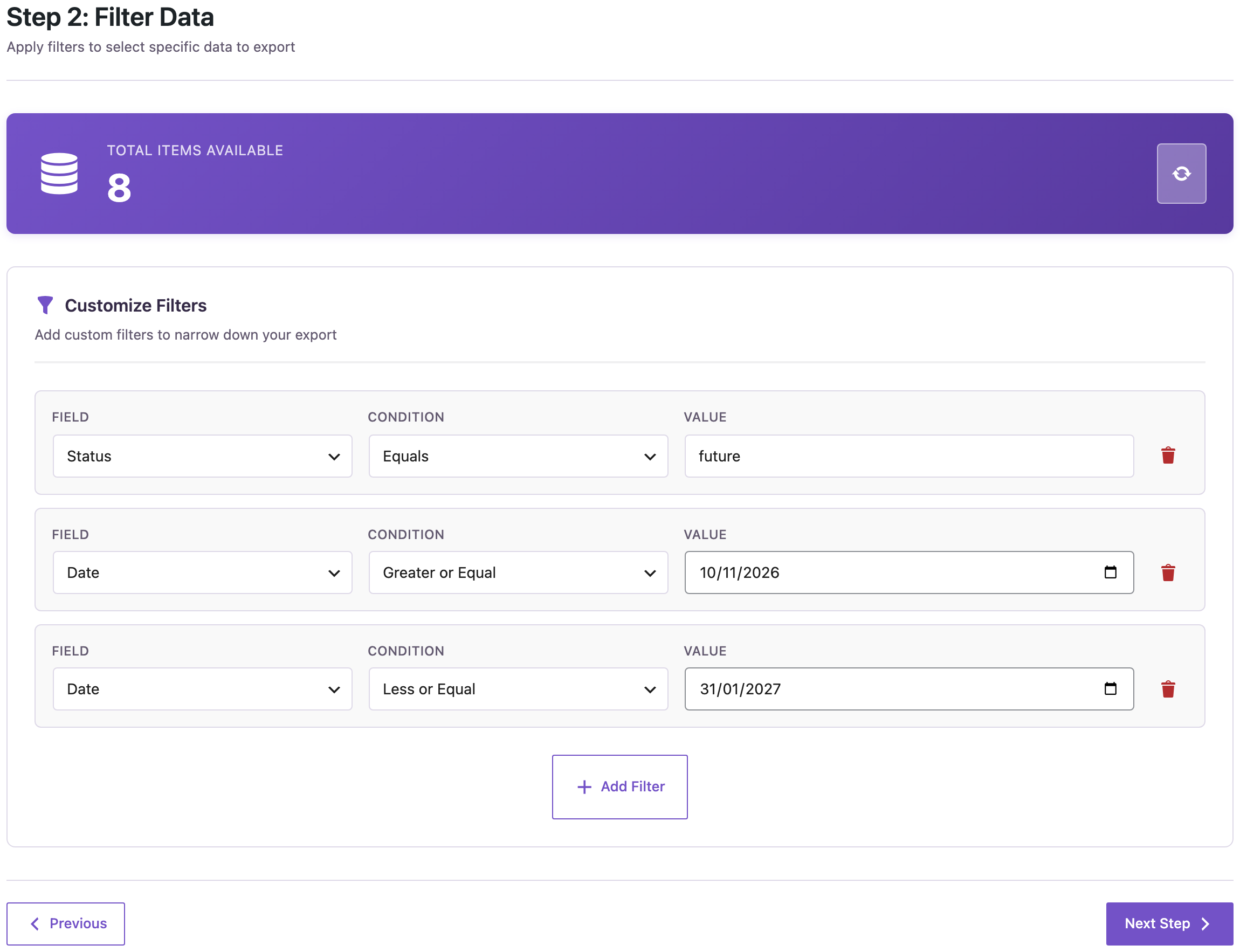
On our site, the status filter alone matched 9 posts: one of them was a test post scheduled for 2030. With the range from 10 November 2026 to 31 January 2027, 8 posts remained.
To include drafts with a planned date, use the condition In with the value future,draft instead of Equals future. When we tested it, a draft dated 20 December was counted together with the scheduled posts.
Choose the columns

| Column | Why it’s in the calendar |
|---|---|
| Title | What is going out. |
| Date | When it goes out: the scheduled publish date and time. |
| Author Name | Who is responsible for it. |
| Category Names | The categories as readable names (“Brew Guides”), so you can check the mix of topics. |
| Word Count | Spots posts that are still too short to go out. |
| Featured Image URL | Empty means the post has no featured image yet. |
Choose XLSX on the format step, give the file a name such as content-calendar and start the export.

The calendar
Our file, sorted by date in Excel (the export lists the newest date first):
| Title | Date | Author | Category | Words | Image |
|---|---|---|---|---|---|
| Holiday Gift Guide: Coffee Edition | 2026-12-01 09:00 | Tomás Rivera | Roastery News | 600 | yes |
| How to Brew for a Crowd | 2026-12-03 09:00 | Lena Novak | Brew Guides | 900 | — |
| December Single Origin: Rwanda | 2026-12-05 08:00 | Tomás Rivera | Roastery News | 350 | — |
| Mulled Cold Brew Recipe | 2026-12-08 09:00 | Lena Novak | Brew Guides | 450 | yes |
| Shipping Deadlines for Christmas | 2026-12-10 07:30 | Tomás Rivera | Roastery News | 150 | — |
| Grinder Cleaning Before the Holidays | 2026-12-15 09:00 | Lena Novak | Brew Guides | 700 | — |
| Year in Review: Our 2026 Coffees | 2026-12-29 10:00 | Tomás Rivera | Roastery News | 1,200 | yes |
| January Subscription Lineup | 2027-01-05 09:00 | Lena Novak | Roastery News | 300 | — |
The file answers the usual planning questions at a glance: a gap between 15 and 29 December, five of the eight posts without a featured image, and a 150-word shipping notice that may need more text. The dates are written as 2026-12-01 09:00:00, so sorting the Date column A to Z puts them in calendar order.
Share it with the team
- Upload the XLSX to Google Sheets or OneDrive, add a Notes column, and let the editors comment there.
- Export again whenever the schedule changes; the file always reflects what WordPress will publish.
- To change dates or titles from the spreadsheet, add the ID column to the export and import the file back with Check for Existing Items by Field = ID. See updating posts without duplicates.
Before you import changes back
Exporting doesn’t change anything on the site. If you edit the calendar and import it back, back up the site first and import a couple of rows to check the result.
With an AI agent
An AI agent connected through the WordPress MCP Adapter (see connecting Claude Code to WordPress) can list the calendar in date order without a file:
List the posts scheduled between 10 November 2026 and 31 January 2027, oldest first, with the date and author.In our run, the agent called rsl-ie/export-preview with the status and date filters and the order set to date ascending. It returned the same eight posts, starting with the Holiday Gift Guide on 1 December and ending with the January Subscription Lineup on 5 January.
FAQ
Why do I filter by “future” and not “Scheduled”?
“Scheduled” is the label in the WordPress admin; future is the status name stored in the database, and that’s what the filter compares.
Can I include drafts?
Yes. Use the condition In with future,draft. Drafts are listed with the date set in the post.
Why is the newest post first?
The export lists posts by date, newest first. Sort the Date column in Excel to read the calendar in order.
Can I export pages or products the same way?
Yes. Choose Pages instead of Posts; products and custom post types need PRO.
Can I send it as CSV instead?
Yes. Choose CSV on the format step. XLSX keeps accented names such as “Tomás” intact when the file is opened in Excel.
Related Guides
- Export Posts by Category, Tag or Author to CSV
- Export WordPress Posts per Author per Month
- Find Outdated WordPress Posts by Last Modified Date
- How to Export WordPress to Excel: Built-In Export vs a Plugin
- Schedule WordPress Posts from a CSV Content Calendar
Get the free plugin on WordPress.org.

Comments 0
Have a question or a tip to share? Leave it below.