
You exported your posts last week, closed the tab, and now need the file again. Or you’re wondering whether a CSV with all your customer data is sitting in a public folder somewhere. Below: where Import Export by RockStarLab keeps export files, how to download one again, and how they are removed. We checked each point on a test site.
Free and PRO: export files are stored and cleaned up the same way in both.
Short Answer
- Where: in a private folder outside the website’s own files, so there’s no public URL to an export.
- Download again: open the plugin’s Jobs page and click the download icon next to the export.
- Clean up: delete the job, and its file is deleted with it. Files that no longer belong to any job are removed automatically after 30 days.
Where export files are stored
Export files aren’t saved in wp-content/uploads. The plugin keeps them in a private folder outside the WordPress directory: by default the server’s temporary directory, in a folder named rsl-ie- followed by a long code unique to the site. Each export has its own subfolder that only the web server can read.
- There’s no address like
/wp-content/uploads/pages-backup.csv. On our site, that address returned 404. - The file is only handed out through the WordPress admin, to users who are allowed to see it.
Some hosts empty the temporary directory regularly, and then older exports disappear before you download them again. To keep them somewhere permanent, set a folder outside the website in wp-config.php:
define( 'RSL_IE_PRIVATE_DIR', '/home/youraccount/private/rsl-ie' );The folder must exist and must not be inside the WordPress directory or the web root; the plugin refuses a folder that a browser could reach.
Download an export again
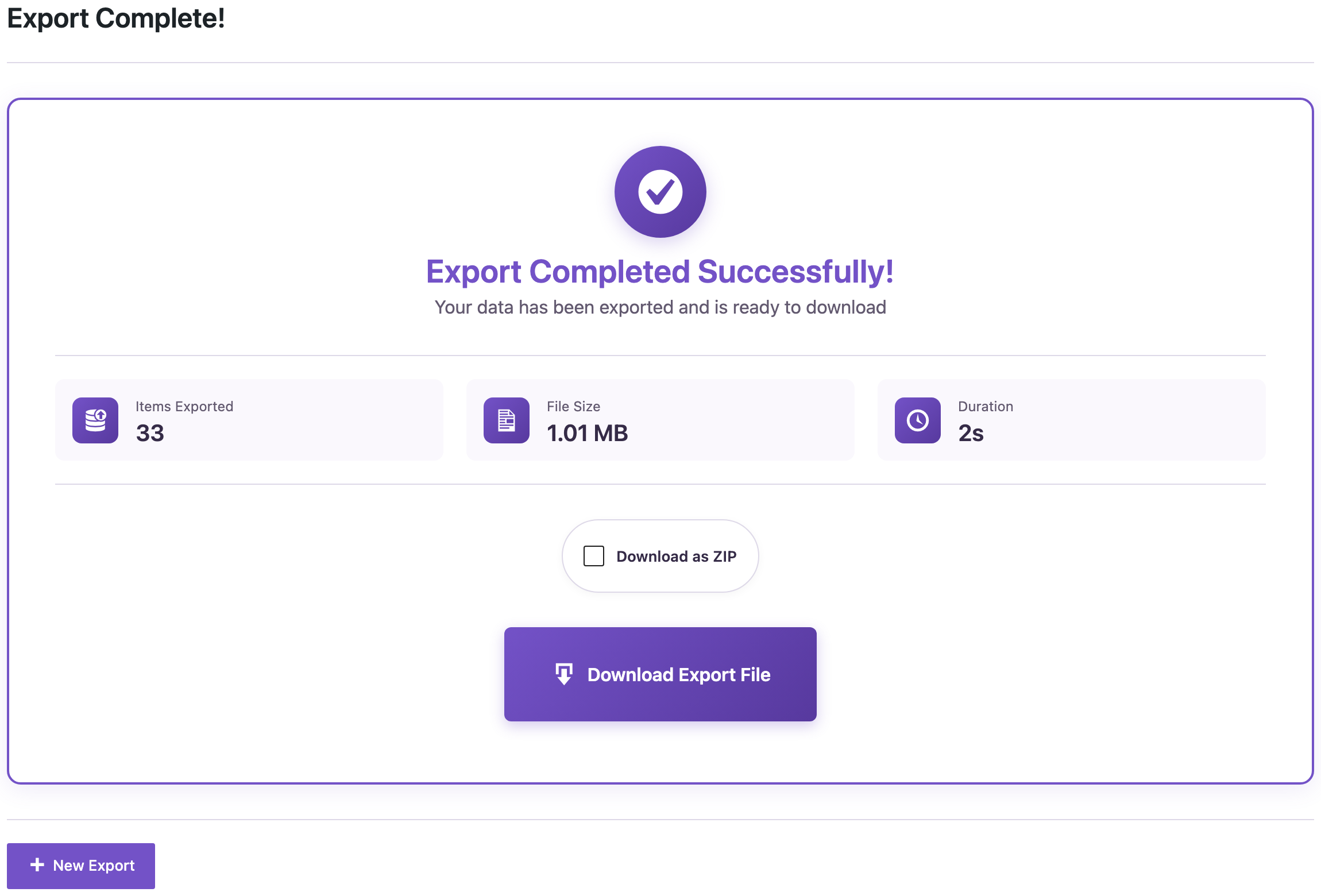
After an export, the last screen has the Download Export File button, and an option to download it as a ZIP:
If you closed that screen, open Jobs in the plugin’s menu. Every finished export has a download icon in the Actions column:

In our test, we exported 33 pages to pages-backup.csv, downloaded it from the export screen, then opened Jobs and downloaded the same file again with the icon.
Exports started by a schedule or by an AI agent appear in the same list, so their files are downloaded the same way.
Clean up export files
Click the trash icon next to a job to delete it. The confirmation says it plainly:

When we deleted our export job, its folder with pages-backup.csv was removed from the server at once. Keep a downloaded copy if you still need the file.
The plugin also cleans up on its own once a day:
- A file that belongs to an existing job is kept, so the Download button keeps working.
- A finished file whose job no longer exists is removed 30 days after it was last changed.
- An unfinished file that doesn’t belong to any job is removed after one day.
Before you delete
Deleting a job can’t be undone, and the export file goes with it. If an export is your only copy of the content, download it first and keep it with your site backups.
With an AI agent
An AI agent connected through the WordPress MCP Adapter (see connecting Claude Code to WordPress) can remove old finished jobs and their files in one step, which the admin screens don’t offer:
Delete finished import and export jobs older than 90 days.The agent calls rsl-ie/job-cleanup with the number of days. It deletes up to 100 finished, failed or cancelled jobs per call, with their files. In our run, we asked for jobs older than ten years so nothing on the test site would be removed. The ability answered with 0 deleted.
FAQ
Can someone download my export by guessing the URL?
No. Export files aren’t in a public folder, and the plugin only sends them through the WordPress admin.
How long can I download an export again?
As long as its job is in the Jobs list, unless your host clears the temporary directory. Set RSL_IE_PRIVATE_DIR to keep files in a permanent folder.
Does deleting a job delete the posts it exported?
No. It only deletes the job record and the export file. Your content isn’t touched.
Can I find the files on the server?
Yes, in the server’s temporary directory (or the folder set in RSL_IE_PRIVATE_DIR), in a folder starting with rsl-ie-. Downloading through the Jobs page is easier and safer.
Related Guides
- How to Export WordPress to Excel: Built-In Export vs a Plugin
- Export a Large WordPress Site Without Timeouts
- Import and Export WordPress Content with WP-CLI
- Export Your Content Calendar: Scheduled WordPress Posts to Excel
Get the free plugin on WordPress.org.

Comments 0
Have a question or a tip to share? Leave it below.