
Content calendars usually live in a spreadsheet: one row per post, with the day and time it should go live. Copying each row into WordPress and setting the publish date by hand takes a while and invites mistakes with time zones. Import Export by RockStarLab imports the calendar as scheduled posts that WordPress publishes on time. In the example, a coffee roastery’s blog gets a month of posts from one CSV file.
Free: everything in this guide, including categories and the AI agent abilities.
Short Answer
- In your spreadsheet, add a
post_statuscolumn with the valuefutureand apost_datecolumn with the publish date and time, for example2026-12-01 09:00. - Save it as CSV and go to Import Export → Import, choose Blog Posts and upload the file.
- Click Auto Map and check that
post_statusandpost_dateare mapped. - Start the import. The posts appear under Posts → Scheduled and WordPress publishes each one at its date.
The file
Our December calendar has four posts for the coming weeks and one that was planned for last week:
post_title,post_status,post_date,post_content,categories
Holiday Gift Guide for Coffee Lovers,future,2026-12-01 09:00,"Six gifts under 50 euros, from grinders to subscriptions.",Guides
How to Brew for a Crowd,future,2026-12-08 09:00,"Batch brew, ratios and timing for ten cups or more.",Brewing
Our Winter Blend Is Back,future,2026-12-15 09:00,"Chocolate, orange peel and a little spice.",News
New Year Opening Hours,future,2026-12-29 18:30,"When the roastery cafe is open over the holidays.",News
Last Week's Cupping Notes,future,2026-11-02 10:00,"What we tasted last week.",News- post_status:
futureis the WordPress name for a scheduled post. Use exactly this word. - post_date: the date and time in your site’s time zone (Settings → General → Timezone).
2026-12-01 09:00and2026-12-01 09:00:00both work. If you work in another time zone, use apost_date_gmtcolumn with UTC times instead. - categories: mapped to Categories, it puts each post in its category and creates categories that don’t exist yet. See importing categories and tags from CSV for several categories per post.
In Excel or Google Sheets, format the date column as text or as yyyy-mm-dd hh:mm before saving, so the spreadsheet doesn’t turn it into its own date format. The guide on dates and leading zeros in Excel CSV files explains why Excel changes them.
Step 1: Upload the calendar
Open Import Export → Import, choose Blog Posts and upload the CSV file. Step 3 shows the five rows so you can check the dates were read as written.
Step 2: Map the columns
Click Auto Map in step 4. post_title, post_status, post_date and post_content map to the fields of the same name, and categories maps to Categories.
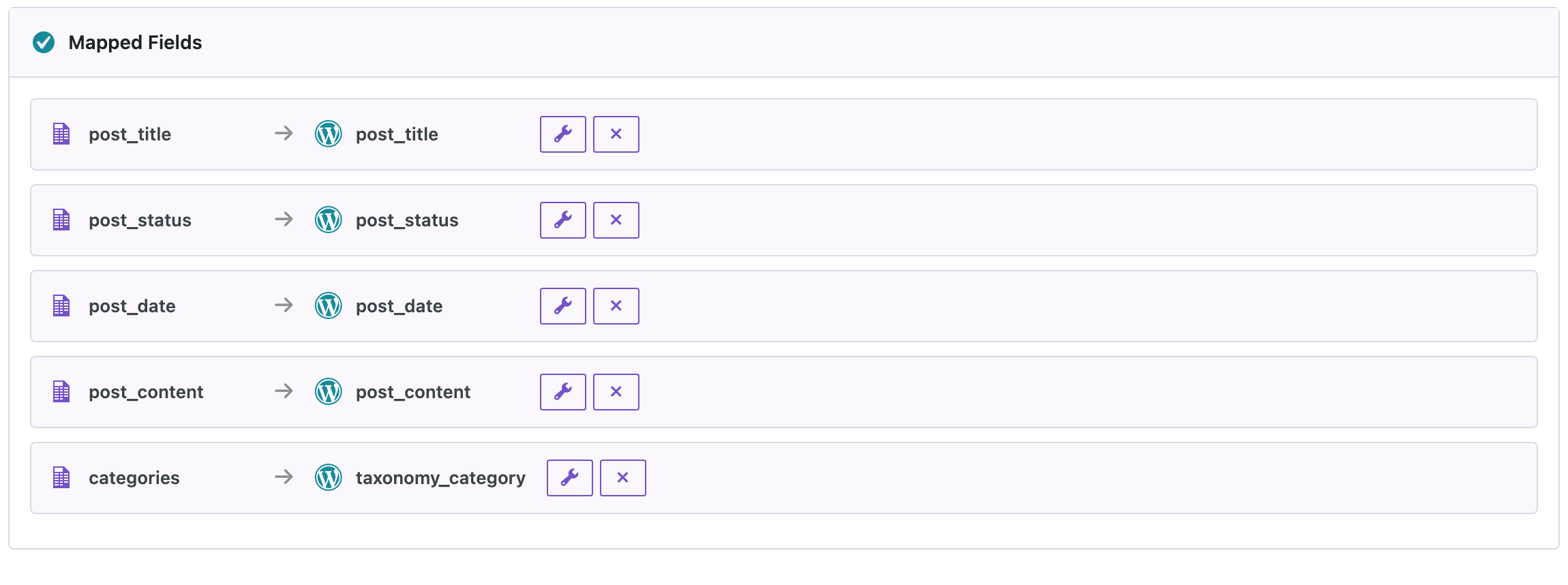
In step 5, choose post_title under Check for Existing Items by Field. If you change a date in the spreadsheet later and import the file again, the posts are rescheduled instead of duplicated.
Step 3: Import and check the schedule
Click Start Import. All five posts were created in a second.

Posts → Scheduled lists the four posts with their dates and categories:

The fifth post, planned for a date that had already passed, was published right away with that date, the same as when you schedule a post in the editor with a past date. So a calendar that is partly in the past is safe to import: old rows go live with their original dates, new rows wait.
How the posts get published
WordPress publishes scheduled posts with WP-Cron, which runs when someone visits the site. On a site with regular visitors the post goes live within a minute or so of its time. We tested it with a post scheduled three minutes ahead: at the planned time it changed from Scheduled to Published by itself.
On a site with very few visitors, or where WP-Cron is turned off, a post can go live late. Ask your host to set up a server cron job that calls wp-cron.php every few minutes; scheduled imports and exports in the Jobs Log rely on the same WP-Cron.
Things to watch
- Use
futurefor posts that should wait. A row withpublishand a date in the future goes live immediately. - Any other value, or an empty cell, keeps the default status of the import, which is draft.
- Scheduled posts don’t appear on the site, in feeds or in the sitemap until they are published.
- Pages work the same way: choose Pages in step 1.
With an AI agent
An AI agent connected through the WordPress MCP Adapter (see connecting Claude Code to WordPress) can schedule posts from a list you give it:
Schedule a News post "Tasting Notes: Panama Geisha" for 14:39 today
with the text "Jasmine, bergamot, stone fruit."
In our run, the agent wrote a one-row CSV with future and the date, uploaded it with rsl-ie/upload-create, rsl-ie/upload-chunk and rsl-ie/upload-complete, and started the import with rsl-ie/import-start, mapping categories to taxonomy_category and matching by post_title. The post was saved as Scheduled for 14:39 and was published at 14:39 by WP-Cron, without anyone touching it.
Before you import
Scheduled posts go live without anyone checking them again. Create a backup before importing into a live site, and look through the Scheduled list after the import.
FAQ
Which status do I use for scheduled posts?
future. It is the WordPress name for scheduled posts. With publish and a future date, the post goes live immediately.
Which time zone is the post_date in?
Your site’s time zone from Settings → General. Use a post_date_gmt column if your times are in UTC.
What happens to rows with a date in the past?
They are published right away and keep the date from the file.
Can I change the dates later?
Yes. Change them in the spreadsheet and import it again with post_title (or the slug) as the field to match. The posts are updated and rescheduled.
Why didn’t a scheduled post go live on time?
WP-Cron only runs when the site gets a visit. On quiet sites, set up a server cron job that calls wp-cron.php regularly.
Related Guides
- Import Posts with Categories and Tags from CSV
- Import Posts from Excel with Featured Images by URL
- Excel Lost Leading Zeros or Shows Dates? Fix an Exported CSV
- Save and Reuse Field Mapping Templates for Recurring WordPress Imports
- WordPress Import Created Duplicate Posts? Causes and Fix
Get the free plugin on WordPress.org.

Comments 0
Have a question or a tip to share? Leave it below.