
A new section of a site often starts as a sitemap in a spreadsheet: a guide page, the pages under it, and the pages under those. Creating them one by one in WordPress and picking each parent from a dropdown is slow, and it is easy to put a page in the wrong place. Import Export by RockStarLab imports the whole tree from one CSV file. The example builds a three-level Coffee Guide section with seven pages, then adds two pages under an existing page.
Free: everything in this guide, including the parent-child import and the AI agent abilities.
Short Answer
- Give every row a number in an
IDcolumn, and put the number of its parent row inpost_parent. Leavepost_parentempty for top-level pages. - Add
post_title,post_name(the slug),menu_orderandpost_status. - Go to Import Export → Import, choose Pages and upload the file.
- Click Auto Map, then in step 5 choose Slug under Check for Existing Items by Field.
- Start the import. The plugin creates the pages and then links each page to its parent.
How the file describes the tree
WordPress stores the parent of a page as the parent’s ID. Your new pages don’t have IDs yet, so the file uses its own numbers: each row has an ID, and post_parent points to the ID of another row in the same file. After all pages are created, the plugin replaces these numbers with the real IDs WordPress gave the pages.
Our file for the Coffee Guide section:
ID,post_title,post_name,post_parent,menu_order,post_status,post_content
101,Coffee Guide,coffee-guide,,1,publish,"Everything we know about coffee, from bean to cup."
102,Brewing Methods,brewing-methods,101,1,publish,How to brew at home.
103,Pour-over,pour-over,102,1,publish,"Paper filter, slow pour, clean cup."
104,French Press,french-press,102,2,publish,"Coarse grind, four minutes, full body."
106,Ethiopia,ethiopia,105,1,publish,"Floral, citrus, tea-like."
105,Origins,origins,101,2,publish,Where our beans come from.
107,Colombia,colombia,105,2,publish,"Caramel, red apple."- The numbers can be anything that is unique in the file: 101, 102 or 1, 2, 3. They are not used as WordPress IDs.
- The order of the rows doesn’t matter. In the file above, Ethiopia comes before its parent Origins, and it still ended up under Origins.
menu_ordersets the order of pages that share a parent: Pour-over (1) comes before French Press (2).post_nameis the slug. Together with the parents it makes the address: Ethiopia lives at/coffee-guide/origins/ethiopia/.
Step 1: Upload the file as Pages
Open Import Export → Import, choose Pages as the content type and upload the CSV file. Step 3 shows the columns and the first rows so you can check that the file was read correctly.
Step 2: Map the columns
In step 4, click Auto Map. When the column names are WordPress field names, as in this file, all seven columns are mapped at once. Make sure ID and post_parent are both mapped: without the ID column the plugin can’t tell which row is the parent.

Step 3: Match existing pages by slug
In step 5, choose Slug under Check for Existing Items by Field, keep Update for a match and Create for no match. The first import creates all pages. If you fix a title or move a page in the spreadsheet and import the same file again, the pages are updated instead of created twice. We ran the same file a second time: 7 updated, 0 created, and every page kept its parent.

Don’t choose ID here. The numbers in the file are only row references, so matching by ID could update an unrelated page that happens to have that ID on your site.
Step 4: Run the import and check the tree
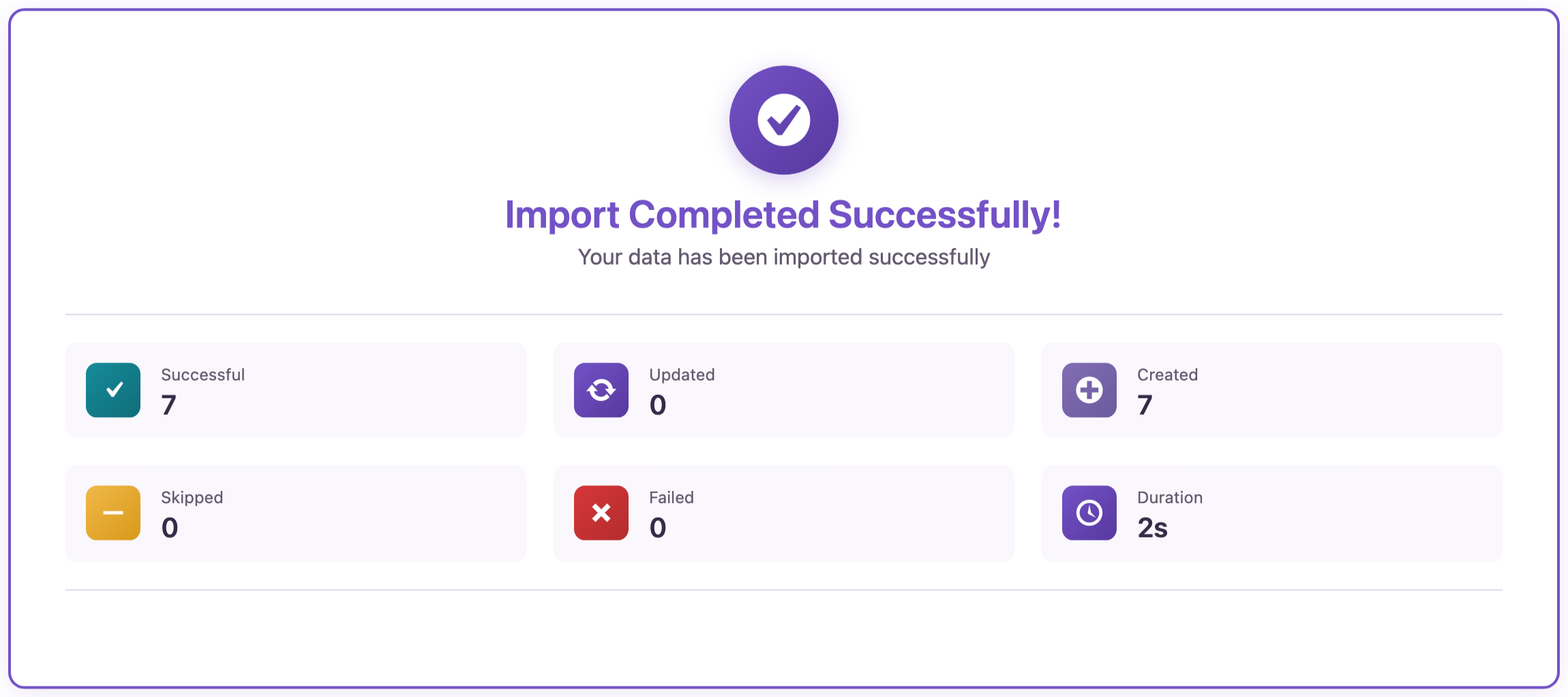
Click Start Import. Our seven pages were created in 2 seconds.
In Pages, child pages are shown with a dash for each level, so you can check the tree at a glance:

The addresses followed the tree as well: /coffee-guide/brewing-methods/pour-over/ and /coffee-guide/origins/colombia/. If your theme shows breadcrumbs or a list of child pages, they work without any extra step.
Add pages under an existing page
To put new pages under a page that already exists, use that page’s real ID in post_parent. You can see the ID in the page’s edit link (post=12) or in a pages export. Our About Us page has ID 12, so this file adds a Wholesale section under it:
ID,post_title,post_name,post_parent,menu_order,post_status,post_content
201,Wholesale,wholesale,12,5,publish,Coffee for cafes and offices.
202,Price List,price-list,201,1,publish,Prices per kilo.
Wholesale went under About Us (/about-us/wholesale/) and Price List under Wholesale (/about-us/wholesale/price-list/). A number in post_parent that is also an ID in the file always means that row, so give your rows numbers that are not the IDs of the existing pages you want to use as parents.
Moving pages between sites
The same rule makes a pages export from one site importable on another. The export has the real ID and post_parent of the old site; on import they act as row numbers, so the tree is rebuilt with the new site’s IDs. If you are moving a whole site’s content, see how to migrate only posts and pages to a new WordPress site.
With an AI agent
An AI agent connected through the WordPress MCP Adapter (see connecting Claude Code to WordPress) can build a section from a list you give it:
Add a Wholesale page under About Us, and a Price List page under Wholesale.In our run, the agent wrote the two-row file above, uploaded it with rsl-ie/upload-create, rsl-ie/upload-chunk and rsl-ie/upload-complete (which returned the headers and both rows for a check), and started the import with rsl-ie/import-start: import type page, the seven columns mapped to the fields of the same name, and post_name as the field to match. rsl-ie/job-get-result reported 2 of 2 rows done with no errors, and both pages were in place under About Us.
Before you import
An import that updates pages changes your live content. Create a backup before you import into a live site, and try a new file on a staging copy first if it updates many existing pages.
FAQ
Can I set the parent by title or slug instead of an ID?
Not directly. Put a number in the ID column of the parent row and use that number in post_parent. For a page that already exists on the site, use its real page ID.
Does the order of rows matter?
No. Parents are linked after all rows are imported, so a child page can come before its parent in the file.
Will the numbers in the ID column become the page IDs?
No. WordPress gives new pages its own IDs. The numbers in the file only tell the import which row is the parent of which.
How do I control the order of pages under the same parent?
Use the menu_order column. Pages with a lower number come first in page lists and in themes that sort by page order.
Related Guides
- Export WordPress Pages to CSV: URLs, Parent and Template
- WordPress Content Inventory: Export Pages to a Spreadsheet
- Save and Reuse Field Mapping Templates for Recurring WordPress Imports
- Build a 301 Redirect Map for WordPress from a URL Export
- Migrate Only Posts and Pages to a New WordPress Site
Get the free plugin on WordPress.org.

Comments 0
Have a question or a tip to share? Leave it below.