
All-in-One WP Migration packs a whole WordPress site into one file: the database, media, themes and plugins. That is what you want when you move a site to a new host. When you only need some content on a site that is already running, for example one category of posts, a whole-site file is the wrong size. Import Export by RockStarLab moves just that content.
Free: export and import of posts, pages, media, comments, categories and tags. PRO: custom post types, WooCommerce, users and menus.
Short Answer
- All-in-One WP Migration is built to move or restore a whole site. Its advanced options can leave out parts of the site, but not choose single posts.
- To move one category of posts, export with a Taxonomy Filter on that category, then import the file on the other site with Skip for items that already exist.
- The other site keeps everything else: its own posts, comments, orders and settings.
What All-in-One WP Migration moves
According to the plugin page, the export is one file with the database, media, themes and plugins. The ServMask export and import guide lists advanced options that leave things out of the file: spam comments, post revisions, and (marked “only use if absolutely necessary”) the media library, themes, plugins or the database. There is no option to pick posts by category or by ID.
On import, the plugin restores the database, themes, plugins and media of the file. Host guides quote its import warning that the process “will overwrite your website including the database, media, plugins, and themes” (InMotion Hosting). So it is not meant for adding a few posts to a site that has its own new content.
Move one category of posts
Our test: the staging site has a new category, Brew Guides, with 3 posts, each with a featured image and the tag brewing. The live site has a post the staging site does not have, “Holiday Gift Boxes Are Back”, plus its comments and 9 WooCommerce orders.
1. Export the category
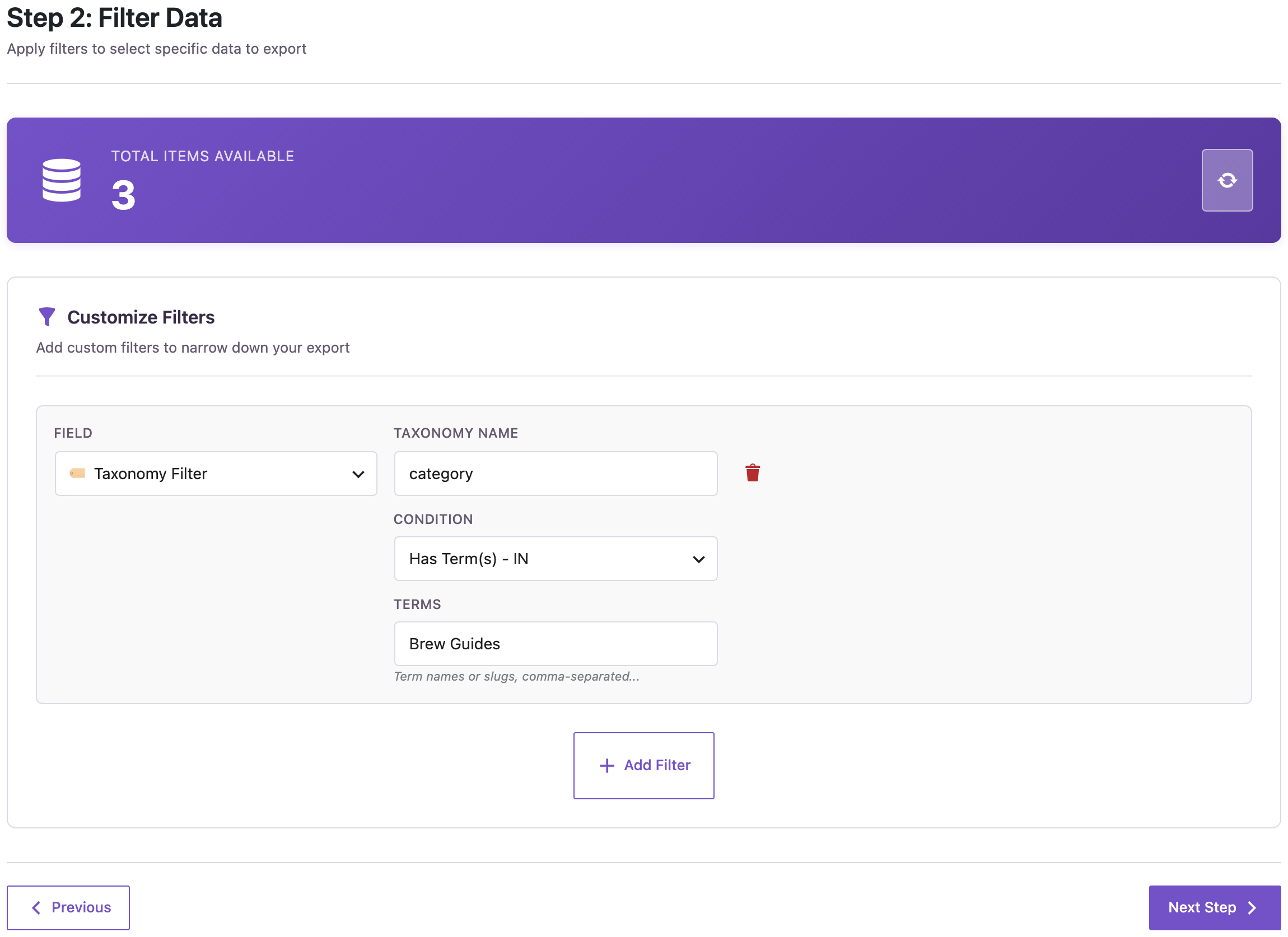
On the staging site, go to Import Export → Export, choose Blog Posts and add a Taxonomy Filter: taxonomy category, condition Has Term(s) – IN, term Brew Guides. The count shows the 3 posts:
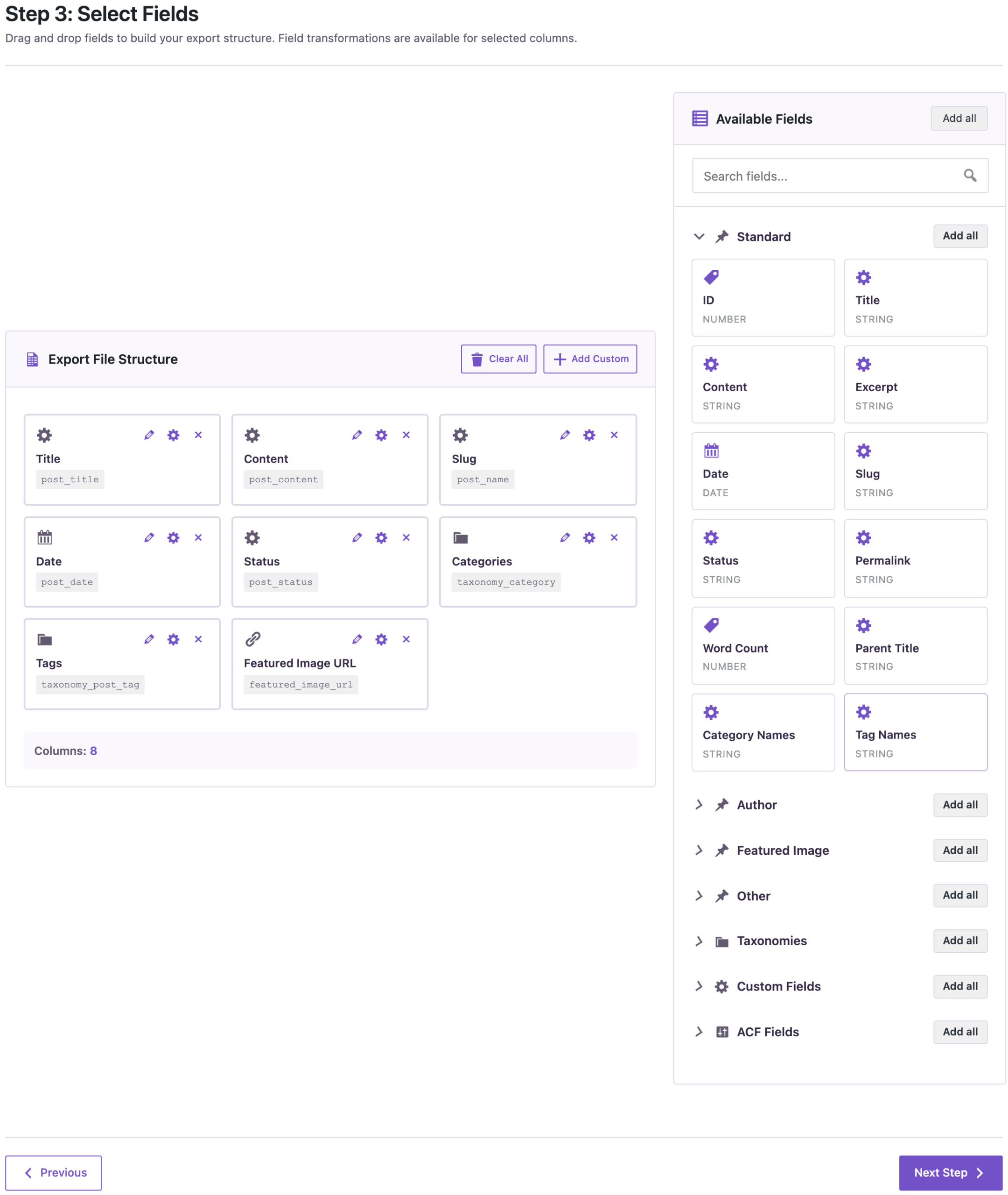
On the next step, add the columns the other site needs: Title, Content, Slug, Date, Status, Categories, Tags and Featured Image URL. Export as CSV.
2. Import on the live site
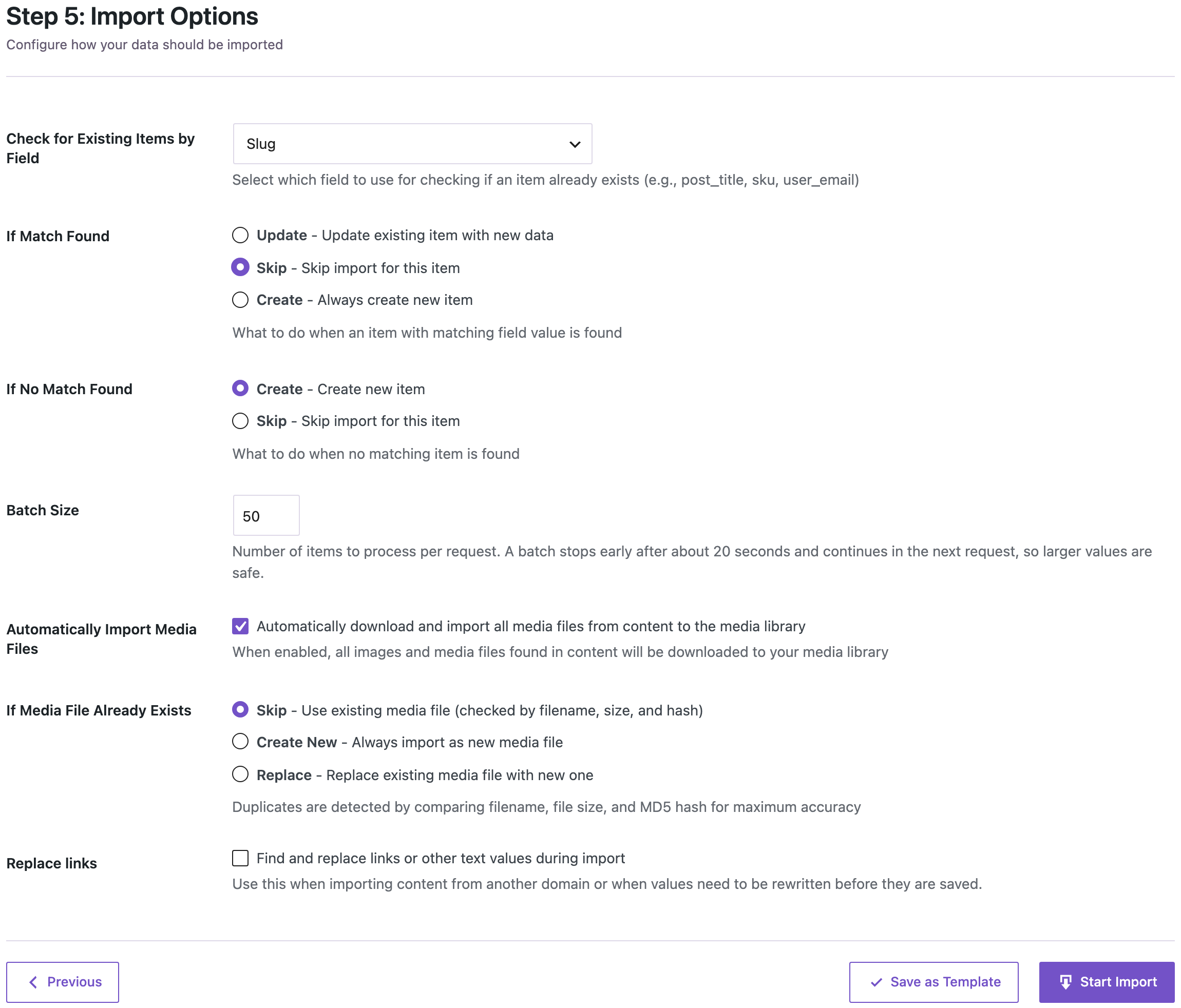
On the live site, go to Import Export → Import, choose Blog Posts, upload the CSV and click Auto Map. All eight columns were mapped to the fields with the same names. In the options, check existing items by Slug, choose Skip if a match is found and Create if not:
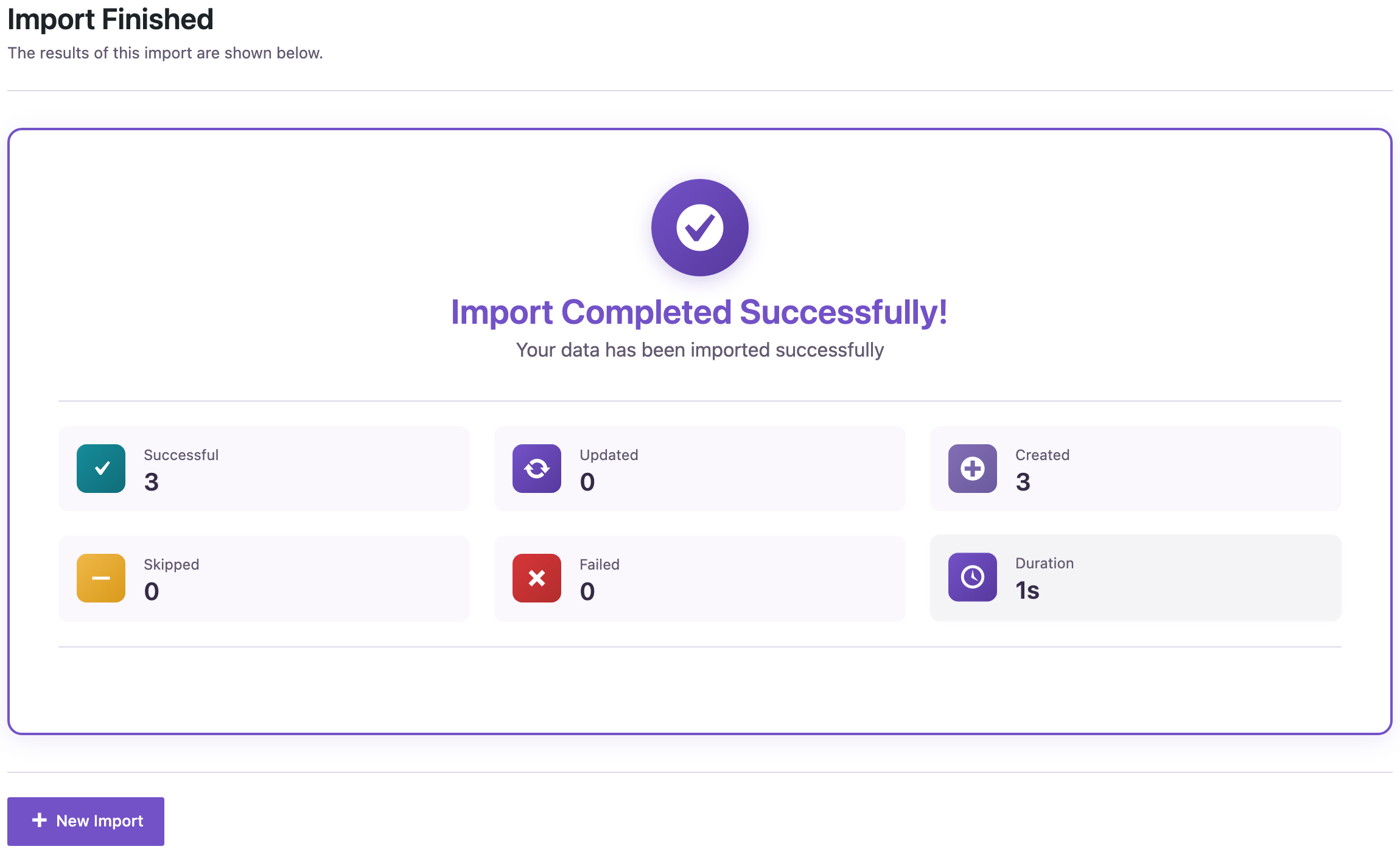
The import created the 3 posts:
On the live site, the posts kept their dates and slugs, the Brew Guides category and the brewing tag were added, and each post had its featured image. The image was already in the live media library, so the existing file was used (If Media File Already Exists → Skip). The post “Holiday Gift Boxes Are Back”, the comments and the 9 orders did not change.
Which tool for which job
| Job | Better fit |
|---|---|
| Move a whole site to a new host or domain | All-in-One WP Migration |
| Restore a full backup of a site | All-in-One WP Migration or another backup plugin |
| Copy one category, a date range or chosen posts to a site that is already live | Import Export by RockStarLab |
| Review or edit the content in a spreadsheet before it goes to the other site | Import Export by RockStarLab (CSV or Excel) |
Before you import
With Skip, posts that already exist on the live site are not changed, but new posts and terms are added. Back up the live site before you import, and try the file on a staging copy first if it is large.
With an AI agent
An AI agent connected to the live site through the WordPress MCP Adapter (see connecting Claude Code to WordPress) can check the result:
List the posts in the Brew Guides category on the live site with their dates and featured images.In our run, the agent called rsl-ie/export-preview for posts with a category filter on brew-guides. It returned the 3 imported posts with their dates (3, 5 and 7 November) and the featured image URL on the live site.
FAQ
Can All-in-One WP Migration export only some posts?
Its advanced options leave out whole parts such as spam comments, revisions, media, themes, plugins or the database. They do not pick posts by category or ID.
Do featured images come along?
Yes. Export the Featured Image URL column. On import, the image is downloaded from that URL, or an identical file already in the media library is used. Keep the source site online until the import is done.
What happens if a post is already on the other site?
With Check for Existing Items by Field → Slug and If Match Found → Skip, it is left as it is. Choose Update to overwrite it with the version from the file.
Related Guides
- Export Posts by Category, Tag or Author to CSV
- Move WordPress Posts and Keep Dates, Authors and Slugs
- Duplicator Alternative When You Don’t Need a Full-Site Package
- WP Staging Alternative: Push Only the Pages You Changed
Get the free plugin on WordPress.org.

Comments 0
Have a question or a tip to share? Leave it below.