
Duplicator is a good tool for moving or cloning a whole WordPress site. It packs the site’s files and database into one package and installs it at the new location. But many moves are smaller: two new blog posts written on staging, a set of pages for a new section, the content of an old site going into a new one that already has its own pages and users. For these, replacing the whole site is more than you need. Below is the content-only way with Import Export by RockStarLab, and when each tool fits.
Free: Content Migration and Content Sync for posts, pages, media and comments. PRO: custom post types, menus, users and WooCommerce data in the same package.
Short Answer
- Use Duplicator when you move or clone the whole site: files, plugins, themes, settings and database together.
- Use a content-only package when the destination site already exists and you want to add or update some content without touching the rest.
- In Import Export by RockStarLab, go to Content Migration, create an export file with the content types you need, and upload it on the other site. Items that already exist there are skipped unless you choose to update them.
What a full-site package does to the destination
Duplicator’s documentation says an overwrite install “will replace any existing files and the Database of the current WordPress site” (Duplicator: overwrite install). That is what you want for a site move, and what you don’t want when the live site has orders, comments, users or pages that staging doesn’t have. Duplicator’s plugin page lists partial backups (plugins only, themes only, media only) as Pro features, and it does not describe a way to move only chosen posts.
A content-only package, step by step
Our test: the staging site had two new blog posts, “Our Spring Menu Is Here” and “Meet Our New Head Roaster”, with a featured image. The live site had 84 posts, 33 pages, 10 users and its own settings.
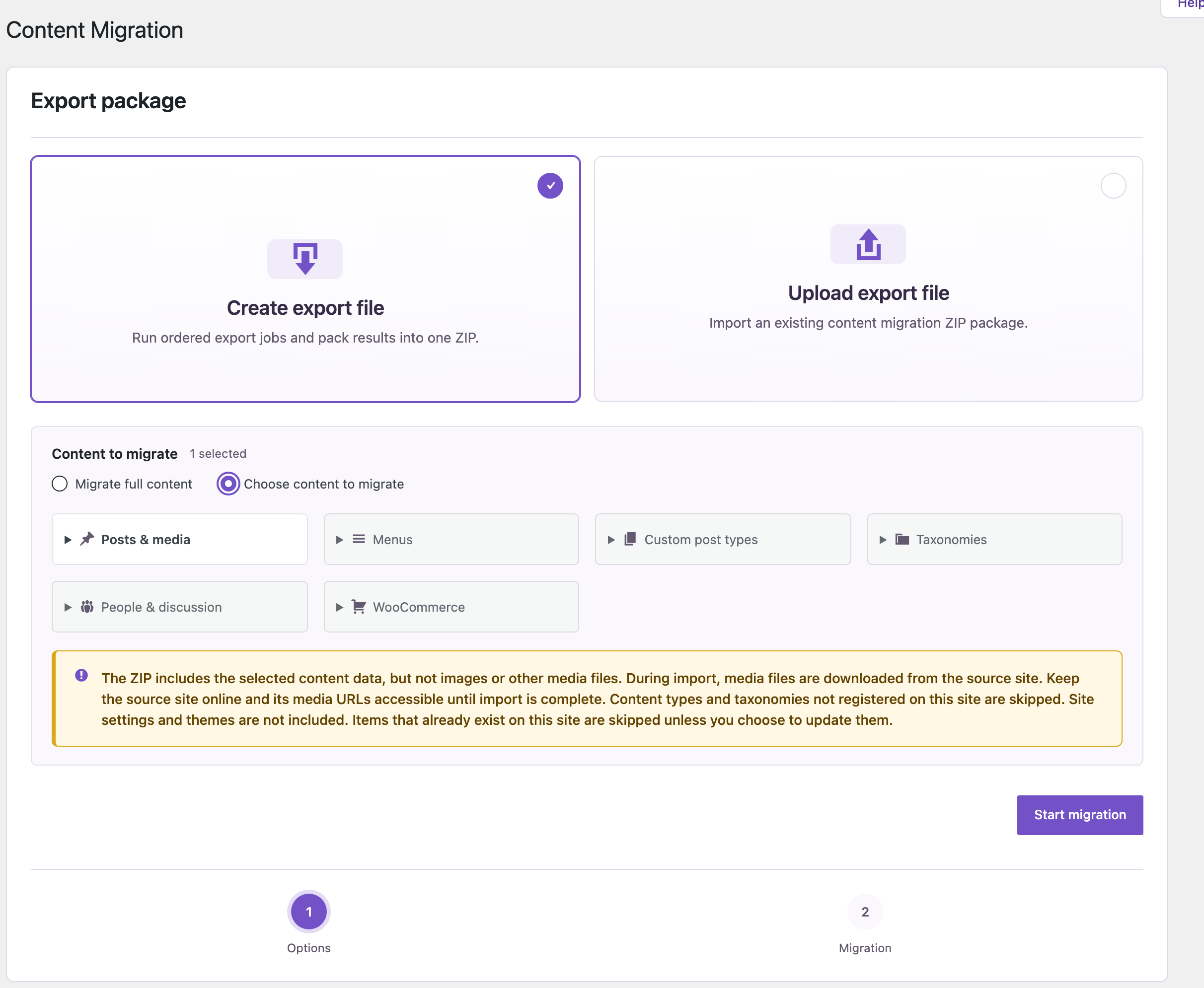
1. Create the package on staging. In Content Migration, choose Create export file, then Choose content to migrate, and select only Posts in the Posts & media group. The counter shows 1 selected:
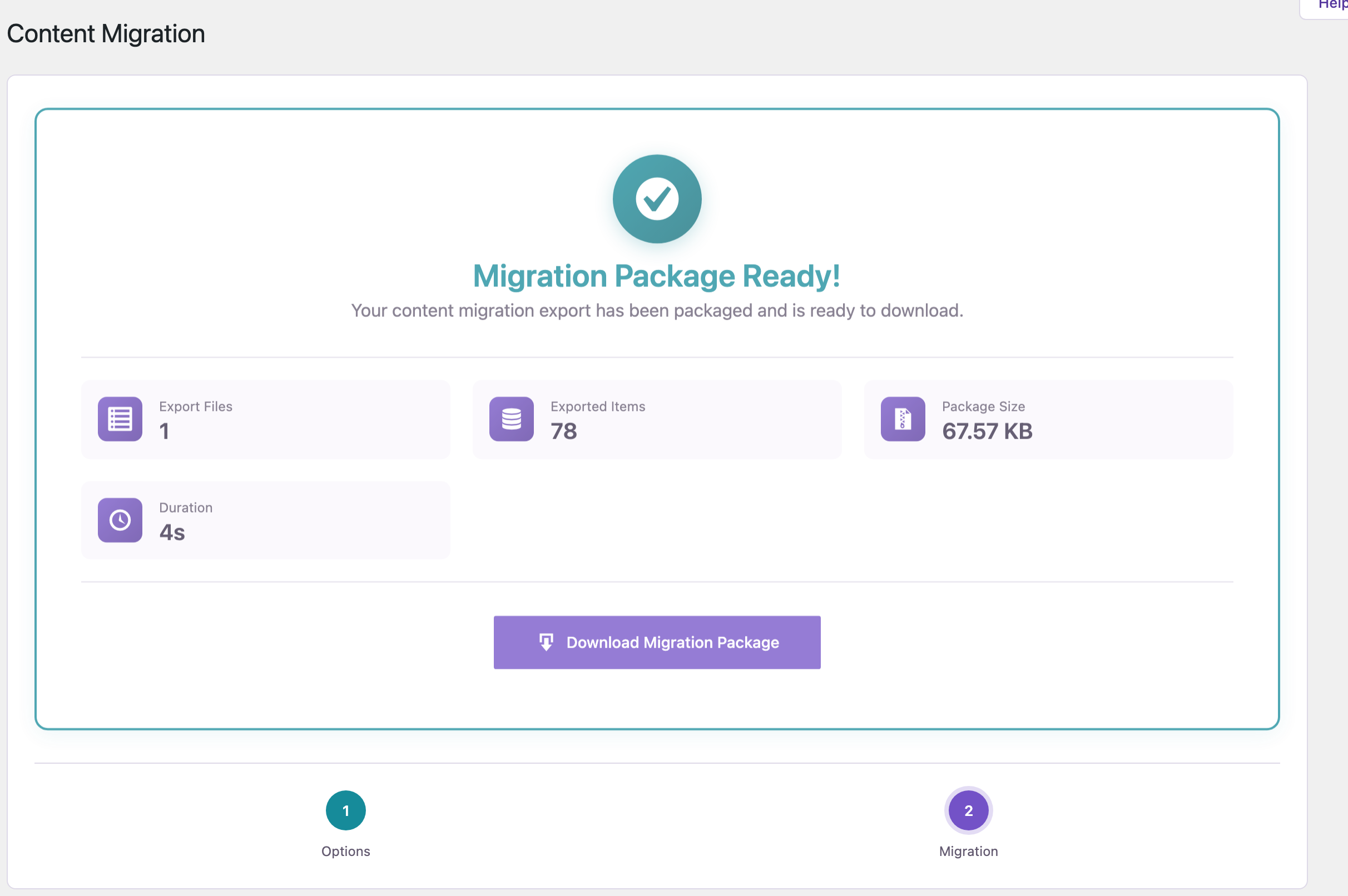
The package was ready in 4 seconds: 78 posts in a 67.57 KB ZIP. It contains the content data, not the image files and not settings, themes or plugins:
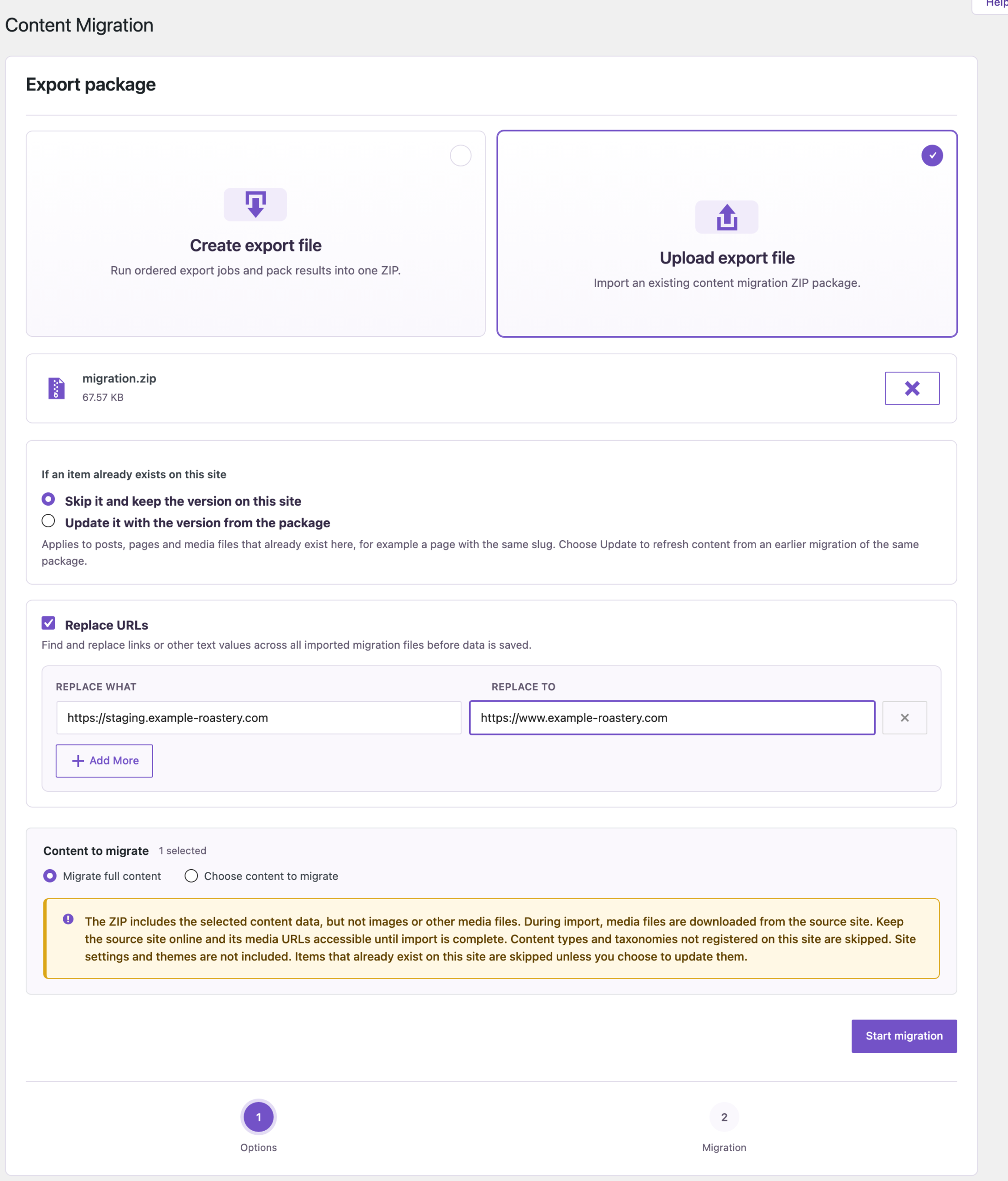
2. Import it on live. In Content Migration on the live site, choose Upload export file and select the ZIP. Keep If an item already exists on this site at Skip it and keep the version on this site, and use Replace URLs to change the staging address to the live address in links:
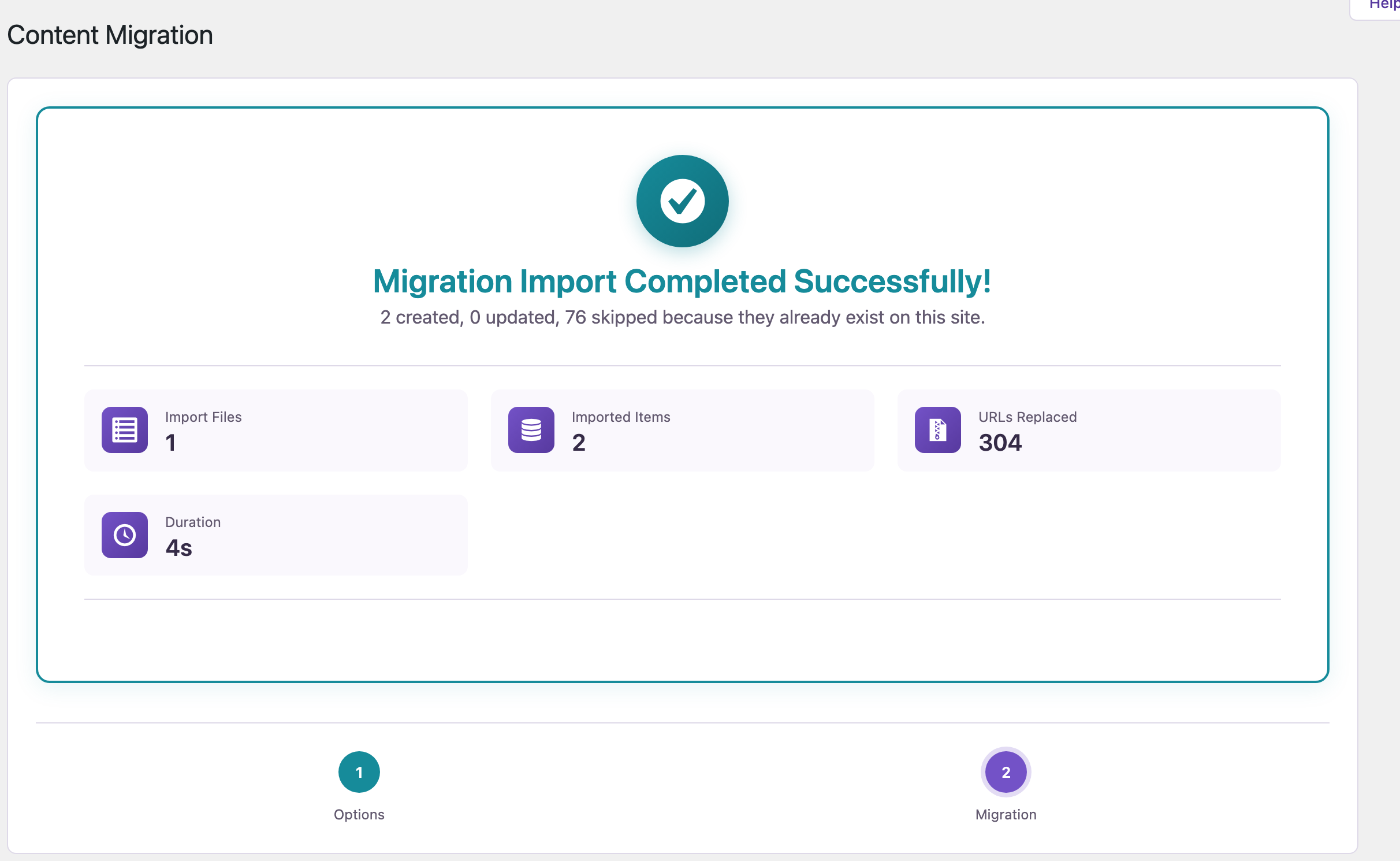
The import took 4 seconds: 2 created, 0 updated, 76 skipped because they already existed on live, and 304 URLs replaced:
After the import, the live site had 86 posts (84 + the 2 new ones), still 33 pages and 10 users, the same site title and the same active plugins. The new posts had their featured image: the image is downloaded from the source site during the import, and because the same file was already in the live Media Library, that file was used.
Only the posts you choose
The admin screen packs whole content types. To pack only some items, an AI agent connected through the WordPress MCP Adapter (see connecting Claude Code to WordPress) can pass the IDs:
Create a migration package with only the posts "Our Spring Menu Is Here" and "Meet Our New Head Roaster".In our run, the agent called rsl-ie/migration-start with the step post and selected_ids set to the two post IDs, and polled rsl-ie/migration-get until the job was completed. The ZIP was 1,630 bytes and its post file held exactly those two posts. You upload it on the other site the same way as above.
Which one to use
| Situation | Better fit |
|---|---|
| Move a whole site to a new host or domain | Full-site package (Duplicator) |
| Clone a site to start a new one from it | Full-site package (Duplicator) |
| Add new posts or pages from staging to a live site that has its own orders, comments or users | Content-only package or Content Sync |
| Bring the blog of an old site into a new site built with a different theme | Content-only package |
| Send the same page to several sites, again and again | Content Sync |
You can also use both: Duplicator for the full backup before a change, and a content-only package for the change itself.
Before you import
A content import still writes to the live site. Back up the site first, and keep the source site online until the import is done, because images are downloaded from it.
FAQ
Does the content package include images?
No. The ZIP holds the content data. Images are downloaded from the source site during the import, so it has to be online.
Will the import overwrite pages that already exist on the destination?
Not with the default setting: existing items are skipped. In our test 76 existing posts were skipped. Choose Update only if you want the package version to replace them.
Does it move plugins, themes or settings?
No. Site settings, themes and plugins are not included. For that, use a full-site tool such as Duplicator.
Related Guides
- How to Migrate Only Posts and Pages to a New WordPress Site
- LocalWP to Live Site: Push Content Without a Full Migration
- Content Sync vs Export/Import: Which One for Which Job
Get the free plugin on WordPress.org.

Comments 0
Have a question or a tip to share? Leave it below.