
ACF Repeater and Flexible Content fields are hard to move between sites by hand. Each row and each layout is stored as several separate values, and image sub-fields hold attachment IDs that are different on the other site. Content Sync in Import Export by RockStarLab pushes a post with these fields from staging to live, copies the images and points the image sub-fields to the copies. The example is a brew guide with a four-step repeater and two flexible content sections.
Free: Content Sync of posts and pages with ACF fields. ACF PRO is needed for the Repeater and Flexible Content field types themselves.
Short Answer
- Create the same ACF field group on both sites, with the same field names. Export it from ACF on staging and import it on live, or sync it with ACF’s JSON files.
- On staging, select the post in Posts, choose Sync Content in the bulk actions, pick the live site and click Push to Site.
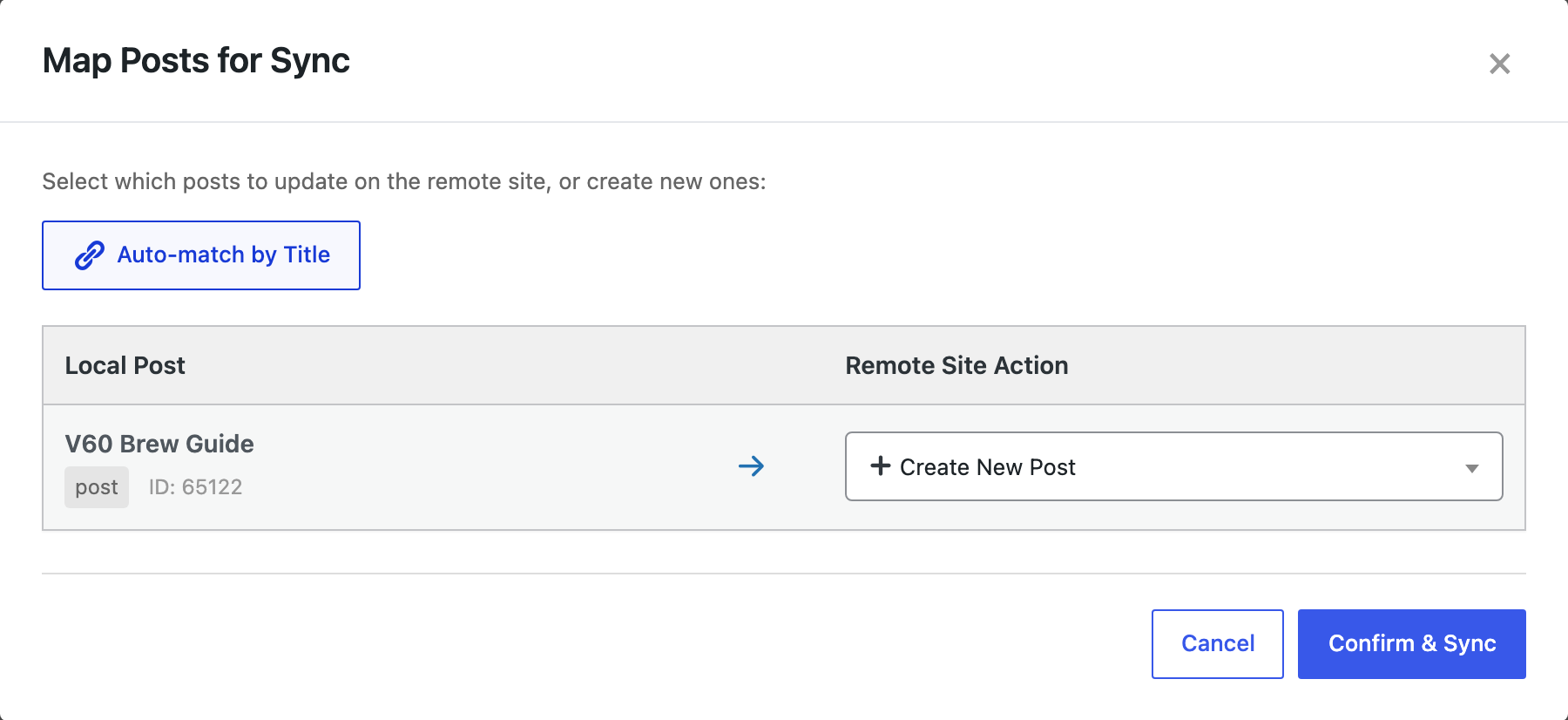
- Click Auto-match by Title: a new post is created, and an existing one with the same title is updated. Then click Confirm & Sync.
The test post
Our field group “Brew Guide” had two fields:
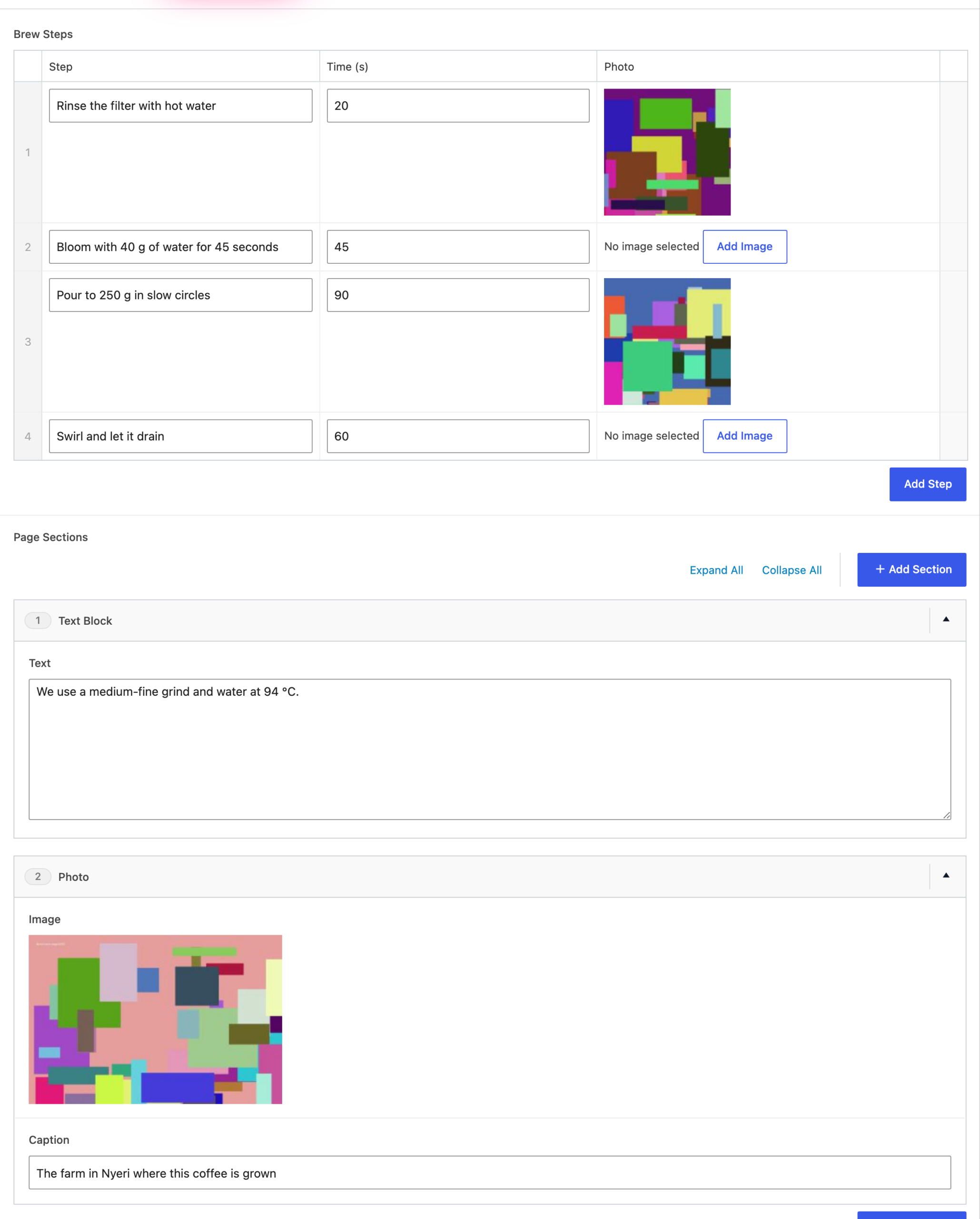
- Brew Steps, a Repeater with the sub-fields Step (text), Time (number) and Photo (image).
- Page Sections, a Flexible Content field with two layouts: Text Block (a text area) and Photo (an image and a caption).
On staging, the post “V60 Brew Guide” had three steps, two of them with a photo, and two sections. The three photos were uploaded only to staging, so live did not have them.
1. Push the post to live
We selected the post, chose Sync Content, picked the live site and clicked Push to Site. The post did not exist on live yet, so Auto-match by Title left it on Create New Post:
The push reported “Successfully pushed 1 post(s) to remote site”. On live, the post had the three steps and both sections. The three photos were copied into the live Media Library, and each image sub-field pointed to the copy: the first step’s photo, for example, had a different attachment ID on live, with the same file name.
2. Change the rows and push again
Then we edited the post on staging: the second step got a longer text, and a fourth step was added at the end:
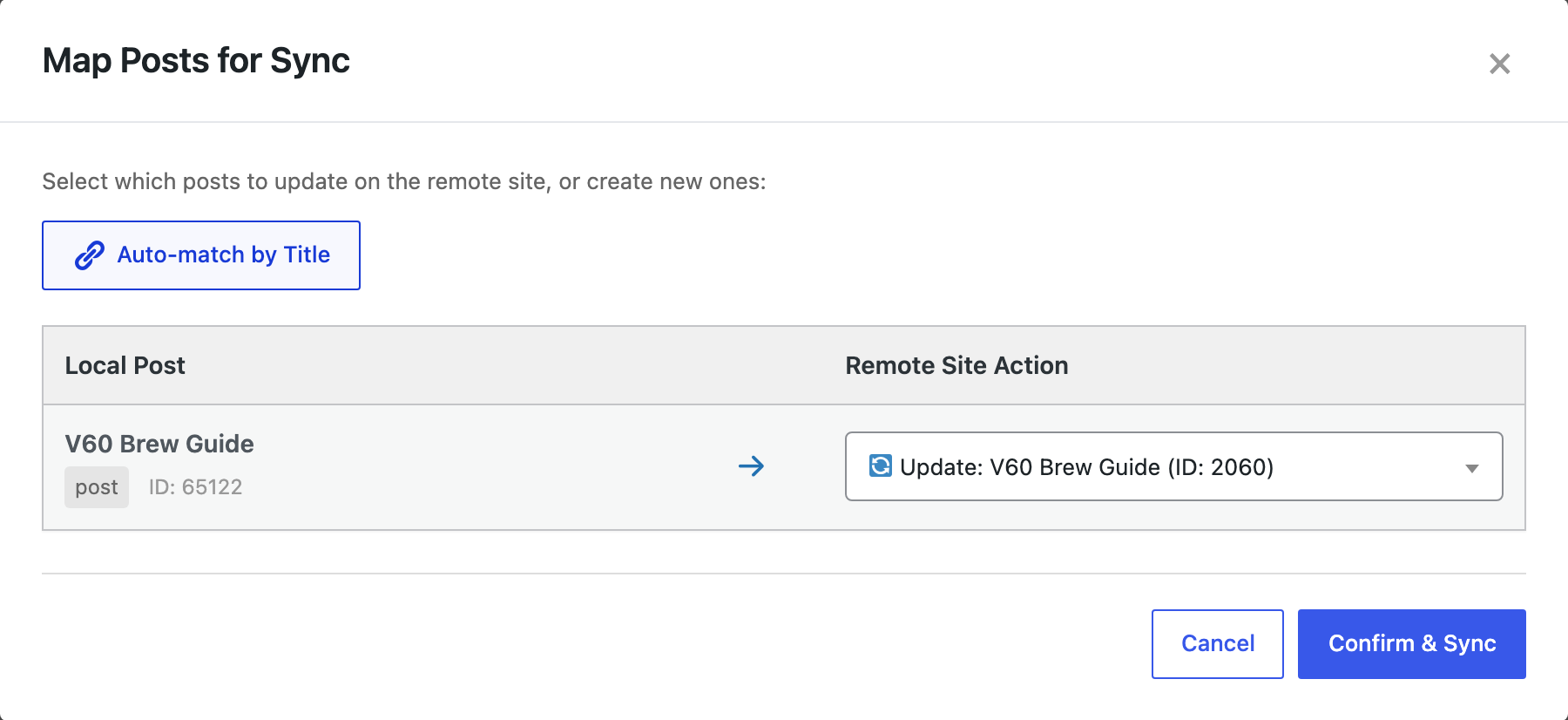
This time Auto-match by Title found the post on live and chose Update:
After the push, the live post had the same four steps, the changed text, the photos in the same rows and the two sections with the photo and its caption:
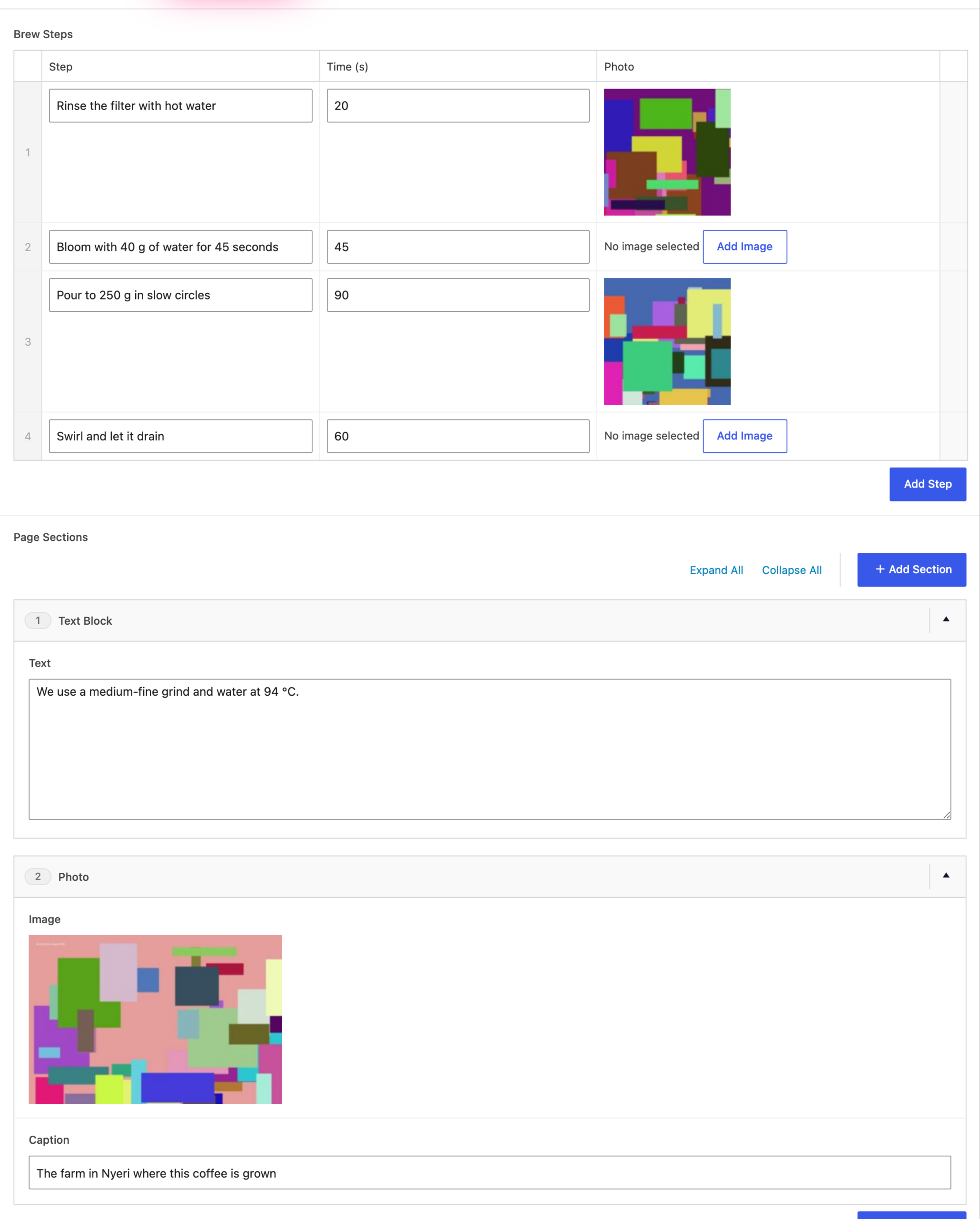
The photos were not copied a second time: live still had one copy of each, and the rows pointed to them.
What to check first
- Same field group on both sites. The values are stored under the field names, such as
brew_steps, so live needs a field group with the same names for the editor and your templates to show them. - ACF PRO on live. Repeater and Flexible Content are ACF PRO field types.
- Update, not Create New. When the post already exists on live, check that the mapping says Update; otherwise you get a second post.
Content Sync overwrites the post on live with the staging version. Back up the live site before you push many posts.
With an AI agent
An AI agent connected through the WordPress MCP Adapter (see connecting Claude Code to WordPress) can check the result on live:
Show the brew steps and sections of the V60 Brew Guide on the live site.In our run, the agent called rsl-ie/export-preview for post on the live site with the fields brew_steps, brew_steps_1_step_text, brew_steps_3_step_text, brew_steps_0_step_image and page_sections. It returned 4 rows, the texts “Bloom with 40 g of water for 45 seconds” and “Swirl and let it drain”, the URL of v60-rinse.jpg on the live site for the first photo, and the layouts text_block and photo.
FAQ
Are images in repeater rows copied to the other site?
Yes. In our test the three photos were copied to live and the image sub-fields pointed to the copies. A second push did not copy them again.
What happens when I add or change rows?
Push the post again with Update. In our test the live post got the changed text and the new fourth row, in the same order as on staging.
Do I need the field group on the live site?
Yes. Create the same field group with the same field names on both sites, so the editor and your templates can show the values.
Related Guides
- How to Sync Custom Post Types with ACF and Taxonomies Between Two WordPress Sites
- Syncing Featured Images and Media Between Sites: What Gets Copied and What Does Not
- Content Sync vs Export/Import: Which One for Which Job
Get the free plugin on WordPress.org.

Comments 0
Have a question or a tip to share? Leave it below.